Do you need a random sample of features in a Postgres table? Here is an example of how to select 1,000 random features from a table:
SELECT * FROM myTable
WHERE attribute = 'myValue'
ORDER BY random()
LIMIT 1000;
Do you need a random sample of features in a Postgres table? Here is an example of how to select 1,000 random features from a table:
SELECT * FROM myTable WHERE attribute = 'myValue' ORDER BY random() LIMIT 1000;
Please read the updated version for QGIS 2.8 and up!
The aim of this post is to describe a method for labeling of a subset of features within a layer using new labeling functionality.
Often, we want to label only a few features in a layer. Of course we can export those features to a new layer and label them that way, but that requires creation of additional files and layers within your project. Things will start to get messy fast.
Another approach is to delete unwanted label texts from the attribute table. This either means that you have to duplicate a “name” attribute and then start deleting from the newly created attribute table column or that you actually delete values in the original column. Both approaches are problematic. Either you produce redundancy that gets difficult to maintain (two attributes have to be updated if the name of a feature changes) or you loose information from the attribute table.
Let me present a different approach using new labeling tools. The idea is based on moving unwanted labels out of view. This approach avoids duplication of features and duplication/deletion of label texts. And this is the workflow:
If you change your mind about a feature and want to label it later on: Simply delete the values in “label_x” and “label_y” fields (so they read NULL).
This works quite well for me but I’m aware that it’s still not optimal. Another “data defined setting” like “show this label (true/false)” would be more intuitive.
Have you found better solutions to this problem? Please, post them!
Foreword (added 2015-04-11)
There are two main options to load .csv files into QGIS
The following post describes how to change the default behavior of “Add vector layer”.
If you load .csv files through “Add vector layer”, all columns are interpreted as strings. That’s most likely not what you want, but it’s OGR’s default behaviour:
The OGR CSV driver returns all attribute columns with a type of string if no field type information file (with .csvt extension) is available.
Let’s create a .csvt file then!
The .csvt file has to have the same name as the .csv file it describes. (The same concept is used for Shapefiles.) It enables definition of the following data types: Integer, Real, String, Date (YYYY-MM-DD), Time (HH:MM:SS+nn) and DateTime (YYYY-MM-DD HH:MM:SS+nn).
A .csvt file contains only one line and the types for each column have to be quoted and comma separated, e.g.
"Integer","Real","String"
You can even specify width and precision of each column, e.g.
"Integer(6)","Real(5.5)","String(22)"
Read more at: www.gdal.org/ogr/drv_csv.html
CAD Tools is a powerful plugin for QGIS that is intended to improve your digitizing workflow. While it has a lot to offer, the tools are not very self-explanatory – especially for people who are not used to the CAD way of doing things.
Luckily, there is a great learning resource out there. Stefan Ziegler explains the tools and shows their use in a series of screen casts that are easy to follow and reproduce. Enjoy!
We are pleased to announce the release of Time Manager version 0.3. New features include:

Time Manager user guide
Time Manager is available through QGIS Plugin repo. Give it a try!
WebGL Earth is an open source 3D globe that runs inside a web browser. It is based on WebGL which is currently supported by: Mozilla Firefox 4 Beta, Google Chrome 9+ and WebKit nightly. The project homepage is located at www.webglearth.com. For a quick preview, the developers have recorded this video:
There should be no data shortage when using WebGL Earth. It can use tiles from OSM, Bing, CloudMade, MapQuest and your own tiles from MapTiler, Mapnik, TileCache or GeoWebCache.
Table joins have been on our wish list for quite a while. After all, it is much nicer to add a join than to go through the process of creating a new shapefile with joined attribute table using “Join by Attributes”.
The time has come!
Users of QGIS trunk may have already noticed the new “Joins” tab in Layer Properties:
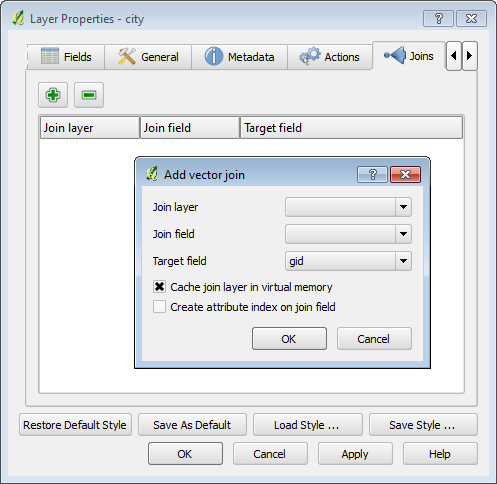
"Joins" tab and "Add vector join" dialog in QGIS 1.7
The join results in an extended attribute table. If there is no matching row in the joined table, the attributes will be set to NULL.
Site analyses can benefit greatly from using “drive-time” isochrones to define the study area. Drive time isochrones are often significantly different from simple buffer areas which disregard natural barriers such as rivers or slow roads.
Of course, creating drive time isochrones requires more input data and more compute-intensive algorithms than a simple buffer analysis. It is necessary to create a routable network graph with adequate weights to be used by the routing algorithm.
One of the most popular routing applications in the open source world is pgRouting for PostGIS enabled databases. I’ve already shown how to create drive time isochrones for one network node based on pgRouting and QGIS. Today, I’ll show how to create drive time isochrones for a set of points – in this case all airports in Finland.
The first step is to find the closest network node to every airport:
ALTER TABLE airport
   ADD COLUMN nearest_node integer;

CREATE TABLE temp AS
   SELECT a.gid, b.id, min(a.dist)
   FROM
     (SELECT airport.gid,
             min(distance(airport.the_geom, node.the_geom)) AS dist
      FROM airport, node
      GROUP BY airport.gid) AS a,
     (SELECT airport.gid, node.id,
             distance(airport.the_geom, node.the_geom) AS dist
      FROM airport, node) AS b
   WHERE a.dist = b. dist
         AND a.gid = b.gid
   GROUP BY a.gid, b.id;

UPDATE airport
SET nearest_node =
   (SELECT id
    FROM temp
    WHERE temp.gid = airport.gid);
Then, we can calculate drive times between network nodes and “airport nodes”. I am still looking for the most efficient way to perform this calculation. The trivial solution I used for this example was to calculate all drive time values separately for each airport node (as described in “Creating Catchment Areas with pgRouting and QGIS”).
I create the table with the first node:
CREATE TABLE catchment_airport AS
SELECT
    id,
    the_geom,
    (SELECT sum(cost) FROM (
	   SELECT * FROM shortest_path('
	   SELECT gid AS id,
		  start_id::int4 AS source,
		  end_id::int4 AS target,
		  traveltime::float8 AS cost
	   FROM network',
	   5657,
	   id,
	   false,
	   false)) AS foo ) AS cost
FROM node;
Every following node is done with an INSERT:
INSERT INTO catchment_airport (
SELECT
    id,
    the_geom,
    (SELECT sum(cost) FROM (
	   SELECT * FROM shortest_path('
	   SELECT gid AS id,
		  start_id::int4 AS source,
		  end_id::int4 AS target,
		  traveltime::float8 AS cost
	   FROM network',
	   123, -- put a new index here!
	   id,
	   false,
	   false)) AS foo ) AS cost
FROM node);
Afterwards, I combined the values to find the minimum drive time for each network node:
CREATE table catchment_airport_final AS
SELECT id, the_geom, min (cost) AS cost
FROM catchment_airport
GROUP By id, the_geom;
The resulting point layer was imported into QGIS. Using TIN interpolation (from Interpolation plugin), you can calculate a continuous cost surface. And Contour function (from GDALTools) finally yields drive time isochrones.

Drive time isochrones around airports in northern Finland - spatial data © National Land Survey of Finland 2011
Based on this analysis, it is possible to determine how many inhabitants live within one hour driving distance from an airport or how many people have to drive longer than e.g. ninety minutes to reach any airport.
Based on the network created in my last post, I’ll now describe how to calculate the catchment area of a network node.
We need both network and node table. The cost attribute in my network table is called traveltime. (I used different speed values based on road category to calculate traveltime for road segments.) The result will be a new table containing all nodes and an additional cost attribute. And this is the query that calculates the catchment area around node #5657:
create table catchment_5657 as
select
    id,
    the_geom,
    (select sum(cost) from (
	   SELECT * FROM shortest_path('
	   SELECT gid AS id,
		  start_id::int4 AS source,
		  end_id::int4 AS target,
		  traveltime::float8 AS cost
	   FROM network',
	   5657,
	   id,
	   false,
	   false)) as foo ) as cost
from node
Then, I loaded the point table into QGIS and calculated a TIN based on the cost attribute. With “Contour” from GdalTools, you can visualize equal-cost areas even better:
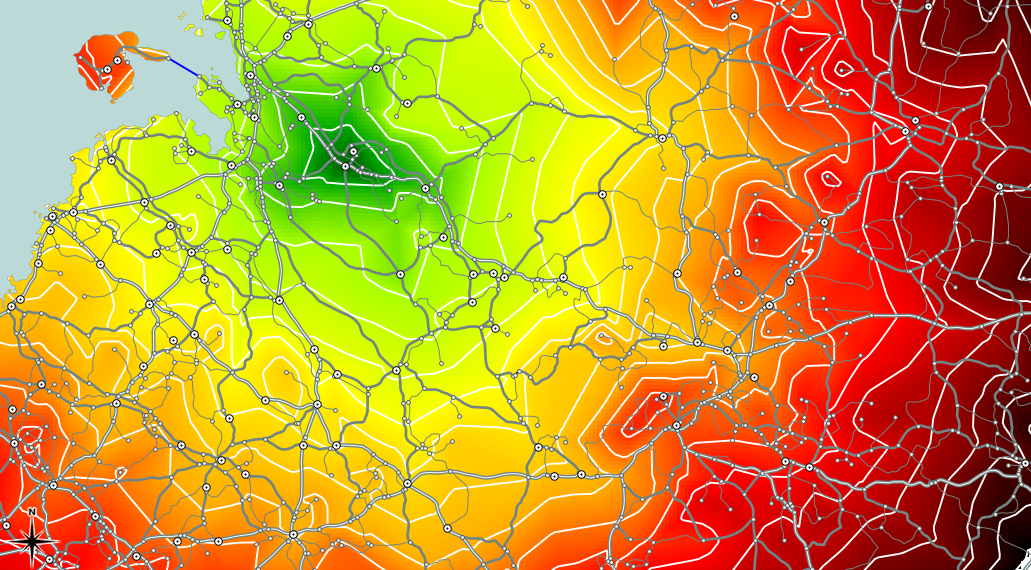
Catchment area around node #5657 with contour lines
Between contour lines, there is a difference of 10 minutes travel time.
If you are looking for a faster way to calculate small catchment areas (relative to the network size), check “Catchment Areas with pgRouting driving_distance().
Please read the new instructions for pgRouting 2.0.
The aim of this post is to describe the steps necessary to calculate routes with pgRouting. In the end, we’ll visualize the results in QGIS.
This guide assumes that you have the following installed and running:
pgRouting can be downloaded from www.pgrouting.org.
Building from source is covered by pgRouting documentation. If you’re using Windows, download the binaries and copy the .dlls into PostGIS’ lib folder, e.g. C:\Program Files (x86)\PostgreSQL\8.4\lib.
Start pgAdmin and create a new database based on your PostGIS template. (I called mine ‘routing_template’.) Open a Query dialog, load and execute the three .sql files located in your pgRouting download (routing_core.sql, routing_core_wrappers.sql, routing_topology.sql). Congratulations, you now have a pgRouting-enabled database.
The following description is based on the free road network published by National Land Survey of Finland (NLS) (Update January 2013: Sorry, this dataset has been removed). All you get is one Shapefile containing line geometries, a road type attribute and further attributes unrelated to routing.
First step is to load roads.shp into PostGIS. This is easy using PostGIS Manager – Data – Load Data from Shapefile.
pgRouting requires each road entry to have a start and an end node id. If your dataset already contains this information, you can skip this step. Otherwise we will create the node ids now. (Update: pgRouting also offers a special function called assign_vertex_id that will create start and end node ids for your network table. It will not create a node table though.)
Next, we create start and end point geometries. I used a view:
CREATE OR REPLACE VIEW road_ext AS
   SELECT *, startpoint(the_geom), endpoint(the_geom)
   FROM road;
Now, we create a table containing all the unique network nodes (start and end points) and we’ll also give them an id:
CREATE TABLE node AS
   SELECT row_number() OVER (ORDER BY foo.p)::integer AS id,
          foo.p AS the_geom
   FROM (
      SELECT DISTINCT road_ext.startpoint AS p FROM road_ext
      UNION
      SELECT DISTINCT road_ext.endpoint AS p FROM road_ext
   ) foo
   GROUP BY foo.p;
Finally, we can combine our road_ext view and node table to create the routable network table:
CREATE TABLE network AS
   SELECT a.*, b.id as start_id, c.id as end_id
   FROM road_ext AS a
      JOIN node AS b ON a.startpoint = b.the_geom
      JOIN node AS c ON a.endpoint = c.the_geom;
(This can take a while.)
I recommend adding a spatial index to the resulting table.
Let’s try pgRouting’s Shortest Path Dijkstra method. The following query returns the route from node #1 to node #5110:
SELECT * FROM shortest_path('
   SELECT gid AS id,
          start_id::int4 AS source,
          end_id::int4 AS target,
          shape_leng::float8 AS cost
   FROM network',
1,
5110,
false,
false);
With RT Sql Layer plugin, we can visualize the results of a query. The results will be loaded as a new layer. The query has to contain both geometry and a unique id. Therefore, we’ll join the results of the previous query with the network table containing the necessary geometries.
SELECT *
   FROM network
   JOIN
   (SELECT * FROM shortest_path('
      SELECT gid AS id,
          start_id::int4 AS source,
          end_id::int4 AS target,
          shape_leng::float8 AS cost
      FROM network',
      1,
      5110,
      false,
      false)) AS route
   ON
   network.gid = route.edge_id;
In my case, this is how the result looks like:

Route from node #1 to node #5110
For further pgRouting-related posts check my list of pgRouting posts.
 Free and Open Source GIS Ramblings