Archive

Author Archives: underdark

This post is a quick instruction for installing Postgres 9.2, PostGIS 2.0 and pgRouting 2.0.

  1. For Postgres, download the installer from enterprisedb.com.
  2. Run the installer. You’ll have to pick a superuser password – remember it, you’ll need it again soon.
  3. At the end of the installation process, allow the installer to start Stack Builder.
  4. In Stack Builder, select the Postgres 9.2 installation and install PostGIS from the list of available extensions.
  5. The PostGIS installation procedure will prompt you for the superuser password you picked before.
  6. I suggest letting the installer create a sample database We’ll need it later anyway.

Now for the pgRouting part:

  1. Download the pgRouting zip file for your system (32 or 64 bit) from Winnie.
  2. Unzip the file. It contains bin, lib and share folders as well as two text files.
  3. Copy these folders and files over to your Postgres installation. In my case C:\Program Files\PostgreSQL\9.2

Installation – done.

Next, fire up pgAdmin. If you allowed the PostGIS installer to create a sample database, you will find it named postgis20 or similar. Otherwise just create a new database using the PostGIS template database. You can enable pgRouting in a database using the following steps:

  1. In postgis20, execute the following query to create the pgrouting extension. This will add the pgRouting-specific functions:
    CREATE EXTENSION pgrouting;
  2. Test if everything worked fine:
    SELECT pgr_version();

    It should return "(2.0.0-dev,v2.0.0-beta,18,a3be38b,develop,1.46.1)" or similar – depending on the version you downloaded.

pgadmin_pgrouting

How about some test data? I’ll be using the public transport network of the city of Vienna provided in GeoJSON format from http://data.wien.gv.at/daten/geo?service=WFS&request=GetFeature&version=1.1.0&typeName=ogdwien:OEFFLINIENOGD&srsName=EPSG:4326&outputFormat=json:

    1. Just copy paste the url in Add Vector Layer | Protocol to load the dataset.
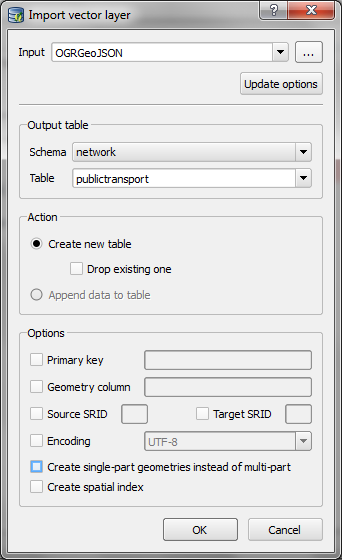
    2. Use DB Manager to load the layer into your database. (As you can see in the screenshot, I created a schema called network but that’s optional.)

import_publictransport

  1. To make the line vector table routable, we use pgr_createTopology. This function assumes the columsn called “source” and “target” exist so we have to create those as well:
    alter table network.publictransport add column source integer;
    alter table network.publictransport add column target integer;
    select pgr_createTopology('network.publictransport', 0.0001, 'geom', 'id');
    

    I’m quite generously using a tolerance of 0.0001 degrees to build the topology. Depending on your dataset, you might want to be more strict here.

  2. Let’s test it! Route from source #1 to target #3000 using pgr_dijkstra:
    SELECT seq, id1 AS node, id2 AS edge, cost, geom
      FROM pgr_dijkstra(
        'SELECT id, source, target, st_length(geom) as cost FROM network.publictransport',
        1, 3000, false, false
      ) as di
      JOIN network.publictransport pt
      ON di.id2 = pt.id ;

    Note how the query joins the routing results and the network table together. (I’m aware that using the link length as a cost attribute will not lead to realistic results in a public transport network but bear with me for this example.)

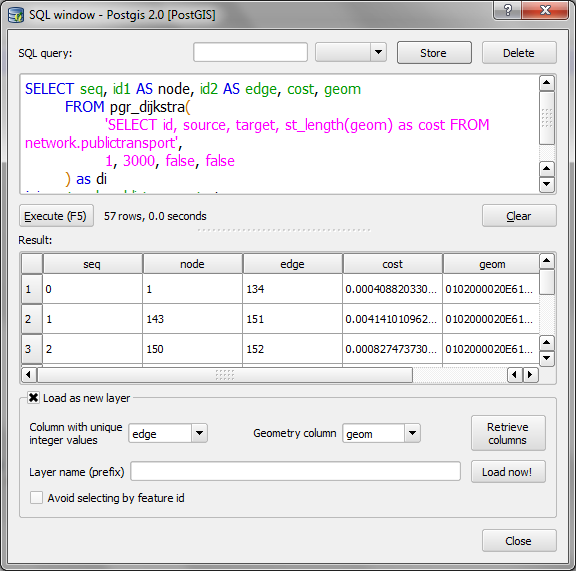
  3. We can immediately see the routing results using the Load as new layer option:

select_dijkstra
route

Nice work! pgRouting 2.0 has come a long way. In a post from April this year, Boston GIS even announced to add pgRouting into the Stack Builder. That’s going to make the installation even more smooth.

As mentioned in my previous post, all plugins need an update to function in QGIS master – soon to be 2.0. The OpenLayers plugin is one of the most popular plugins but so far has not been updated by the developer. If you miss it, you can get a fixed version from qgis.nl Temporary Fix for OpenLayers Plugin thanks to Richard!

openlayers

As I’m sure you have already heard, QGIS 2.0 will come with a new Python API including many improvements and a generally more pythonic way of doing things. But of course that comes with a price: Old plugins (pre 2.0) won’t work anymore unless they are updated to the new version. Therefore all plugin developers are encouraged to take the time and update their plugins. An overview of changes and howto for updates is available on the QGIS wiki.

TimeManager for QGIS 2.0 will be available from day 1 of the new release. I’ve tested the usual work flows but don’t hesitate to let me know if you find any problems. The whole update process took two to three hours … sooo many signals to update … but all in all, it was far less painful than expected, thanks to everyone who contributed to the wiki update instructions!

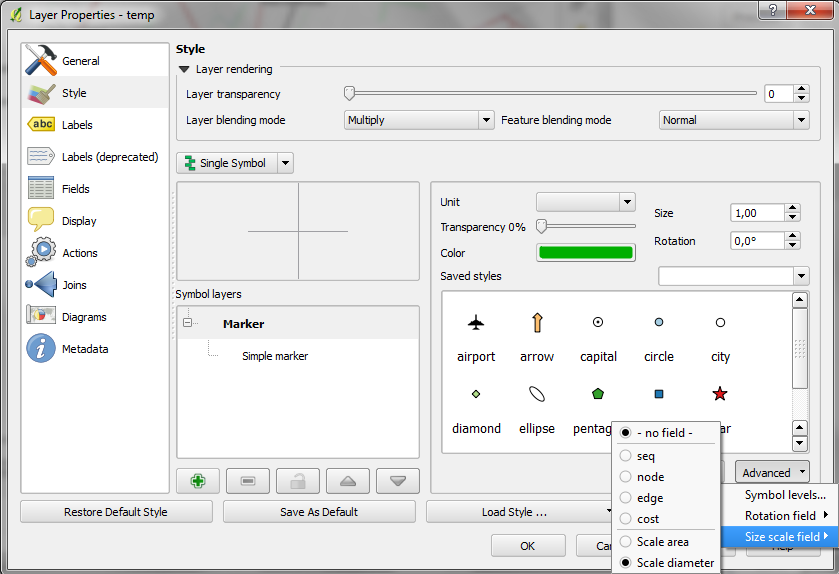
In QGIS 2.0, the old “size scale” field has been replaced by data-defined properties which enable us to control many more properties than jut size and rotation. One of the often requested features – for example – is the possibility for data-defined colors:

datadefinedproperties

Today’s example map visualizes a dataset of known meteorite landings published on http://visualizing.org/datasets/meteorite-landings. I didn’t clean the data, so there is quite a bunch of meteorites at 0/0.

To create the map, I used QGIS 2.0 feature blending mode “multiply” as well as data-defined size based on meteorite mass:

meteorites1

Background oceans and graticule by NaturalEarthData.

Today, I updated my QGIS Time Manager plugin to version 0.8. It now works with QGIS master and that means that we can take advantage of all the cool new features in our animations. The following quick example uses the “multiply” blend mode with the tweet sample data which is provided by default when you install the plugin:

(The video here is a little small. Watch it on Youtube to see the details.)

The excitement about the upcoming 2.0 release is growing and to add some fuel to the fires, Mathieu founded the QGIS Flickr Group. Anyone can join and add their maps done with QGIS master.

I’m looking forward to seeing what you have come up with. Please note that this group is meant for maps only (therefore no screenshots of the application please).

Sextante is quickly becoming the goto geoprocessing toolbox for me. I’ve been working with Sextante 1.0.8 on QGIS 1.8 and lately I’ve started looking into Sextante 1.1 for QGIS 2. This post highlights some of the main differences between the two versions. I’m sure there are many more hidden gems I have not discovered so far.

One thing you will notice if you have used previous versions of Sextante is that the new version comes with a simplified interface which groups tools into three categories: geoalgorithms, models, and scripts. If you prefer the old style grouping by algorithm source such as GDAL, GRASS, etc. you can switch to the Advanced interface.

Let’s start with the bad news: Models created in 1.0.8 are not compatible with 1.1 since many of the algorithms have been rearranged in new categories and Sextante cannot find them by their old names anymore, e.g.

1.0.8 … ALGORITHM:ftools:fixeddistancebuffer
1.1 … ALGORITHM:qgis:fixeddistancebuffer

The great news is that the modeler has been improved greatly. Model representations now show the flow of input and output data through the model steps much more clearly:

Sextante 1.0.8 Modeler

Sextante 1.0.8 modeler

Sextante 1.1 Modeler

Sextante 1.1 modeler

I also found the new modeler much more stable – no crashes so far. *fingerscrossed*

Another nice new feature is Sextante commander which can be started using the shortcut Ctrl+Alt+M. It’s a quick launch solution for all Sextante algorithms:

sextante_commander

At FOSS4G, I’ll be presenting some work I did evaluation OSM using Sextante 1.0.8. I’d love to hear how you are using Sextante.

Today’s post: More print composer overview magic!

Inverted Map Overviews

Thanks to the “Invert overview” option, we can now chose between highlighting the detail area (left example in the image) or blocking out the surrounding area (right example).

printcomposer_overviews

The “Lock layers for map item” option can come in very handy if you want to reduce the number of layers in the overview map while still keeping all layers of interest in the main map.

Advanced Python field calculator is one of the numerous tools in Sextante for QGIS. It’s extremely powerful but it doesn’t use the syntax of QGIS’ default field calculator (the one you can access via attribute table). Therefore, here comes a short introduction:

If you want to reproduce this example, I used a dataset of town areas from the new open government data site of Lower Austria.

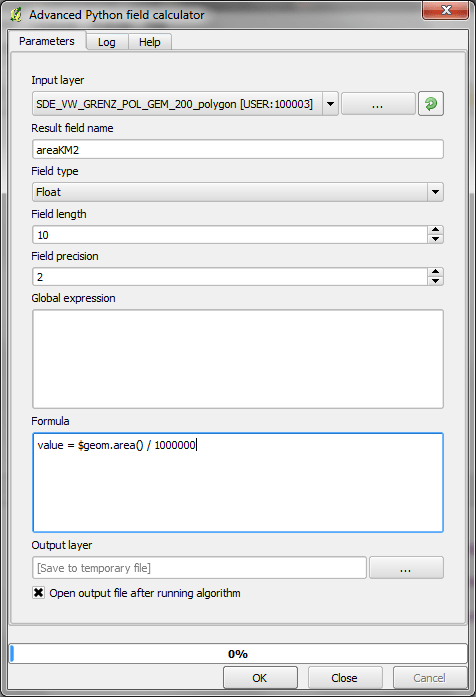
The upper half of the Advanced Python field calculator is rather self-explanatory but the lower half is where it gets interesting: Code in the global expression section will be executed only once before the calculator starts iterating through all the features of the input layer. Therefore, this is the correct place to import necessary modules or to calculate variables that will be used in subsequent calculations. Code in the formula section will be evaluated for each feature in the input layer. As shown in the following example, this is where we can calculate new values, e.g. the area of the polygons in km²:

sextante_pythonfieldcalc_area

As you can see, the feature geometry can be accessed using $geom.

If you want to access an existing attribute, that’s possible using <attribute_name>.

Anyway, this is the resulting layer’s attribute table including the new areaKM2 field:

sextante_pythonfieldcalc_area_results

Thanks to Victor for pointing me to the documentation of FieldPyculator which Advanced Python field calculator is based on.

The latest version of Print composer features new

Rulers and guide lines or “alignments”

Rulers are a well-known feature in graphics programs such as Gimp and Photoshop. Now you can also find them in QGIS Print Composer. Click onto the ruler, hold the mouse key down and move the cursor to position guide lines for map feature alignment.

printcomposer_grid

Of course, there’s also the handy “Snap to grid” functionality.