Stand-alone PyQGIS scripts with OSGeo4W
PyQGIS scripts are great to automate spatial processing workflows. It’s easy to run these scripts inside QGIS but it can be even more convenient to run PyQGIS scripts without even having to launch QGIS. To create a so-called “stand-alone” PyQGIS script, there are a few things that need to be taken care of. The following steps show how to set up PyCharm for stand-alone PyQGIS development on Windows10 with OSGeo4W.
An essential first step is to ensure that all environment variables are set correctly. The most reliable approach is to go to C:\OSGeo4W64\bin (or wherever OSGeo4W is installed on your machine), make a copy of qgis-dev-g7.bat (or any other QGIS version that you have installed) and rename it to pycharm.bat:
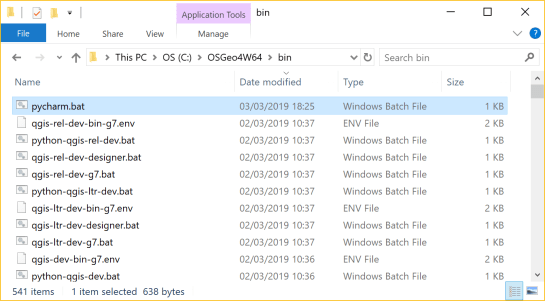
Instead of launching QGIS, we want that pycharm.bat launches PyCharm. Therefore, we edit the final line in the .bat file to start pycharm64.exe:

In PyCharm itself, the main task to finish our setup is configuring the project interpreter:

First, we add a new “system interpreter” for Python 3.7 using the corresponding OSGeo4W Python installation.

To finish the interpreter config, we need to add two additional paths pointing to QGIS\python and QGIS\python\plugins:

That’s it! Now we can start developing our stand-alone PyQGIS script.
The following example shows the necessary steps, particularly:
- Initializing QGIS
- Initializing Processing
- Running a Processing algorithm
import sys

from qgis.core import QgsApplication, QgsProcessingFeedback
from qgis.analysis import QgsNativeAlgorithms

QgsApplication.setPrefixPath(r'C:\OSGeo4W64\apps\qgis-dev', True)
qgs = QgsApplication([], False)
qgs.initQgis()

# Add the path to processing so we can import it next
sys.path.append(r'C:\OSGeo4W64\apps\qgis-dev\python\plugins')
# Imports usually should be at the top of a script but this unconventional
# order is necessary here because QGIS has to be initialized first
import processing
from processing.core.Processing import Processing

Processing.initialize()
QgsApplication.processingRegistry().addProvider(QgsNativeAlgorithms())
feedback = QgsProcessingFeedback()

rivers = r'D:\Documents\Geodata\NaturalEarthData\Natural_Earth_quick_start\10m_physical\ne_10m_rivers_lake_centerlines.shp'
output = r'D:\Documents\Geodata\temp\danube3.shp'
expression = "name LIKE '%Danube%'"

danube = processing.run(
    'native:extractbyexpression',
    {'INPUT': rivers, 'EXPRESSION': expression, 'OUTPUT': output},
    feedback=feedback
    )['OUTPUT']

print(danube)


Hi Anita,
Great tutorial for setting Pycharm as a pyqgis IDE.
Just a remark:
I had to comment out the third line in the bat file (concerning grass) to get it to work.
When you open the env.bat you will see that it set python 2.7 as PYTHONHOME.
By the way I just want you to know that I love your tutorials.
Keep up the great work ;-)
Regards,
It seems that this approach does not work with PyCharm 2019.1.1.
I can “import qgis.core” without problems after starting the script and python from a window CMD.exe shell. However, this is not possible after starting Pycharm from the same environmental settings, as calling “import qgis.core” in the PyCharm Python Console throws an “ImportError: DLL load failed”.
I checked how PyCharm changes the environmental settings compared to the python that was stared from the CMD shell, but with exception of some PyCharm specific addons the relevant paths (QT_PLUGINPATH, PYTHONPATH, PATH) are the same.
Do you have any idea what could cause this error?
This is hard to remote debug without more details. May I suggest to open a thread on http://gis.stackexchange.com and please include as much detail as possible about your setup.
Thanks for your reply. It looks like https://gis.stackexchange.com/questions/317332/pycharm-2019-is-not-working-with-qgis-anymore describes my problem. I’ll now re-install my PyCharm (Pro) and give additional comments to that post (if any).
Does anyone know how to set this up on a Mac? Currently trying to develop a plugin for QGIS on my Mac and running into an error of “name ‘QtWidget’ is not defined”. Not sure if it’s related to the initial set up of QGIS or if it’s due to some other problem.
I am able to get this working in QGIS console and PyCharm, but I cannot figure out why I’m only getting an empty shapefile when running this in cmd with the same environment variables set up. Any ideas?
Not sure, have you tried in the OSGeo Shell?
Yes. Same result. Empty shapefile.
However, I think I found the hangup.
I changed: set QGIS_PREFIX_PATH=%OSGEO4W_ROOT:\=/%apps/qgis
to: set QGIS_PREFIX_PATH=%OSGEO4W_ROOT%\apps\qgis
I suspect this has something to do with where our scripts were saved or something(?), but I have good results now. It’s the little things that cause so much headache.
Thanks for this series!
Hello,
My name is Thao. Recently, I am trying to work with standalone PuQgis, but I got some problem with it.
My problem as follow:
I have a QGIS project with layers were imported from cad and I am trying to use standalone PyQgis to rewrite this project and a new csv layer to it. But when I try to rewrite the project I get all layer show up in layer browser but nothing show up in map browser.
Here is my code. Could you please give me some advices to fix it? Thank you!
I am using Python 37, OSGeo4W, Visual Studio Code , and Windows 10
import sys
import os
sys.path.extend([r’C:\OSGeo4W64\apps\qgis\python’,r’C:\OSGeo4W64\apps\Python37\lib\site-packages’])
os.environ[‘QT_QPA_PLATFORM_PLUGIN_PATH’] = r’C:\OSGeo4W64\apps\Qt5\plugins’
os.environ[‘PATH’] += r’;C:\OSGeo4W64\apps\qgis\bin;C:\OSGeo4W64\apps\Qt5\bin’
sys.path.append(r’C:\OSGeo4W64\apps\qgis\python’)
sys.path.append(r’C:\OSGeo4W64\apps\qgis\python\plugins’)
sys.path.append(r’C:\OSGeo4W64\apps\qgis\python\plugins\processing’)
from qgis.core import *
from qgis.gui import *
from qgis.utils import *
from PyQt5.QtCore import *
from PyQt5.QtGui import *
from PyQt5.QtXml import *
def read_project():
QgsApplication.setPrefixPath(r’C:\OSGeo4W64\apps\qgis’, True)
qgs=QgsApplication([], False)
QgsApplication.initQgis()
project=QgsProject.instance()
project.read(r’D:\NTOU\REALTIMEMODEL\COMBINEDMETHOD\test_1.qgz’)
#print(project.fileName())
project.write(r’D:\NTOU\REALTIMEMODEL\COMBINEDMETHOD\test_4.qgz’)
layers=QgsProject.instance().mapLayers()
print(layers)
QgsApplication.exitQgis()
read_project()
Debugging scripts like this goes beyond what can reasonably be discussed in blog post comments. Please use GIS.stackexchange.com for such questions.
Thank you and sorry about that.
I followed your guide step by step, and actually can see the qgis function. But when i try to run anything i get this error:
Traceback (most recent call last):
File “C:/Users/Adi Portal/PycharmProjects/War_Management_Project/qgis_test.py”, line 2, in
from qgis.core import *
File “C:\OSGeo4W64\apps\qgis\python\qgis\__init__.py”, line 78, in
import qgis.gui
File “C:\OSGeo4W64\apps\qgis\python\qgis\gui\__init__.py”, line 25, in
from qgis._gui import *
ValueError: PyCapsule_GetPointer called with incorrect name
any ideas?