Archive

Author Archives: underdark

I’m very pleased to announce that Packt Publishing is organizing a giveaway contest for Learning QGIS 2.0. All you need to do is comment below the post and win a free copy of Learning QGIS 2.0. Read on for more details.

7488OS_cov

Amongst other topics, Learning QGIS 2.0 covers:

  • Loading and visualizing vector and raster data
  • Creating and editing spatial data and performing spatial analysis
  • Designing great maps and printing them

How to Enter?

Simply post your expectations for this book in comments section below and you could be one of the lucky participants to win a copy.

DeadLine: The contest will close in 7 days on December, 12th 2013. Winners will be contacted by email, so be sure to use your real email address when you comment!

Please note: Winners residing in the USA and Europe will receive print copies. Others will be provided with eBook copies.

Processing has received a series of updates since the release of QGIS 2.0. (I’m currently running 2.0-20131120) One great addition I want to highlight today is the improved script editor and the help file editor.

Script editor

The improved script editor features a toolbar with commonly used tools such as undo and redo, cut, copy and paste, save and save as …, as well as very useful run algorithm and edit script help buttons. It also shows the script line numbers which makes it easier to work with while debugging code.

processing_script_editor

The model editor has a similar toolbar now which allows to export the model representation as an image, run the model or edit the model help.

Help editor

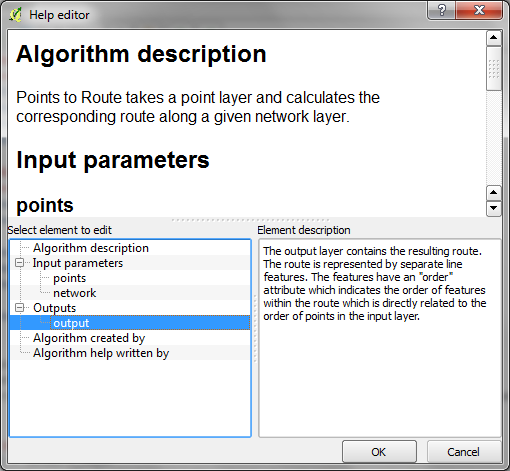
When you press the edit script help button, you get access to the new help editor. It’s easy to use: On the top, it displays the current content of the help file. On the bottom-left, it lists the different sections of the help file which can be filled with information. In the input parameters and outputs section, the help editor automatically lists the all parameters specified in the script code. Finally, in the bottom-right, you can enter the description. The resulting help file is saved in the same location as the original script under the name <scriptname>.py.help.

processing_help_editor

It has been a real pleasure to chat with Caitlin Dempsey at GIS Lounge about open source GIS and how I got hooked on QGIS.

In related news: It’s great to see the many great and creative contributions to the QGIS Map Showcase on Flickr! If you have some maps you are proud of, please share them with the community. If you would like to see your image reused on the QGIS website or in other QGIS marketing material, please choose an appropriate license for your image.

I’ve also started to work on a new Processing script that identifies similar line features. It currently uses a length comparison and the Hausdorff distance between two line features to calculate the similarity value, but more on that in a future post!

Did you know that there is a network analysis library in QGIS core? It’s well hidden so far, but at least it’s documented in the PyQGIS Cookbook. The code samples from the cookbook can be used in the QGIS Python console and you can play around to get a grip of what the different steps are doing.

As a first exercise, I’ve decided to write a Processing script which will use the network analysis library to create a network-based route layer from a point layer input. You can find the result on Github.

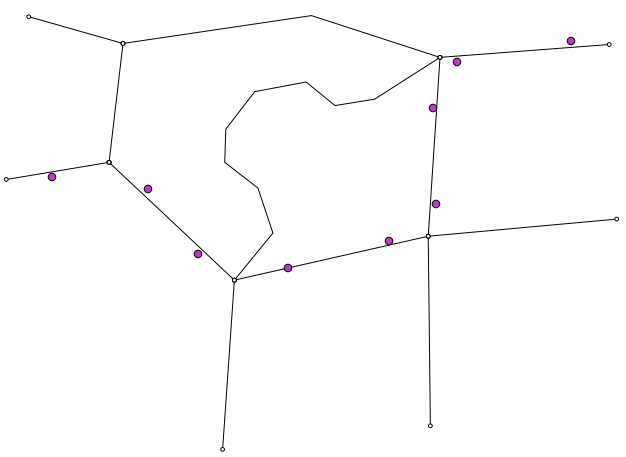
You can get a Spatialite file with testdata from Github as well. It contains a network and a routepoints1 layer:

points_to_route1

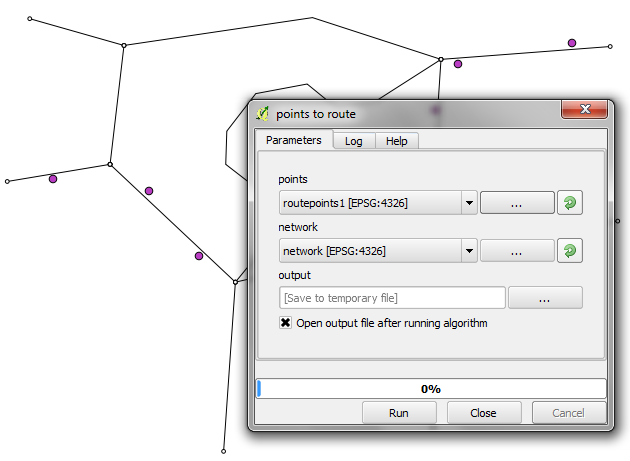
The interface of the points_to_route tool is very simple. All it needs as an input is information about which layer should be used as a network and which layer contains the route points:

points_to_route0

The input points are considered to be ordered. The tool always routes between consecutive points.

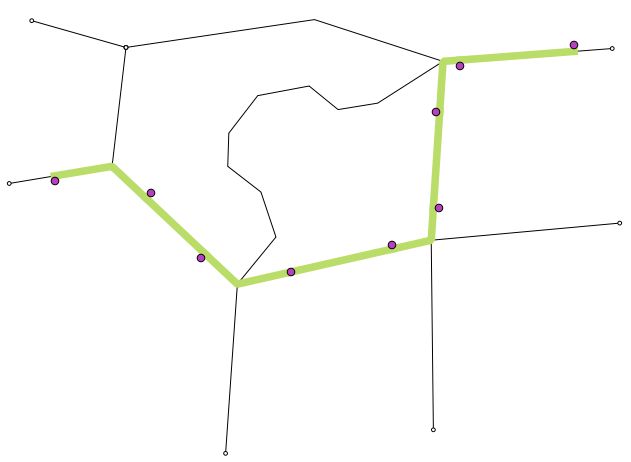
The result is a line layer with one line feature for each point pair:

points_to_route2

The network analysis library is a really great new feature and I hope we will see a lot of tools built on top of it.

Today, I want to take the opportunity to thank everyone who made my first book “Learning QGIS 2.0” possible.

A big thanks goes to Werner Macho and Nathan Woodrow who took it on them to review the text and provided valuable feedback. I would also like to thank my publisher who had to be as patient as the rest of us while waiting for the 2.0 release. I’m also very thankful for all the encouragement from my friends and family who kept me going.

And of course I also want to thank everyone for making quite a buzz on the different social media channels and for the great feedback I’ve received so far! I hope you find it useful.

Update: I’ve revisited this comparison for QGIS 3 in Revisiting point & polygon joins

Joining polygon attributes to points is a pretty common geoprocessing step. There are multiple ways to solve the problem in QGIS, so I thought I’d have a look at how they perform. There is Join attributes by location in the Vector menu and Add polygon attributes to points in the Processing toolbox.

My test data: Two shapefiles with 18,713 points and 17,397 irregular polygons.

(Some system specs: 1.3GHz dualcore with 4GB RAM)

And here are the results:

SAGA Add polygon attributes to points: 44 seconds
Vector | Data management tools | Join attributes by location: killed after 16 hours

This point clearly goes to Processing and the SAGA algorithm it provides access to. Join attributes by location offers some nice options for aggregating data but it just can’t cope with the number of features in this test.

To measure execution time (in a very unscientific way), I just ran the tool from the python console using:

import datetime
import processing
print datetime.datetime.now()
processing.runalg("saga:addpolygonattributestopoints","C:/Users/Anita/poi_wien.shp","C:/Users/Anita/REALNUT2009OGD.shp","NUTZUNG_CO",None)
print datetime.datetime.now()

Some notes of caution:
SAGA comes readily installed in OSGeo4W. As far as I know, the stand-alone installer for Windows currently does not include SAGA but it can be installed manually. On Ubuntu, the standard repos only contain SAGA 2.0.8 but 2.1 is required.

Great shot! – photo by Kenneth Field

FOSS4G 2013 in Nottingham is history. It was my first FOSS4G and a great event. Meeting so many people for the first time in person is really exciting. I had the great chance to present some of the work I did at AIT on comparing street networks. If you couldn’t make it to the conference or missed my talk, here’s the chance to hear it again:


(Tip: You’ll find many more FOSS4G presentations on Youtube.)

Slides and the paper are listed on my publications page. If you are interested in the code, you can find it on Github.

So far, I couldn’t find Tim Sutton’s QGIS keynote video on Youtube. Maybe it will be uploaded later. In the meantime, you can enjoy his slides.

Of course, you already know that the release of QGIS 2.0 was also announced at FOSS4G. In case you haven’t seen the great list of new features yet, have a look at the visual changelog.

Map Gallery – photo by Kenneth Field

The results of the FOSS4G 2013 map contest have also been published now. Thanks to everyone who voted for my entry “FLEET Taxi Tracking” which made it to Runner-up: Best Anti-map Map!

Yesterday, I received an interesting QGIS question:

is there a way to make road label font size depending on road lenght (with osm layer)?
Indeed, it could be interresting to see all roads, even the smallest, on a city map rendering.

Thanks to the data-defined labeling capabilities of the new QGIS version, we can!

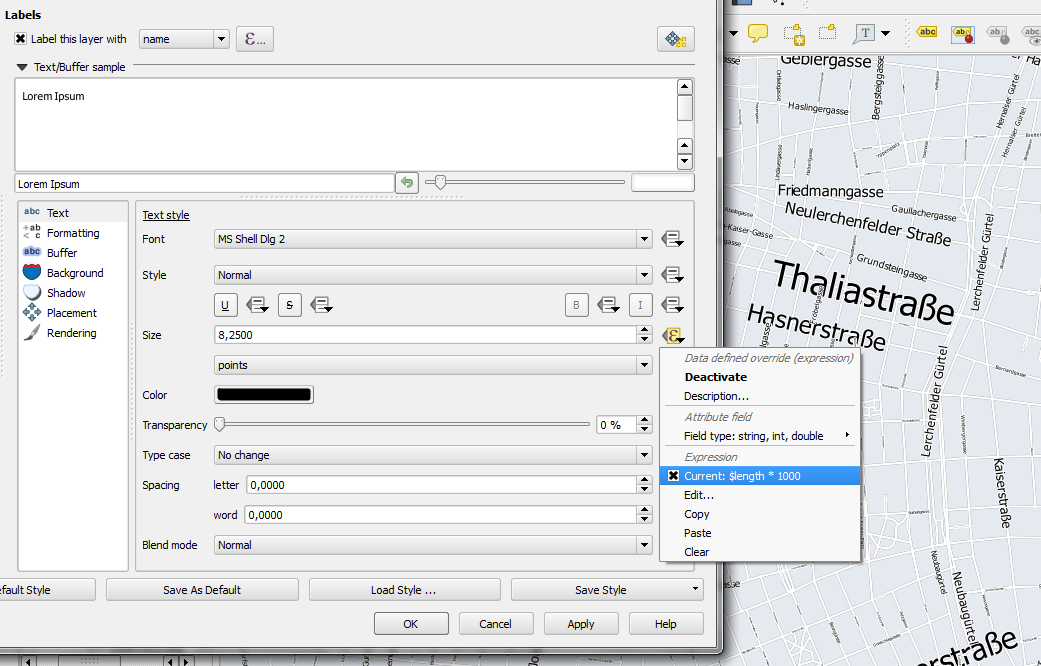
Just click the slightly weird symbol right of the label text size and select Edit …

Since OSM data is in WGS84 by default, street length will be measured in degrees and therefore the values will be small. To get to a reasonable font size, I selected $length * 1000.

The second part of the question can be addressed using a setting in the Rendering section which is – very descriptively – called “Show all labels for this layer (including colliding labels)”.

labelexperiment

While I doubt that this simple method alone will create a great road map, I think it’s still an interesting exercise with sometimes surprising results.

It’s almost here, the biggest open source GIS event of the year: the FOSS4G 2013 in Nottingham. It’s going to be my first visit to FOSS4G and I’m looking forward to present a project I did together with two colleagues at AIT where we compared OpenStreetMap to the official Austrian street network using tools developed in QGIS 1.8 Sextante. The presentation is scheduled for the first day and it would be great to meet you there:

I also have the honor to present Victor Olaya’s Sextante/Processing in a workshop together with Paolo Cavallini on the 20th:

I guess I owe Victor a geobeer or two ;-)

See you in Nottingham! And for those who can’t make it to the UK: I’ll try to keep you posted if the conference wifi allows it.

This post describes the three simple steps necessary to create a vintage-looking map using the blending feature in QGIS 2.0’s print composer. This is what we are aiming for:

alaska_oldpaper

1. Prepare the map

Like any other map, this one starts in the QGIS main window. Try to stick with earthy colors which will go well with the old paper look. For labels, try fonts which look like handwriting.

alaska_oldschool_overview

Once you are happy with your map

2. Prepare the composition background

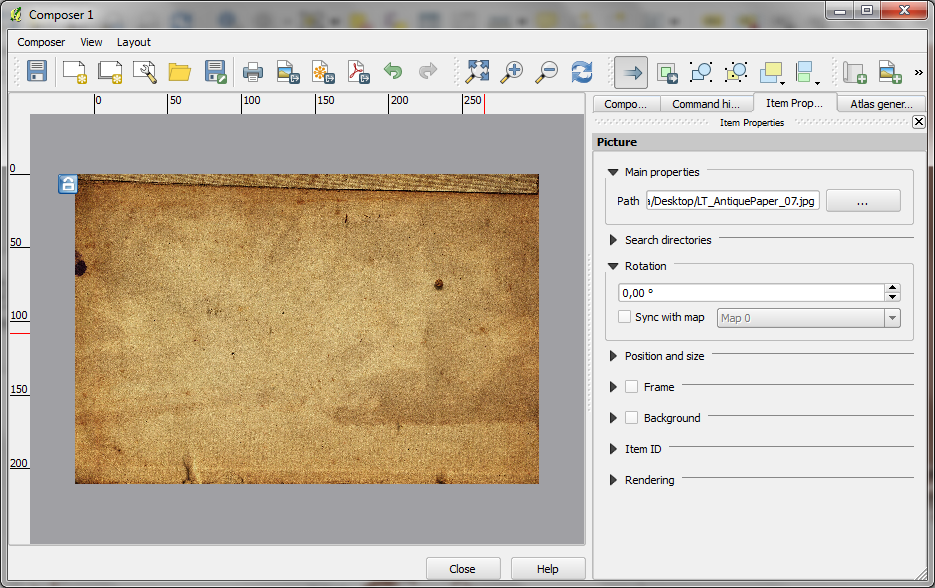
To get that vintage feel, we need a background image with a great texture. You can find such textures on sites like lostandtaken.com. Download one you like and add it to an empty print composer. Make sure it covers the whole paper:

alaska_oldschool_bg

Lock the image by right-clicking it once – a small lock icon should appear in the upper left corner.

3. Finish the composition

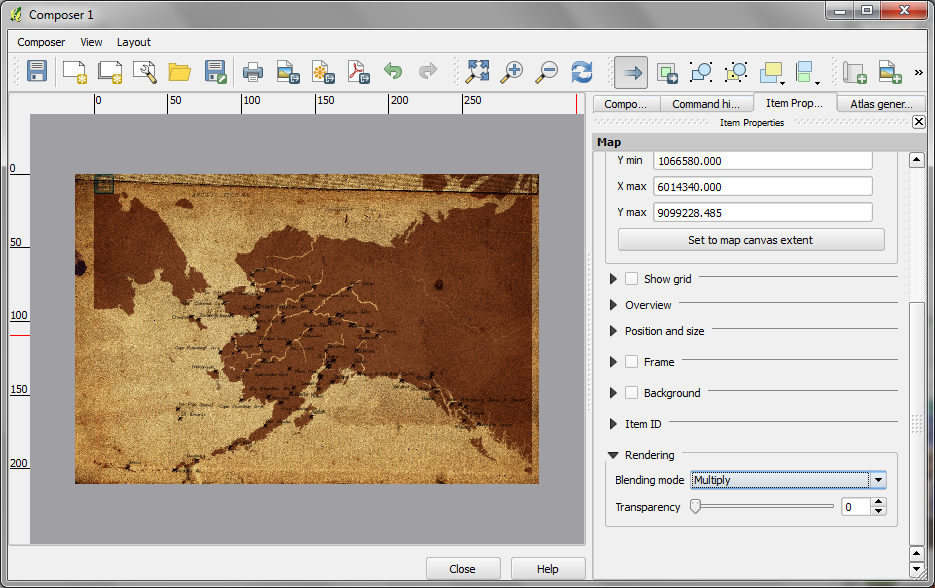
The final step is to add the map on top of the background image. To make our nice background texture shine through, we enable the “multiply” blending mode in the map’s rendering options:

alaska_oldschool_print

Feel free to add north arrows or drawings of dragons as finishing touches.