Archive

Author Archives: underdark

To extract speed and time values from a GPX track_points layer and create a shapefile:

ogr2ogr output my.gpx -sql "SELECT speed, CAST(time AS character(32)) FROM track_points"

This way you can create a CSV with lat/lng values:

ogr2ogr -f CSV output.csv input.gpx -lco GEOMETRY=AS_XYZ

Kudos to simo on gis.stackexchange.com

Analyzing spatio-temporal data using a GIS can be a tedious task without the correct tools. A series of techniques has been developed to visualize spatio-temporal data. These techniques can be divided into two classes: static visualizations and dynamic animations.

In static maps, temporal change can be visualized using appropriate different symbology or annotations. Another option is to create map series with one map for every time frame of interest.

Animated maps are best known from TV weather forecast shows. Animations enable the map user to recognize spatio-temporal relationships more intuitively than static maps could.

Interactive animated maps can help the user to explore and analyze spatio-temporal data. The literature lists the following minimum functionality for interactive animated maps: stop, play, step forward and looping functions. The efficiency of animations can be increased by allowing the user to control the size of visualized time frames and the speed of the animation.

All these functions (and more) have been implemented into Time Manager for QGIS. The user has full control over the animation. Animations can be played forward or backward at any speed. The user can also navigate through the animation step by step or jump to desired points in time using the slider or time input field.

Time Manager dock

Time Manager dock GUI

Besides viewing animations inside QGIS, animations can also also be exported frame-by-frame. These single images can be used as they are or combined into a video file using tools like mencoder.

The connection between spatial objects and the temporal dimension is established using timestamps. A timestamp can consist of either a point in time (e.g. the GPS position of a tracked object at one moment) or a timespan (e.g. a plot of land has been used to grow corn from 2002 to 2005).

Time Manager can handle multiple temporal layers at a time. It’s also possible to specify an offset between layers to achieve different effects. Any vector layer (point, line or polygon) with a correctly formated timestamp attribute can be used. All Time Manager settings are saved into the QGIS project file and are restored when loading an existing project.

According to FOSSGIS presentation feedback the following features are on the most wanted list: support for raster layers and support for year-only timestamps before 19xx.

The plugin installation includes a user manual for quick reference.

Update: For up to date info check Time Manager project page.

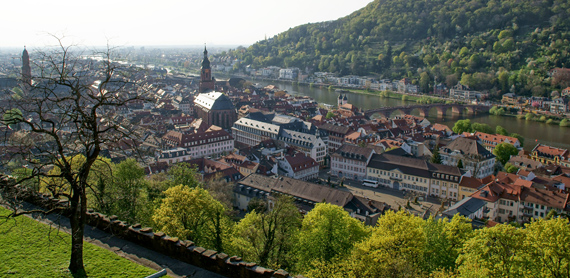
Heidelberg - Home of FOSSGIS2011

FOSSGIS2011 in Heidelberg was a great success for the QGIS project and for me personally. The audience was really impressed by Marco’s and Andreas’ presentation on QGIS Mapserver and GeoExt Web Client. My presentation on Time Manager for QGIS was followed by a series of interesting questions and comments concerning use cases in e.g. land use mapping. Requested features include support for raster layers and support for timestamps before year 19xx.
I’ll be posting an English version of the Time Manager presentation including some additional comments here soon.

QGIS wiki now has it’s own section listing QGIS video tutorials.
If you know of any tutorials not listed yet, leave a comment and I’ll add them.

Together with the newly started “How to I do that in QGIS” tutorial collection, this will hopefully become the number one reference for both new users doing their first GIS-related work and advanced uses interested in the latest QGIS features.

“The Morphing City” by Pedro M Cruz is a visualization of deviations of traffic velocities in the city of Lisbon:

The Morphing City from Pedro M Cruz on Vimeo.

Very inspiring!

Today’s challenge is to read data from a CSV file and construct usable timestamps. This is the layout of the file, notice the missing leading zeros in the month, hour and seconds fields:

utc_date;utc_time
"2011/3/15 ";"6:17:3 "
"2011/3/15 ";"6:17:8 "
"2011/3/15 ";"6:17:13 "
"2011/3/15 ";"6:17:18 "
"2011/3/15 ";"6:17:23 "

To get the data into Postgres, I used the copy command with csv header option. The table has to exist already. “csv header” tells the command to ignore the file’s header line.

copy mytable 
from '~/my.csv' 
csv header;

Now, we have to handle the “missing leading zeros” problem. Luckily, Postgres offers a template pattern modifier that addresses exactly this problem: the “FM” (fill mode) prefix. The pattern for a month without leading zeros therefore is ‘FMMM’. The full to_timestamp command looks like this:

update mytable
set utc_timestamp = to_timestamp(utc_date||' '||utc_time,'YYYY/FMMM/FMDD FMHH24:FMMI:FMSS' )

A great new initiative has been started on QGIS wiki: “How to do X in QGIS” aims at providing step-by-step tutorials for various tasks based on the latest versions of QGIS. This new knowledge base is meant to complement the existing documentation and to replace some of the outdated tutorials available all over the web.

Feel free to contribute tutorials or tutorial ideas, it’s a wiki!

There are many nice examples out there of how to use a getFeatureInfo request in OpenLayers to display a feature’s attribute table. In some applications it can be useful though not to display the full attribute table but to only select one attribute value from it and output it somewhere, e.g. in a text field.

This post describes how to pick the road id from a road wms layer and write the id value into a text input field.

OpenLayers offers a convenient class to achieve this: OpenLayers.Control.WMSGetFeatureInfo.

Let’s create an object of this class, register and activate it:

roadidPicker = new OpenLayers.Control.WMSGetFeatureInfo({
                url: 'http://localhost:8080/geoserver/wms', 
                title: 'identify features on click',
                layers: [wms],
                queryVisible: true
            });
roadidPicker.infoFormat = 'application/vnd.ogc.gml';
roadidPicker.events.register("getfeatureinfo", this, pickRoadid);
map.addControl(roadidPicker);
roadidPicker.activate();

Now, every time the user clicks onto the map, a getFeatureInfo request is issued and the function pickRoadid() is called. In pickRoadid(), we’ll define which value we want to pick from the feature. The ‘id’ of the feature will be written into a text input field called ‘roadId’:

function pickRoadid(e) {
  if (e.features && e.features.length) {
     var val = e.features[0].attributes.id;
     document.getElementById('roadId').value = val;
  }
}

You might have noticed the ‘[0]’. That’s because the click event comes with a list of features within the reach of the mouse click. For my application, I can only use one value and the first feature in this list is as good as any.

Do you need a random sample of features in a Postgres table? Here is an example of how to select 1,000 random features from a table:

SELECT * FROM myTable
WHERE attribute = 'myValue'
ORDER BY random()
LIMIT 1000;