Archive

GIS

Ever wondered how to create multi-line labels in QGIS? The new labeling engine has a “Multiline labels” option but it’s not so obvious how to create a usable labeling attribute. Here is how it works (credits to @nhopton on QGIS forum):

  1. Create a big enough text field (if the data doesn’t contain any yet).
  2. In Layer Properties – Fields, chose a “Text edit” edit widget for the label field.
  3. Enter the multi-line text into the label field. You can do this using Attribute Table or Feature Form.

    A feature form with "Text edit" widget

  4. Activate labeling. You’ll have to tick “Multiline labels” option in Layer Labeling Settings – Advanced – Options. That’s it:

    Simple multi-line label example

A common use case is the wish to show multiple attribute values in a feature’s label. Using Field Calculator, you can combine them into multi-line labels. All you need is to combine the fields with the || operator and add ‘\n’ (newline) wherever there should be a line break:

Field1 || '\n' || Field2

Populating a multi-line label field using Field Calculator

And finally, the result:

Multi-line labels displaying city name and population

“-T”, this small appendix can be found after many popular GIS-related acronym. But of course, it always means something different. Take for example GIS-T (GIS for Transportation), WFS-T (Transactional WFS) and WMS-T (WMS with time support). The world of acronyms is a fun place!

Let’s see what a WMS-T can do for us. From the WMS standard:

Some geographic information may be available at multiple times (for example, an hourly weather map). A WMS
may announce available times in its service metadata, and the GetMap operation includes a parameter for
requesting a particular time
. […] Depending on the context, time
values may appear as a single value, a list of values, or an interval, …

Currently, only Mapserver supports WMS-T but the Geoserver team is working on it.

Mapserver

MapServer 4.4 and above provides support to interpret the TIME parameter and transform the resulting values into appropriate requests.

Time attributes are specified within the metadata section:

METADATA
"wms_title" "Earthquakes"
"wms_timeextent" "2011-06-01/2011-07-01"
"wms_timeitem" "TIME"
"wms_timedefault" "2011-06-10 12:10:00"
END

Mapserver supports temporal queries for single values, multiple values, single range values or even multiple range values:

...&TIME=2011-06-10&...
...&TIME=2011-06-10, 2004-10-13, 2011-06-19&...
...&TIME=2011-06-10/2011-06-13&...
...&TIME=2011-06-10/2011-06-15, 2011-06-20/2011-06-25&...

Geoserver

GeoSolutions has developed support for TIME and ELEVATION dimensions in WMS.
There are plans to backport this feature to the stable 2.1.x series after the 2.1.1 release.

Configuration of time-enabled layers can be done via the normal user interface:

The following video by GeoSolutions demonstrates the use of Geoserver’s WMS-T:

Both server solutions seem to support only one time attribute per layer. An optional second time attribute would be nice to support datasets with start and end time like Time Manager for QGIS does.

The gis.stackexchange community keeps on growing and it’s questions and answers span a wide spectrum of GIS-related topics. As of today, the page lists 2,700 questions and 6,400 answers.

As was to be expected, ‘arcgis’ (549 times) is the most used tag followed by ‘arcgis-10.0’ ;)

From an open source perspective, PostGIS gets most attention (rank 8), followed closely by OpenLayers (rank 9) and Geoserver (rank 10). QGIS is the highest-ranked desktop GIS (rank 13). Users of other open source desktop GIS like uDig or gvSIG don’t seem to be using this platform yet.

Here’s the full list of open source GIS tags with a count of more than 10:

postgis × 149
openlayers × 137
geoserver × 121
qgis × 97
open-source × 94
grass × 85
gdal × 68
postgresql × 32
pgrouting × 20
geodjango × 14
mapnik × 13

Recently, @simo has posted an elegant solution for defining custom styles for Google Maps layers in OpenLayers on gis.stackexchange. An example with source can be found at http://www.empreinte-urbaine.eu/mapping/styled_gmap.html. The idea seems to be to use a StyledMapType:

The StyledMapType allows you to customize the presentation of the standard Google base maps, changing the visual display of such elements as roads, parks, and built-up areas to reflect a different style than that used in the default map type.

How great would it be if it was possible to define such styles in QGIS OpenLayers plugin too!

The aim of QGIS Processing Framework developed by Polymeris is to provide a generic framework for accessing existing geo-processing functionality of e.g. SAGA, GRASS, Orfeo Toolbox, etc. This should enable users to script their geo-processing work in python console and allow development of a tool to graphically build workflows using VisTrails an “open-source scientific workflow and provenance management system”.

For a first impression, Polymeris has published some screenshots of QGIS with SAGA modules loaded: [1],[2]

This project is big and if it turns out well, QGIS will profit enormously from it. Both scriptable geoprocessing functionality and a graphic workflow builder can improve user experience a lot if they are implemented well. You can follow further development on the project homepage on GitHub.

On Wednesday, Allan Maungu announced MXD2QGS, a converter that exports layers from an Arcmap 10 document into a Quantum GIS project file. The tool is built as an ArcToolbox and can be downloaded from the blog.

I’d be very interested to hear whether this tool works for you.

For everyone working with spatial databases in QGIS there comes a time when “Add PostGIS/SpatiaLite Layer” and “RT Sql Layer” start to be annoying. You always have to retype or copy-paste your SQL queries into the user interface if you need to change the tiniest thing in the layer’s definition.

This is where “Fast SQL Layer” can be a real time saver. Fast SQL Layer is a new plugin for QGIS by Pablo T. Carreira. It basically adds an SQL console for loading layers from PostGIS/SpatiaLite into QGIS. And it even comes with syntax highlighting!

Installation

Fast SQL Layer comes with one dependency: Pygments, which is used for syntax highlighting.

On Ubuntu, all you have to do is install it with apt-get:

sudo apt-get install python-pygments

For Windows with OSGeo4W, @Mike_Toews posted this on gis.stackexchange:

I downloaded and extracted Pygments-1.4.tar.gz, then in an OSGeo4W shell within the Pygments-1.4 directory, type python setup.py build then python setup.py install

Usage

When you activate the plugin in plugin manager, a dock widget will appear which contains the console and some fields for specifying the database connection that should be used. Then, you can simply write your SQL query and load the results with one click.

Fast SQL plugin

In this example, I renamed “gid” to “id”, but you can actually edit the values in the drop down boxes to adjust the column names for id and geometry:

A second layer loaded using Fast SQL plugin

It certainly needs some polishing on the user interface side but I really like it.

Please note that this post was written in 2011 and the server addresses have changed. Please refer to data.wien.gv.at for the latest links.

The city of Vienna has started their open data initiative. They’re offering data on a variety of topics, including: infrastructure, population, education, environment and traffic.

For use in GIS, they serve the data through WMS and WFS:

Both WMS and WFS work well with the developer version of QGIS.

Looking forward to new datasets. Announcements should be published via RSS feed.

In a previous post, I’ve described how to create catchment areas with pgRouting shortest_path() function. The solution described there calculates costs from the starting node (aka vertex) to all other nodes in the network. Depending on the network size, this can take a long time. Especially, if you are only interested in relatively small catchment areas (e.g. 50 km around a node in a network covering 10,000 km) there is a lot of unnecessary calculation going on. This is where you might want to use driving_distance() instead.

Driving_distance() offers a parameter for maximum distance/cost and will stop calculations when the costs exceed this limit. But let’s start at the beginning: installing the necessary functions.

Installation

If you have followed my guide to installing pgRouting, you already have some routing functions installed – but not driving_distance(). Weirdly, the necessary SQL scripts are not shipped with the .zip file available on pgRouting’s download page. You need:

routing_dd.sql
routing_dd_wrappers.sql

Both are available through the project repository at Github. Get them and execute them in your pgRouting-enabled database. Now, you should be ready.

Calculating driving distances

To calculate driving distances, we need a query very similar to shortest_path():

CREATE OR REPLACE FUNCTION driving_distance(
sql text,
source_id integer,
distance float8,
directed boolean,
has_reverse_cost boolean)
RETURNS SETOF path_result

The only new value is “distance”. That’s the maximum distance/cost you want to be contained in the result set. “distance” has to be specified in the same units as the cost attribute (which is specified in the “sql” text parameter).

Note: In my opinion, the name “(driving) distance” is misleading. While you can use distance as a cost attribute, you’re not limited to distances. You can use any cost attribute you like, e.g. travel time, fuel consumption, co2 emissions, …

The actual query for a catchment area of 100 km around node # 2000 looks like this:

SELECT * FROM driving_distance('
      SELECT gid AS id,
          start_id::int4 AS source,
          end_id::int4 AS target,
          shape_leng::float8 AS cost
      FROM network',
      2000,
      100000,
      false,
      false)

Interpreting the result

These are the first lines of the result set:

vertex_id;edge_id;cost
294;7262;97400.433506144
297;7236;98012.620979231
335;1095;96849.456306244
347;7263;93617.693852324
364;7098;93573.849081386
366;2551;92702.443434779
378;7263;91994.328368081

The cost attribute contains the total cost of travel from the starting node to the vertex_id node.
We will only be using vertex_id and cost. The use of edge_id is a mystery to me.

Visualizing the result

The easiest way to visualize driving_distance() results is using RT Sql Layer plugin. We need to join the results of driving_distance() with the table containing node geometries:

SELECT *
   FROM node
   JOIN
   (SELECT * FROM driving_distance('
      SELECT gid AS id,
          start_id::int4 AS source,
          end_id::int4 AS target,
          shape_leng::float8 AS cost
      FROM network',
      2000,
      100000,
      false,
      false)) AS route
   ON
   node.id = route.vertex_id

If you color the nodes based on the cost attribute, it will look something like this:
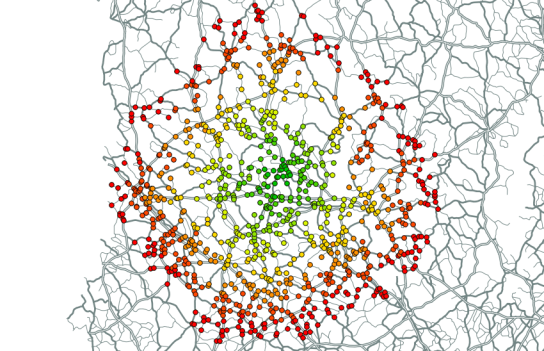
result of pgRouting driving_distance() visualized in QGIS

This post covers the topic of creating MULTI* geometries or GEOMETRYCOLLECTIONs in PostGIS using ST_Collect or ST_Union.

Often it doesn’t matter if you use ST_Collect or ST_Union. Both will return MULTI* geometries or – if different geometry types or multi geometries are mixed – GEOMETRYCOLLECTIONS.

Why you might want to use ST_Collect instead of ST_Union

ST_Collect is much faster than ST_Union [1]. That’s already a good argument. It’s faster because it does not dissolve boundaries or check for overlapping regions. It simply combines geometries into MULTI*s or GEOMETRYCOLLECTIONs.

This leads to reason two for why you might prefer ST_Collect: Dissolving boundaries and overlapping regions – like ST_Union does – can lead to undesired effects. For example, combining three LINESTRING geometries that partially overlap, results in a MULTILINESTRING consisting of more than three lines. The input lines are split where they overlap each other or themselves.

Analysis and visualization based on the resulting geometries might lead to incorrect conclusions if the user is not aware of the processes performed by the union command.

[1] http://postgis.refractions.net/documentation/manual-svn/ST_Collect.html