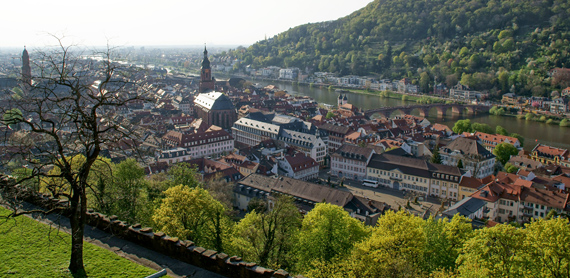
Heidelberg - Home of FOSSGIS2011

FOSSGIS2011 in Heidelberg was a great success for the QGIS project and for me personally. The audience was really impressed by Marco’s and Andreas’ presentation on QGIS Mapserver and GeoExt Web Client. My presentation on Time Manager for QGIS was followed by a series of interesting questions and comments concerning use cases in e.g. land use mapping. Requested features include support for raster layers and support for timestamps before year 19xx.
I’ll be posting an English version of the Time Manager presentation including some additional comments here soon.

QGIS wiki now has it’s own section listing QGIS video tutorials.
If you know of any tutorials not listed yet, leave a comment and I’ll add them.

Together with the newly started “How to I do that in QGIS” tutorial collection, this will hopefully become the number one reference for both new users doing their first GIS-related work and advanced uses interested in the latest QGIS features.

“The Morphing City” by Pedro M Cruz is a visualization of deviations of traffic velocities in the city of Lisbon:

The Morphing City from Pedro M Cruz on Vimeo.

Very inspiring!

Today’s challenge is to read data from a CSV file and construct usable timestamps. This is the layout of the file, notice the missing leading zeros in the month, hour and seconds fields:

utc_date;utc_time
"2011/3/15 ";"6:17:3 "
"2011/3/15 ";"6:17:8 "
"2011/3/15 ";"6:17:13 "
"2011/3/15 ";"6:17:18 "
"2011/3/15 ";"6:17:23 "

To get the data into Postgres, I used the copy command with csv header option. The table has to exist already. “csv header” tells the command to ignore the file’s header line.

copy mytable 
from '~/my.csv' 
csv header;

Now, we have to handle the “missing leading zeros” problem. Luckily, Postgres offers a template pattern modifier that addresses exactly this problem: the “FM” (fill mode) prefix. The pattern for a month without leading zeros therefore is ‘FMMM’. The full to_timestamp command looks like this:

update mytable
set utc_timestamp = to_timestamp(utc_date||' '||utc_time,'YYYY/FMMM/FMDD FMHH24:FMMI:FMSS' )

A great new initiative has been started on QGIS wiki: “How to do X in QGIS” aims at providing step-by-step tutorials for various tasks based on the latest versions of QGIS. This new knowledge base is meant to complement the existing documentation and to replace some of the outdated tutorials available all over the web.

Feel free to contribute tutorials or tutorial ideas, it’s a wiki!

There are many nice examples out there of how to use a getFeatureInfo request in OpenLayers to display a feature’s attribute table. In some applications it can be useful though not to display the full attribute table but to only select one attribute value from it and output it somewhere, e.g. in a text field.

This post describes how to pick the road id from a road wms layer and write the id value into a text input field.

OpenLayers offers a convenient class to achieve this: OpenLayers.Control.WMSGetFeatureInfo.

Let’s create an object of this class, register and activate it:

roadidPicker = new OpenLayers.Control.WMSGetFeatureInfo({
                url: 'http://localhost:8080/geoserver/wms', 
                title: 'identify features on click',
                layers: [wms],
                queryVisible: true
            });
roadidPicker.infoFormat = 'application/vnd.ogc.gml';
roadidPicker.events.register("getfeatureinfo", this, pickRoadid);
map.addControl(roadidPicker);
roadidPicker.activate();

Now, every time the user clicks onto the map, a getFeatureInfo request is issued and the function pickRoadid() is called. In pickRoadid(), we’ll define which value we want to pick from the feature. The ‘id’ of the feature will be written into a text input field called ‘roadId’:

function pickRoadid(e) {
  if (e.features && e.features.length) {
     var val = e.features[0].attributes.id;
     document.getElementById('roadId').value = val;
  }
}

You might have noticed the ‘[0]’. That’s because the click event comes with a list of features within the reach of the mouse click. For my application, I can only use one value and the first feature in this list is as good as any.
Do you need a random sample of features in a Postgres table? Here is an example of how to select 1,000 random features from a table:

SELECT * FROM myTable
WHERE attribute = 'myValue'
ORDER BY random()
LIMIT 1000;

Please read the updated version for QGIS 2.8 and up!

The aim of this post is to describe a method for labeling of a subset of features within a layer using new labeling functionality.

The problem

Often, we want to label only a few features in a layer. Of course we can export those features to a new layer and label them that way, but that requires creation of additional files and layers within your project. Things will start to get messy fast.

Another approach is to delete unwanted label texts from the attribute table. This either means that you have to duplicate a “name” attribute and then start deleting from the newly created attribute table column or that you actually delete values in the original column. Both approaches are problematic. Either you produce redundancy that gets difficult to maintain (two attributes have to be updated if the name of a feature changes) or you loose information from the attribute table.

The suggested solution

Let me present a different approach using new labeling tools. The idea is based on moving unwanted labels out of view. This approach avoids duplication of features and duplication/deletion of label texts. And this is the workflow:

  1. Select the features you want to label
  2. Open attribute table
  3. If you don’t have label attributes ready yet: Add two type “real” columns called e.g. “label_x” and “label_y”
  4. Invert the selection (3rd button in attribute table window)
  5. Open field calculator and fill “label_x” and “label_y” fields of the selected features with 0 values (or any coordinates outside your map extent)
  6. Close field calculator and attribute table
  7. Save your edits
  8. Open the labeling dialog and set “data defined settings” – “x coordinate” and “y coordinate”
  9. Enable “Label this layer” and specify the label field
  10. Done

If you change your mind about a feature and want to label it later on: Simply delete the values in “label_x” and “label_y” fields (so they read NULL).

This works quite well for me but I’m aware that it’s still not optimal. Another “data defined setting” like “show this label (true/false)” would be more intuitive.

Have you found better solutions to this problem? Please, post them!

Foreword (added 2015-04-11)

There are two main options to load .csv files into QGIS

  • “Add delimited text layer” will guess the column data types. Use the “no geometry” option to load CSVs without coordinates.
  • “Add vector layer” by default interprets all columns as strings.

The following post describes how to change the default behavior of “Add vector layer”.

If you load .csv files through “Add vector layer”, all columns are interpreted as strings. That’s most likely not what you want, but it’s OGR’s default behaviour:

The OGR CSV driver returns all attribute columns with a type of string if no field type information file (with .csvt extension) is available.

Let’s create a .csvt file then!

The .csvt file has to have the same name as the .csv file it describes. (The same concept is used for Shapefiles.) It enables definition of the following data types: Integer, Real, String, Date (YYYY-MM-DD), Time (HH:MM:SS+nn) and DateTime (YYYY-MM-DD HH:MM:SS+nn).

A .csvt file contains only one line and the types for each column have to be quoted and comma separated, e.g.

"Integer","Real","String"

You can even specify width and precision of each column, e.g.

"Integer(6)","Real(5.5)","String(22)"

Read more at: www.gdal.org/ogr/drv_csv.html