The following Shell script performs a conversion and reprojection of a folder full of Shapefiles to CSVs:
for f in `ls *.shp`; do

    ogr2ogr -s_srs EPSG:4326 -t_srs EPSG:3035 -f CSV $f.csv $f -lco GEOMETRY=AS_XYZ

done
Thanks OGR!
The following Shell script performs a conversion and reprojection of a folder full of Shapefiles to CSVs:
for f in `ls *.shp`; do
ogr2ogr -s_srs EPSG:4326 -t_srs EPSG:3035 -f CSV $f.csv $f -lco GEOMETRY=AS_XYZ
done
Thanks OGR!
Please read the new instructions for QGIS 2.
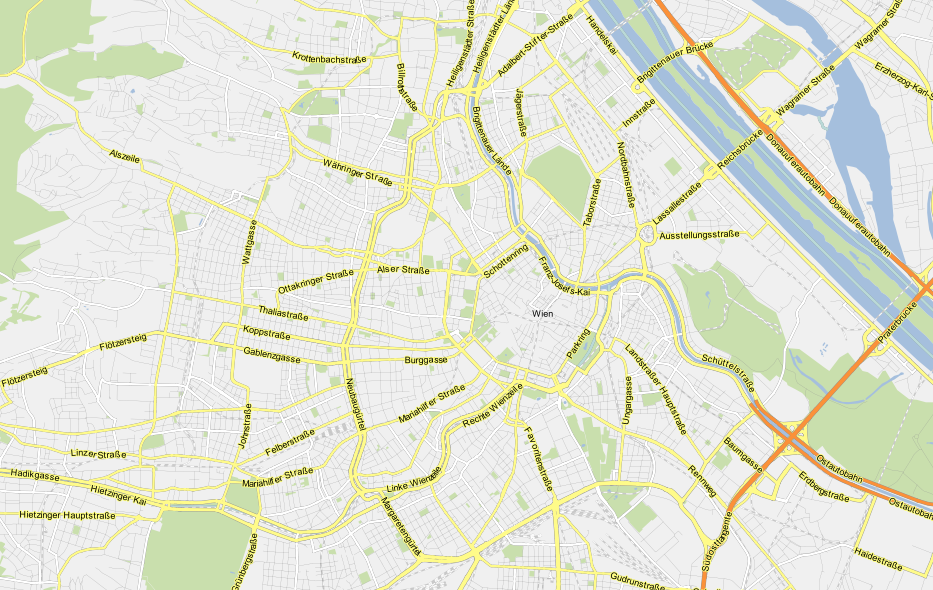
I’ve added a new style for osm2po layers to the QGIS Resources Github repo. It contains the following rules:

the rules
and looks like this:
the map
Enjoy!
Roundabouts are handled interestingly in OSM: They can be both nodes or ways and represented as points, lines or polygons.
And this is how they can be downloaded for a specific area:
> wget http://open.mapquestapi.com/xapi/api/0.6/node[highway=mini_roundabout][bbox=15.86,47.95,16.88,48.70]

> wget http://open.mapquestapi.com/xapi/api/0.6/way[junction=roundabout][bbox=15.86,47.95,16.88,48.70]
Note: Not all XAPI servers are available all of the time. Check this site if the server is down: OSM Wiki – Xapi.
This week Sourcepole released a new addition to the Raster Terrain Analysis plugin: a sophisticated Relief tool. (More info in their announcement) This plugin is shipped with QGIS (developer version, not in 1.7.3 release) by default but you might have to activate it in Plugin Manager:

The plugin dialog is quite self-explanatory. You can chose the elevation file, output path and any of the numerous raster formats. The z factor is a bit more mysterious. We will have a look at that in a second. The rest of the dialog is the relief color editor. Pressing Create automatically will give you a color gradient to start with.

Relief tool dialog
But what’s the z factor good for?
I’ve tried a few different settings using free NASA SRTM data and it seems that higher values lead to a smoother relief (Please ignore the water areas):


Update:
As Marco noted in the comments: The z factor is used if the x/y units are different from the z unit.
In the example above SRTM rasters are in WGS84 with heights in meters. That’s why the result using a z factor of 100000 looks so good.
In my opinion the results look great even with the coarse SRTM dataset I used. Looking forward to all the great QGIS maps we will see in the future.
With Martin’s latest addition of conditional statements it’s now even easier to get conditional labels in QGIS. Following up on the example used in my previous post, we can simplify
substr(osm_name, 0, (clazz = 11 or clazz = 13 or clazz = 15 or clazz = 21)*-1)
to
CASE WHEN (clazz = 11 or clazz = 13 or clazz = 15 or clazz = 21) THEN osm_name END
which is much easier to read and remember.
To avoid roads from being labeled with only their road numbers, I added an additional check that the “osm_name” is longer than six characters. Thanks to Nathan’s syntax highlighting this new and powerful expression based labeling is also comfortable to use.

Conditional labels for an osm2po layer
The latest QGIS development build (1.9.90) has a new feature “expression based labeling” which can be used to create conditional labels. One typical use case would be if you want to label only certain (high-level) road classes in your road layer. By default, QGIS labels the features rather randomly:

default labeling
How can we label only the more important roads? Here is an example using OSM data imported into PostGIS using osm2po:
If you have loaded OSM using osm2po, your OSM table will contain a “clazz” attribute. (Check osm2po.config for the exact mapping.) To label only motorways, trunks, primary and secondary roads and nothing else, I wrote this labeling expression:
substr(osm_name, 0, (clazz = 11 or clazz = 13 or clazz = 15 or clazz = 21)*-1)
If clazz equals 11, 13, 15 or 21, the expression returns the value of osm_name. Otherwise it returns an empty string. (All checks will return false or 0 which causes the function to evaluate to substr(osm_name,0,0).) Kudos to Giuseppe Sucameli who explained this on the mailing list.

expression based "conditional" labels
For “QGIS Users Around the World” Gary Sherman collected and geocoded a few weeks of accesses to the plugin repositories. This map is my first attempt at mapping the data for use in QGIS publications:
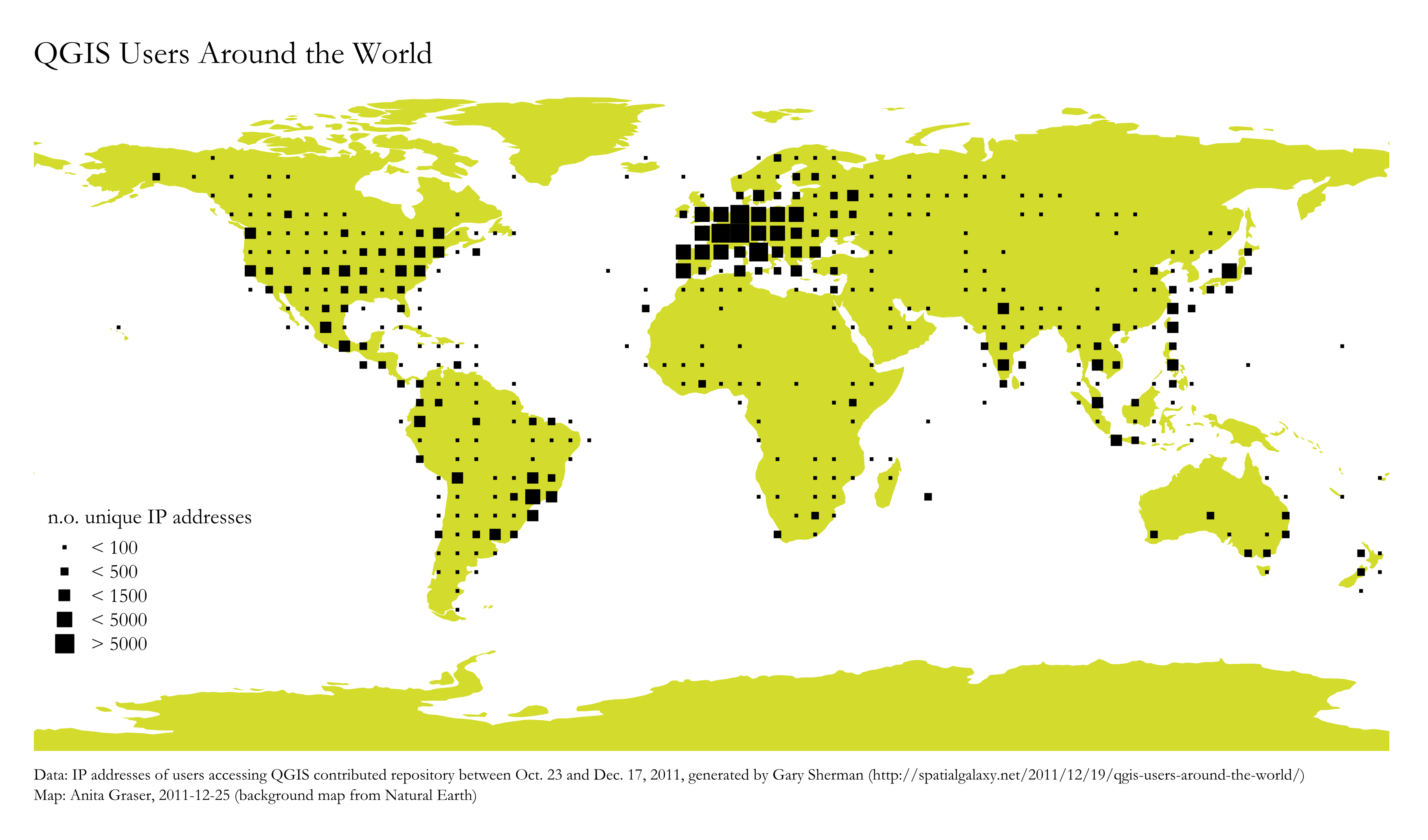
Considering the coarse resolution of geocoded IP addresses, I’ve decided to count the number of unique IP addresses within each area (5×5 degrees). We can make out a lot of activity in Europe, Japan, Brazil and the US. The high number of accesses from the US mid west are due to IPs being mapped to country-level only.
I would love to hear your feedback on this one!
TimeManager is now available on Github (right beside pgRoutingLayer).
If you want to try it, you can install version 0.4 from the new QGIS Plugin Repository. I’ve also uploaded some test data such as the twitter file used for the animation I presented recently.
This post summarizes how to install sphinx on Windows to contribute to PyQGIS Cookbook. I’m writing this as I go, so this most likely won’t be perfect.
I used my Python 2.6 stand-alone installation (not the one in OSGeo4W).
easy_install -U sphinx sphinx-build "C:\Users\Anita\QGIS\QGIS-Developer-Cookbook\source" "C:\Users\Anita\QGIS\QGIS-Developer-Cookbook\build"The build folder should now contain the Cookbook .html files.
I’ve set up a GitHub repo where I will publish QGIS resources such as symbols and styles: https://github.com/anitagraser/QGIS-resources
You can already find symbols/styles described in these posts:
 Free and Open Source GIS Ramblings