Archive

GIS

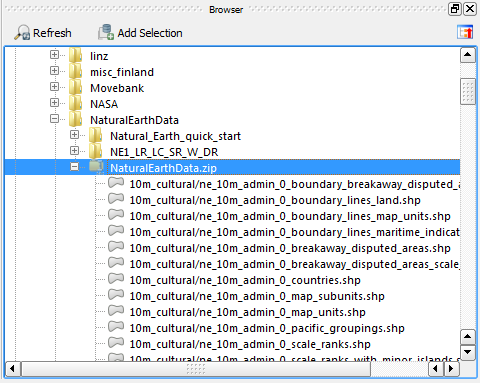
Natural Earth is a great resource and you have probably already used it. One of the many nice things about Natural Earth is that it gets you started very quickly:
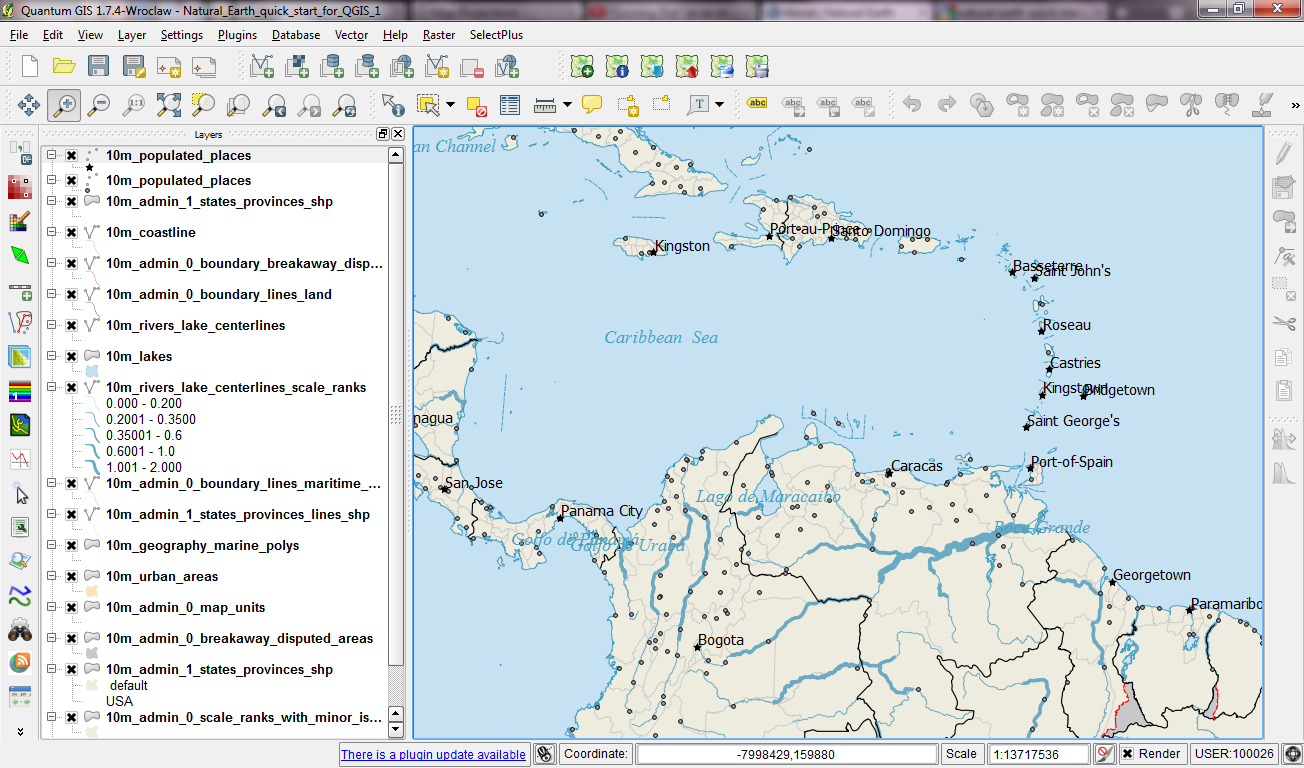
They offer a quick start kit that provides a sample of Natural Earth data as well as a QGIS project file. The project is really well done with appropriate scale-dependent styles and labels for all layers. A screenshot can capture only part of it:

The original Natural Earth Quick Start project

One potential point for improvement is labeling. The project uses old labeling and therefore suffers from label collisions. Changing to new labeling engine results in a clearer picture. (I’ve also added label buffers since both city symbols and labels are black and therefore can get difficult to distinguish.)

Another nice trick is to suppress labels for small features. The minimum size of features to be labeled can be set on the “advanced” tab of the new labeling dialog. In this case, I went with 10 mm to avoid labeling small marine polygons.

Changed to new labeling engine

I haven’t worked through all layers yet, but I am planning to share the updated project file back to the Natural Earth team.

Most maps of night time lights show the land masses lit brightly by city lights. But the oceans are not as dark as these maps suggest. NOAA/NGDC datasets available through edenextdata.com show very bright spots in the North Sea:

Night time lights trace the coast but illuminate the sea too.

The dataset description mentions that the sensors pick up moonlit clouds, lights from human settlements, fires, gas flares, heavily lit fishing boats, lightning and the aurora. So might these spots be fishing boats?

Update: As many comments have pointed out, bright spots in the seas show the locations of oil drilling rigs.

A very common approach for mapping point density is to use heat maps. If you are aiming for a different style, give hexagonal grids a try. The workflow is very simple in QGIS:

  1. Load the point layer
  2. Create a hexagonal grid using MMQGIS – Create Grid Layer
  3. Count points per polygon (Vector menu)

I’ve applied this method to an OGD dataset of the Viennese tree cadastre containing 119,744 tree positions:

Default style: One dot per tree

Rendering tree counts per hexagonal grid cell reveals some of Vienna’s greenest spots, such as the Prater or Türkenschanzpark.

Tree density in a hexagonal grid

There’s also a printable version.

Some notes on the necessary steps:

MMQGIS – Create Grid Layer performs great. Creating the 18,400 hexagons in this map was very fast. Note though, that this tool doesn’t seem to write correct projection information to the resulting Shapefile. Therefore it is necessary to set the projection manually after loading the file.

As a result, it is very likely that the Points in Polygon tool will warn you that the point and polygon layer are not in the same projection. I ignored the warning and everything went fine. This step was reasonably fast considering the number of points (119,744) and polygons (18,400).

The default look of OSM plugin layers is not well-suited for background map usage. It’s too colorful and any overlay just gets lost:

Default look of OSM plugin layers

A good background map has enough detail to allow the reader to orient himself but at the same time must not overwhelm the overlays. For data to be overlaid onto OSM plugin layers, a more neutral style is needed. And this is my first attempt at such a style, containing rules for the polygon and line layers (no point style yet):

Light OSM style applied to polygon and line layer

As before, these styles can be downloaded from my “QGIS-resources” Github repository. They are called osm_light_line.qml and osm_light_polygon.qml and require QGIS trunk. They do not work in QGIS 1.7.x because they contain some new features that are only available in the developer version (aka trunk).

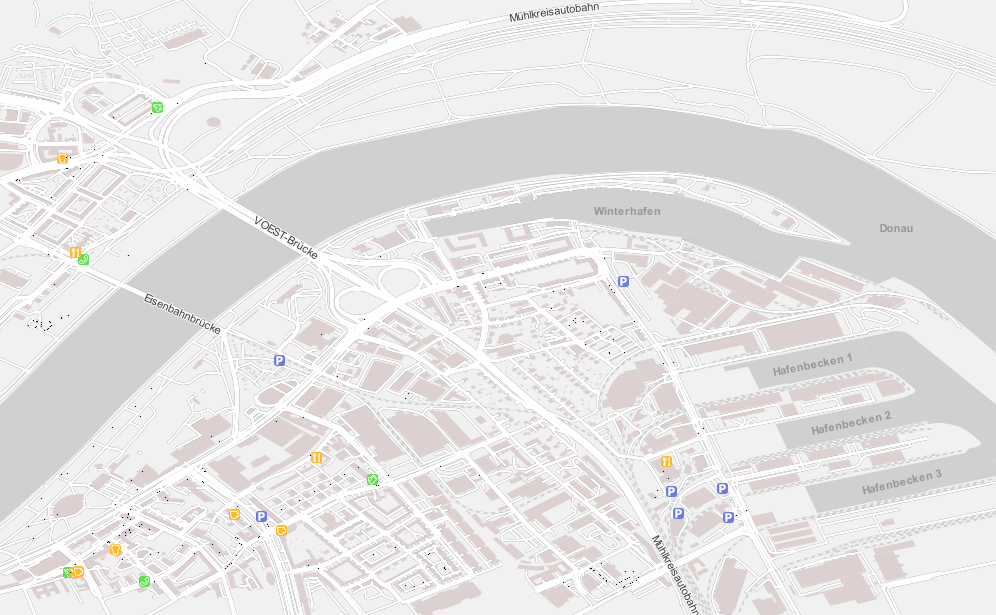
Inspired by the “OSM Bright Minimal” style for Tilemill, I’ve created a similar background map style for osm2po layers in QGIS trunk (uses features unavailable in 1.7.3): osm2po_light_style.qml. Together with a grey background (RGB:232,232,232) and an OSM natural layer (RGB:208,208,208 for water), the style looks like this:

example map using osm2po_light_style.qml

It’s plain and bright, so any overlay will stand out nicely. Hope you find it useful.

Ever had to apply the same style to multiple map layers? It’s a tedious task … if you don’t have MultiQML plugin by Gislab.

With MultiQML, you can apply a style to multiple raster or vector layers: First, select the layers you want to style (use shift/ctrl to select multiple layers), press “Apply style …” button and select the appropriate QML. That’s it!

MultiQML dialog

The tool even has an “undo” functionality called “Restore initial style”, which will certainly prove useful.

If you want to see MultiQML in action, Gislab provides a video tutorial on their plugin page.

The following Shell script performs a conversion and reprojection of a folder full of Shapefiles to CSVs:

for f in `ls *.shp`; do
ogr2ogr -s_srs EPSG:4326 -t_srs EPSG:3035 -f CSV $f.csv $f -lco GEOMETRY=AS_XYZ
done

Thanks OGR!

Please read the new instructions for QGIS 2.

I’ve added a new style for osm2po layers to the QGIS Resources Github repo. It contains the following rules:

the rules

and looks like this:

the map

Enjoy!

Roundabouts are handled interestingly in OSM: They can be both nodes or ways and represented as points, lines or polygons.

And this is how they can be downloaded for a specific area:

> wget http://open.mapquestapi.com/xapi/api/0.6/node[highway=mini_roundabout][bbox=15.86,47.95,16.88,48.70]
> wget http://open.mapquestapi.com/xapi/api/0.6/way[junction=roundabout][bbox=15.86,47.95,16.88,48.70]

Note: Not all XAPI servers are available all of the time. Check this site if the server is down: OSM Wiki – Xapi.

This week Sourcepole released a new addition to the Raster Terrain Analysis plugin: a sophisticated Relief tool. (More info in their announcement) This plugin is shipped with QGIS (developer version, not in 1.7.3 release) by default but you might have to activate it in Plugin Manager:

The plugin dialog is quite self-explanatory. You can chose the elevation file, output path and any of the numerous raster formats. The z factor is a bit more mysterious. We will have a look at that in a second. The rest of the dialog is the relief color editor. Pressing Create automatically will give you a color gradient to start with.

Relief tool dialog

But what’s the z factor good for?

I’ve tried a few different settings using free NASA SRTM data and it seems that higher values lead to a smoother relief (Please ignore the water areas):

Update:

As Marco noted in the comments: The z factor is used if the x/y units are different from the z unit.

  • If everything is in meters, use z factor 1.0 (default).
  • If x/y is in degree and z in meters, use z factor 111120.
  • If x/y degree and z is feet, use z factor 370400.

In the example above SRTM rasters are in WGS84 with heights in meters. That’s why the result using a z factor of 100000 looks so good.

In my opinion the results look great even with the coarse SRTM dataset I used. Looking forward to all the great QGIS maps we will see in the future.