Archive

QGIS

The aim of Time Manager plugin for QGIS is to provide comfortable browsing through temporal geodata. A dock widget provides a time slider and a configuration dialog for your layers to manage.

a wildlife telemetry dataset managed by Time Manager

Time Manager filters your vector datasets and displays only features with timestamps in the user specified time frame.

two views of the scenery, using a two-days time frame

Give it a try! The project website can be found at http://anitagraser.github.com/TimeManager/.
You can call almost any function in Python, using “grass.run_command(“function”, ….)”.

For your inspiration, you find GRASS Python scripts in their SVN.

Great news everyone: Since revision r14172, QGIS supports non-spatial tables! This means you can finally load your CSV files directly into QGIS and work with them, e.g. use “Join by attribute”.

Loading the CSV file is performed using “Add Vector layer”. (Yes, the terminology is a little confusing here.) The resulting layer will be shown in the legend list and the content can be view via attribute table.

Great work Marco!

While this is not a new addition to QGIS anymore – in fact it has been around since 1.4 – I feel it’s not as widely know as it should be: QGIS offers the power of ColorBrewer to create color ramps! And this is how you get to use this power:

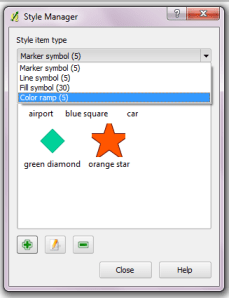
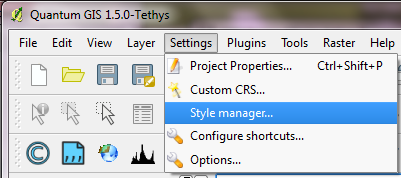
All styles: marker, line, fill and color ramps can be accessed via “Style manager”:

In Style Manager you can add, edit and delete styles:

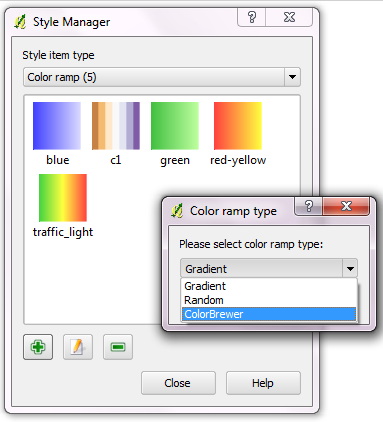
When creating a new color ramp, you get to choose between “Gradient”, “Random” and finally “ColorBrewer” ramp type. (By the way: You can create multi-color color ramps if you choose “Gradient”.)

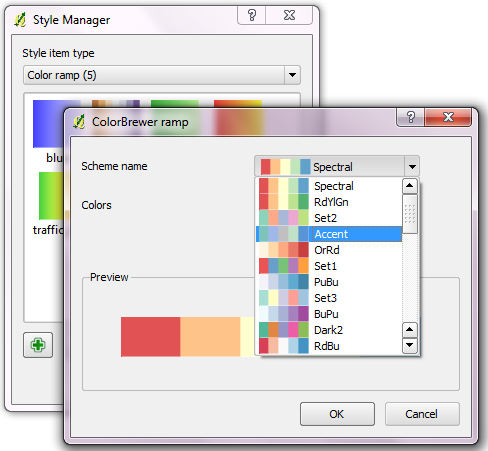
When creating a ColorBrewer ramp, you can choose from various schemes and define how many colors your ramp should contain:

I love these new ramps and I wish I’d have discovered them sooner :)

Enjoy the power of ColorBrewer and QGIS!

QGIS Mapserver is now in QGIS trunk. Check Linfiniti Geo Blog to learn how to set it up and just how powerful this new server is. We’re all looking forward to see how QGIS Mapserver performs compared to older projects like UMN Mapserver and Geoserver at the WMS Benchmarking in Barcelona.


This year’s Google Summer of Code project for QGIS “QGIS on Steroids” has come to an successful end. The resulting improvements are currently available through http://svn.osgeo.org/qgis/branches/threading-branch/ and will be available in trunk after more testing.

Read Martin’s full report on QGIS wiki.

The QGIS Community Team proudly presents three new QGIS user reports aka Case Studies:

“… I realized that QGIS was the only one which can connect to WMS, WCS and WFS successfully.”

“I found that QGIS provided a very intuitive interface for GRASS, hat they complemented each other perfectly, and they provided all the analytical capabilities I needed.”

“The most important qualities of QGIS are the intuitive user interface and the compatibility with different file formats. It is an ideal tool for projects that are on one hand based on existing geographic data and on the other hand require the acquisition of new data.”

If you would like to share your own story, just contact the QGIS community team. All contributions welcome!

The QGIS developer team has just announced the release of QGIS 1.5. Check the official visual change log featuring a list of the most prominent changes and many screen shots.

QGIS 1.5 Attribute Edit Dialog

QGIS 1.5 Attribute Edit Dialog

Creating new datasets can be a tedious task. To make things easier, QGIS enables users to customize the editing dialogue.

Users can choose from one of the following editing widgets:

  • Line edit <default> – a simple edit box
  • Classification – displays a combo box with the values used for “unique value” classification (symbology tab)
  • Range – allows numeric values within a given range, the widget can be either slider or spin box
  • Unique values
    • editable – displays a line edit widget with auto-completion suggesting values already used in the attribute table
    • not editable – displays a combo box with already used values
  • File name – adds a file chooser dialog
  • Value map – shows a combo box with predefined description/value items
  • Enumeration <postgres only> – a combo box with values that can be used within the columns type
  • Immutable – read-only
  • Hidden – makes the attribute invisible for the user
  • Checkbox – a checkbox with customizable representation for both checked and unchecked state
  • Text edit – an edit box that allow multiple input lines
  • Calendar – a calendar widget to input dates

A useful and powerful way to define layer symbology and labels is using data-defined properties. While many of the options are self-explanatory, others require knowledge about the valid options.

Note: These options are currently only available for the “old” labeling under “Advanced” tab.

Position

Valid options are: left, right, bottom, top, bottom_left, bottom_right, top_left, top_right

Color

I successfully used the color names red, blue, green, black, yellow, and orange.  Alternatively, you can enter color hex-codes: red = #ff0000