Archive

Tag Archives: QGIS

The upcoming 1.8 release contains many new features for handling layer styles.

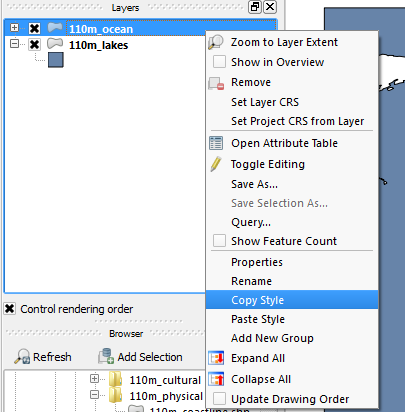
Copy-paste Styles

Very handy new entries in the layer list context menu: “Copy Style” and “Paste Style” make copying layer styles really fast. You don’t even have to open layer properties anymore.
SLD Support

Besides the classic QML layer style files, QGIS 1.8 supports the SLD standard. SLDs can be exported from and imported into new symbology.

One thing worth to note: SLDs can be exported from any type of renderer: single symbol, categorized, graduated or rule-based, but when importing an SLD, either a single symbol or rule-based renderer is created.

That means that categorized or graduated styles are converted to rule-based. If you want to preserve those renderers, you have to stick to the QML format. On the other hand, it could be very handy sometimes to have this easy way of converting styles to rule-based.

Symbol Levels

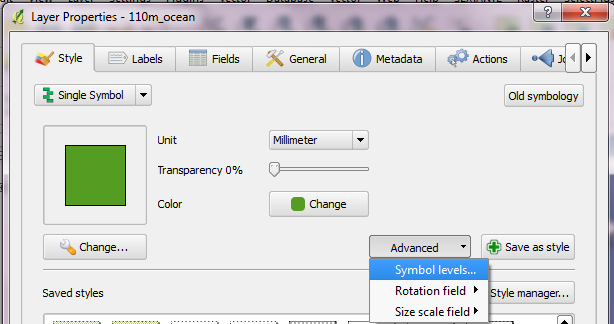
If you are looking for the “Symbol level” settings, they have been moved to the “Advanced” button:
Rule-based Renderer

The rule-based renderer GUI got a major face-lift. Just compare the 1.7 version

Rule-based renderer GUI in 1.7

to the new clean 1.8 version:

Rule-based renderer in 1.8

Grouping of styles has been overhauled too: Using drag-and-drop, layers can be arranged into groups in a more flexible manner than previously possible.

There is also a new context menu which enables workflows such as changing the transparency of multiple symbols at once:
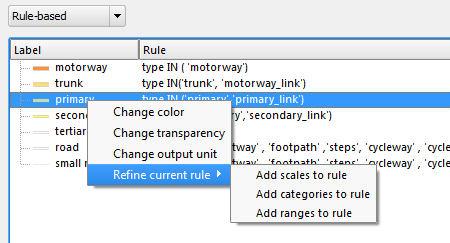
Symbol levels for the rule-based renderer can now be accessed via “Rendering order”.

It’s obvious that a lot of work has been put into style handling since the 1.7 release and these improvements are just a small fraction of what’s been done to get closer to the big goal: releasing 2.0.
Waiting time is over, Gimp 2.8 is finally here. That is reason enough to take it for a quick test run!

How about a new look for the QGIS user map?

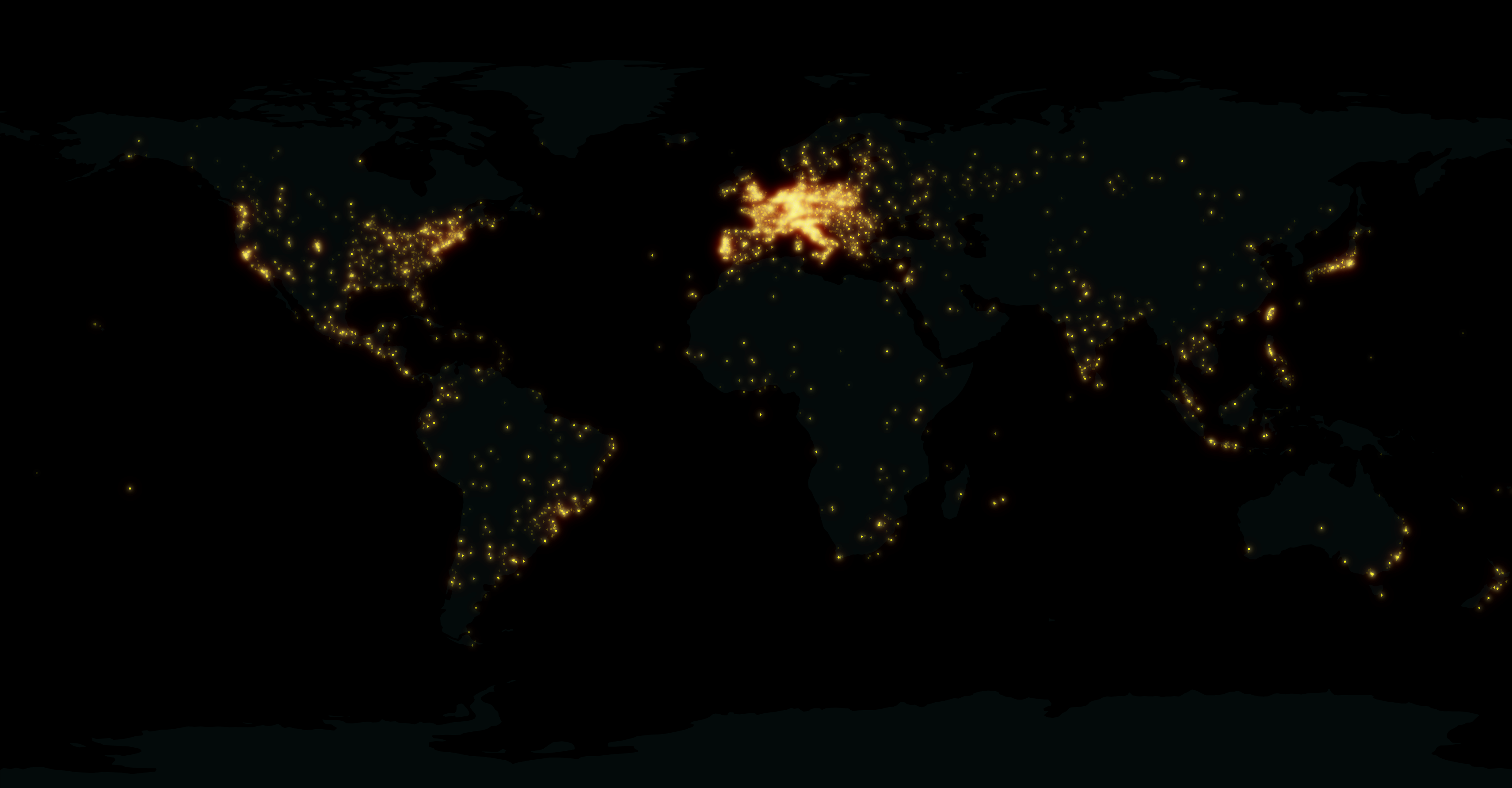
This “glowing hot” map was made using the Gimp filter of the same name:

For the user point layer, I selected a simple point style with high transparency and separately exported land and user points from print composer.

user points as exported from QGIS

In Gimp, I applied the “glowing hot” filter to the user points and combined the layers. The trick here is to first use “Color to alpha” on the user point layer and turn black to transparent. This way, the “glowing hot” filter will only be applied to the remaining points.

Gimp 2.8 RC1 is close enough to the previous version to get comfortable fast. I like the single-window mode even if it’s hard to tell which part of the GUI has the focus sometimes.

Open source GIS and image editing for a perfect work flow.

Today’s hot topic on the mailing list was a recently added feature which enables QGIS to load data directly from ZIP archives.

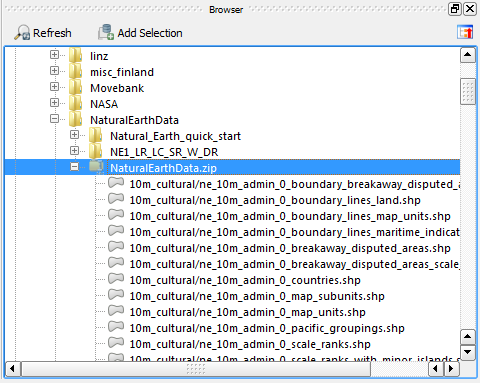
To get the contents of a ZIP archive display in the browser dock, it is necessary to activate this feature in the Options dialog. The setting is called “Scan for contents of compressed files (.zip) in browser dock” and is located right at the bottom of the first tab. Both “basic scan” and “full scan” settings seem to work fine:

Settings – Options

In the file browser panel, archives are now listed like any other folder and their content can be added to the map through both double click and drag and drop.

This can help save tons of disk space: The NaturalEarthData.zip in this example is 280 MB big while the unzipped folders take more than 700 MB.

Update 2024-04-21

For the latest instructions, please see QGIS Server — Docker edition


Update 2016-07-31

For the latest installation instructions, please see the official QGIS Server documentation.


This post summarizes my notes about installing QGIS Server on Ubuntu, adding a QGIS project file to the server and using the WMS in an OpenLayers application.

Installation

First, it’s useful to figure out the Ubuntu version:

lsb_release -a

Since my server runs “lucid”, I add the following package sources to /etc/apt/sources.list (as described in the QGIS installation documentation)

deb http://qgis.org/debian lucid main
deb-src http://qgis.org/debian lucid main

Before we can install anything, we need to add the key and update the package list

gpg --keyserver keyserver.ubuntu.com --recv 1F9ADD375CA44993
gpg --export --armor 1F9ADD375CA44993 | sudo apt-key add -
sudo apt-get update

Now we can install QGIS Server and the necessary Apache package

sudo apt-get install qgis-mapserver libapache2-mod-fcgid

It never hurts to restart Apache :)

sudo /etc/init.d/apache2 restart

Let’s test the installation before we proceed. The GetCapabilities request should already work

http://10.101.21.28/cgi-bin/qgis_mapserv.fcgi?SERVICE=WMS&VERSION=1.3.0&REQUEST=GetCapabilities

Adding a QGIS project file

It’s time to add a QGIS project to our server. To do that, we move to the QGIS Server folder

cd /usr/lib/cgi-bin

where you should find qgis_mapserv.fcgi and wms_metadata.xml.
I’ve decided to have one folder for each project file. My first project is “vienna”.

sudo mkdir vienna
cd vienna

qgis_mapserv.fcgi and wms_metadata.xml can now be linked into this new folder

sudo ln -s ../qgis_mapserv.fcgi .
sudo ln -s ../wms_metadata.xml .

The only thing that’s missing anymore is a QGIS project file. It can be copied or linked into the folder. After restarting Apache, we should be good to go.

Let’s test the setup using “Add WMS Layer” in QGIS by adding the service URL such as

http://10.101.21.28/cgi-bin/vienna/qgis_mapserv.fcgi

and ticking “Ignore GetMap URI …” and “Ignore GetFeature URI …”.

After clicking “Connect”, all layers from the project file we added should get listed and we can select and load them.

QGIS Server can serve as many project files as you want. There are different ways to organize your server but I would simply add a new folder (like the “vienna” folder in this example) and link in the executable and project file.

Using QGIS Server WMS in OpenLayers

Of course QGIS Server doesn’t just talk to QGIS Desktop but to any other WMS client that conforms to the standard. One classic use case is to add the WMS layers to an OpenLayers application. This is rather simple but I’ll add it here for the sake of completeness:

I used to have a Geoserver WMS base layer in my application. The only lines of code that needed to be changed to migrate to QGIS Server were the service URL and the layer names.

wms = new OpenLayers.Layer.WMS(
    'roads', "http://10.101.21.28/cgi-bin/vienna/qgis_mapserv.fcgi",
    {
        layers: 'roads',
        format: 'image/png';
        bgcolor: '#fafafa'
    },
    {
        buffer: 1,
        isBaseLayer: true,
        graphicZIndex: 0,
    }
);

Standardized services are great!

So far, Time Manager has been limited to vector layers. Support for raster layers has been on the wish list for quite a while. I’ve been considering different approaches and for now I have settled with one that keeps the way how raster layers work as close to the workings of vector layers as possible:

All layers have to be loaded before they can be added to Time Manager. The layers are added one-by-one and start and end time values are defined. (This differs from vector layers where start/end attribute are defined instead.) All raster layers that are not within the current time frame are set to 100 % transparency.

I’m not certain yet whether this is a good approach though. I’ll probably keep trying different approaches for a while.

This is a screen cast of the current status:

The plugin source is available on Github, as usual. It’s still going to take a while until there will be a plugin package including this feature.

I’m looking forward to reading your comments here or on Youtube. Do you think this approach is usable?

This is a follow-up to my recent “Natural Earth Quick Start Kit” post in which I presented the great quick start kit provided by the Natural Earth team. The QGIS project file they provide was written in QGIS 1.4 with both old symbology and old labeling:

Original Natural Earth Quickstart map centered on the Mediterranean

Since then a lot has changed. QGIS has a new powerful labeling engine which avoids label collisions and more advanced layer symbology. If that’s not reason enough to switch, it is also worth noting that both old systems will most certainly be removed for QGIS 2.0 release. Luckily, switching is pretty easy:

Switching to new symbology

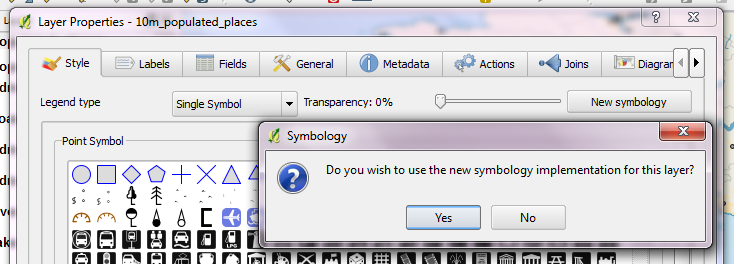
In QGIS 1.7.4, switching to new symbology is very straight forward: Click the “new symbology” button in the upper right corner of the style tab and confirm the popup message. That’s it.

Switching to new labeling

Changing from old to new labeling is less automated. It will help if you take notes about font, size and colors as well as scale ranges before deactivating labeling in layer properties. Enable new labeling from the labeling toolbar and fill in the settings you have written down.

One of the known issues with new labeling is that it is currently not possible to rotate the labels without also specifying the label position. In most projects, this won’t be an issue though.

Updating the Natural Earth project

Besides switching to the new infrastructure, I’ve applied some minor changes to increase readability:

  • Buffers for city labels help where labels overlap with equally black country borders.
  • Buffers for capital symbols (stars) make them stand out over border lines.
  • Suppressed labeling for marine polygons smaller than 10mm avoids clutter.
  • Thinner river line styles with rounded corners make the map look cleaner.
  • A little halo around the land masses looks friendly.

The same map with new labeling and new symbology

I’ve uploaded the new project file version to QGIS Ressources on Github if you want to give it a try.

This year we are celebrating Gerardus Mercator’s 500th birthday. We have all grown very accustomed to his Mercator projection but I want to take the chance to explore some alternatives:

Radical Cartography features an extensive projection reference compiled by Bill Rankin. One of the more exotic projections is “Van der Grinten I” by Alphons J. van der Grinten, 1898. It has a “pleasant balance of shape and scale distortion”. The “boundary is a circle” and “all parallels and meridians are circular arcs (spacing of parallels is arbitrary)”.

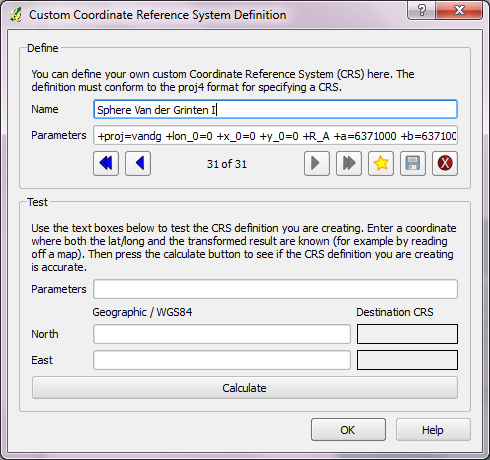
Using the name, we can try to find the projection definition on Spatialreference.org. One of the definitions that works well in QGIS is “ESRI:53029 Sphere Van der Grinten I” with the following proj4 string:

+proj=vandg +lon_0=0 +x_0=0 +y_0=0 +R_A +a=6371000 +b=6371000 +units=m +no_defs

In QGIS Settings – Custom CRS, we can add this projection to the list of available CRS:

  1. Press the “Star” button to add a new empty entry”
  2. Add the Name and proj4 string
  3. Press the “Save” button to make the changes permanent

Custom projection dialog

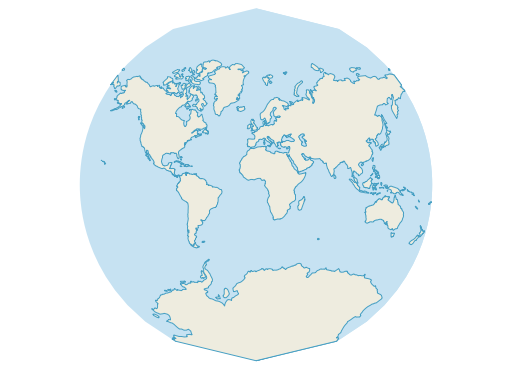
Once this is done, “Van der Grinten I” can be selected for on-the-fly reprojection. I’ve been using NaturalEarth’s land and ocean dataset. The result might not be a perfect circle (due to the coarseness of the dataset) but I find it very appealing:

Van der Grinten projection

Natural Earth is a great resource and you have probably already used it. One of the many nice things about Natural Earth is that it gets you started very quickly:
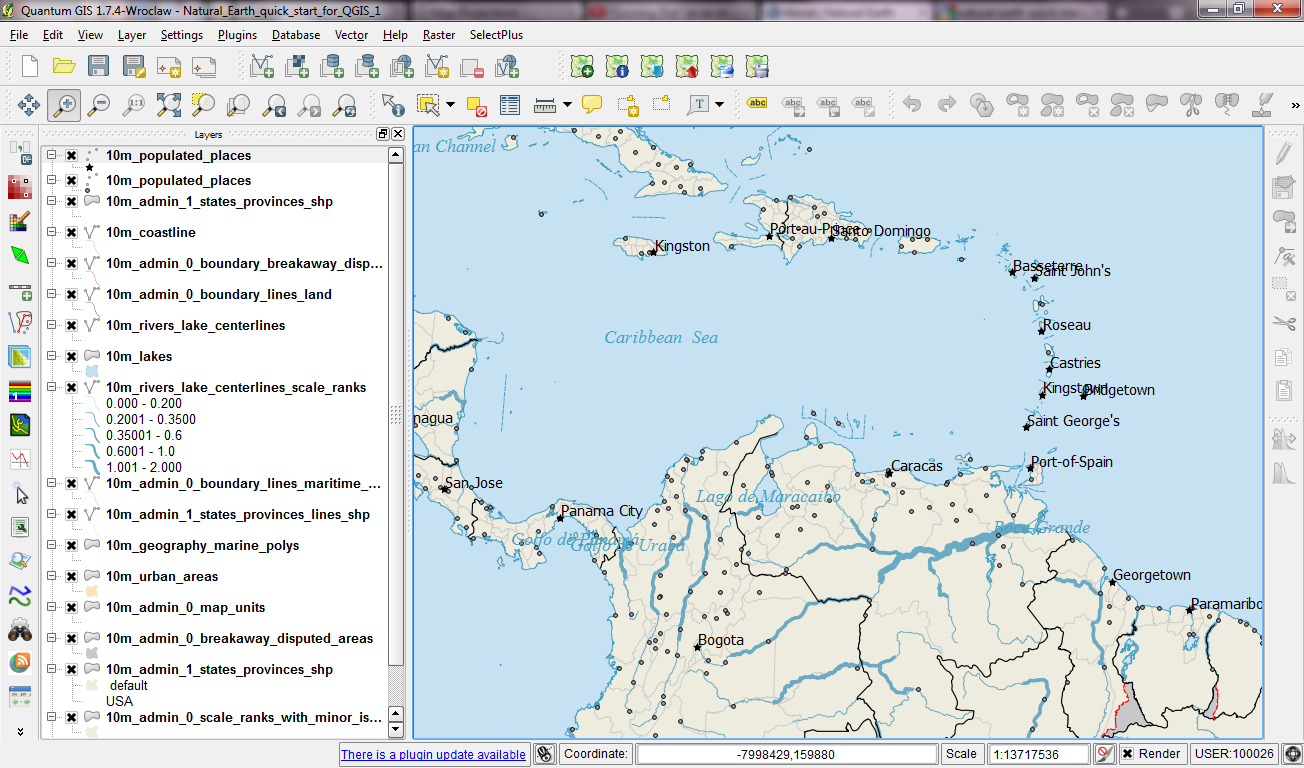
They offer a quick start kit that provides a sample of Natural Earth data as well as a QGIS project file. The project is really well done with appropriate scale-dependent styles and labels for all layers. A screenshot can capture only part of it:

The original Natural Earth Quick Start project

One potential point for improvement is labeling. The project uses old labeling and therefore suffers from label collisions. Changing to new labeling engine results in a clearer picture. (I’ve also added label buffers since both city symbols and labels are black and therefore can get difficult to distinguish.)

Another nice trick is to suppress labels for small features. The minimum size of features to be labeled can be set on the “advanced” tab of the new labeling dialog. In this case, I went with 10 mm to avoid labeling small marine polygons.

Changed to new labeling engine

I haven’t worked through all layers yet, but I am planning to share the updated project file back to the Natural Earth team.

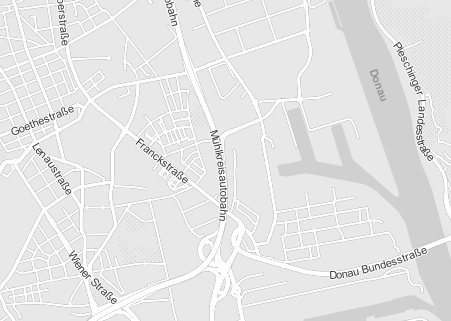
Inspired by the “OSM Bright Minimal” style for Tilemill, I’ve created a similar background map style for osm2po layers in QGIS trunk (uses features unavailable in 1.7.3): osm2po_light_style.qml. Together with a grey background (RGB:232,232,232) and an OSM natural layer (RGB:208,208,208 for water), the style looks like this:

example map using osm2po_light_style.qml

It’s plain and bright, so any overlay will stand out nicely. Hope you find it useful.

Ever had to apply the same style to multiple map layers? It’s a tedious task … if you don’t have MultiQML plugin by Gislab.

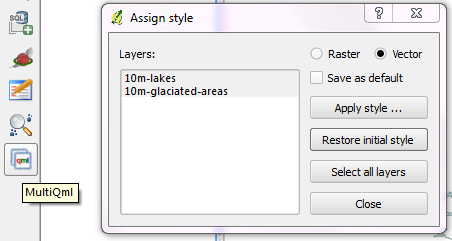
With MultiQML, you can apply a style to multiple raster or vector layers: First, select the layers you want to style (use shift/ctrl to select multiple layers), press “Apply style …” button and select the appropriate QML. That’s it!

MultiQML dialog

The tool even has an “undo” functionality called “Restore initial style”, which will certainly prove useful.

If you want to see MultiQML in action, Gislab provides a video tutorial on their plugin page.