The latest QGIS development build (1.9.90) has a new feature “expression based labeling” which can be used to create conditional labels. One typical use case would be if you want to label only certain (high-level) road classes in your road layer. By default, QGIS labels the features rather randomly:
default labeling
How can we label only the more important roads? Here is an example using OSM data imported into PostGIS using osm2po:
If you have loaded OSM using osm2po, your OSM table will contain a “clazz” attribute. (Check osm2po.config for the exact mapping.) To label only motorways, trunks, primary and secondary roads and nothing else, I wrote this labeling expression:
substr(osm_name, 0, (clazz = 11 or clazz = 13 or clazz = 15 or clazz = 21)*-1)
If clazz equals 11, 13, 15 or 21, the expression returns the value of osm_name. Otherwise it returns an empty string. (All checks will return false or 0 which causes the function to evaluate to substr(osm_name,0,0).) Kudos to Giuseppe Sucameli who explained this on the mailing list.
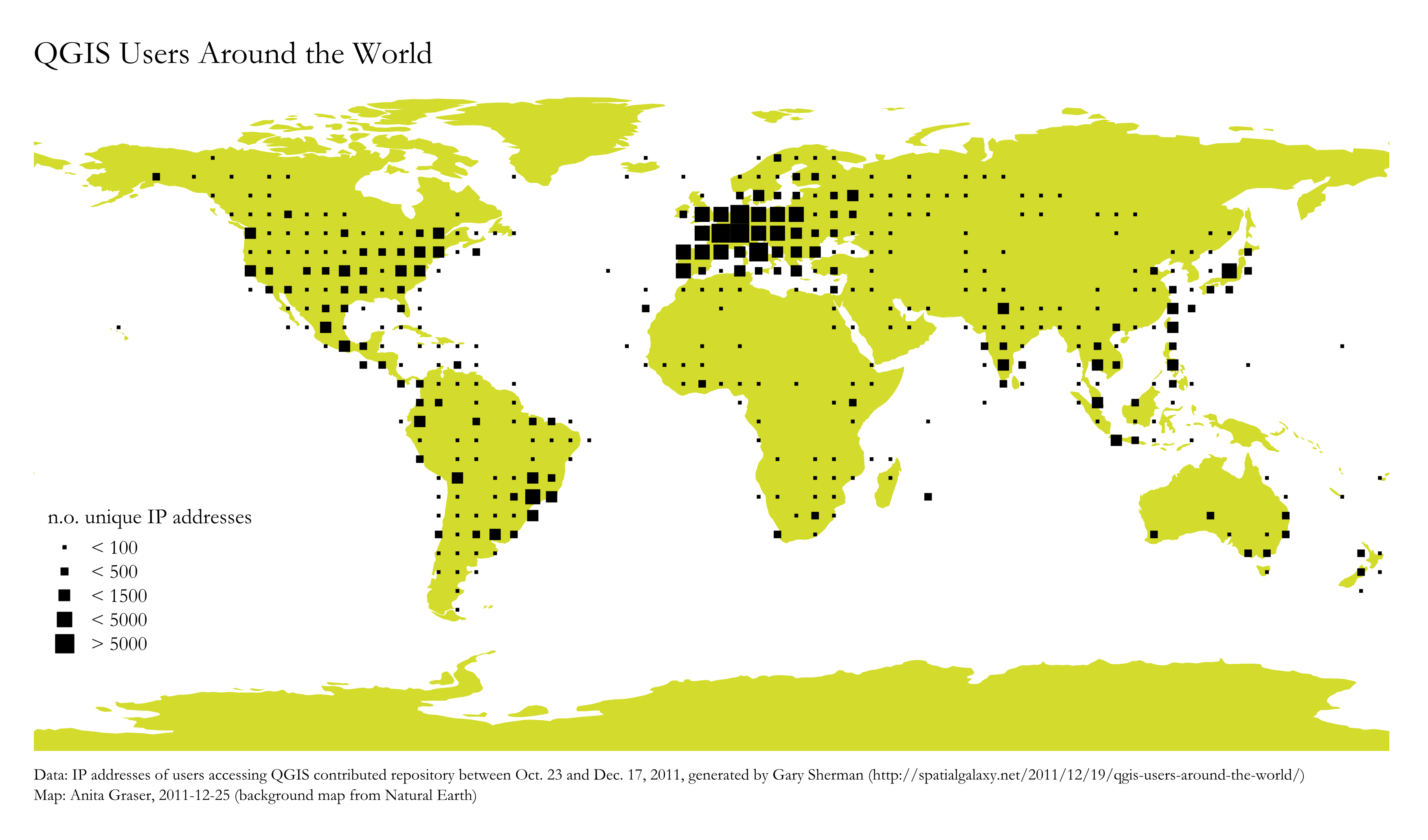
For “QGIS Users Around the World” Gary Sherman collected and geocoded a few weeks of accesses to the plugin repositories. This map is my first attempt at mapping the data for use in QGIS publications:
Considering the coarse resolution of geocoded IP addresses, I’ve decided to count the number of unique IP addresses within each area (5×5 degrees). We can make out a lot of activity in Europe, Japan, Brazil and the US. The high number of accesses from the US mid west are due to IPs being mapped to country-level only.
This post summarizes how to install sphinx on Windows to contribute to PyQGIS Cookbook. I’m writing this as I go, so this most likely won’t be perfect.
I used my Python 2.6 stand-alone installation (not the one in OSGeo4W).
It’s Dec, 23rd and this is my early present to the QGIS community: a package of ready-to-use road symbols that make your OpenStreetMap data look like Google Maps.
In a previous post, I did already show how to prepare a view that will help get similar looking road labels. And now, here are the necessary symbols: osm_symbols.xml (Load using “Style Manager”.)
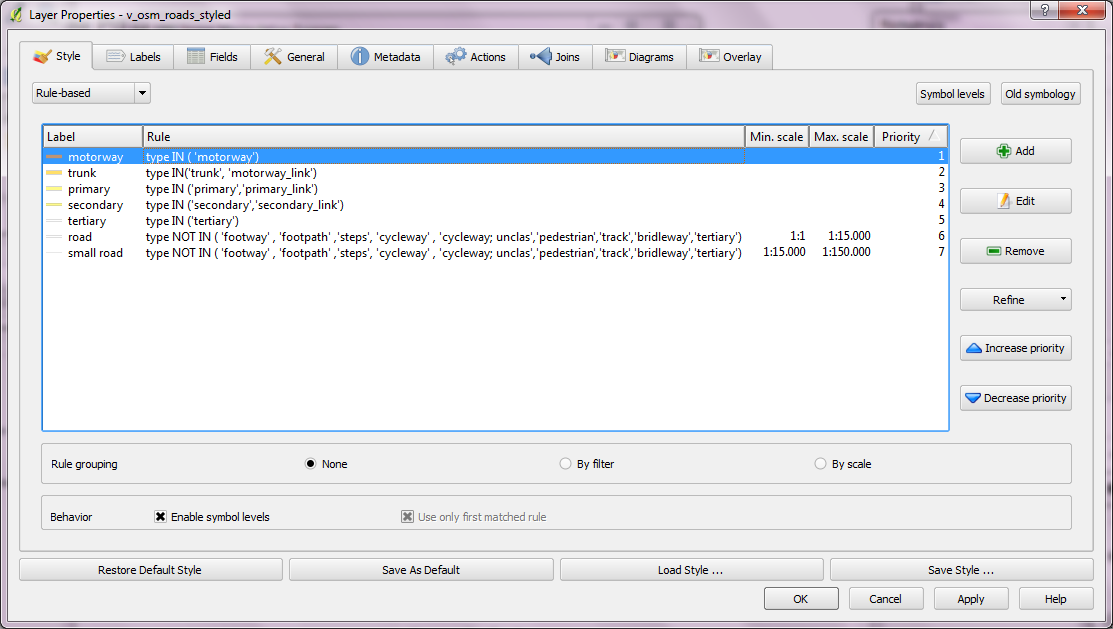
Now, you should have all necessary symbols available to create the style. I used the following rules to get the map shown above:
This is the follow up post to “An osm2po Quickstart” which covers loading the OSM network into PostGIS and using the result with pgRouting. After parsing the OSM file, e.g.
you should find a folder with the name of the prefix you chose inside the osm2po folder. It contains a log file which in turn provides a command line template for importing the OSM network into PostGIS, e.g.
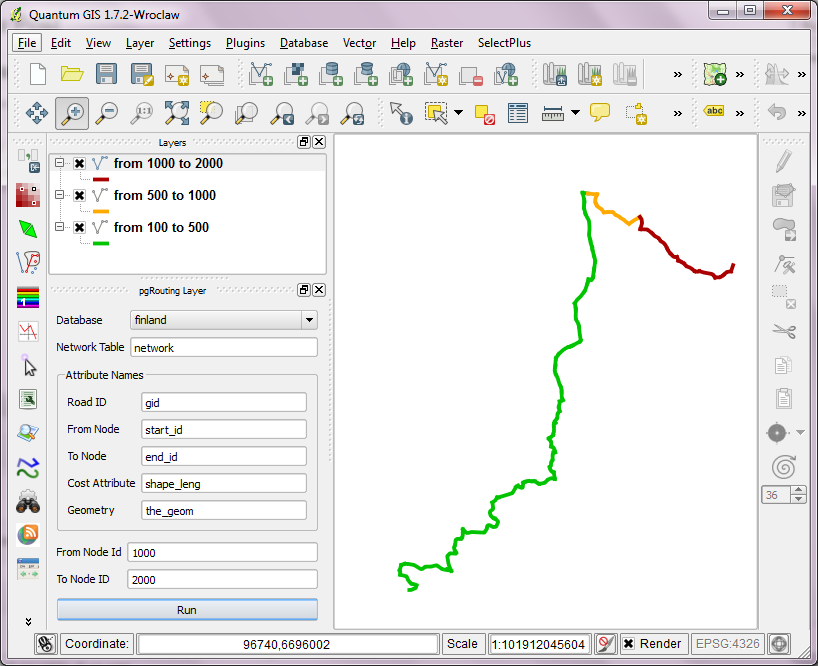
Using “pgRouting Layer” plugin, it’s now straightforward to calculate shortest paths. I had to apply some changes to the plugin code, so please get the latest version from Github.
A shortest path in osm2po network
Using osm2po turned out to be far less painful than I expected and I hope you’ll find this post useful too.
This post covers the necessary steps to use osm2po on Windows. Osm2po is both, a converter and a routing engine. It parses OpenStreetMap data and makes it routable. While osm2pgrouting seems to be limited by the amount of memory that is available on your system, osm2po is able to convert large sets like europe.osm. It generates SQL Insert scripts for PostGIS, compatible with pgRouting and Quantum GIS.
To get started, download osm2po and an OSM binary file like e.g. austria.osm.pbf. Extract osm2po and you’ll find the .jar file together with the tool’s documentation (German only though).
PgRouting is great. But (Yes, there is always a “but”.) those queries are not easy to remember. That’s why I started work on a pgRouting GUI today. It’s actually a QGIS plugin which I’ll call “pgRouting Layer” and it is based on Pablo T. Carreira’s “Fast SQL Layer” plugin which can execute arbitrary SQL statements against a PostGIS or SpatiaLite database and add the results in a map layer.
This first prototype supports pgRouting’s shortest_path() function as described in “A Beginners Guide to pgRouting”. Once supplied with the necessary information about attribute field names, the plugin allows you to route between pairs of nodes. For convenience, the resulting layer is named after its start and end node.
some shortest paths using "pgRouting Layer" plugin
Besides normal routing capabilities, I’d like to develop this plugin towards a user friendly tool for catchment zone analysis. If you are interested in teaming up to work towards this goal, let me know.
You probably know this video from my previous post “Tweets to QGIS”. Today, I want to show you how it is done.
After importing the Twitter JSON file, I saved it as a Shapefile.
Every point in the Shapefile contains the timestamp of the tweet. Additionally, I added a second field called “forever” which will allow me to configure Time Manager to show features permanently.
A "forever" field will help with showing features permanently.
To create the flash effect you see in the video, we load the tweet Shapefile three times. Every layer gets a different role and style in the final animation:
Layer “start_flash” is a medium sized dot that marks the appearance of a new tweet.
Layer “big_flash” is a bigger dot of the same color which will appear after “start_flash”.
Layer “permanent” is a small dot that will be visible even after the flash vanishes.
styling the tweet layers
We’ll plan the final animation with a time step size of 10 seconds. That means that every animation frame will cover a real-world timespan of 10 seconds.
We configure Time Manager by adding all three tweet layers:
Layer “start_flash” starts at the orginal time t. Layer “big_flash” gets an offset of -10 seconds, which means that it will display ten seconds after time t. Layer “permanent” gets an offset of -20 seconds and ends at time forever.
Layers can be timed using the "offset" feature.
Finally – in Time Manager dock – we can start the animation with a time step size of 10 seconds:
Use a time step size of 10 seconds so it fits to the offset values we specified earlier.
Besides watching the animation inside QGIS, Time Manager also enables you to export the animation to an image series using “Export Video” button. Actual video export is not implemented yet, but you can use mencoder (Windows users can download it from Gianluigi Tiesi’s site) on the resulting image series to create a video file: