Archive

Yearly Archives: 2013

Today, I updated my QGIS Time Manager plugin to version 0.8. It now works with QGIS master and that means that we can take advantage of all the cool new features in our animations. The following quick example uses the “multiply” blend mode with the tweet sample data which is provided by default when you install the plugin:

(The video here is a little small. Watch it on Youtube to see the details.)

The excitement about the upcoming 2.0 release is growing and to add some fuel to the fires, Mathieu founded the QGIS Flickr Group. Anyone can join and add their maps done with QGIS master.

I’m looking forward to seeing what you have come up with. Please note that this group is meant for maps only (therefore no screenshots of the application please).

Sextante is quickly becoming the goto geoprocessing toolbox for me. I’ve been working with Sextante 1.0.8 on QGIS 1.8 and lately I’ve started looking into Sextante 1.1 for QGIS 2. This post highlights some of the main differences between the two versions. I’m sure there are many more hidden gems I have not discovered so far.

One thing you will notice if you have used previous versions of Sextante is that the new version comes with a simplified interface which groups tools into three categories: geoalgorithms, models, and scripts. If you prefer the old style grouping by algorithm source such as GDAL, GRASS, etc. you can switch to the Advanced interface.

Let’s start with the bad news: Models created in 1.0.8 are not compatible with 1.1 since many of the algorithms have been rearranged in new categories and Sextante cannot find them by their old names anymore, e.g.

1.0.8 … ALGORITHM:ftools:fixeddistancebuffer
1.1 … ALGORITHM:qgis:fixeddistancebuffer

The great news is that the modeler has been improved greatly. Model representations now show the flow of input and output data through the model steps much more clearly:

Sextante 1.0.8 Modeler

Sextante 1.0.8 modeler

Sextante 1.1 Modeler

Sextante 1.1 modeler

I also found the new modeler much more stable – no crashes so far. *fingerscrossed*

Another nice new feature is Sextante commander which can be started using the shortcut Ctrl+Alt+M. It’s a quick launch solution for all Sextante algorithms:

sextante_commander

At FOSS4G, I’ll be presenting some work I did evaluation OSM using Sextante 1.0.8. I’d love to hear how you are using Sextante.

Today’s post: More print composer overview magic!

Inverted Map Overviews

Thanks to the “Invert overview” option, we can now chose between highlighting the detail area (left example in the image) or blocking out the surrounding area (right example).

printcomposer_overviews

The “Lock layers for map item” option can come in very handy if you want to reduce the number of layers in the overview map while still keeping all layers of interest in the main map.

Advanced Python field calculator is one of the numerous tools in Sextante for QGIS. It’s extremely powerful but it doesn’t use the syntax of QGIS’ default field calculator (the one you can access via attribute table). Therefore, here comes a short introduction:

If you want to reproduce this example, I used a dataset of town areas from the new open government data site of Lower Austria.

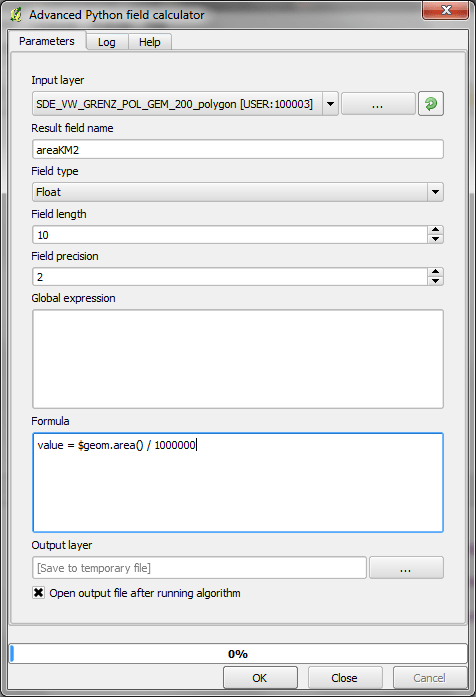
The upper half of the Advanced Python field calculator is rather self-explanatory but the lower half is where it gets interesting: Code in the global expression section will be executed only once before the calculator starts iterating through all the features of the input layer. Therefore, this is the correct place to import necessary modules or to calculate variables that will be used in subsequent calculations. Code in the formula section will be evaluated for each feature in the input layer. As shown in the following example, this is where we can calculate new values, e.g. the area of the polygons in km²:

sextante_pythonfieldcalc_area

As you can see, the feature geometry can be accessed using $geom.

If you want to access an existing attribute, that’s possible using <attribute_name>.

Anyway, this is the resulting layer’s attribute table including the new areaKM2 field:

sextante_pythonfieldcalc_area_results

Thanks to Victor for pointing me to the documentation of FieldPyculator which Advanced Python field calculator is based on.

The latest version of Print composer features new

Rulers and guide lines or “alignments”

Rulers are a well-known feature in graphics programs such as Gimp and Photoshop. Now you can also find them in QGIS Print Composer. Click onto the ruler, hold the mouse key down and move the cursor to position guide lines for map feature alignment.

printcomposer_grid

Of course, there’s also the handy “Snap to grid” functionality.

This fifth part in my series on QGIS 2.0 Print Composer presents

Map grids

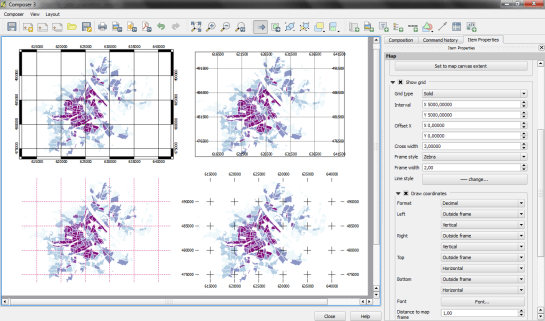
There are numerous different options for map grids in the new composer but a picture is worth a thousand words:

printcomposer_grids

The upper-left map features a zebra frame style and coordinate labels aligned horizontally and vertically.

The upper-right map shows a normal frame with labels written inside the frame instead of outside. This grid shows an additional offset.

The lower-left map has no frame but customized, colored and dashed grid lines.

Finally, the lower-right map shows a cross grid with default horizontal coordinate labels.

Today’s spotlight is on a feature which you’ll really love if you have to arrange a little more text on a print layout:

HTML labels

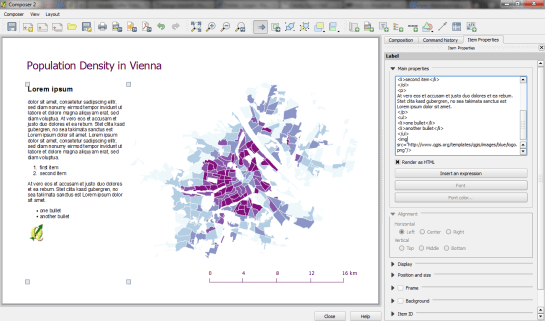
Regular labels are limited to one font, size and color. With the new “Render as HTML” option, you gain flexibility to use HTML tags to style your text by adding headers, lists and even images (note the QGIS logo I added by pointing to the image online):

printcomposer_html

After guide lines and multi-column legends, today’s focus is on

Overview maps

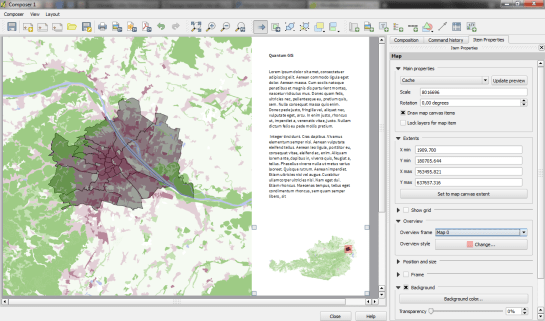
Small overview maps are used to help the reader get an idea of where the region displayed on the main map is located. In the new Print Composer, it’s simple to add such overviews: Add the main map as usual. Then add another map object to the composition an go to the “Overview” section. There, you can specify that the second map object should be an overview map for the first one: Just specify “Map 0” in the dropdown list:

printcomposer_overview

After yesterday’s first post on guide lines & snapping for user-friendly map element arrangement, we’ll have a look at another great new addition:

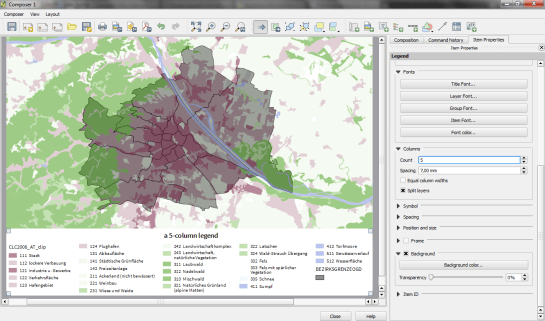
Multi-column legends

In the panel on the right, there is a new section called “Columns”. Here we can create multi-column legend layouts by specifying the desired number of columns. Add some spacing too. It will make the result look more balanced.

By default, Print Composer tries to keep all classes of one layer in one column. You can override this behavior – as I did in this example – by ticking “Split Layers”:

printcomposer_columns

Another useful trick is to use text wrapping for long class labels. This option can be found in the legend’s “Main properties” right at the top of the side panel. In this example, I specified wrap on the pipe “|” symbol and inserted this symbol into the longer class names to force a line break:

printcomposer_wraplegendtext