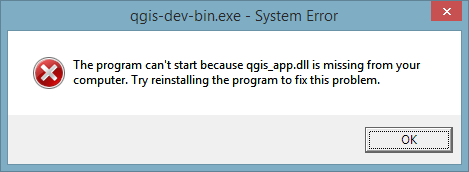
This is a short tip for you if you use QGIS on Windows and ended up with an error like this:
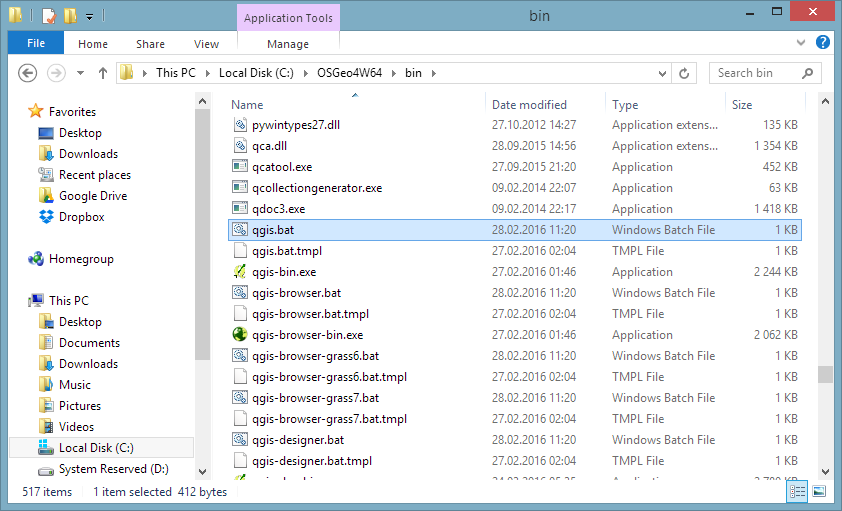
Windows’ suggestion to reinstall probably won’t fix this issue. Instead, you want Windows to run qgis.bat instead of any .exe it is trying to use. Right-click a .qgs file and go to Open with | Choose default program:
In OSGeo4W, the .bat file is located in the bin folder:
Today’s post was motivated by a question on GIS.StackExchange, which is looking for an automated way to symbolize the amenities available at a location using a series of icons, like this:
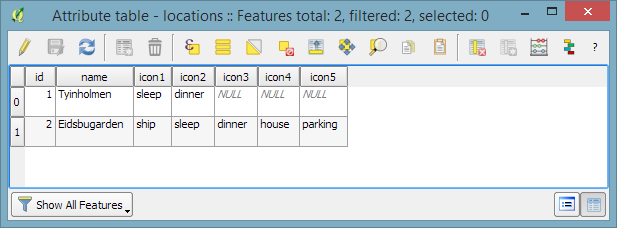
Assuming the information is available in a format similar to this example attribute table
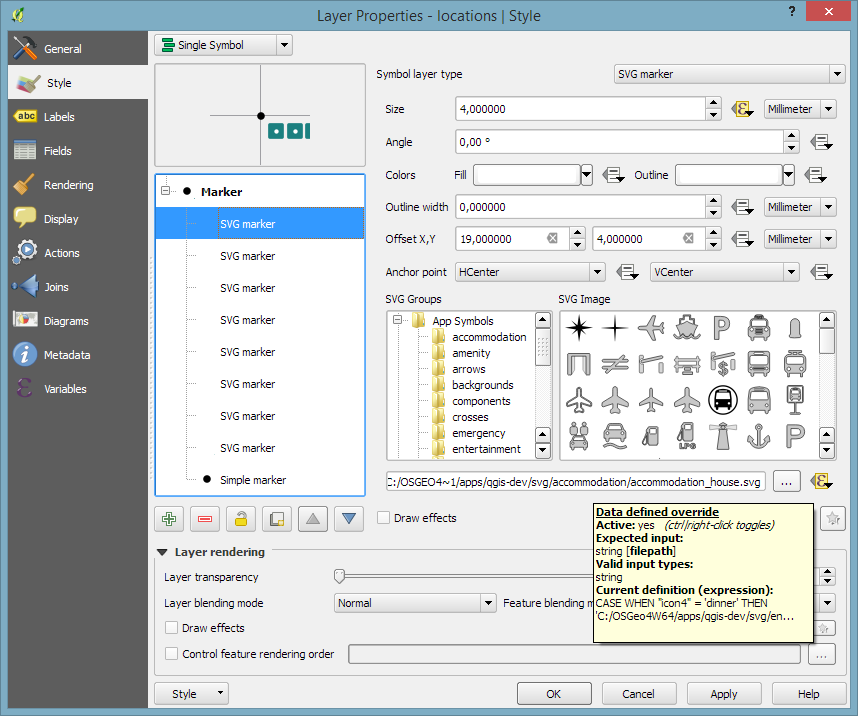
we can create a symbol, which adapts to the values in the icon columns using data-defined overrides:
The five potential symbol locations are aligned next to each other using offsets. We use the following expression to determine the correct SVG symbol:
CASE
WHEN "icon4" = 'dinner'
THEN 'C:/OSGeo4W64/apps/qgis-dev/svg/entertainment/amenity=restaurant.svg'
WHEN "icon4" = 'sleep'
THEN 'C:/OSGeo4W64/apps/qgis-dev/svg/accommodation/accommodation_hotel2.svg'
WHEN "icon4" = 'ship'
THEN 'C:/OSGeo4W64/apps/qgis-dev/svg/transport/amenity=ferry_terminal.svg'
WHEN "icon4" = 'house'
THEN 'C:/OSGeo4W64/apps/qgis-dev/svg/accommodation/accommodation_house.svg'
ELSE ''
END
To hide icons if the icon value is NULL, the marker size is set to 0 using, for example:
CASE
WHEN "icon4" is not NULL
THEN 4
ELSE 0
END
Finally, to ensure that the labels don’t cover the icons, we can use the cartographic label placement with the position priority set to ‘TR,TL,BL’, which restricts labels to the top right, top left, and bottom left position.
With these settings in place, we can zoom out and the labeling algorithm picks the most suitable position from the list of allowed positions:
Default polygon symbols come with a fill and a border color:
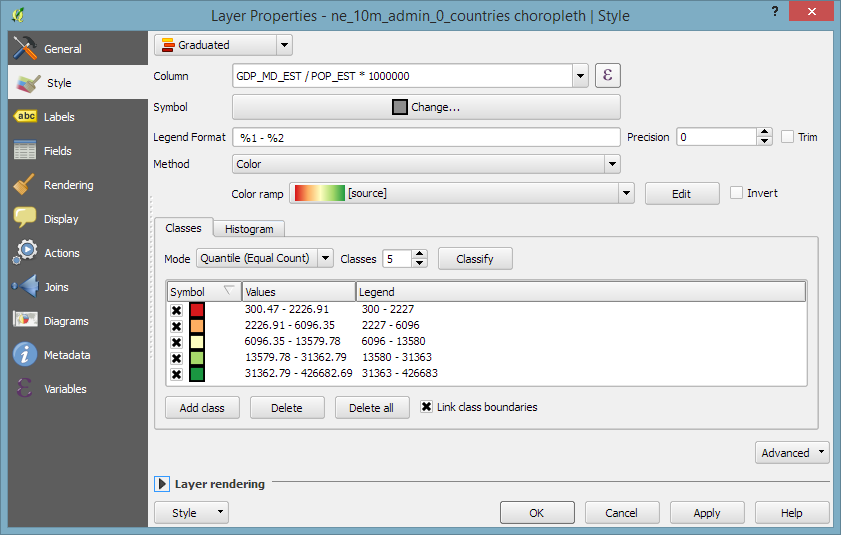
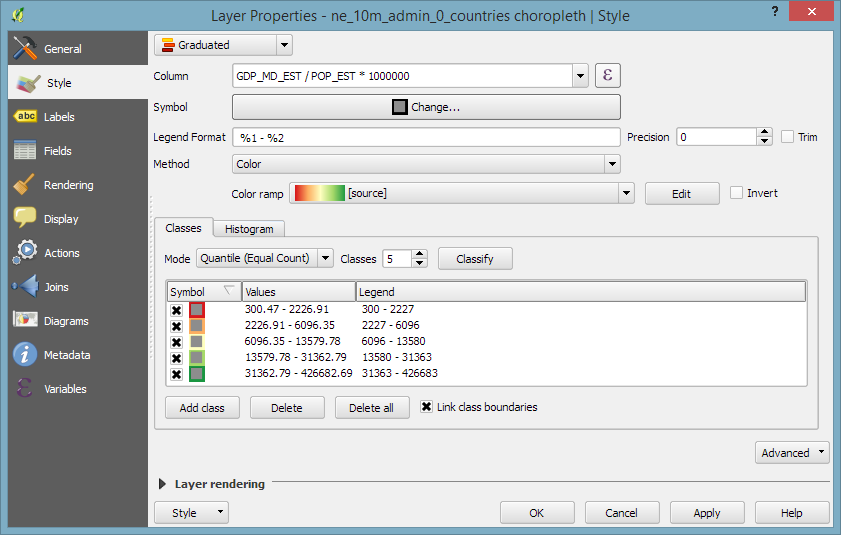
When they are used in a graduated renderer, the fill color is altered for each class:
What if you want to change the border color instead?
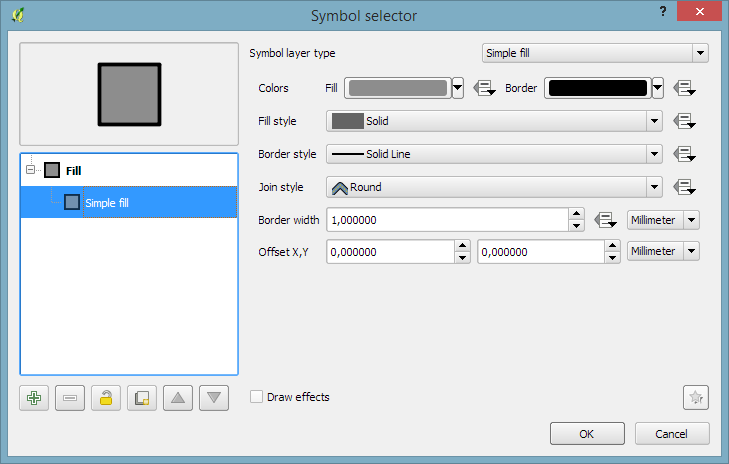
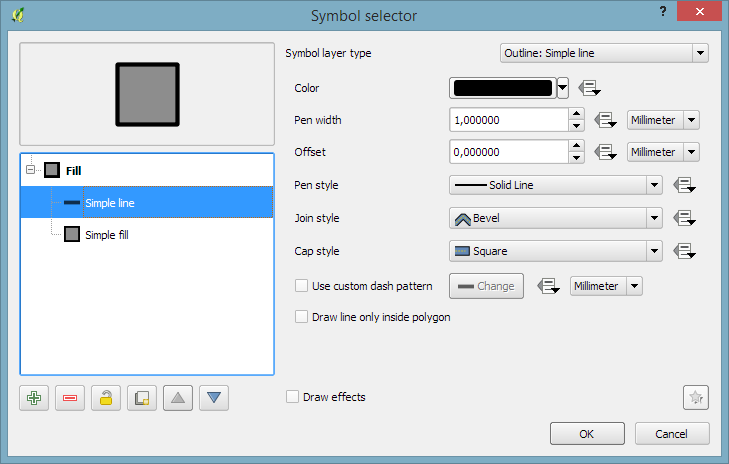
The simplest solution is to add an outline symbol layer to your polygon symbol:
The outline layer has only one color property and it will be altered by the graduated renderer.
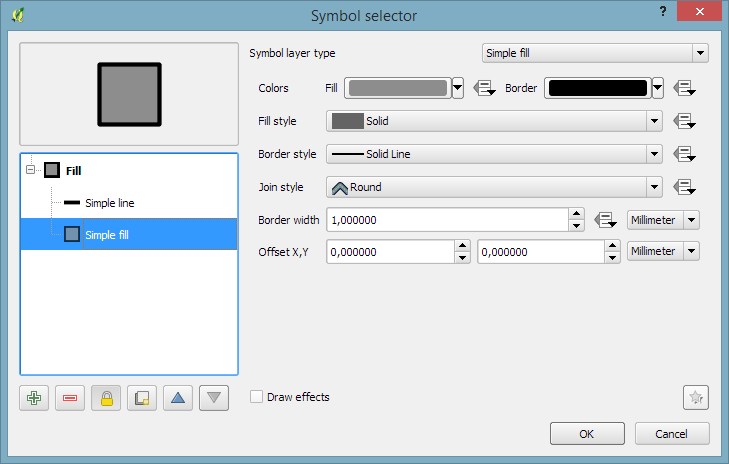
If you now hit ok, the graduated renderer will alter both the simple fill’s fill color and the outline’s color. To stop the fill color from changing, select the simple fill and lock it using the small lock icon below the list of symbol layers:
If you are using QGIS for digitizing work, you have probably seen the 2.14 Changelog entry for Trace Digitizing. The main reason why this is a really cool new feature is that it speeds up digitizing a lot. When tracing is enabled, the digitizing tools take care to follow existing features (as configured in the snapping options). For a detailed howto and videos check Lutra’s blog.
In three parts, the book covers layer styling, labeling, and designing print maps. All recipes come with data and project files so you can reproduce the maps yourself.
Check the book website for the table of contents and a sample chapter.
Just in time for the big QGIS 2.14 LTR release, the paperback will be available March 1st.
On a related note, I am also currently reviewing the latest proofs of the 3rd edition of “Learning QGIS”, which will be updated to QGIS 2.14 as well.
The upcoming 2.14 release of QGIS features a new renderer. For the first time in QGIS history, it will be possible to render 2.5D objects directly in the map window. This feature is the result of a successful crowd funding campaign organized by Matthias Kuhn last year.
In this post, I’ll showcase this new renderer and compare the achievable results to output from the Qgis2threejs plugin.
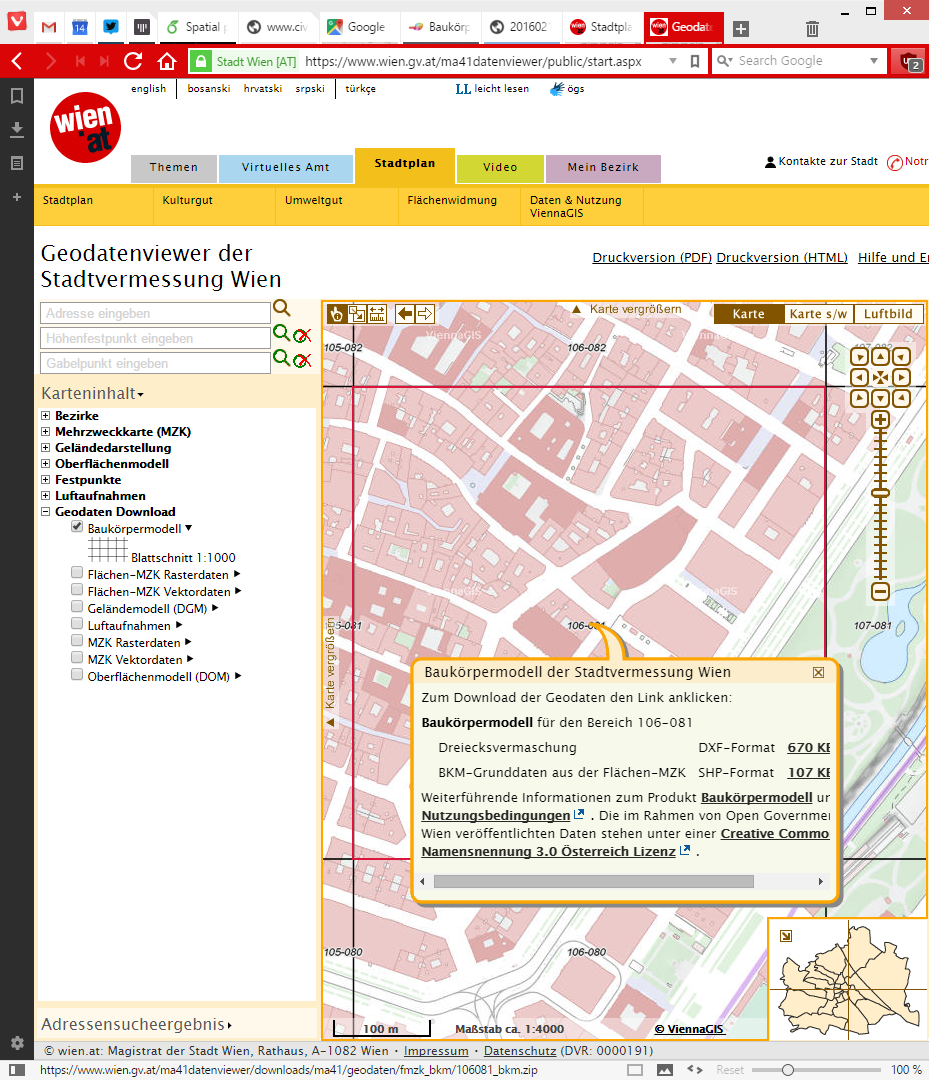
For this post, I’m using building parts data from the city of Vienna, which is publicly available through their data viewer:
This dataset is a pretty detailed building model, where each building is made up of multiple features that represent parts of the building with different height. Of course, if we just load the dataset in default style, we cannot really appreciate the data:
Loaded building parts layer
All this changes if we use the new 2.5D renderer. With just a few basic settings, we can create 2.5D representations of the building parts:
QGIS 2.5D renderer settings
Compare the results to aerial images in Google Maps …
QGIS 2.5D renderer and view in Google Maps
… not bad at all!
Except for a few glitches concerning the small towers at the corners of the building, and some situations where it seems like the wrong building part is drawn in the front, the 2.5D look is quite impressive.
Now, how does this compare to Qgis2threejs, one of the popular plugins which uses web technologies to render 3D content?
One obvious disadvantage of Qgis2threejs is that we cannot define a dedicated roof color. Thus the whole block is drawn in the same color.
On the other hand, Qgis2threejs does not suffer from the rendering order issues that we observe in the QGIS 2.5D renderer and the small towers in the building corners are correctly displayed as well:
QGIS 2.5D renderer and Qgis2threejs output
Overall, the 2.5D renderer is a really fun and exciting new feature. Besides the obvious building usecase, I’m sure we will see a lot of thematic maps making use of this as well.
Give it a try!
In the next post, I’m planning a more in-depth look into how the 2.5D renderer works. Here’s a small teaser of what’s possible if you are not afraid to get your hands dirty:
Ok so quick spoiler here: there is no QGIS 3.0 ready yet, nor will there be a QGIS 3.0 for some time. This article provides a bit more detail on the plans for QGIS 3.0. A few weeks ago I wrote about some of the considerations for the 3.0 release, so you may want to read that first before continuing with this article as I do not cover the same ground here.
A lot of consideration has gone into deciding what the approach will be for the development of QGIS 3.0. Unfortunately the first PSC vote regarding which proposal to follow was a split decision (4 for, 3 against, 1 abstention and 1 suggestion for an alternative in the discussion). During our PSC meeting this week we re-tabled the topic and eventually agreed on Jürgen Fischer’s proposal (Jürgen is a QGIS PSC Member and the QGIS Release Manager) by a much more unanimous…
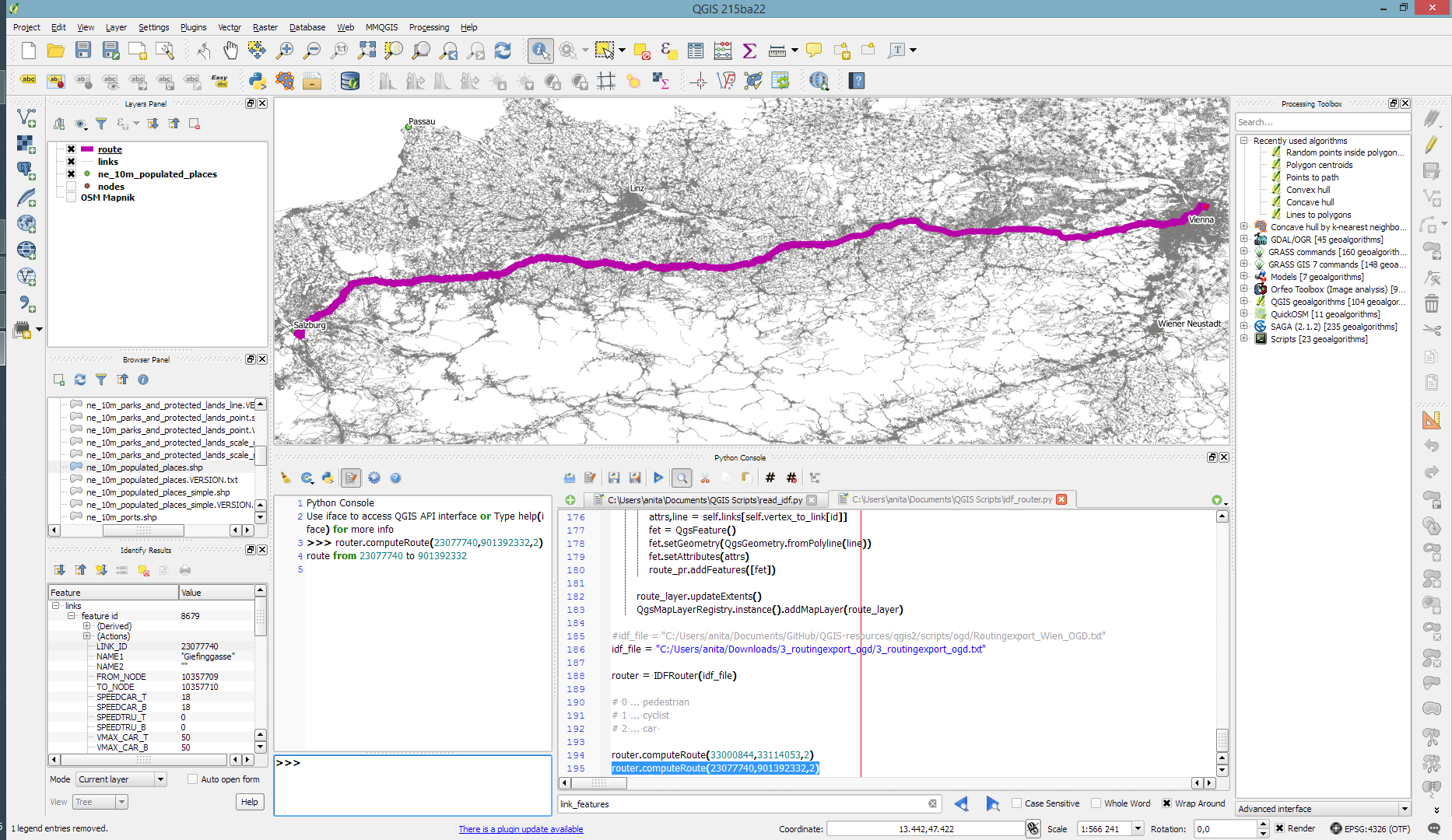
Monday, January 4th 2016, was the open data release date of the official Austrian street network dataset called GIP.at. As far as I know, the dataset is not totally complete yet but it should be in the upcoming months. I’ve blogged about GIP.at before in Open source IDF parser for QGIS and Open source IDF router for QGIS where I was implementing tools based on the data samples that were available then. Naturally, I was very curious if my parser and particularly the router could handle the whole country release …
Some code tweaking, patience for loading, and 9GB of RAM later, QGIS happily routes through Austria, for example from my work place to Salzburg – maybe for some skiing:
The routing request itself takes something between 1 and 2 seconds. (I should still add a timer to it.)
So far, I’ve implemented shortest distance routing for pedestrians, bikes, and cars. Since the data also contains travel speeds, it should be quite straight-forward to also add shortest travel time routing.
The code is available on Github for you to try. I’d appreciate any feedback!
Last summer, I had the pleasure to talk with UNIGIS Salzburg about the QGIS project: how it works and what makes it great. Now, finally, the video is out on Youtube:
Amongst other things, we are discussing the UNIGIS module on QGIS, which I have been teaching for the past few months.