Archive

Tag Archives: Processing

Plugin developers who want to use (Geo)Pandas-based functionality in their plugins regularly face the challenge of converting QGIS vector layers to (Geo)DataFrames. There is currently no built-in convenience function.

In Trajectools, so far, I have been performing the conversion manually, looping through all features and taking care of tricky column types, such as datetimes and geometries:

def df_from_layer_trajectools(layer,time_field_name="t"):
    # Original Trajectools 2.7 version
    names = [field.name() for field in layer.fields()]
    data = []
    for feature in layer.getFeatures():
        my_dict = {}
        for i, a in enumerate(feature.attributes()):
            if names[i] == time_field_name and isinstance(a, QDateTime):
                a = a.toPyDateTime()
            my_dict[names[i]] = a
        pt = feature.geometry().asPoint()
        my_dict["geom_x"] = pt.x()
        my_dict["geom_y"] = pt.y()
        data.append(my_dict)
    df = pd.DataFrame(data)
    return df

It works (mostly), but it’s far from fast. For the 25 million Geolife points, it takes 4 minutes:

In an attempt to speed-up (and make the conversion more robust, e.g. regarding datetime/timezone conversion and null values), I’ve spent some time at SDSL2025 with Joris Van den Bossche trying a workaround that writes the QGIS layer to an Arrow file and then reads that file with pyogrio:

def gdf_from_layer_arrow(layer):
    # SDSL2025 version
    with tempfile.TemporaryDirectory() as tmpdirname:
        path = os.path.join(tmpdirname, "data.arrow")

        options = QgsVectorFileWriter.SaveVectorOptions()
        options.actionOnExistingFile = QgsVectorFileWriter.CreateOrOverwriteFile 
        options.layerName = 'data'
        options.driverName = "arrow"
        
        QgsVectorFileWriter.writeAsVectorFormatV3(
            layer, path, QgsProject.instance().transformContext(), options
        )
       
        meta, table = pyogrio.read_arrow(path)
        gdf = gpd.GeoDataFrame.from_arrow(table)

    return gdf

Not only do we get a GeoDataFrame in return, this also runs in half the time, i.e. in 2 minutes instead of 4:

Switching to this approach will require adding pyogrio to the plugin dependencies. Looks like it could be worth it.

We also discussed another alternative: It would be faster to read the vector layer data source directly, in case it is a supported file format. However, this means we’d need separate handling for other input layers.

There’s also the issue of supporting the Processing feature that allows users to run the algorithm only on the selected features because selected features are only exposed through QgsProcessingParameterFeatureSource (and not through QgsProcessingParameterVectorLayer). Maybe the Export Selected Features algorithm can cover this case but it will export an empty layer if there is no selection.

Are you aware of any other / better ways to approach this issue? Any pointers are appreciated.

Today’s post is a geeky deep dive into how to leverage DVC (not just) data version control to track QGIS geoprocessing workflows.

“Why is this great?” you may ask.

DVC tracks data, parameters, and code. If anything changes, we simply rerun the process and DVC will figure out which stages need to be recomputed and which can be skipped by re-using cached results.

This can lead to huge time savings compared to re-running the whole model

You can find the source code used in this post on my repo https://github.com/anitagraser/QGIS-resources/tree/dvc

I’m using DVC with the DVC plugin for VSCode but DVC can be used completely from the command line, if you prefer this appraoch.

Basically, what follows is a proof of concept: converting a QGIS Processing model to a DVC workflow. In the following screenshot, you can see the main stages

  1. The QGIS model in the upper left corner
  2. The Python script exported from the QGIS model builder in the lower left corner
  3. The DVC stages in my dvc.yaml file in the upper right corner (And please ignore the hello world stage. It’s a left over from my first experiment)
  4. The DVC DAG visualizing the sequence of stages. Looks similar to the QGIS model, doesn’t it ;-)

Besides the stage definitions in dvc.yaml, there’s a parameters file:

random-points:
  n: 10
buffer-points:
  size: 0.5

And, of course, the two stages, each as it’s own Python script.

First, random-points.py which reads the random-points.n parameter to create the desired number of points within the polygon defined in qgis3/data/test.geojson:

import dvc.api

from qgis.core import QgsVectorLayer
from processing.core.Processing import Processing
import processing

Processing.initialize()

params = dvc.api.params_show()
pts_n = params['random-points']['n']

input_vector = QgsVectorLayer("qgis3/data/test.geojson")
output_filename = "qgis3/output/random-points.geojson"

alg_params = {
    'INCLUDE_POLYGON_ATTRIBUTES': True,
    'INPUT': input_vector,
    'MAX_TRIES_PER_POINT': 10,
    'MIN_DISTANCE': 0,
    'MIN_DISTANCE_GLOBAL': 0,
    'POINTS_NUMBER': pts_n,
    'SEED': None,
    'OUTPUT': output_filename
}
processing.run('native:randompointsinpolygons', alg_params)

And second, buffer-points.py which reads the buffer-points.size parameter to buffer the previously generated points:

import dvc.api
import geopandas as gpd
import matplotlib.pyplot as plt

from qgis.core import QgsVectorLayer
from processing.core.Processing import Processing
import processing

Processing.initialize()

params = dvc.api.params_show()
buffer_size = params['buffer-points']['size']

input_vector = QgsVectorLayer("qgis3/output/random-points.geojson")
output_filename = "qgis3/output/buffered-points.geojson"

alg_params = {
    'DISSOLVE': False,
    'DISTANCE': buffer_size,
    'END_CAP_STYLE': 0,  # Round
    'INPUT': input_vector,
    'JOIN_STYLE': 0,  # Round
    'MITER_LIMIT': 2,
    'SEGMENTS': 5,
    'OUTPUT': output_filename
}
processing.run('native:buffer', alg_params)

gdf = gpd.read_file(output_filename)
gdf.plot()

plt.savefig('qgis3/output/buffered-points.png')

With these things in place, we can use dvc to run the workflow, either from within VSCode or from the command line. Here, you can see the workflow (and how dvc skips stages and fetches results from cache) in action:

If you try it out yourself, let me know what you think.

When QGIS 3.0 was release, I published a Processing script template for QGIS3. While the script template is nicely pythonic, it’s also pretty long and daunting for non-programmers. This fact didn’t go unnoticed and Nathan Woodrow in particular started to work on a QGIS enhancement proposal to improve the situation and make writing Processing scripts easier, while – at the same time – keeping in line with common Python styles.

While the previous template had 57 lines of code, the new template only has 26 lines – 50% less code, same functionality! (Actually, this template provides more functionality since it also tracks progress and ensures that the algorithm can be cancelled.)

from qgis.processing import alg
from qgis.core import QgsFeature, QgsFeatureSink

@alg(name="ex_new", label=alg.tr("Example script (new style)"), group="examplescripts", group_label=alg.tr("Example Scripts"))
@alg.input(type=alg.SOURCE, name="INPUT", label="Input layer")
@alg.input(type=alg.SINK, name="OUTPUT", label="Output layer")
def testalg(instance, parameters, context, feedback, inputs):
    """
    Description goes here. (Don't delete this! Removing this comment will cause errors.)
    """
    source = instance.parameterAsSource(parameters, "INPUT", context)

    (sink, dest_id) = instance.parameterAsSink(
        parameters, "OUTPUT", context,
        source.fields(), source.wkbType(), source.sourceCrs())

    total = 100.0 / source.featureCount() if source.featureCount() else 0
    features = source.getFeatures()
    for current, feature in enumerate(features):
        if feedback.isCanceled():
            break
        out_feature = QgsFeature(feature)
        sink.addFeature(out_feature, QgsFeatureSink.FastInsert)
        feedback.setProgress(int(current * total))

    return {"OUTPUT": dest_id}

The key improvement are the new decorators that turn an ordinary function (such as testalg in the template) into a Processing algorithm. Decorators start with @ and are written above a function definition. The @alg decorator declares that the following function is a Processing algorithm, defines its name and assigns it to an algorithm group. The @alg.input decorator creates an input parameter for the algorithm. Similarly, there is a @alg.output decorator for output parameters.

While the above example demonstrates how to process features individually by getting them from a source and writing them to a sink, some work flows may profit from dealing with layers instead. For example, see the PyQGIS101 tutorial on writing scripts that chain Processing tools.

For more about the @alg decorator check out the official docs.

For a longer example script, check out the original QGIS enhancement proposal thread!

For now, this new way of writing Processing scripts is only supported by QGIS 3.6 but there are plans to back-port this improvement to 3.4 once it is more mature. So give it a try and report back!

In Movement data in GIS #16, I presented a new way to deal with trajectory data using GeoPandas and how to load the trajectory GeoDataframes as a QGIS layer. Following up on this initial experiment, I’ve now implemented a first version of an algorithm that performs a spatial analysis on my GeoPandas trajectories.

The first spatial analysis algorithm I’ve implemented is Clip trajectories by extent. Implementing this algorithm revealed a couple of pitfalls:

  • To achieve correct results, we need to compute spatial intersections between linear trajectory segments and the extent. Therefore, we need to convert our point GeoDataframe to a line GeoDataframe.
  • Based on the spatial intersection, we need to take care of computing the corresponding timestamps of the events when trajectories enter or leave the extent.
  • A trajectory can intersect the extent multiple times. Therefore, we cannot simply use the global minimum and maximum timestamp of intersecting segments.
  • GeoPandas provides spatial intersection functionality but if the trajectory contains consecutive rows without location change, these will result in zero length lines and those cause an empty intersection result.

So far, the clip result only contains the trajectory id plus a suffix indicating the sequence of the intersection segments for a specific trajectory (because one trajectory can intersect the extent multiple times). The following screenshot shows one highlighted trajectory that intersects the extent three times and the resulting clipped trajectories:

This algorithm together with the basic trajectory from points algorithm is now available in a Processing algorithm provider plugin called Processing Trajectory.

Note: This plugin depends on GeoPandas.

Note for Windows users: GeoPandas is not a standard package that is available in OSGeo4W, so you’ll have to install it manually. (For the necessary steps, see this answer on gis.stackexchange.com)

The implemented tests show how to use the Trajectory class independently of QGIS. So far, I’m only testing the spatial properties though:

def test_two_intersections_with_same_polygon(self):
    polygon = Polygon([(5,-5),(7,-5),(7,12),(5,12),(5,-5)])
    data = [{'id':1, 'geometry':Point(0,0), 't':datetime(2018,1,1,12,0,0)},
        {'id':1, 'geometry':Point(6,0), 't':datetime(2018,1,1,12,10,0)},
        {'id':1, 'geometry':Point(10,0), 't':datetime(2018,1,1,12,15,0)},
        {'id':1, 'geometry':Point(10,10), 't':datetime(2018,1,1,12,30,0)},
        {'id':1, 'geometry':Point(0,10), 't':datetime(2018,1,1,13,0,0)}]
    df = pd.DataFrame(data).set_index('t')
    geo_df = GeoDataFrame(df, crs={'init': '31256'})
    traj = Trajectory(1, geo_df)
    intersections = traj.intersection(polygon)
    result = []
    for x in intersections:
        result.append(x.to_linestring())
    expected_result = [LineString([(5,0),(6,0),(7,0)]), LineString([(7,10),(5,10)])]
    self.assertEqual(result, expected_result) 

One issue with implementing the algorithms as QGIS Processing tools in this way is that the tools are independent of one another. That means that each tool has to repeat the expensive step of creating the trajectory objects in memory. I’m not sure this can be solved.

Remember the good old times when all parameters in Processing were mandatory?

Inputs and outputs are fixed, and optional parameters or outputs are not supported. [Graser & Olaya, 2015]

Since QGIS 2.14, this is no longer the case. Scripts, as well as models, can now have optional parameters. Here is how for QGIS 3:

When defining a Processing script parameter, the parameter’s constructor takes a boolean flag indicating whether the parameter should be optional. It’s false by default:

class qgis.core.QgsProcessingParameterNumber(
   name: str, description: str = '', 
   type: QgsProcessingParameterNumber.Type = QgsProcessingParameterNumber.Integer, 
   defaultValue: Any = None, 
   optional: bool = False,
   minValue: float = -DBL_MAX+1, maxValue: float = DBL_MAX)

(Source: http://python.qgis.org/api/core/Processing/QgsProcessingParameterNumber.html)

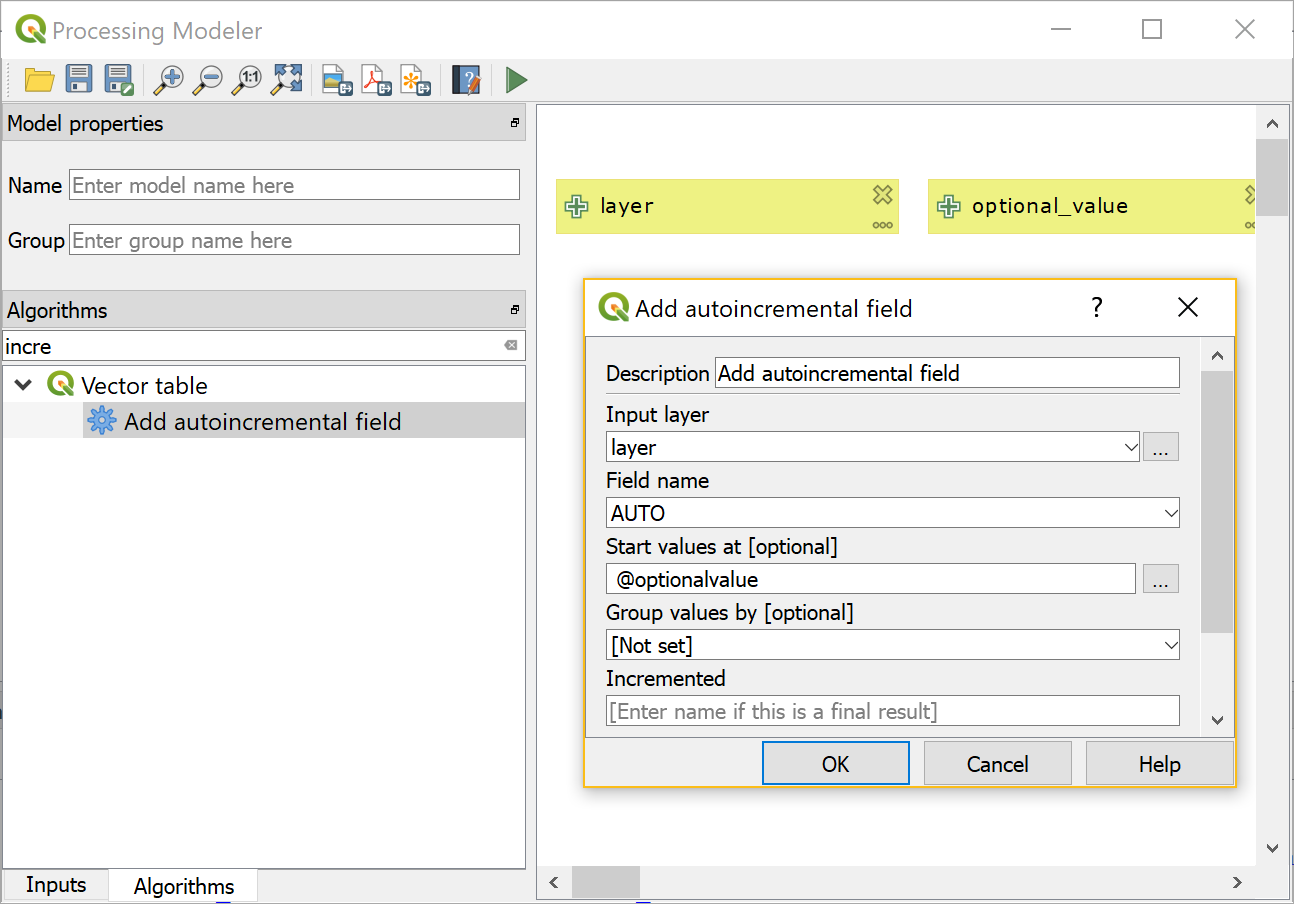
One standard tool that uses optional parameters is Add autoincremental field:

From Python, this algorithm can be called with or without the optional parameters:

When building a model, an optional input can be assigned to the optional parameter. To create an optional input, make sure to deactivate the mandatory checkbox at the bottom of the input parameter definition:

Then this optional input can be used in an algorithm. For example, here the numerical input optional_value is passed to the Start values at parameter:

You can get access to all available inputs by clicking the … button next to the Start values at field. In this example, I have access to values of the input layer as well as  the optional value:

Once this is set up, this is how it looks when the model is run:

You can see that the optional value is indeed Not set.

References

Graser, A., & Olaya, V. (2015). Processing: A Python Framework for the Seamless Integration of Geoprocessing Tools in QGIS. ISPRS Int. J. Geo-Inf. 2015, 4, 2219-2245. doi:10.3390/ijgi4042219.

Processing has been overhauled significantly for QGIS 3.0. Besides speed-ups, one of the most obvious changes is the way to write Processing scripts. Instead of the old Processing-specific syntax, Processing scripts for QGIS3 are purely pythonic implementations of QgsProcessingAlgorithm.

Here’s a template that you can use to develop your own algorithms:

from qgis.PyQt.QtCore import QCoreApplication, QVariant
from qgis.core import (QgsField, QgsFeature, QgsFeatureSink, QgsFeatureRequest, QgsProcessing, QgsProcessingAlgorithm, QgsProcessingParameterFeatureSource, QgsProcessingParameterFeatureSink)
                      
class ExAlgo(QgsProcessingAlgorithm):
    INPUT = 'INPUT'
    OUTPUT = 'OUTPUT'

    def __init__(self):
        super().__init__()

    def name(self):
        return "exalgo"
    
    def tr(self, text):
        return QCoreApplication.translate("exalgo", text)
        
    def displayName(self):
        return self.tr("Example script")

    def group(self):
        return self.tr("Examples")

    def groupId(self):
        return "examples"

    def shortHelpString(self):
        return self.tr("Example script without logic")

    def helpUrl(self):
        return "https://qgis.org"
        
    def createInstance(self):
        return type(self)()
  
    def initAlgorithm(self, config=None):
        self.addParameter(QgsProcessingParameterFeatureSource(
            self.INPUT,
            self.tr("Input layer"),
            [QgsProcessing.TypeVectorAnyGeometry]))
        self.addParameter(QgsProcessingParameterFeatureSink(
            self.OUTPUT,
            self.tr("Output layer"),
            QgsProcessing.TypeVectorAnyGeometry))

    def processAlgorithm(self, parameters, context, feedback):
        source = self.parameterAsSource(parameters, self.INPUT, context)
        (sink, dest_id) = self.parameterAsSink(parameters, self.OUTPUT, context,
                                               source.fields(), source.wkbType(), source.sourceCrs())

        features = source.getFeatures(QgsFeatureRequest())
        for feat in features:
            out_feat = QgsFeature()
            out_feat.setGeometry(feat.geometry())
            out_feat.setAttributes(feat.attributes())
            sink.addFeature(out_feat, QgsFeatureSink.FastInsert)

        return {self.OUTPUT: dest_id}

This script just copies the features of the input layer to the output layer without any modifications. Add your logic to the processAlgorithm() function to get started.

Use Create New Script from the Toolbox toolbar:

Paste the example script:

Once saved, the script will show up in the Processing toolbox:

Joining polygon attributes to points based on their location is a very common GIS task. In QGIS 2, QGIS’ own implementation of “Join attributes by location” was much slower than SAGA’s “Add polygon attributes to points”. Thus, installations without SAGA were out of good options.

Luckily this issue (and many more) has been fixed by the rewrite of many geoprocessing algorithms for QGIS 3! Let’s revisit the comparison:

I’m using publicly available datasets from Naturalearth: The small scale populated places (243 points) and the large scale countries (255 polygons with many nodes). Turns out that QGIS 3’s built-in tool takes a little less than two seconds while the SAGA Processing tool requires a litte less than six seconds:

Like in the previous comparison, times were measured using the Python Console:

In both tools, only the countries’ SOVEREIGNT attribute is joined to the point attribute table:

import processing
import datetime
t0 = datetime.datetime.now()
print("QGIS Join attributes by location ...")
processing.runAndLoadResults(
   "qgis:joinattributesbylocation", 
   {'INPUT':'E:/Geodata/NaturalEarth/vector_v4/natural_earth_vector/110m_cultural/ne_110m_populated_places.shp',
   'JOIN':'E:/Geodata/NaturalEarth/vector_v4/natural_earth_vector/10m_cultural/ne_10m_admin_0_countries.shp',
   'PREDICATE':[5],'JOIN_FIELDS':['SOVEREIGNT'],
   'METHOD':0,'DISCARD_NONMATCHING':False,'OUTPUT':'memory:'})

t1 = datetime.datetime.now()
print("Runtime: "+str(t1-t0))

print("SAGA Add polygon attributers to points ...")
processing.runAndLoadResults("saga:addpolygonattributestopoints", 
   {'INPUT':'E:/Geodata/NaturalEarth/vector_v4/natural_earth_vector/110m_cultural/ne_110m_populated_places.shp',
   'POLYGONS':'E:/Geodata/NaturalEarth/vector_v4/natural_earth_vector/10m_cultural/ne_10m_admin_0_countries.shp',
   'FIELDS':'SOVEREIGNT','OUTPUT':'C:/Users/anita/AppData/Local/Temp/processing_8b1bbde78de5490285dd530e115cca52/099660d88bf14c54a853cc230e388e55/OUTPUT.shp'})

t2 = datetime.datetime.now()
print("Runtime: "+str(t2-t1))

It is worth noting that it takes longer if more attributes are to be joined to the point layer attribute table. For example, if the JOIN_FIELDS parameter is empty:

'JOIN_FIELDS':[]

instead of

'JOIN_FIELDS':['SOVEREIGNT']

then the the Join attributes by location takes almost 16 seconds. (The country layer contains 71 attributes after all.)

(The SAGA tool currently allows only joining one attribute at a time.)

Today’s post is a follow-up of Movement data in GIS #3: visualizing massive trajectory datasets. In that post, I summarized a concept for trajectory generalization. Now, I have published the scripts and sample data in my QGIS-Processing-tools repository on Github.

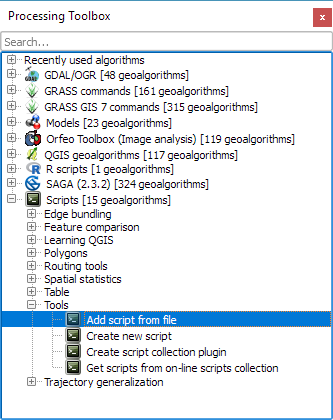
To add the trajectory generalization scripts to your Processing toolbox, you can use the Add scripts from files tool:

It is worth noting, that Add scripts from files fails to correctly import potential help files for the scripts but that’s not an issue this time around, since I haven’t gotten around to actually write help files yet.

The scripts are used in the following order:

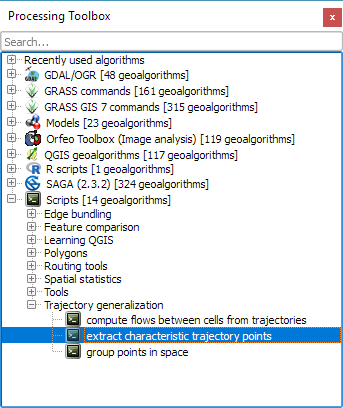
  1. Extract characteristic trajectory points
  2. Group points in space
  3. Compute flows between cells from trajectories

The sample project contains input data, as well as output layers of the individual tools. The only required input is a layer of trajectories, where trajectories have to be LINESTRINGM (note the M!) features:

Trajectory sample based on data provided by the GeoLife project

In Extract characteristic trajectory points, distance parameters are specified in meters, stop duration in seconds, and angles in degrees. The characteristic points contain start and end locations, as well as turns and stop locations:

The characteristic points are then clustered. In this tool, the distance has to be specified in layer units, which are degrees in case of the sample data.

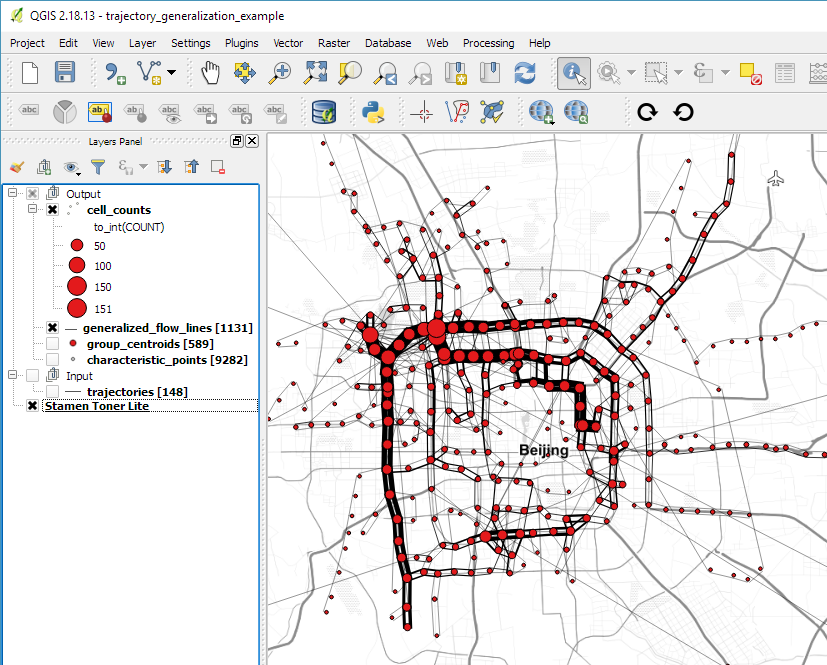
Finally, we can compute flows between cells defined by these clusters:

Flow lines scaled by flow strength and cell centers scaled by counts

If you use these tools on your own data, I’d be happy so see what you come up with!


This post is part of a series. Read more about movement data in GIS.

Broken Processing models are nasty and this error is particularly unpleasant:

...
File "/home/agraser/.qgis2/python/plugins/processing/modeler/
ModelerAlgorithm.py", line 110, in algorithm
self._algInstance = ModelerUtils.getAlgorithm(self.consoleName).getCopy()
AttributeError: 'NoneType' object has no attribute 'getCopy'

It shows up if you are trying to open a model in the model editor that contains an algorithm which Processing cannot find.

For example, when I upgraded to Ubuntu 16.04, installing a fresh QGIS version did not automatically install SAGA. Therefore, any model with a dependency on SAGA was broken with the above error message. Installing SAGA and restarting QGIS solves the issue.

If you follow my blog, you’ve most certainly seen the post How to create illuminated contours, Tanaka-style from earlier this year. As Victor Olaya noted correctly in the comments, the workflow to create this effect lends itself perfectly to being automated with a Processing model.

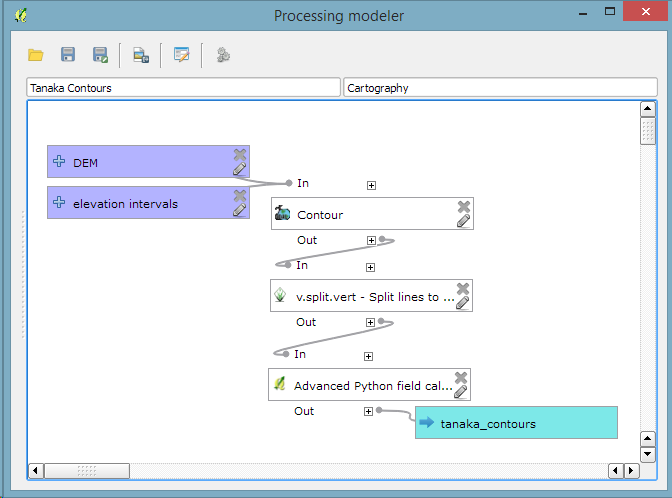
The model needs only two inputs: the digital elevation model raster and the interval at which we want the contours to be created:

Screenshot 2015-07-05 18.59.34

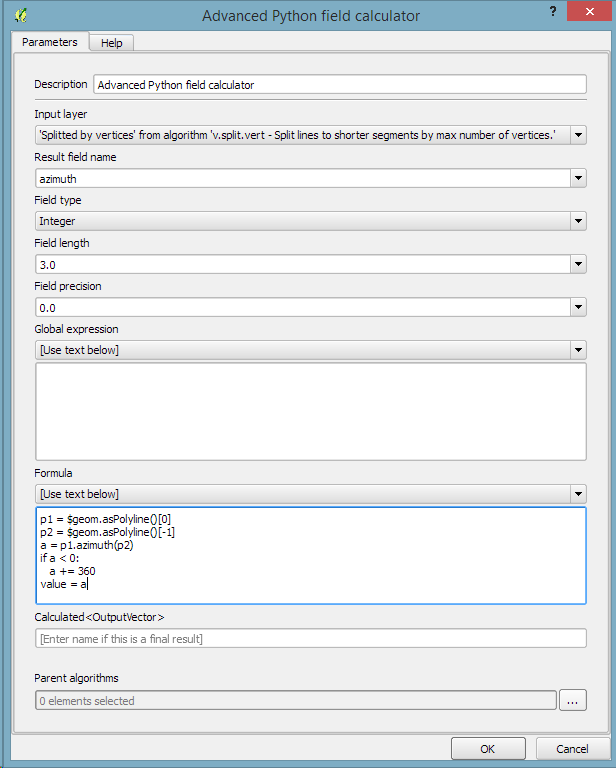
The model steps are straightforward: the contours are generated and split into short segments before the segment orientation is computed using the following code in the Advanced Python Field Calculator:

p1 = $geom.asPolyline()[0]
p2 = $geom.asPolyline()[-1]
a = p1.azimuth(p2)
if a < 0:
   a += 360
value = a

Screenshot 2015-07-05 18.53.26

You can find the finished model on Github. Happy QGISing!