Archive

Tag Archives: Python

The journey continues: QgsArrowIterator is now merged! This makes it possible to iterate over QgsFeatures as Arrow batches.

This is where we are now, quoting Dewey Dunnington:

import geopandas
from nanoarrow.c_array import allocate_c_array
import qgis
from qgis.core import QgsVectorLayer

# Create a vector layer
layer = QgsVectorLayer("tests/testdata/zonalstatistics/polys.shp", "layer_name", "ogr")
schema = qgis.core.QgsArrowIterator.inferSchema(layer)

it = qgis.core.QgsArrowIterator(layer.getFeatures())
it.setSchema(schema, 1)

c_array = allocate_c_array()
schema.exportToAddress(c_array.schema._addr())
it.nextFeatures(5, c_array._addr())

print(geopandas.GeoDataFrame.from_arrow(c_array))
#> lev3_name                                           geometry
#> 0    poly_1  MULTIPOLYGON (((100.37934 -0.96049, 100.37934 ...
#> 1    poly_2  MULTIPOLYGON (((100.37944 -0.96044, 100.37955 ...
#> 2    poly_3  MULTIPOLYGON (((100.37938 -0.96049, 100.37949 ...

print(geopandas.read_file("tests/testdata/zonalstatistics/polys.shp"))
#> lev3_name                                           geometry
#> 0    poly_1  POLYGON ((100.37934 -0.96049, 100.37934 -0.960...
#> 1    poly_2  POLYGON ((100.37944 -0.96044, 100.37955 -0.960...
#> 2    poly_3  POLYGON ((100.37938 -0.96049, 100.37949 -0.960...

Further improvements are already being planned. To quote from the ticket:

“The final state after this improvement would be a compact way for Arrow Python consumers like GeoPandas to ergonomically consume a layer. Maybe:

geopandas.GeoDataFrame.from_arrow(qgis_layer_object)

Or maybe:

geopandas.GeoDataFrame.from_arrow(qgis_layer_object.getArrowStream())

Looking forward to seeing this develop further.

The conversation around Looking for better ways to convert between QGIS VectorLayer and (Geo)DataFrame is continuing over at https://fosstodon.org/@underdarkGIS/115442614331293320

What I’ve learned so far:

Exciting times for spatial data science tooling 🤩

Plugin developers who want to use (Geo)Pandas-based functionality in their plugins regularly face the challenge of converting QGIS vector layers to (Geo)DataFrames. There is currently no built-in convenience function.

In Trajectools, so far, I have been performing the conversion manually, looping through all features and taking care of tricky column types, such as datetimes and geometries:

def df_from_layer_trajectools(layer,time_field_name="t"):
    # Original Trajectools 2.7 version
    names = [field.name() for field in layer.fields()]
    data = []
    for feature in layer.getFeatures():
        my_dict = {}
        for i, a in enumerate(feature.attributes()):
            if names[i] == time_field_name and isinstance(a, QDateTime):
                a = a.toPyDateTime()
            my_dict[names[i]] = a
        pt = feature.geometry().asPoint()
        my_dict["geom_x"] = pt.x()
        my_dict["geom_y"] = pt.y()
        data.append(my_dict)
    df = pd.DataFrame(data)
    return df

It works (mostly), but it’s far from fast. For the 25 million Geolife points, it takes 4 minutes:

In an attempt to speed-up (and make the conversion more robust, e.g. regarding datetime/timezone conversion and null values), I’ve spent some time at SDSL2025 with Joris Van den Bossche trying a workaround that writes the QGIS layer to an Arrow file and then reads that file with pyogrio:

def gdf_from_layer_arrow(layer):
    # SDSL2025 version
    with tempfile.TemporaryDirectory() as tmpdirname:
        path = os.path.join(tmpdirname, "data.arrow")

        options = QgsVectorFileWriter.SaveVectorOptions()
        options.actionOnExistingFile = QgsVectorFileWriter.CreateOrOverwriteFile 
        options.layerName = 'data'
        options.driverName = "arrow"
        
        QgsVectorFileWriter.writeAsVectorFormatV3(
            layer, path, QgsProject.instance().transformContext(), options
        )
       
        meta, table = pyogrio.read_arrow(path)
        gdf = gpd.GeoDataFrame.from_arrow(table)

    return gdf

Not only do we get a GeoDataFrame in return, this also runs in half the time, i.e. in 2 minutes instead of 4:

Switching to this approach will require adding pyogrio to the plugin dependencies. Looks like it could be worth it.

We also discussed another alternative: It would be faster to read the vector layer data source directly, in case it is a supported file format. However, this means we’d need separate handling for other input layers.

There’s also the issue of supporting the Processing feature that allows users to run the algorithm only on the selected features because selected features are only exposed through QgsProcessingParameterFeatureSource (and not through QgsProcessingParameterVectorLayer). Maybe the Export Selected Features algorithm can cover this case but it will export an empty layer if there is no selection.

Are you aware of any other / better ways to approach this issue? Any pointers are appreciated.

The latest releases of MovingPandas and Trajectools come with many “under the hood” changes that aim to make your movement analytics faster:

  1. Instead of immediately creating a GeoPandas GeoDataFrame and populating the geometry column with Point objects, MovingPandas now has “lazy geometry column creation” that holds off on this operation until / if the geometries are actually needed. This way, for many operations, no geometry objects have to be generated at all.
  2. MovingPandas TrajectorySplitters now support parallel processing and Trajectools uses parallel processing whenever available (e.g. for adding speed & direction metrics, detecting stops, splitting trajectories).
  3. When a minimum length is specified for trajectories, MovingPandas now avoids computing the total trajectory length and, instead, immediately stops once the threshold value has been reached (“early skip”).
  4. Trajectools now offers the option to skip computation of movement metrics (speed & direction). This way, we can skip unnecessary computations and leverage the lazy geometry column creation, wherever applicable.

Let’s have a look at some example performance measurements!

Example 1: MovingPandas ValueChangeSplitter

The ValueChangeSplitter splits trajectories when it detects a value change in the specified column. This is useful, for example, to split up public trajectories that contain a “next_stop” column.

The following graph shows ValueChangeSplitter runtimes for different minimum trajectory length settings (from 0 to 1km, 100km, and 10,000km):

We see that the new, lazy geometry column initialization outperforms the old original code in all cases (e.g. 57% runtime reduction for 1km), except for the worst-case scenario, when the original implementation discards all trajectories as too short right from the start. (For most use cases, min_length will be set to rather small values to avoid creation of undesired short trajectory fragments, similar to sliver polygons in classic geometry operations.)

Additionally, we can engage multiprocessing by setting the n_processes parameter, e.g. to the number of CPUs to achieve further speedup:

Example 2: Trajectools

By applying all above-mentioned speedup techniques, Trajectools is now considerably faster. For example, the following runtime reductions can be achieved by deactivating the “Add movement metrics (speed, direction)” option in the algorithm dialog:

  • Create trajectories: 62%
  • Spatiotemporal generalization (TDTR): 78%
  • Temporal generalization: 81%
  • Split trajectories at stops: 53%

I have also updated the default trajectory points output style. It now uses a graduated renderer to visualize the speed values (if they have been calculated) instead of the previously used data-defined override. This makes the style faster to customize and provides a user-friendly legend:

For more infos, have a look at:

Enjoy the latest performance increases!

Today, I’m super excited to share with you the announcement that our open source textbook “Geocomputation with Python” has finally arrived in print and is now available for purchase from Routledge.com, Amazon.com, Amazon.co.uk, and other booksellers.

“Geocomputation with Python” (or geocompy for short) covers the entire range of standard GIS operations for both vector and raster data models. Each section and chapter builds on the previous. If you’re just starting out with Python to work with geographic data, we hope that the book will be an excellent place to start.

Of course, you can still find the online version of the book at py.geocompx.org.

The book is open-source and you can find the code on GitHub. This ensures that the content is reproducible, transparent, and accessible. It also lets you interact with the project by opening issues and submitting pull requests.

This release is the first to support GeoPandas 1.0.

Additionally, this release adds multiple new features, including:

For the full change log, check out the release page.

We have also revamped the documentation at https://movingpandas.readthedocs.io/ using the PyData Sphinx Theme:

On a related note: if you know what I need to change to get all Trajectory functions listed in the TOC on the right, please let me know.

Last week, I had the pleasure to meet some of the people behind the OGC Moving Features Standard Working group at the IEEE Mobile Data Management Conference (MDM2024). While chatting about the Moving Features (MF) support in MovingPandas, I realized that, after the MF-JSON update & tutorial with official sample post, we never published a complete tutorial on working with MF-JSON encoded data in MovingPandas.

The current MovingPandas development version (to be release as version 0.19) supports:

  • Reading MF-JSON MovingPoint (single trajectory features and trajectory collections)
  • Reading MF-JSON Trajectory
  • Writing MovingPandas Trajectories and TrajectoryCollections to MF-JSON MovingPoint

This means that we can now go full circle: reading — writing — reading.

Reading MF-JSON

Both MF-JSON MovingPoint encoding and Trajectory encoding can be read using the MovingPandas function read_mf_json(). The complete Jupyter notebook for this tutorial is available in the project repo.

Here we read one of the official MF-JSON MovingPoint sample files:

traj = mpd.read_mf_json('data/movingfeatures.json')

Writing MF-JSON

To write MF-JSON, the Trajectory and TrajectoryCollection classes provide a to_mf_json() function:

The resulting Python dictionary in MF-JSON MovingPoint encoding can then be saved to a JSON file, and then read again:

import json
with open('mf1.json', 'w') as json_file:
    json.dump(mf_json, json_file, indent=4)

Similarly, we can read any arbitrary trajectory data set and save it to MF-JSON.

For example, here we use our usual Geolife sample:

gdf = gp.read_file('data/demodata_geolife.gpkg')
tc = mpd.TrajectoryCollection(gdf, 'trajectory_id', t='t')
mf_json = tc.to_mf_json(temporal_columns=['sequence'])

And reading again

import json
with open('mf5.json', 'w') as json_file:
    json.dump(mf_json, json_file, indent=4)
tc = mpd.read_mf_json('mf5.json', traj_id_property='trajectory_id' )

Conclusion

The implemented MF-JSON support covers the basic usage of the encodings. There are some fine details in the standard, such as the distinction of time-varying attribute with linear versus step-wise interpolation, which MovingPandas currently does not support.

If you are working with movement data, I would appreciate if you can give the improved MF-JSON support a spin and report back with your experiences.

With the release of GeoPandas 1.0 this month, we’ve been finally able to close a long-standing issue in MovingPandas by adding support for the explore function which provides interactive maps using Folium and Leaflet.

Explore() will be available in the upcoming MovingPandas 0.19 release if your Python environment includes GeoPandas >= 1.0 and Folium. Of course, if you are curious, you can already test this new functionality using the current development version.

This enables users to access interactive trajectory plots even in environments where it is not possible to install geoviews / hvplot (the previously only option for interactive plots in MovingPandas).

I really like the legend for the speed color gradient, but unfortunately, the legend labels are not readable on the dark background map since they lack the semi-transparent white background that has been applied to the scale bar and credits label.

Speaking of reading / interpreting the plots …

You’ve probably seen the claims that AI will help make tools more accessible. Clearly AI can interpret and describe photos, but can it also interpret MovingPandas plots?

ChatGPT 4o interpretations of MovingPandas plots

Not bad.

And what happens if we ask it to interpret the animated GIF from the beginning of the blog post?

So it looks like ChatGPT extracts 12 frames and analyzes them to answer our question:

Its guesses are not completely off but it made up the facts such as that the view shows “how traffic speeds vary over time”.

The problem remains that models such as ChatGPT rather make up interpretations than concede when they do not have enough information to make a reliable statement.

Today marks the 2.1 release of Trajectools for QGIS. This release adds multiple new algorithms and improvements. Since some improvements involve upstream MovingPandas functionality, I recommend to also update MovingPandas while you’re at it.

If you have installed QGIS and MovingPandas via conda / mamba, you can simply:

conda activate qgis
mamba install movingpandas=0.18

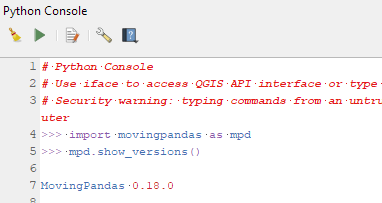
Afterwards, you can check that the library was correctly installed using:

import movingpandas as mpd
mpd.show_versions()

Trajectools 2.1

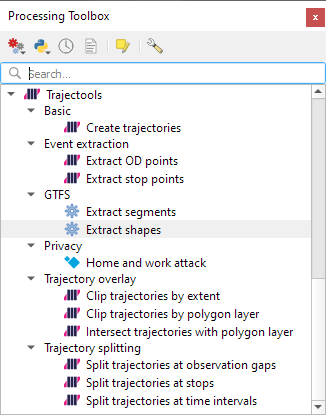
The new Trajectools algorithms are:

  • Trajectory overlay — Intersect trajectories with polygon layer
  • Privacy — Home work attack (requires scikit-mobility)
    • This algorithm determines how easy it is to identify an individual in a dataset. In a home and work attack the adversary knows the coordinates of the two locations most frequently visited by an individual.
  • GTFS — Extract segments (requires gtfs_functions)
  • GTFS — Extract shapes (requires gtfs_functions)

Furthermore, we have fixed issue with previously ignored minimum trajectory length settings.

Scikit-mobility and gtfs_functions are optional dependencies. You do not need to install them, if you do not want to use the corresponding algorithms. In any case, they can be installed using mamba and pip:

mamba install scikit-mobility
pip install gtfs_functions

MovingPandas 0.18

This release adds multiple new features, including

  • Method chaining support for add_speed(), add_direction(), and other functions
  • New TrajectoryCollection.get_trajectories(obj_id) function
  • New trajectory splitter based on heading angle
  • New TrajectoryCollection.intersection(feature) function
  • New plotting function hvplot_pts()
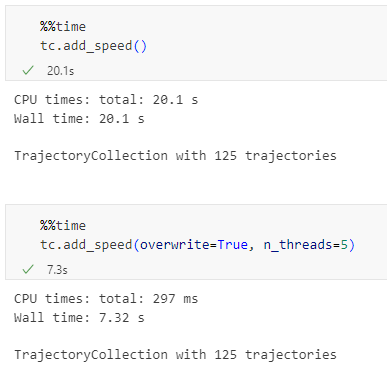
  • Faster TrajectoryCollection operations through multi-threading
  • Added moving object weights support to trajectory aggregator

For the full change log, check out the release page.

Today’s post is a quick introduction to pygeoapi, a Python server implementation of the OGC API suite of standards. OGC API provides many different standards but I’m particularly interested in OGC API – Processes which standardizes geospatial data processing functionality. pygeoapi implements this standard by providing a plugin architecture, thereby allowing developers to implement custom processing workflows in Python.

I’ll provide instructions for setting up and running pygeoapi on Windows using Powershell. The official docs show how to do this on Linux systems. The pygeoapi homepage prominently features instructions for installing the dev version. For first experiments, however, I’d recommend using a release version instead. So that’s what we’ll do here.

As a first step, lets install the latest release (0.16.1 at the time of writing) from conda-forge:

conda create -n pygeoapi python=3.10
conda activate pygeoapi
mamba install -c conda-forge pygeoapi

Next, we’ll clone the GitHub repo to get the example config and datasets:

cd C:\Users\anita\Documents\GitHub\
git clone https://github.com/geopython/pygeoapi.git
cd pygeoapi\

To finish the setup, we need some configurations:

cp pygeoapi-config.yml example-config.yml  
# There is a known issue in pygeoapi 0.16.1: https://github.com/geopython/pygeoapi/issues/1597
# To fix it, edit the example-config.yml: uncomment the TinyDB option in the server settings (lines 51-54)

$Env:PYGEOAPI_CONFIG = "F:/Documents/GitHub/pygeoapi/example-config.yml"
$Env:PYGEOAPI_OPENAPI = "F:/Documents/GitHub/pygeoapi/example-openapi.yml"
pygeoapi openapi generate $Env:PYGEOAPI_CONFIG --output-file $Env:PYGEOAPI_OPENAPI

Now we can start the server:

pygeoapi serve

And once the server is running, we can send requests, e.g. the list of processes:

curl.exe http://localhost:5000/processes

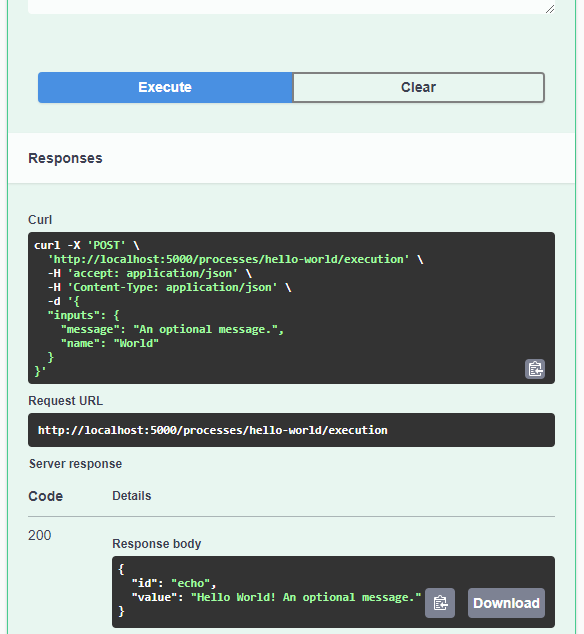
And, of course, execute the example “hello-world” process:

curl.exe --% -X POST http://localhost:5000/processes/hello-world/execution -H "Content-Type: application/json" -d "{\"inputs\":{\"name\": \"hi there\"}}"

As you can see, writing JSON content for curl is a pain. Luckily, pyopenapi comes with a nice web GUI, including Swagger UI for playing with all the functionality, including the hello-world process:

It’s not really a geospatial hello-world example, but it’s a first step.

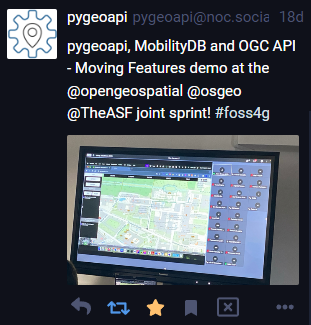
Finally, I wan’t to leave you with a teaser since there are more interesting things going on in this space, including work on OGC API – Moving Features as shared by the pygeoapi team recently:

So, stay tuned.