Archive

Tag Archives: QGIS

The latest development build version of QGIS contain a great new feature: Expression-based labeling, brought to you by Nathan.

QGIS new labeling dialog is extended by a new expression builder that facilitates building your own expressions using layer attributes together with various functions for data manipulation:

expression builder with function help

Thanks to it’s preview ability, it is easy to see how changes affect the final label output:

combine fields and follow changes in preview

For an in depth introduction into this new feature, check Nathan’s blog and enjoy!

“Rectangles ovals digitizing” plugin by Pavol Kapusta adds editing tools that make it really easy to create rectangles, squares, circles and ellipses. These are the tools provided by the new plugin:

Tools in "Rectangles ovals digitizing"

Give it a try!

The idea behind this post was to create a video of twitter activity using Time Manager. You can watch the results of my first test run here:

And this is how it’s done:

First, you have to collect some tweets with location information. The following command will collect tweets within a certain geographic region from the Twitter Stream API using curl. You need a Twitter user account to use the API. (Curl comes readily available with OSGeo4W install.)

curl -k -d @locations.txt https://stream.twitter.com/1/statuses/filter.json -uuser:password > tweets.json

The contents of locations.txt is the geographic extent you are interested in, e.g. for Austria:

locations=9,45,17,50

After collecting some data, you can load the tweets into QGIS. Executing the following lines in Python Console will add an in-memory point layer to the map. (I am only extracting coordinates and time stamp from the tweets, but you can access more information through the JSON object.)

import simplejson
from PyQt4.QtCore import *
from datetime import *

f=open('C:/temp/tweets.json','r')

# create layer
vl = QgsVectorLayer("Point", "tweets", "memory")
vl.startEditing()
pr = vl.dataProvider()

# add fields
pr.addAttributes( [ QgsField("t", QVariant.String) ] )

# create features
for line in f:
   try:
      j=simplejson.loads(line)
      fet=QgsFeature()
      fet.setGeometry(QgsGeometry.fromPoint(QgsPoint(j['geo']['coordinates'][1],j['geo']['coordinates'][0])))
      fet.setAttributeMap({0:QVariant(str(datetime.strptime(j['created_at'],'%a %b %d %H:%M:%S +0000 %Y')))})
      pr.addFeatures([fet])
   except:
      pass

vl.commitChanges()
vl.updateExtents()

QgsMapLayerRegistry.instance().addMapLayer(vl)

To use the result in Time Manager, you have to export the layer to e.g. Shapefile because it’s not possible to add query strings to in-memory layers.

If you are interested in learning more about PyQGIS, you can find a lot of useful material in the PyQGIS Cookbook.

This is a follow up post on “Guide to Advanced Labeling for OSM Roads”. This post covers how to create a map that looks similar to the classic Google Maps map based on OSM data.

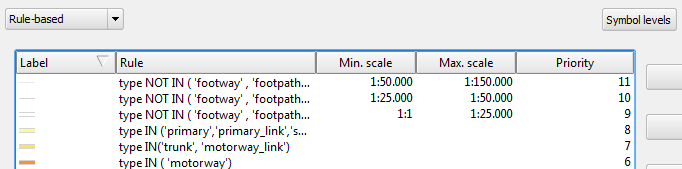
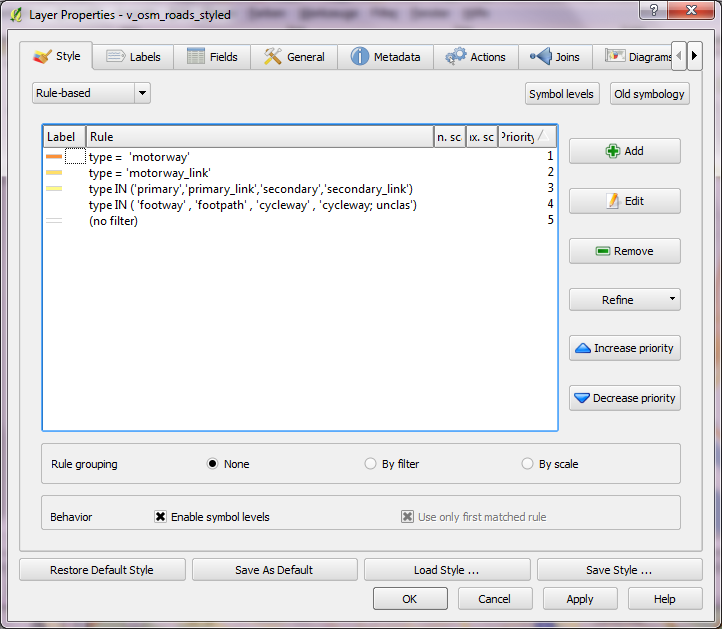
Styling OSM road data is a bit tricky due to the many different possible options in OSM “type” tag. It takes some fiddling around to get results similar to Google. The easiest way to create such a style is using rule-based renderer with “Symbol levels” enabled.

I’ve excluded a number of road types from being rendered and labeled. This is done by NOT specifying a rule that fits those classes. That’s the reason why I don’t have a “no filter” rule. Instead, I’ve specified

type NOT IN ('footway','footpath','steps','cycleway','pedestrian','track','bridleway')

to cover all the roads I don’t want specifically highlighted but displayed using default style. This way I can make sure that footways and similar are neither drawn nor labeled.
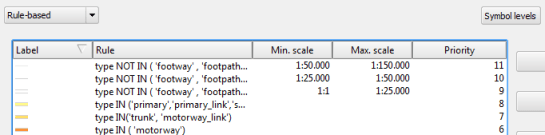
Google-style rules for OSM with multiple zoom levels

Now, we can have a look at how to create those road shields Google uses:
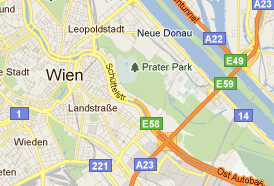
Sample from Google Maps

Currently, it’s not possible to solve this using the labeling engine. And even after labels with “shields” will be implemented, there is still the problem that we want both road names and road numbers labeled – preferably without having to duplicate the layer.

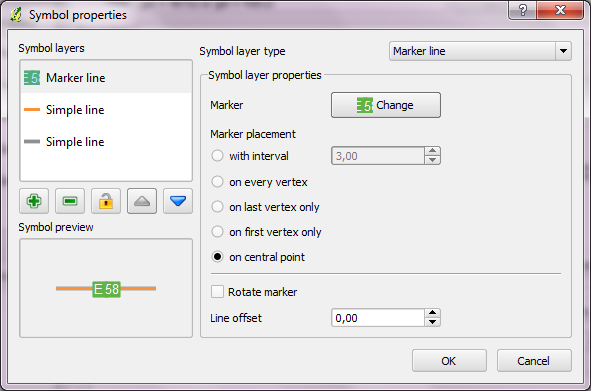
For now, one possible solution for this is to create the shields using the “Marker lines” feature of new symbology. As the name suggests, you can put markers on lines. In this case, the marker will be our road shield. It basically has two parts: the colored shield plus the text. The shield can be created by putting two squares besides each other. (Adjust the offsets to move them besides each other.) Then we can put the text on top, one letter at a time.
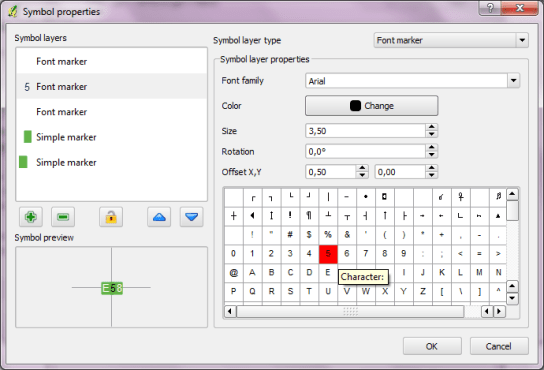
Creating the road shield marker

Place the marker on the line once and deactivate “Rotate marker”.
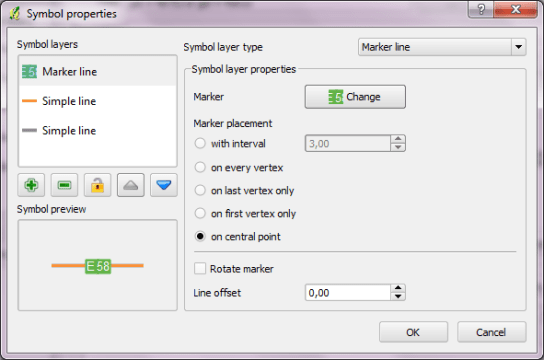
A "road with shield" style

These styles can be assigned to every road you want to decorate with a shield. If you save the style, you just need to change the text next time.

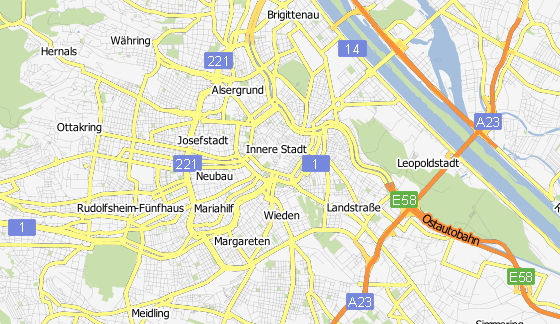
And this is how the result can look like.
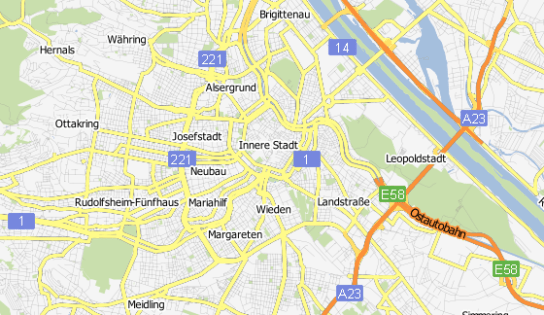
Zoomed-out result

Maybe the shields turned out a little too big compared with the original.

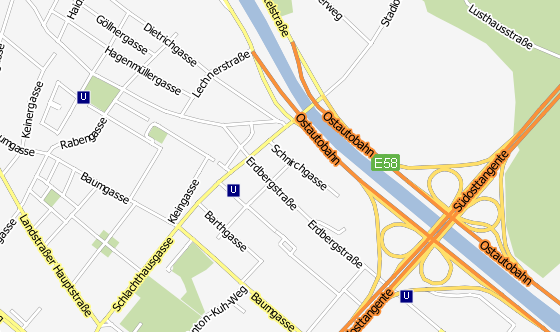
Zoomed in, more labels will be displayed and an additional layer with metro stations becomes visible. The metro symbol was created using the same technique described for the road shields.
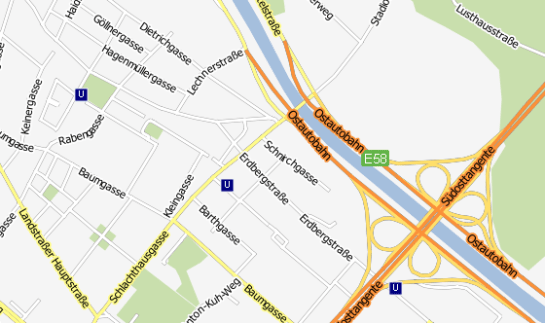
Zoomed-in result

One disadvantage of creating road shields with this technique – besides the fact that it’s rather tedious – is that there is no collision detection between labels and shields. Nonetheless, it’s a viable solution that allows you to create high-resolution maps that look very similar to Google Maps using free OSM data.

Advanced labeling in QGIS new labeling engine is mostly about data-defined settings. Almost any property of the label can be controlled.

For this example, we will try to mimic the look of the classic Google map with it’s line and label styles. The data for this post is from the OpenStreetMap project provided as Shapefiles by Cloudmade.

After importing the roads into PostGIS using PostGIS Manager Plugin, we can create a view that will contain the necessary label style information. The trick here is to use CASE statements to distinguish between different label “classes”. Motorway labels will be bigger than the rest and the buffer color will be the same color as used for the corresponding lines.

DROP VIEW IF EXISTS v_osm_roads_styled;

CREATE VIEW v_osm_roads_styled AS
SELECT *, 
CASE WHEN type = 'motorway' THEN 9
     ELSE 8 END
     as font_size,
'black'::TEXT as font_color,
false as font_bold,
false as font_italic,
false as font_underline,
false as font_strikeout,
false as font_family,
1 as buffer_size,
CASE WHEN type = 'motorway' THEN '#fb9139'::TEXT
     WHEN type IN ( 'primary','primary_link','secondary','secondary_link') THEN '#fffb8b'::TEXT
     ELSE 'white'::TEXT END 
     as buffer_color
FROM osm_roads;

In QGIS, we can then load the view and start styling. First, let’s get the line style ready. Using rule-based renderer, it’s easy to create complex styles. In this case, I’ve left it rather simple and don’t distinguish between different zoom levels. That’s a topic for another post :)

Google-style rules for OSM road data

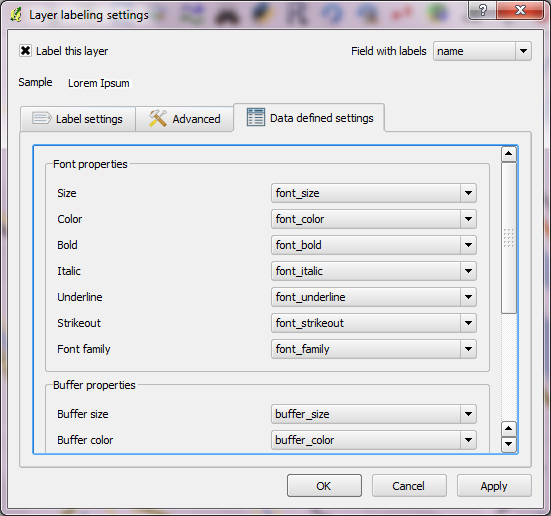
Now for the labels! In “Data defined settings”, we can assign the special attributes created in the database view to the settings.

Completed "Data defined settings"

To achieve an even better look, go to “Advanced” tab and enable “curved” and “on line” placement. “Merge connected lines to avoid duplicate labels” option is very helpful too.

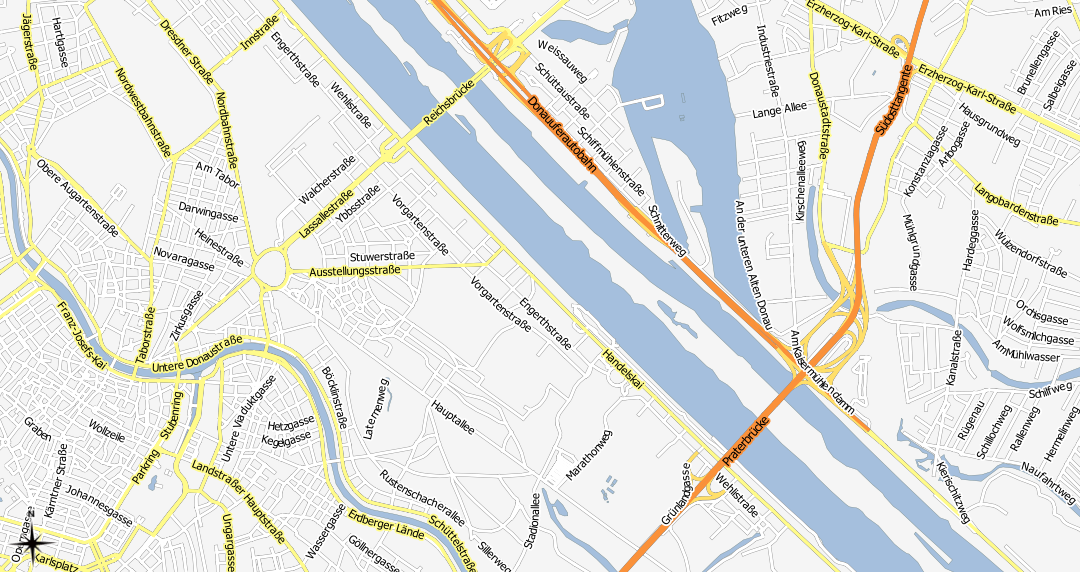
Finally – after adding some water objects (Cloudmade natural.shp) – this is what our result looks like:

Google-style OSM map

This solution can be improved considerably by adding multiple zoom levels with corresponding styles. One obvious difference between the original Google map and this look-alike is the lack of road numbers. Tim’s post on “shield labels” can be a starting point for adding road numbers the way Google does.

Today, I’ve compiled a short video showcasing one of the possible uses of Time Manager plugin: Storm tracking. (Storm data can be downloaded from www.nhc.noaa.gov.)

Point size shows storm class, labels read maximum speed in mph.

If you are using Time Manager for your work, I’d love to hear about it.

If you are planning to tweak the labels in SVG output from QGIS, you should use the old labeling engine. Labels create with the old engine are written into the SVG file as text objects whereas labels from the new engine end up as paths for some reason.

Let’s see how it works using the climate Shapefile from QGIS sample data. I just created an empty map, loaded the points and labeled them before exporting the map to SVG using Print Composer. Now, we can manipulate the SVG file in Inkscape: Select one of the labels and and start the XML Editor (Edit menu – XML Editor or through the toolbar button).

Find the "XML tree" button for full control of the labels

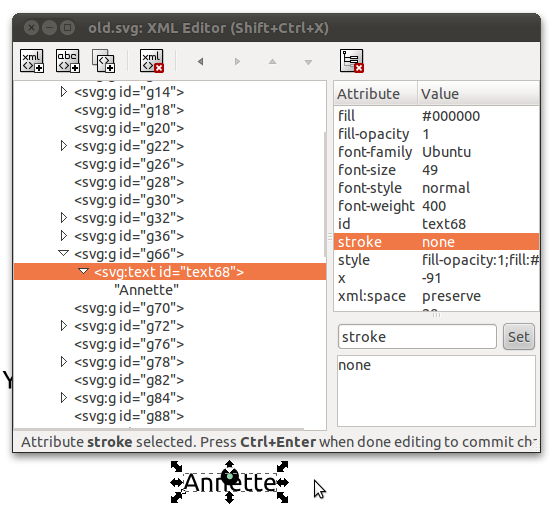
If you selected a label before opening XML Editor, one of the entires in the tree should be highlighted. Expanding the element reveals that it’s a text featuring a series of attributes QGIS exported. From here, you can change both the looks and the text of all labels in your map. Of course, you are not limited to the XML Editor but can change to the GUI – which is certainly recommended for experimenting with all the different settings.

Here you have full control over how the label looks like

Today, I’ve been experimenting with data from OpenFlights.org. They offer airport, airline and route data for download. The first idea that came to mind was to connect airports on a shared route by lines. This kind of visualization just looks much nicer if the connections are curved instead of simple straight lines.

Luckily, that’s pretty easy to do using PostGIS. After loading airport positions and route data, we can create the connection lines like this (based on [postgis-users] Great circle as a linestring):

UPDATE experimental.airroutes
SET the_geom = 
(SELECT ST_Transform(ST_Segmentize(ST_MakeLine(
       ST_Transform(a.the_geom, 953027),
       ST_Transform(b.the_geom, 953027)
     ), 100000 ), 4326 ) 
 FROM experimental.airports a, experimental.airports b
 WHERE a.id = airroutes.source_id  
   AND b.id = airroutes.dest_id
);

The CRS used in the query is not available in PostGIS by default. You can add it like this (source: spatialreference.org):

INSERT into spatial_ref_sys (srid, auth_name, auth_srid, proj4text, srtext) values ( 953027, 'esri', 53027, '+proj=eqdc +lat_0=0 +lon_0=0 +lat_1=60 +lat_2=60 +x_0=0 +y_0=0 +a=6371000 +b=6371000 +units=m +no_defs ', 'PROJCS["Sphere_Equidistant_Conic",GEOGCS["GCS_Sphere",DATUM["Not_specified_based_on_Authalic_Sphere",SPHEROID["Sphere",6371000,0]],PRIMEM["Greenwich",0],UNIT["Degree",0.017453292519943295]],PROJECTION["Equidistant_Conic"],PARAMETER["False_Easting",0],PARAMETER["False_Northing",0],PARAMETER["Central_Meridian",0],PARAMETER["Standard_Parallel_1",60],PARAMETER["Standard_Parallel_2",60],PARAMETER["Latitude_Of_Origin",0],UNIT["Meter",1],AUTHORITY["EPSG","53027"]]');

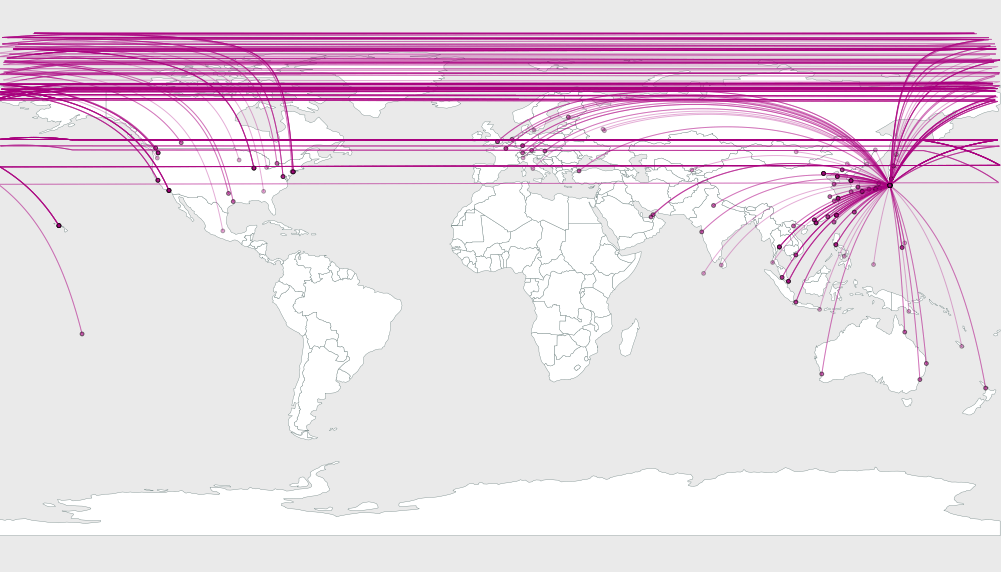
This is an example visualization (done in QGIS) showing only flight routes starting from Vienna International Airport:

Flight routes from Vienna International

Connections crossing the date line are currently more problematic. Lines would have to be split, otherwise this is what you’ll get:

Date line trouble

Do you need to create a table with a geometry column in PostGIS from scratch?
Can’t remember the syntax of AddGeometryColumn(varchar catalog_name, varchar schema_name, varchar table_name, varchar column_name, integer srid, varchar type, integer dimension)? I can’t. ;)

Let’s make our lives easier: QGIS PostGIS Manager offers a convenient GUI for creating tables with geometry columns:

PostGIS Manager Create Table dialog

The dialog works a lot like what you’re probably used to in pgAdmin – with the added nicety of supporting Geometry columns.

In my opinion, this is the fastest way so far to create a spatially enabled table. It provides a much better user experience than telling users (especially new ones) to use AddGeometryColumn(…

QGIS 1.7 has landed. After some delays due to a major infrastructure overhaul, a new version of QGIS is available for download. For a list of what’s new in 1.7 check the release announcement.