Archive

Yearly Archives: 2011

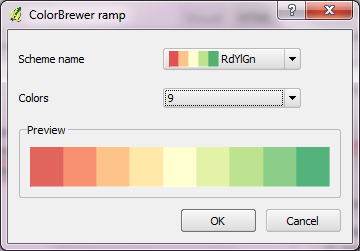
Colorbrewer is a great resource for visually pleasing gradients that can be used for mapping. It was already possible to use color brewer ramps in QGIS but it was necessary to create the ramp with the final number of classes in mind.

Creating a Colobrewer ramp

That’s why I sat down and created continuous ramps from the Colorbrewer data:

Colorbrewer Ramps in QGIS Style Manager

If you want to use them, just import the following XML file into QGIS Style Manager: https://github.com/anitagraser/QGIS-resources/tree/master/symbols

For a big selection of point, line and polygon styles check “QGIS symbology set” by S.S. Rebelious.

When giving presentations using a computer that’s not your own, trying to show video clips can end badly. It’s much safer to use animated GIFs instead. Luckily it’s easy to convert videos to animated GIF on the command line using mplayer:

mplayer movie.avi -vo gif89a:output=movie.gif -vf scale=600:337 -ss 4 

This command converts “movie.avi” to “movie.gif”, rescales the output to 600:337 and starts at second 4 of the video – skipping the beginning.

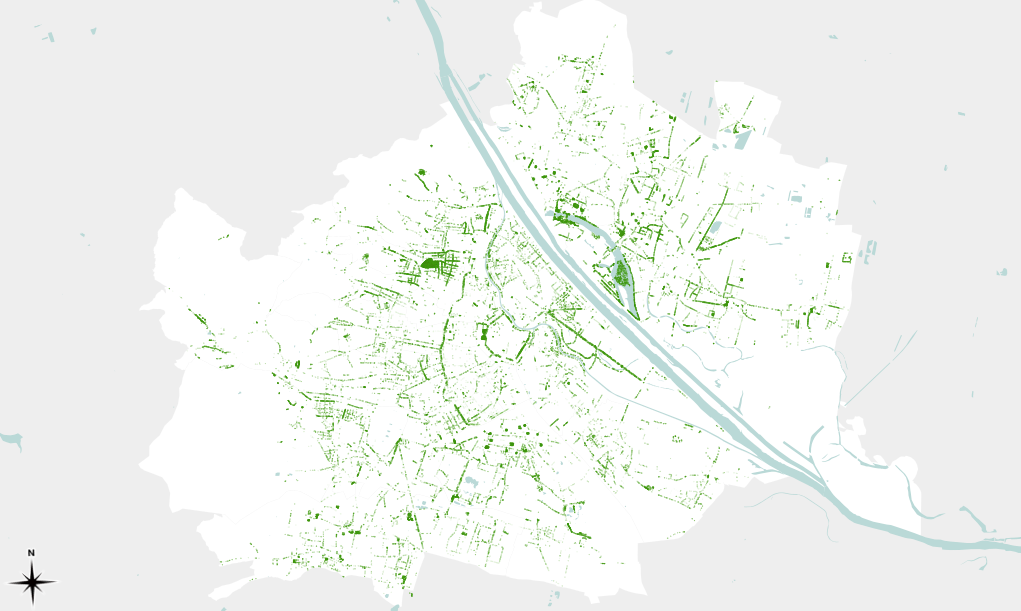
The Viennese tree cadastre “Baumkataster” contains all trees growing on city property. Amongst the attributes you can find the tree species and year of plantation as well as the diameter of it’s crown.

Using the crown diameter, we can create a foliage map of the city of Vienna. (Note that trees on private ground are missing.)

trees in Vienna scaled by crown diameter

Here’s a high-resolution version of the map: PDF (10 MB)

The tree cadastre is still under construction. If you miss a tree, let the OGD team know.

The latest development build version of QGIS contain a great new feature: Expression-based labeling, brought to you by Nathan.

QGIS new labeling dialog is extended by a new expression builder that facilitates building your own expressions using layer attributes together with various functions for data manipulation:

expression builder with function help

Thanks to it’s preview ability, it is easy to see how changes affect the final label output:

combine fields and follow changes in preview

For an in depth introduction into this new feature, check Nathan’s blog and enjoy!

“Rectangles ovals digitizing” plugin by Pavol Kapusta adds editing tools that make it really easy to create rectangles, squares, circles and ellipses. These are the tools provided by the new plugin:

Tools in "Rectangles ovals digitizing"

Give it a try!

The function with the glorious name “find_node_by_nearest_link_within_distance” is part of pgRouting and can be found in matching.sql.

“This function finds nearest node as a source or target of the nearest link”
That means that we can use this function e.g. to find the best road network node for a given address.

The function returns an object of type link_point:

CREATE TYPE link_point AS (id integer, name varchar);

To access only the id value of the nearest node, you can use:

SELECT id(foo.x) 
FROM (
   SELECT find_node_by_nearest_link_within_distance(
	'POINT(14.111 47.911)',
	0.5,
	'nw_table')::link_point as x
) AS foo

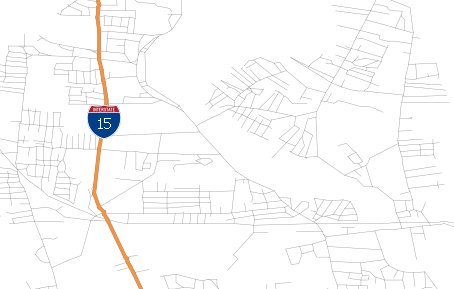
This is a follow-up to my post “Google Maps”-Style Road Maps in QGIS and an answer to @mattwigway’s comment about how to create styles for e.g. US interstates.

interstate example map

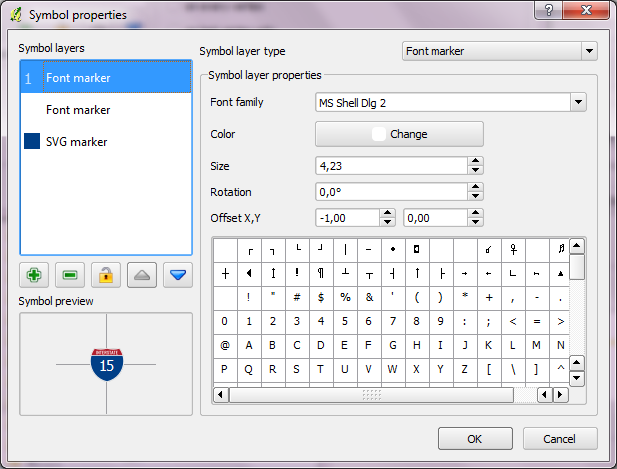
To create a style like this, you can use the “Marker line” feature. The marker can be built using a blank SVG shield and additional text markers to add the road number on top.

creation of the interstate shield marker

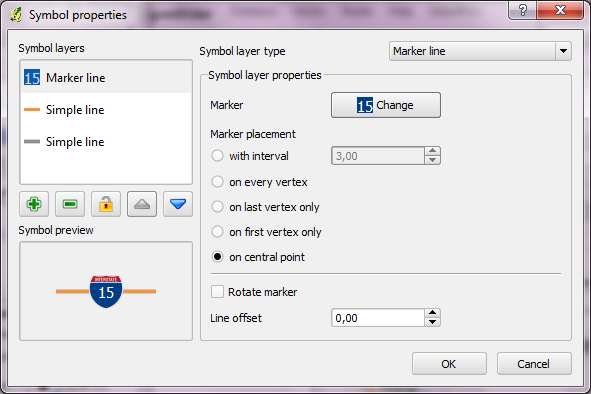
This marker line can be put “on central point” to only show up once along the road.

creation of the interstate style

You can find interstate and other shield style on e.g. Wikimedia Commons. With Inkscape, you can remove the number and thus create a blank marker template.

The idea behind this post was to create a video of twitter activity using Time Manager. You can watch the results of my first test run here:

And this is how it’s done:

First, you have to collect some tweets with location information. The following command will collect tweets within a certain geographic region from the Twitter Stream API using curl. You need a Twitter user account to use the API. (Curl comes readily available with OSGeo4W install.)

curl -k -d @locations.txt https://stream.twitter.com/1/statuses/filter.json -uuser:password > tweets.json

The contents of locations.txt is the geographic extent you are interested in, e.g. for Austria:

locations=9,45,17,50

After collecting some data, you can load the tweets into QGIS. Executing the following lines in Python Console will add an in-memory point layer to the map. (I am only extracting coordinates and time stamp from the tweets, but you can access more information through the JSON object.)

import simplejson
from PyQt4.QtCore import *
from datetime import *

f=open('C:/temp/tweets.json','r')

# create layer
vl = QgsVectorLayer("Point", "tweets", "memory")
vl.startEditing()
pr = vl.dataProvider()

# add fields
pr.addAttributes( [ QgsField("t", QVariant.String) ] )

# create features
for line in f:
   try:
      j=simplejson.loads(line)
      fet=QgsFeature()
      fet.setGeometry(QgsGeometry.fromPoint(QgsPoint(j['geo']['coordinates'][1],j['geo']['coordinates'][0])))
      fet.setAttributeMap({0:QVariant(str(datetime.strptime(j['created_at'],'%a %b %d %H:%M:%S +0000 %Y')))})
      pr.addFeatures([fet])
   except:
      pass

vl.commitChanges()
vl.updateExtents()

QgsMapLayerRegistry.instance().addMapLayer(vl)

To use the result in Time Manager, you have to export the layer to e.g. Shapefile because it’s not possible to add query strings to in-memory layers.

If you are interested in learning more about PyQGIS, you can find a lot of useful material in the PyQGIS Cookbook.

Alpha shapes are generalizations of the convex hull [1]. Convex hulls are well known and widely implemented in GIS systems. Alpha shapes are different in that they capture the shape of a point set. You can watch a great demo of how alpha shapes work on François Bélair’s website “Everything You Always Wanted to Know About Alpha Shapes But Were Afraid to Ask” I borrowed the following pictures from that site:

Alpha shapes for different values of alpha. The left one equals the convex hull of the point set.

Alpha shapes for different values of alpha. The left one equals the convex hull of the point set.

pgRouting comes with an implementation of alpha shapes. There is an alpha shape function: alphashape(sql text) and a convenience wrapper: points_as_polygon(query character varying). The weird thing is that you don’t get to set an alpha value. The only thing supplied to the function is a set of points. Let’s see what kind of results it produces!

Starting point for this experiment is a 10 km catchment zone around node #2699 in my osm road network. Travel costs to nodes are calculated using driving_distance() function. (You can find more information on using this function in Catchment Areas with pgRouting driving_distance().)

CREATE TABLE home_catchment10km AS
SELECT *
   FROM osm_nodes
   JOIN
   (SELECT * FROM driving_distance('
      SELECT gid AS id,
          source,
          target,
          meters AS cost
      FROM osm_roads',
      2699,
      10000,
      false,
      false)) AS route
   ON
   osm_nodes.id = route.vertex_id

After costs are calculated, we can create some alpha shapes. The following queries create the table and insert an alpha shape for all points with a cost of less than 1500:

CREATE TABLE home_isodist (id serial, max_cost double precision);
SELECT AddGeometryColumn('home_isodist','the_geom',4326,'POLYGON',2);

INSERT INTO home_isodist (max_cost, the_geom) (
SELECT 1500, ST_SetSRID(the_geom,4326)
FROM 
  points_as_polygon(
    'SELECT id, ST_X(the_geom) AS x, ST_Y(the_geom) AS y FROM home_catchment10km where cost < 1500'));

In previous posts, I’ve created catchment areas by first interpolating a cost raster and creating contours from there. Now, let’s see how the two different approaches compare!

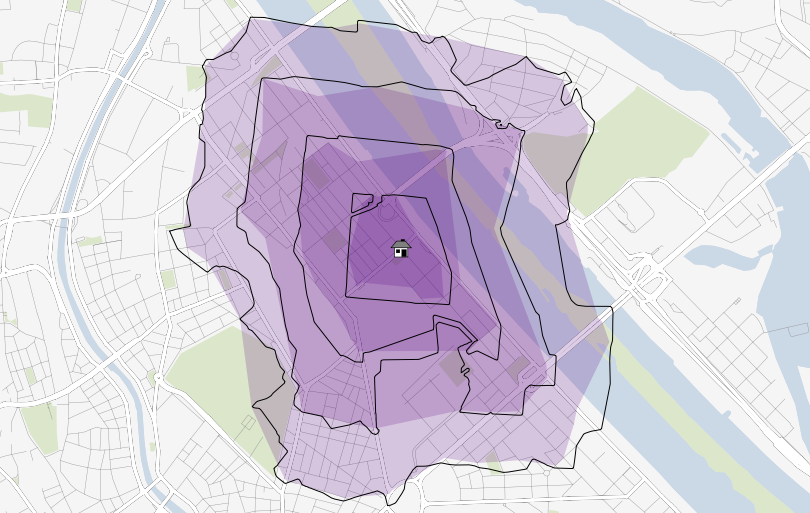
The following picture shows resulting catchment areas for 500, 1000, 1500, and 2000 meters around a central node. Colored areas show the form of pgRouting alpha shape results. Black contours show the results of the interpolation method:

Comparison of pgRouting alpha shapes and interpolation method

At first glance, results look similar enough. Alpha shape results look like a generalized version of interpolation results. I guess that it would be possible to get even closer if the alpha value could be set to a smaller value. The function should then produce a finer, more detailed polygon.

For a general overview about which areas of a network are reachable within certain costs, pgRouting alpha shapes function seems a viable alternative to the interpolation method presented in previous posts. However, the alpha value used by pgRouting seems too big to produce detailed catchment areas.

[1] http://biogeometry.duke.edu/software/alphashapes/
This is a follow up post on “Guide to Advanced Labeling for OSM Roads”. This post covers how to create a map that looks similar to the classic Google Maps map based on OSM data.

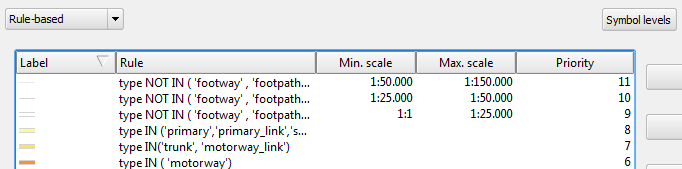
Styling OSM road data is a bit tricky due to the many different possible options in OSM “type” tag. It takes some fiddling around to get results similar to Google. The easiest way to create such a style is using rule-based renderer with “Symbol levels” enabled.

I’ve excluded a number of road types from being rendered and labeled. This is done by NOT specifying a rule that fits those classes. That’s the reason why I don’t have a “no filter” rule. Instead, I’ve specified

type NOT IN ('footway','footpath','steps','cycleway','pedestrian','track','bridleway')

to cover all the roads I don’t want specifically highlighted but displayed using default style. This way I can make sure that footways and similar are neither drawn nor labeled.

Google-style rules for OSM with multiple zoom levels

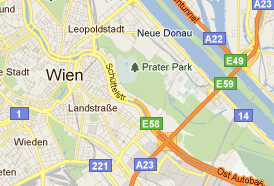
Now, we can have a look at how to create those road shields Google uses:

Sample from Google Maps

Currently, it’s not possible to solve this using the labeling engine. And even after labels with “shields” will be implemented, there is still the problem that we want both road names and road numbers labeled – preferably without having to duplicate the layer.

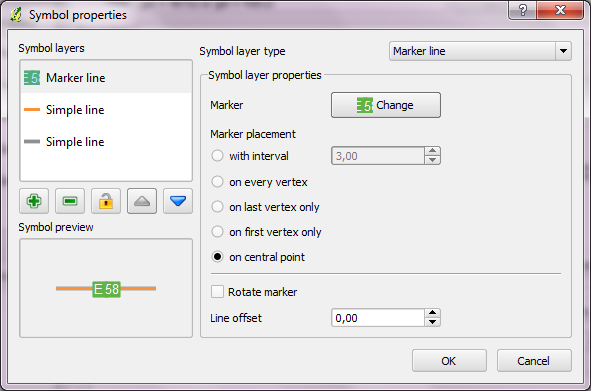
For now, one possible solution for this is to create the shields using the “Marker lines” feature of new symbology. As the name suggests, you can put markers on lines. In this case, the marker will be our road shield. It basically has two parts: the colored shield plus the text. The shield can be created by putting two squares besides each other. (Adjust the offsets to move them besides each other.) Then we can put the text on top, one letter at a time.

Creating the road shield marker

Place the marker on the line once and deactivate “Rotate marker”.

A "road with shield" style

These styles can be assigned to every road you want to decorate with a shield. If you save the style, you just need to change the text next time.

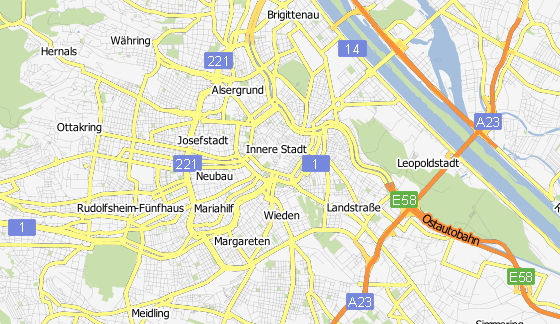
And this is how the result can look like.

Zoomed-out result

Maybe the shields turned out a little too big compared with the original.

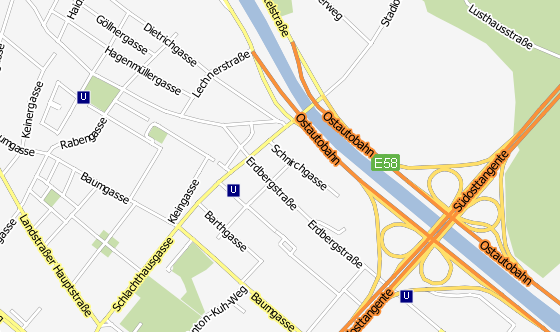
Zoomed in, more labels will be displayed and an additional layer with metro stations becomes visible. The metro symbol was created using the same technique described for the road shields.

Zoomed-in result

One disadvantage of creating road shields with this technique – besides the fact that it’s rather tedious – is that there is no collision detection between labels and shields. Nonetheless, it’s a viable solution that allows you to create high-resolution maps that look very similar to Google Maps using free OSM data.