Archive

QGIS

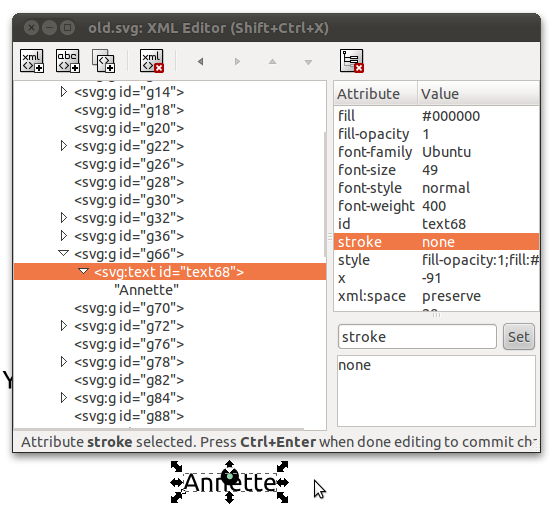
If you are planning to tweak the labels in SVG output from QGIS, you should use the old labeling engine. Labels create with the old engine are written into the SVG file as text objects whereas labels from the new engine end up as paths for some reason.

Let’s see how it works using the climate Shapefile from QGIS sample data. I just created an empty map, loaded the points and labeled them before exporting the map to SVG using Print Composer. Now, we can manipulate the SVG file in Inkscape: Select one of the labels and and start the XML Editor (Edit menu – XML Editor or through the toolbar button).

Find the "XML tree" button for full control of the labels

If you selected a label before opening XML Editor, one of the entires in the tree should be highlighted. Expanding the element reveals that it’s a text featuring a series of attributes QGIS exported. From here, you can change both the looks and the text of all labels in your map. Of course, you are not limited to the XML Editor but can change to the GUI – which is certainly recommended for experimenting with all the different settings.

Here you have full control over how the label looks like

Today, I’ve been experimenting with data from OpenFlights.org. They offer airport, airline and route data for download. The first idea that came to mind was to connect airports on a shared route by lines. This kind of visualization just looks much nicer if the connections are curved instead of simple straight lines.

Luckily, that’s pretty easy to do using PostGIS. After loading airport positions and route data, we can create the connection lines like this (based on [postgis-users] Great circle as a linestring):

UPDATE experimental.airroutes
SET the_geom = 
(SELECT ST_Transform(ST_Segmentize(ST_MakeLine(
       ST_Transform(a.the_geom, 953027),
       ST_Transform(b.the_geom, 953027)
     ), 100000 ), 4326 ) 
 FROM experimental.airports a, experimental.airports b
 WHERE a.id = airroutes.source_id  
   AND b.id = airroutes.dest_id
);

The CRS used in the query is not available in PostGIS by default. You can add it like this (source: spatialreference.org):

INSERT into spatial_ref_sys (srid, auth_name, auth_srid, proj4text, srtext) values ( 953027, 'esri', 53027, '+proj=eqdc +lat_0=0 +lon_0=0 +lat_1=60 +lat_2=60 +x_0=0 +y_0=0 +a=6371000 +b=6371000 +units=m +no_defs ', 'PROJCS["Sphere_Equidistant_Conic",GEOGCS["GCS_Sphere",DATUM["Not_specified_based_on_Authalic_Sphere",SPHEROID["Sphere",6371000,0]],PRIMEM["Greenwich",0],UNIT["Degree",0.017453292519943295]],PROJECTION["Equidistant_Conic"],PARAMETER["False_Easting",0],PARAMETER["False_Northing",0],PARAMETER["Central_Meridian",0],PARAMETER["Standard_Parallel_1",60],PARAMETER["Standard_Parallel_2",60],PARAMETER["Latitude_Of_Origin",0],UNIT["Meter",1],AUTHORITY["EPSG","53027"]]');

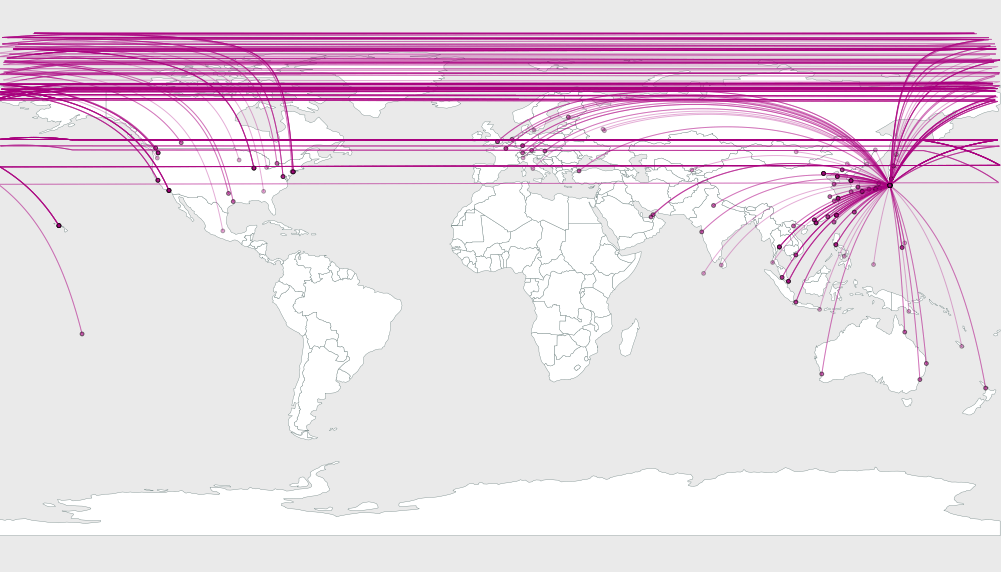
This is an example visualization (done in QGIS) showing only flight routes starting from Vienna International Airport:

Flight routes from Vienna International

Connections crossing the date line are currently more problematic. Lines would have to be split, otherwise this is what you’ll get:

Date line trouble

Do you need to create a table with a geometry column in PostGIS from scratch?
Can’t remember the syntax of AddGeometryColumn(varchar catalog_name, varchar schema_name, varchar table_name, varchar column_name, integer srid, varchar type, integer dimension)? I can’t. ;)

Let’s make our lives easier: QGIS PostGIS Manager offers a convenient GUI for creating tables with geometry columns:

PostGIS Manager Create Table dialog

The dialog works a lot like what you’re probably used to in pgAdmin – with the added nicety of supporting Geometry columns.

In my opinion, this is the fastest way so far to create a spatially enabled table. It provides a much better user experience than telling users (especially new ones) to use AddGeometryColumn(…

QGIS styling options have advanced a lot in the last releases. But there’s always something more we would love to have … Greedy users!

Inkscape and other graphics programs can do it: Gradient fills.

Inspired by a question on gis.stackexchange, I tried to create something as close to a gradient fill as possible.

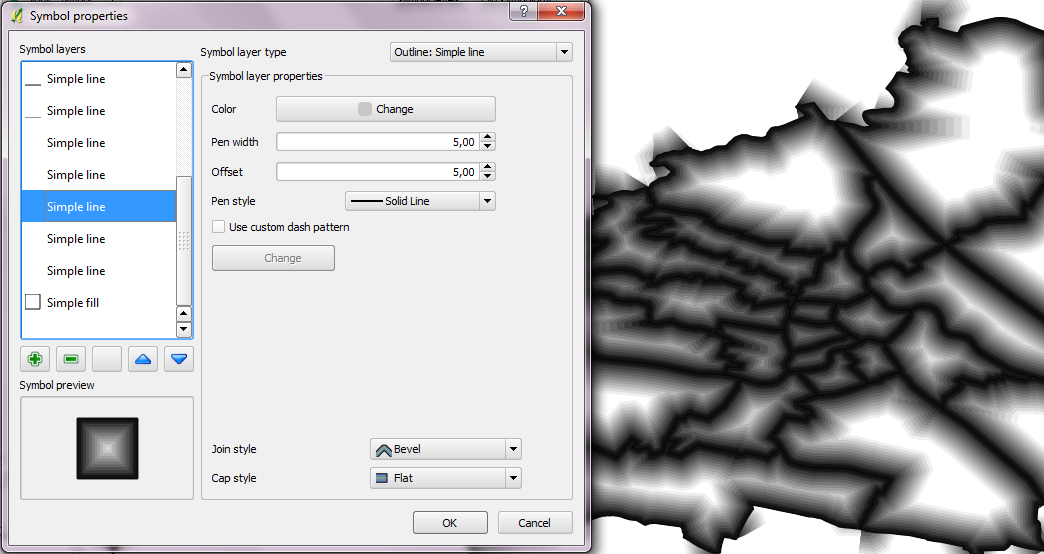
What I came up with is a symbol consisting out of multiple stacked “simple line” layers. The top-most layer is the dark outer border and every following layer is getting lighter and growing towards the center of the polygon (using a positive offset value). Important options are flat cap styles for all line layers and – of course – enabled symbol levels.
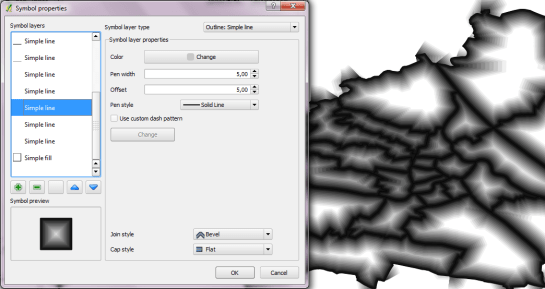
A "gradient" fill in QGIS

As you can see, the gradient looks quite fine inside the polygons. For the edges, it would be necessary to add a mask hiding the unclean rendering. Or maybe there is another solution which I just couldn’t think of?
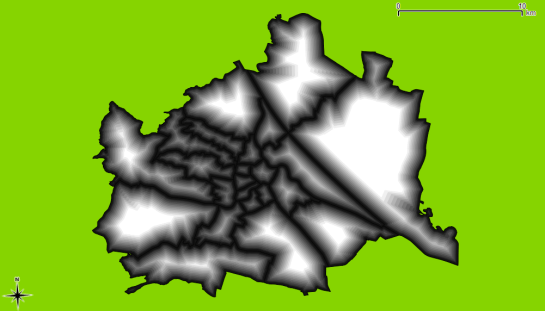
Nicer map using a mask

This is the symbol source if you want to try it. Paste it into your symbology-ng-style.xml document.

    <symbol outputUnit="MM" alpha="1" type="fill" name="gradient">
      <layer pass="0" class="SimpleFill" locked="0">
        <prop k="color" v="255,255,255,255"/>
        <prop k="color_border" v="0,0,0,255"/>
        <prop k="offset" v="0,0"/>
        <prop k="style" v="solid"/>
        <prop k="style_border" v="solid"/>
        <prop k="width_border" v="1"/>
      </layer>
      <layer pass="0" class="SimpleLine" locked="0">
        <prop k="capstyle" v="flat"/>
        <prop k="color" v="240,240,240,255"/>
        <prop k="customdash" v="5;2"/>
        <prop k="joinstyle" v="bevel"/>
        <prop k="offset" v="6"/>
        <prop k="penstyle" v="solid"/>
        <prop k="use_custom_dash" v="0"/>
        <prop k="width" v="6"/>
      </layer>
      <layer pass="0" class="SimpleLine" locked="0">
        <prop k="capstyle" v="flat"/>
        <prop k="color" v="220,220,220,255"/>
        <prop k="customdash" v="5;2"/>
        <prop k="joinstyle" v="bevel"/>
        <prop k="offset" v="5.5"/>
        <prop k="penstyle" v="solid"/>
        <prop k="use_custom_dash" v="0"/>
        <prop k="width" v="5.5"/>
      </layer>
      <layer pass="0" class="SimpleLine" locked="0">
        <prop k="capstyle" v="flat"/>
        <prop k="color" v="200,200,200,255"/>
        <prop k="customdash" v="5;2"/>
        <prop k="joinstyle" v="bevel"/>
        <prop k="offset" v="5"/>
        <prop k="penstyle" v="solid"/>
        <prop k="use_custom_dash" v="0"/>
        <prop k="width" v="5"/>
      </layer>
      <layer pass="0" class="SimpleLine" locked="0">
        <prop k="capstyle" v="flat"/>
        <prop k="color" v="180,180,180,255"/>
        <prop k="customdash" v="5;2"/>
        <prop k="joinstyle" v="bevel"/>
        <prop k="offset" v="4.5"/>
        <prop k="penstyle" v="solid"/>
        <prop k="use_custom_dash" v="0"/>
        <prop k="width" v="4.5"/>
      </layer>
      <layer pass="0" class="SimpleLine" locked="0">
        <prop k="capstyle" v="flat"/>
        <prop k="color" v="160,160,160,255"/>
        <prop k="customdash" v="5;2"/>
        <prop k="joinstyle" v="bevel"/>
        <prop k="offset" v="4"/>
        <prop k="penstyle" v="solid"/>
        <prop k="use_custom_dash" v="0"/>
        <prop k="width" v="4"/>
      </layer>
      <layer pass="0" class="SimpleLine" locked="0">
        <prop k="capstyle" v="flat"/>
        <prop k="color" v="140,140,140,255"/>
        <prop k="customdash" v="5;2"/>
        <prop k="joinstyle" v="bevel"/>
        <prop k="offset" v="3.5"/>
        <prop k="penstyle" v="solid"/>
        <prop k="use_custom_dash" v="0"/>
        <prop k="width" v="3.5"/>
      </layer>
      <layer pass="0" class="SimpleLine" locked="0">
        <prop k="capstyle" v="flat"/>
        <prop k="color" v="120,120,120,255"/>
        <prop k="customdash" v="5;2"/>
        <prop k="joinstyle" v="bevel"/>
        <prop k="offset" v="3"/>
        <prop k="penstyle" v="solid"/>
        <prop k="use_custom_dash" v="0"/>
        <prop k="width" v="3"/>
      </layer>
      <layer pass="0" class="SimpleLine" locked="0">
        <prop k="capstyle" v="flat"/>
        <prop k="color" v="100,100,100,255"/>
        <prop k="customdash" v="5;2"/>
        <prop k="joinstyle" v="bevel"/>
        <prop k="offset" v="2.5"/>
        <prop k="penstyle" v="solid"/>
        <prop k="use_custom_dash" v="0"/>
        <prop k="width" v="2.5"/>
      </layer>
      <layer pass="0" class="SimpleLine" locked="0">
        <prop k="capstyle" v="flat"/>
        <prop k="color" v="80,80,80,255"/>
        <prop k="customdash" v="5;2"/>
        <prop k="joinstyle" v="bevel"/>
        <prop k="offset" v="2"/>
        <prop k="penstyle" v="solid"/>
        <prop k="use_custom_dash" v="0"/>
        <prop k="width" v="2"/>
      </layer>
      <layer pass="1" class="SimpleLine" locked="0">
        <prop k="capstyle" v="flat"/>
        <prop k="color" v="60,60,60,255"/>
        <prop k="customdash" v="5;2"/>
        <prop k="joinstyle" v="bevel"/>
        <prop k="offset" v="1.5"/>
        <prop k="penstyle" v="solid"/>
        <prop k="use_custom_dash" v="0"/>
        <prop k="width" v="1.5"/>
      </layer>
      <layer pass="2" class="SimpleLine" locked="0">
        <prop k="capstyle" v="flat"/>
        <prop k="color" v="40,40,40,255"/>
        <prop k="customdash" v="5;2"/>
        <prop k="joinstyle" v="bevel"/>
        <prop k="offset" v="1"/>
        <prop k="penstyle" v="solid"/>
        <prop k="use_custom_dash" v="0"/>
        <prop k="width" v="1"/>
      </layer>
      <layer pass="3" class="SimpleLine" locked="0">
        <prop k="capstyle" v="flat"/>
        <prop k="color" v="20,20,20,255"/>
        <prop k="customdash" v="5;2"/>
        <prop k="joinstyle" v="bevel"/>
        <prop k="offset" v="0.5"/>
        <prop k="penstyle" v="solid"/>
        <prop k="use_custom_dash" v="0"/>
        <prop k="width" v="1"/>
      </layer>
      <layer pass="4" class="SimpleLine" locked="0">
        <prop k="capstyle" v="flat"/>
        <prop k="color" v="10,10,10,255"/>
        <prop k="customdash" v="5;2"/>
        <prop k="joinstyle" v="bevel"/>
        <prop k="offset" v="0"/>
        <prop k="penstyle" v="solid"/>
        <prop k="use_custom_dash" v="0"/>
        <prop k="width" v="0.5"/>
      </layer>
    </symbol>

Vienna’s Open Government Data initiative is publishing an increasing amount of Geodata and the best thing is: They’re publishing it via open standardized services! Both WMS and WFS are available and ready to be used in QGIS.

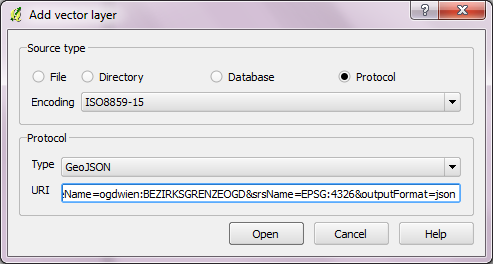
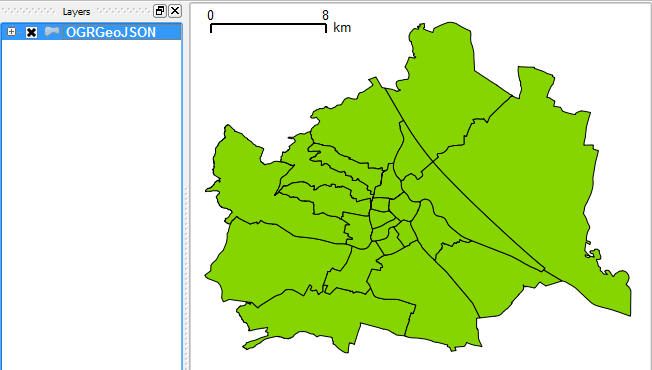
Let’s see how we can use the data available through their WFS using the district information layer “Bezirksgrenzen” as an example. The page lists a GML and a GeoJSON version of WFS. For now, we’ll use GeoJSON.

In QGIS, the layer can be loaded using “Add vector layer” – “Protocol” and inserting the GeoJSON url there. The encoding should be changed to ISO8859-15 to account for “Umlaute”.

The loaded GeoJSON layer "Bezirksgrenzen"

Now, we have geodata. Let’s add some attribute data too! Attribute data is available in CSV format. After downloading e.g. some information on the district population, check the file content and remove excessive header lines so that there is only one header line containing attribute names left. Then, you can load the CSV file into QGIS too (“Add vector layer”).

Last step: Joining geodata and attribute data! Go to the vector layer’s properties – Join tab and add the following join relation:

Joining GeoJSON and attribute layer

Now, the attribute table of the vector layer contains the additional CSV attributes – ready for further analysis. If you want to classify based on numerical CSV attributes, you’ll have to create a .csvt file first otherwise all fields are interpreted as texts.

Works great. Thumbs up for this great initiative!

QGIS 1.7 has landed. After some delays due to a major infrastructure overhaul, a new version of QGIS is available for download. For a list of what’s new in 1.7 check the release announcement.

QGIS trunk now comes with a separate tool called “QGIS Browser”. It enables the user to browse through all spatial data files on the system as well as all WMS configured in QGIS. Both files and WMS layers are listed in a tree widget on the left side while metadata, attributes and a preview can be seen on the right.

WMS preview in QGIS Browser

This is a great way for example to check through all layers of a WMS fast and without having to go through the “Add WMS Layer” dialog in QGIS all the time.

Ever wondered how to create multi-line labels in QGIS? The new labeling engine has a “Multiline labels” option but it’s not so obvious how to create a usable labeling attribute. Here is how it works (credits to @nhopton on QGIS forum):

  1. Create a big enough text field (if the data doesn’t contain any yet).
  2. In Layer Properties – Fields, chose a “Text edit” edit widget for the label field.
  3. Enter the multi-line text into the label field. You can do this using Attribute Table or Feature Form.

    A feature form with "Text edit" widget

  4. Activate labeling. You’ll have to tick “Multiline labels” option in Layer Labeling Settings – Advanced – Options. That’s it:

    Simple multi-line label example

A common use case is the wish to show multiple attribute values in a feature’s label. Using Field Calculator, you can combine them into multi-line labels. All you need is to combine the fields with the || operator and add ‘\n’ (newline) wherever there should be a line break:

Field1 || '\n' || Field2

Populating a multi-line label field using Field Calculator

And finally, the result:

Multi-line labels displaying city name and population

The aim of QGIS Processing Framework developed by Polymeris is to provide a generic framework for accessing existing geo-processing functionality of e.g. SAGA, GRASS, Orfeo Toolbox, etc. This should enable users to script their geo-processing work in python console and allow development of a tool to graphically build workflows using VisTrails an “open-source scientific workflow and provenance management system”.

For a first impression, Polymeris has published some screenshots of QGIS with SAGA modules loaded: [1],[2]

This project is big and if it turns out well, QGIS will profit enormously from it. Both scriptable geoprocessing functionality and a graphic workflow builder can improve user experience a lot if they are implemented well. You can follow further development on the project homepage on GitHub.

On Wednesday, Allan Maungu announced MXD2QGS, a converter that exports layers from an Arcmap 10 document into a Quantum GIS project file. The tool is built as an ArcToolbox and can be downloaded from the blog.

I’d be very interested to hear whether this tool works for you.