Archive

Visualization

Advanced labeling in QGIS new labeling engine is mostly about data-defined settings. Almost any property of the label can be controlled.

For this example, we will try to mimic the look of the classic Google map with it’s line and label styles. The data for this post is from the OpenStreetMap project provided as Shapefiles by Cloudmade.

After importing the roads into PostGIS using PostGIS Manager Plugin, we can create a view that will contain the necessary label style information. The trick here is to use CASE statements to distinguish between different label “classes”. Motorway labels will be bigger than the rest and the buffer color will be the same color as used for the corresponding lines.

DROP VIEW IF EXISTS v_osm_roads_styled;

CREATE VIEW v_osm_roads_styled AS
SELECT *, 
CASE WHEN type = 'motorway' THEN 9
     ELSE 8 END
     as font_size,
'black'::TEXT as font_color,
false as font_bold,
false as font_italic,
false as font_underline,
false as font_strikeout,
false as font_family,
1 as buffer_size,
CASE WHEN type = 'motorway' THEN '#fb9139'::TEXT
     WHEN type IN ( 'primary','primary_link','secondary','secondary_link') THEN '#fffb8b'::TEXT
     ELSE 'white'::TEXT END 
     as buffer_color
FROM osm_roads;

In QGIS, we can then load the view and start styling. First, let’s get the line style ready. Using rule-based renderer, it’s easy to create complex styles. In this case, I’ve left it rather simple and don’t distinguish between different zoom levels. That’s a topic for another post :)
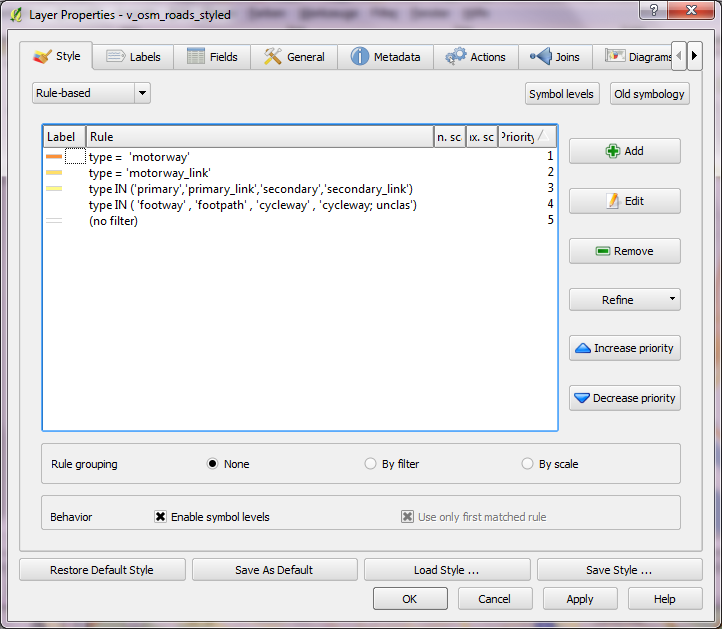
Google-style rules for OSM road data

Now for the labels! In “Data defined settings”, we can assign the special attributes created in the database view to the settings.
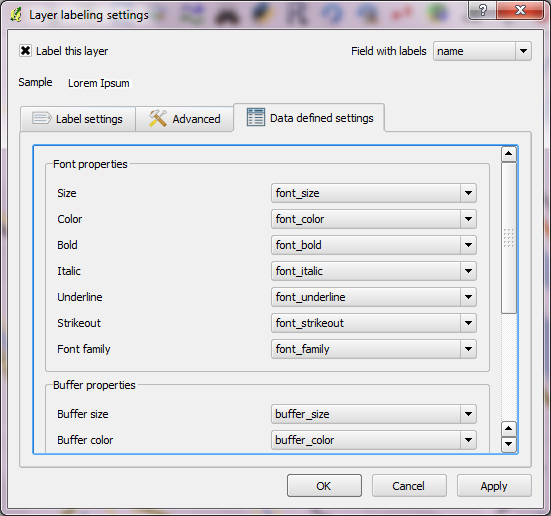
Completed "Data defined settings"

To achieve an even better look, go to “Advanced” tab and enable “curved” and “on line” placement. “Merge connected lines to avoid duplicate labels” option is very helpful too.

Finally – after adding some water objects (Cloudmade natural.shp) – this is what our result looks like:
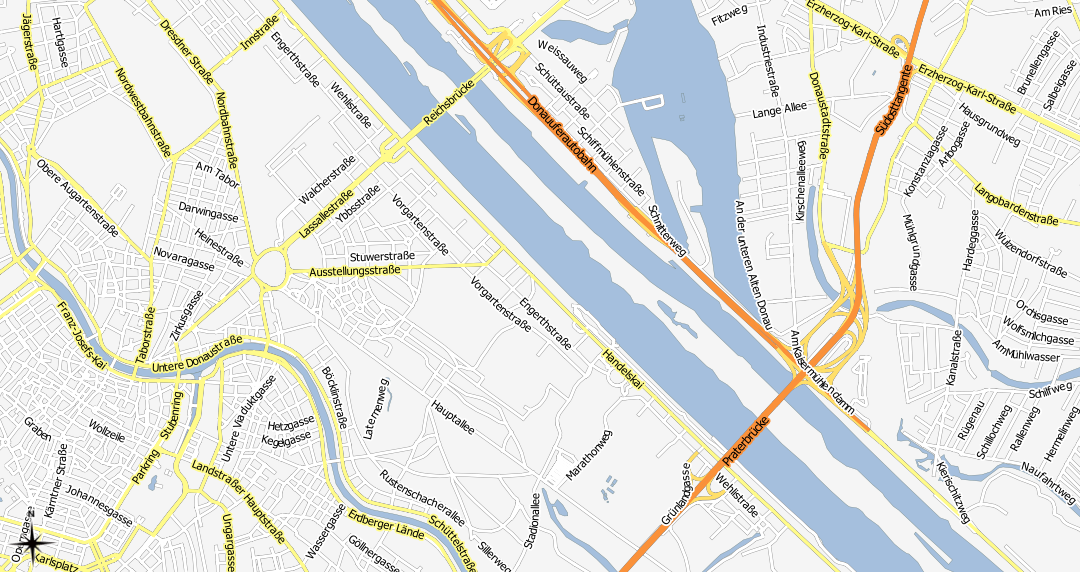
Google-style OSM map

This solution can be improved considerably by adding multiple zoom levels with corresponding styles. One obvious difference between the original Google map and this look-alike is the lack of road numbers. Tim’s post on “shield labels” can be a starting point for adding road numbers the way Google does.

Today, I’ve compiled a short video showcasing one of the possible uses of Time Manager plugin: Storm tracking. (Storm data can be downloaded from www.nhc.noaa.gov.)

Point size shows storm class, labels read maximum speed in mph.

If you are using Time Manager for your work, I’d love to hear about it.

Today, I’ve been experimenting with data from OpenFlights.org. They offer airport, airline and route data for download. The first idea that came to mind was to connect airports on a shared route by lines. This kind of visualization just looks much nicer if the connections are curved instead of simple straight lines.

Luckily, that’s pretty easy to do using PostGIS. After loading airport positions and route data, we can create the connection lines like this (based on [postgis-users] Great circle as a linestring):

UPDATE experimental.airroutes
SET the_geom = 
(SELECT ST_Transform(ST_Segmentize(ST_MakeLine(
       ST_Transform(a.the_geom, 953027),
       ST_Transform(b.the_geom, 953027)
     ), 100000 ), 4326 ) 
 FROM experimental.airports a, experimental.airports b
 WHERE a.id = airroutes.source_id  
   AND b.id = airroutes.dest_id
);

The CRS used in the query is not available in PostGIS by default. You can add it like this (source: spatialreference.org):

INSERT into spatial_ref_sys (srid, auth_name, auth_srid, proj4text, srtext) values ( 953027, 'esri', 53027, '+proj=eqdc +lat_0=0 +lon_0=0 +lat_1=60 +lat_2=60 +x_0=0 +y_0=0 +a=6371000 +b=6371000 +units=m +no_defs ', 'PROJCS["Sphere_Equidistant_Conic",GEOGCS["GCS_Sphere",DATUM["Not_specified_based_on_Authalic_Sphere",SPHEROID["Sphere",6371000,0]],PRIMEM["Greenwich",0],UNIT["Degree",0.017453292519943295]],PROJECTION["Equidistant_Conic"],PARAMETER["False_Easting",0],PARAMETER["False_Northing",0],PARAMETER["Central_Meridian",0],PARAMETER["Standard_Parallel_1",60],PARAMETER["Standard_Parallel_2",60],PARAMETER["Latitude_Of_Origin",0],UNIT["Meter",1],AUTHORITY["EPSG","53027"]]');

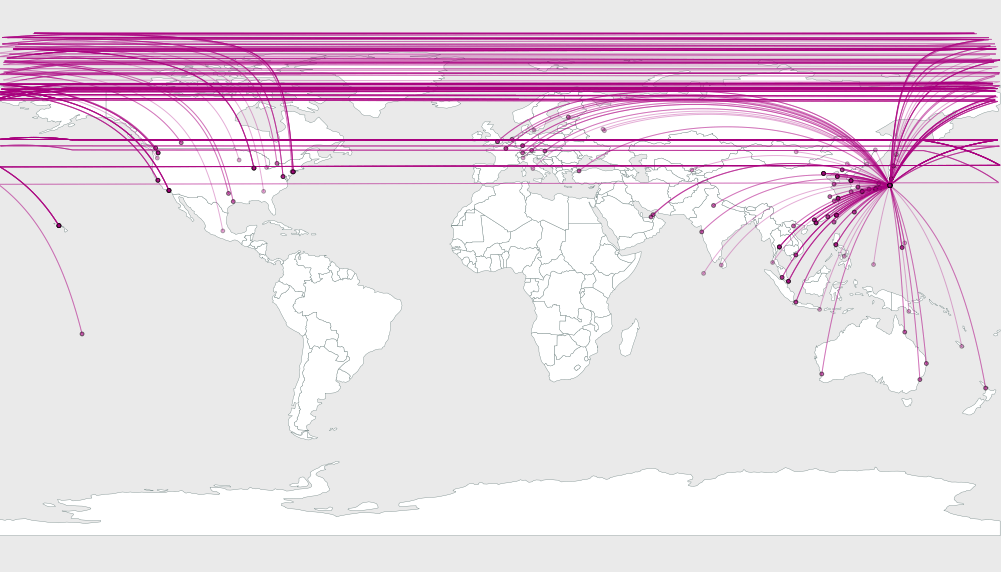
This is an example visualization (done in QGIS) showing only flight routes starting from Vienna International Airport:

Flight routes from Vienna International

Connections crossing the date line are currently more problematic. Lines would have to be split, otherwise this is what you’ll get:

Date line trouble

“-T”, this small appendix can be found after many popular GIS-related acronym. But of course, it always means something different. Take for example GIS-T (GIS for Transportation), WFS-T (Transactional WFS) and WMS-T (WMS with time support). The world of acronyms is a fun place!

Let’s see what a WMS-T can do for us. From the WMS standard:

Some geographic information may be available at multiple times (for example, an hourly weather map). A WMS
may announce available times in its service metadata, and the GetMap operation includes a parameter for
requesting a particular time
. […] Depending on the context, time
values may appear as a single value, a list of values, or an interval, …

Currently, only Mapserver supports WMS-T but the Geoserver team is working on it.

Mapserver

MapServer 4.4 and above provides support to interpret the TIME parameter and transform the resulting values into appropriate requests.

Time attributes are specified within the metadata section:

METADATA
"wms_title" "Earthquakes"
"wms_timeextent" "2011-06-01/2011-07-01"
"wms_timeitem" "TIME"
"wms_timedefault" "2011-06-10 12:10:00"
END

Mapserver supports temporal queries for single values, multiple values, single range values or even multiple range values:

...&TIME=2011-06-10&...
...&TIME=2011-06-10, 2004-10-13, 2011-06-19&...
...&TIME=2011-06-10/2011-06-13&...
...&TIME=2011-06-10/2011-06-15, 2011-06-20/2011-06-25&...

Geoserver

GeoSolutions has developed support for TIME and ELEVATION dimensions in WMS.
There are plans to backport this feature to the stable 2.1.x series after the 2.1.1 release.

Configuration of time-enabled layers can be done via the normal user interface:

The following video by GeoSolutions demonstrates the use of Geoserver’s WMS-T:

Both server solutions seem to support only one time attribute per layer. An optional second time attribute would be nice to support datasets with start and end time like Time Manager for QGIS does.

“The Morphing City” by Pedro M Cruz is a visualization of deviations of traffic velocities in the city of Lisbon:

The Morphing City from Pedro M Cruz on Vimeo.

Very inspiring!

Today, I have been exploring toolkits for web graphs and visualization. One impressive implementation is called Protovis (it is free and open-source, under BSD License). It uses JavaScript and SVG for visualizations.

Best thing: Protovis is spatial too!

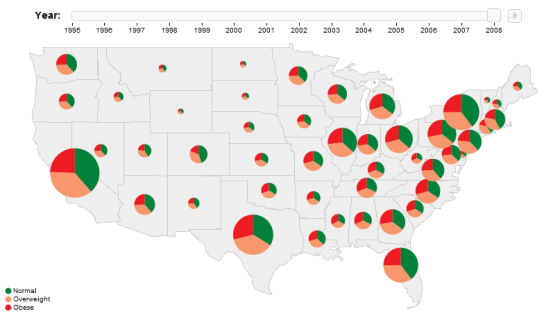
Protovis offers two ways of visualizing spatial data: either on top of existing map tools like OpenLayers, or using their own geo scales. One of their examples is this map with pie charts and a time slider:

Protovis pie chart example

Works and looks great!

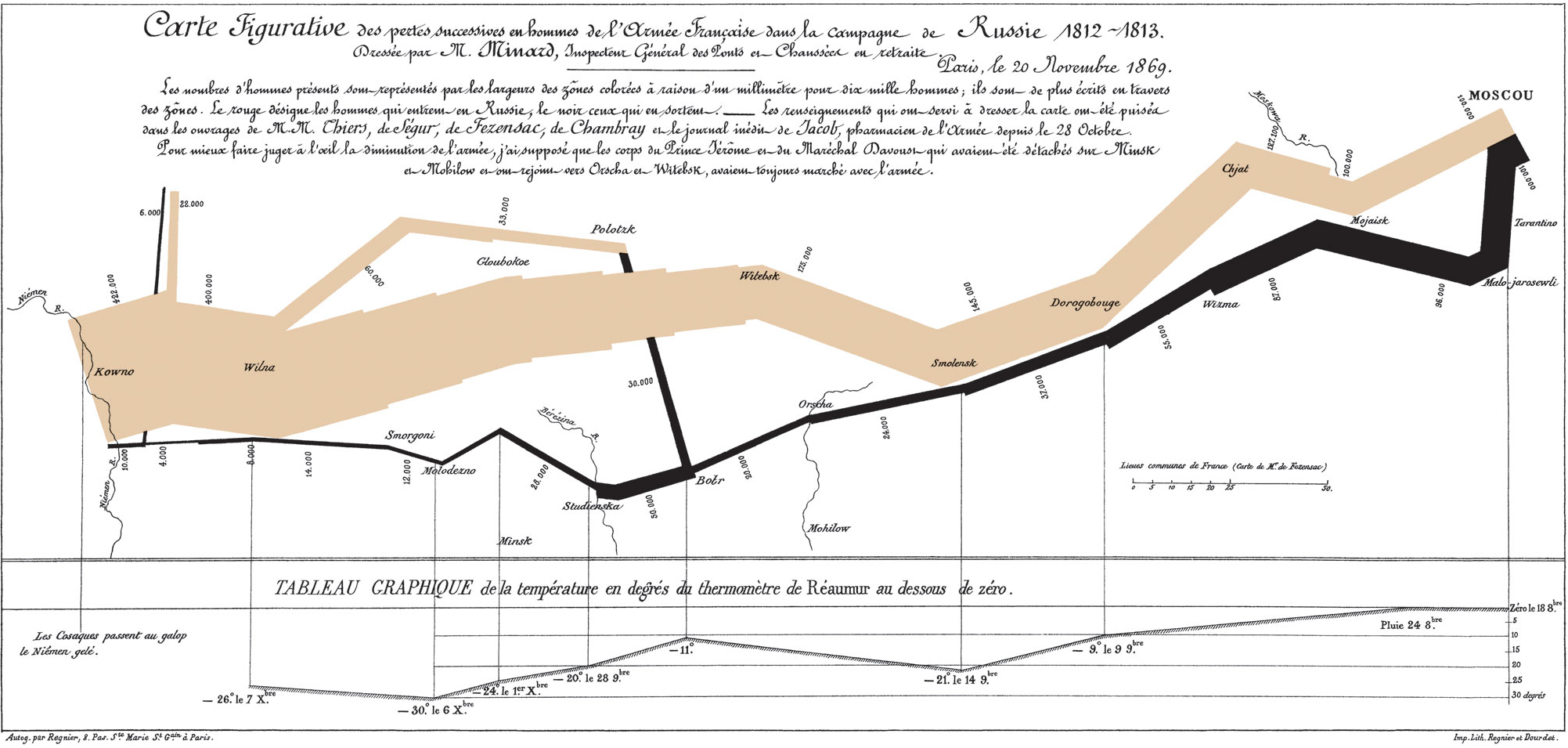
They also offer a tool inspired by Charles Minard’s depiction of Napleon’s disastrous march to Moscow:

Minard's famous map

Definitely worth a closer look!

Regular magnifying lens tools come with a disadvantage: They cause discontinuities in the map, they break roads and borders and cover up some underlying areas:

Ordinary magnifying lense effect

Smooth magnifying lens tools solve this problem. The idea is not new:

Conrad Morant (1548)

… but it’s not implemented in any of the widely used toolboxes. In fact, I’m not aware of any implementation up-to-date.

[Harrie, L., Sarjakoski, T., Lehto, L. A variable-scale map for small-display cartography. In: Joint International Symposium on GeoSpatial Theory, Processing and Applications (ISPRS/Commission IV, SDH2002). Ottawa, Canada, July 2002] present an algorithm for a smooth magnifying lens effect.

As barrycarter pointed out on gis. stackexchange,  this visualization can be seen as a kind of cartogram and could probably be implemented in a similar fashion. I’d love to see such a tool in QGIS and probably even OpenLayers.

QGIS community has developed some interesting new features over the last weeks:

  • Nathan Woodrow has created a graphical rule builder for rule based vector symbology. Rule based symbologies allow you to create classes of features based on custom rules. Now, you don’t need to write those rules manually anymore.
  • Martin Dobias has implemented functionality that allows you to treat the outline of polygons as a separate entity. This way, you can render a polygon with one or more line styles. Additionally, you can render a marker on the polygon centroid.

The time of old symbology is running out. It will not be available for QGIS 2.0 anymore, but who will miss it? The development speed of QGIS symbology in the last months has been simply astonishing!

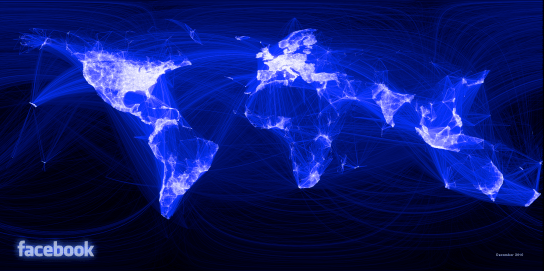
Paul Butler, an intern at facebook, has created a map of facebook relationships. Relationships are represented by great circle arcs connecting the locations of two friends. The result is a great looking map of the relationships on facebook:

Interesting (… but scary)!

Vincos from vincosblog has compiled a series of world maps showcasing the distribution of different social networks worldwide and the changes over the last 18 months. The maps clearly show facebook taking over :
World Map of Social Networks

http://www.sethoscope.net hosts a really neat Python script for heatmap creation.

The script takes data points with latitude and longitude coordinates (list of points or a GPX track log) and plots them on a map so areas where points are dense show brightly.

Nice extras include: GPX tracks can be rendered as line segments instead of disconnected points. You can generate animations using ffmpeg. The heatmaps can be put on top of OpenStreetMap tiles.

The script is released under AGPL making it free to improve and share.