Data from various vehicles is collected for many purposes in cities worldwide. To get a feeling for just how much data is available, I created the following video using QGIS Time Manager which has been shown at the Austrian Museum of Applied Arts “MADE 4 YOU – Design for Change”. It shows one hour of taxi tracks in the city of Vienna:
This post continues my quest of exploring the spatial dimension of Twitter streams. I wanted to try one of the classic spatio-temporal visualization methods: Space-time cubes where the vertical axis represents time while the other two map space. Like the two previous examples, this visualization is written in pyprocessing, a Python port of the popular processing environment.
This space-time cube shows twitter trajectories that contain at least one tweet in New York Times Square. The 24-hour day starts at the bottom of the cube and continues to the top. Trajectories are colored based on the time stamp of their start tweet.
Additionally, all trajectories are also drawn in context of the coastline (data: OpenStreetMap) on the bottom of the cube.
While there doesn’t seem to be much going on in the early morning hours, we can see quite a busy coming and going during the afternoon and evening. From the bunch of vertical lines over Times Square, we can also assume that some of our tweet authors spent a considerable time at and near Times Square.
I’ve also created an animated version. Again, I recommend to watch it in HD.
So far, Time Manager has been limited to vector layers. Support for raster layers has been on the wish list for quite a while. I’ve been considering different approaches and for now I have settled with one that keeps the way how raster layers work as close to the workings of vector layers as possible:
All layers have to be loaded before they can be added to Time Manager. The layers are added one-by-one and start and end time values are defined. (This differs from vector layers where start/end attribute are defined instead.) All raster layers that are not within the current time frame are set to 100 % transparency.
I’m not certain yet whether this is a good approach though. I’ll probably keep trying different approaches for a while.
This is a screen cast of the current status:
The plugin source is available on Github, as usual. It’s still going to take a while until there will be a plugin package including this feature.
I’m looking forward to reading your comments here or on Youtube. Do you think this approach is usable?
You probably know this video from my previous post “Tweets to QGIS”. Today, I want to show you how it is done.
After importing the Twitter JSON file, I saved it as a Shapefile.
Every point in the Shapefile contains the timestamp of the tweet. Additionally, I added a second field called “forever” which will allow me to configure Time Manager to show features permanently.
A "forever" field will help with showing features permanently.
To create the flash effect you see in the video, we load the tweet Shapefile three times. Every layer gets a different role and style in the final animation:
Layer “start_flash” is a medium sized dot that marks the appearance of a new tweet.
Layer “big_flash” is a bigger dot of the same color which will appear after “start_flash”.
Layer “permanent” is a small dot that will be visible even after the flash vanishes.
styling the tweet layers
We’ll plan the final animation with a time step size of 10 seconds. That means that every animation frame will cover a real-world timespan of 10 seconds.
We configure Time Manager by adding all three tweet layers:
Layer “start_flash” starts at the orginal time t. Layer “big_flash” gets an offset of -10 seconds, which means that it will display ten seconds after time t. Layer “permanent” gets an offset of -20 seconds and ends at time forever.
Layers can be timed using the "offset" feature.
Finally – in Time Manager dock – we can start the animation with a time step size of 10 seconds:
Use a time step size of 10 seconds so it fits to the offset values we specified earlier.
Besides watching the animation inside QGIS, Time Manager also enables you to export the animation to an image series using “Export Video” button. Actual video export is not implemented yet, but you can use mencoder (Windows users can download it from Gianluigi Tiesi’s site) on the resulting image series to create a video file:
Today, I’ve compiled a short video showcasing one of the possible uses of Time Manager plugin: Storm tracking. (Storm data can be downloaded from www.nhc.noaa.gov.)
Point size shows storm class, labels read maximum speed in mph.
If you are using Time Manager for your work, I’d love to hear about it.
“-T”, this small appendix can be found after many popular GIS-related acronym. But of course, it always means something different. Take for example GIS-T (GIS for Transportation), WFS-T (Transactional WFS) and WMS-T (WMS with time support). The world of acronyms is a fun place!
Let’s see what a WMS-T can do for us. From the WMS standard:
Some geographic information may be available at multiple times (for example, an hourly weather map). A WMS
may announce available times in its service metadata, and the GetMap operation includes a parameter for
requesting a particular time. […] Depending on the context, time
values may appear as a single value, a list of values, or an interval, …
Currently, only Mapserver supports WMS-T but the Geoserver team is working on it.
GeoSolutions has developed support for TIME and ELEVATION dimensions in WMS.
There are plans to backport this feature to the stable 2.1.x series after the 2.1.1 release.
Configuration of time-enabled layers can be done via the normal user interface:
The following video by GeoSolutions demonstrates the use of Geoserver’s WMS-T:
Both server solutions seem to support only one time attribute per layer. An optional second time attribute would be nice to support datasets with start and end time like Time Manager for QGIS does.
Today, I have been exploring toolkits for web graphs and visualization. One impressive implementation is called Protovis (it is free and open-source, under BSD License). It uses JavaScript and SVG for visualizations.
Best thing: Protovis is spatial too!
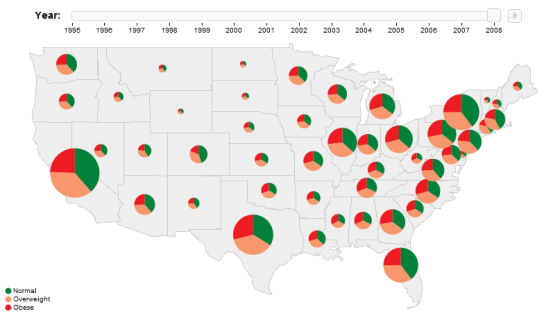
Protovis offers two ways of visualizing spatial data: either on top of existing map tools like OpenLayers, or using their own geo scales. One of their examples is this map with pie charts and a time slider:
VisualEyes is an online tool developed at the University of Virginia. It allows you to combine images, maps, charts, video and data into interactive dynamic visualizations.
The examples offer multiple map layers, charts and of course a time slider to navigate through time.
VisualEyes example: Jefferson's Travels to England
The aim of Time Manager plugin for QGIS is to provide comfortable browsing through temporal geodata. A dock widget provides a time slider and a configuration dialog for your layers to manage.
a wildlife telemetry dataset managed by Time Manager
Time Manager filters your vector datasets and displays only features with timestamps in the user specified time frame.
two views of the scenery, using a two-days time frame




 Free and Open Source GIS Ramblings