Please read the new instructions for QGIS 2.
I’ve added a new style for osm2po layers to the QGIS Resources Github repo. It contains the following rules:

the rules
and looks like this:
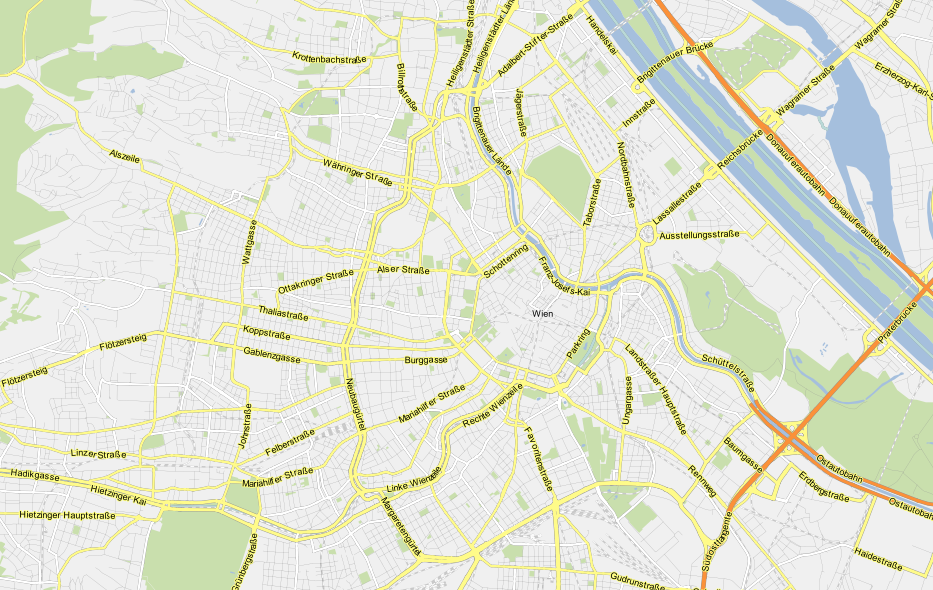
the map
Enjoy!
Please read the new instructions for QGIS 2.
I’ve added a new style for osm2po layers to the QGIS Resources Github repo. It contains the following rules:
the rules
and looks like this:
the map
Enjoy!
This week Sourcepole released a new addition to the Raster Terrain Analysis plugin: a sophisticated Relief tool. (More info in their announcement) This plugin is shipped with QGIS (developer version, not in 1.7.3 release) by default but you might have to activate it in Plugin Manager:

The plugin dialog is quite self-explanatory. You can chose the elevation file, output path and any of the numerous raster formats. The z factor is a bit more mysterious. We will have a look at that in a second. The rest of the dialog is the relief color editor. Pressing Create automatically will give you a color gradient to start with.

Relief tool dialog
But what’s the z factor good for?
I’ve tried a few different settings using free NASA SRTM data and it seems that higher values lead to a smoother relief (Please ignore the water areas):


Update:
As Marco noted in the comments: The z factor is used if the x/y units are different from the z unit.
In the example above SRTM rasters are in WGS84 with heights in meters. That’s why the result using a z factor of 100000 looks so good.
In my opinion the results look great even with the coarse SRTM dataset I used. Looking forward to all the great QGIS maps we will see in the future.
With Martin’s latest addition of conditional statements it’s now even easier to get conditional labels in QGIS. Following up on the example used in my previous post, we can simplify
substr(osm_name, 0, (clazz = 11 or clazz = 13 or clazz = 15 or clazz = 21)*-1)
to
CASE WHEN (clazz = 11 or clazz = 13 or clazz = 15 or clazz = 21) THEN osm_name END
which is much easier to read and remember.
To avoid roads from being labeled with only their road numbers, I added an additional check that the “osm_name” is longer than six characters. Thanks to Nathan’s syntax highlighting this new and powerful expression based labeling is also comfortable to use.

Conditional labels for an osm2po layer
The latest QGIS development build (1.9.90) has a new feature “expression based labeling” which can be used to create conditional labels. One typical use case would be if you want to label only certain (high-level) road classes in your road layer. By default, QGIS labels the features rather randomly:

default labeling
How can we label only the more important roads? Here is an example using OSM data imported into PostGIS using osm2po:
If you have loaded OSM using osm2po, your OSM table will contain a “clazz” attribute. (Check osm2po.config for the exact mapping.) To label only motorways, trunks, primary and secondary roads and nothing else, I wrote this labeling expression:
substr(osm_name, 0, (clazz = 11 or clazz = 13 or clazz = 15 or clazz = 21)*-1)
If clazz equals 11, 13, 15 or 21, the expression returns the value of osm_name. Otherwise it returns an empty string. (All checks will return false or 0 which causes the function to evaluate to substr(osm_name,0,0).) Kudos to Giuseppe Sucameli who explained this on the mailing list.

expression based "conditional" labels
TimeManager is now available on Github (right beside pgRoutingLayer).
If you want to try it, you can install version 0.4 from the new QGIS Plugin Repository. I’ve also uploaded some test data such as the twitter file used for the animation I presented recently.
It’s Dec, 23rd and this is my early present to the QGIS community: a package of ready-to-use road symbols that make your OpenStreetMap data look like Google Maps.
In a previous post, I did already show how to prepare a view that will help get similar looking road labels. And now, here are the necessary symbols: osm_symbols.xml (Load using “Style Manager”.)
Now, you should have all necessary symbols available to create the style. I used the following rules to get the map shown above:
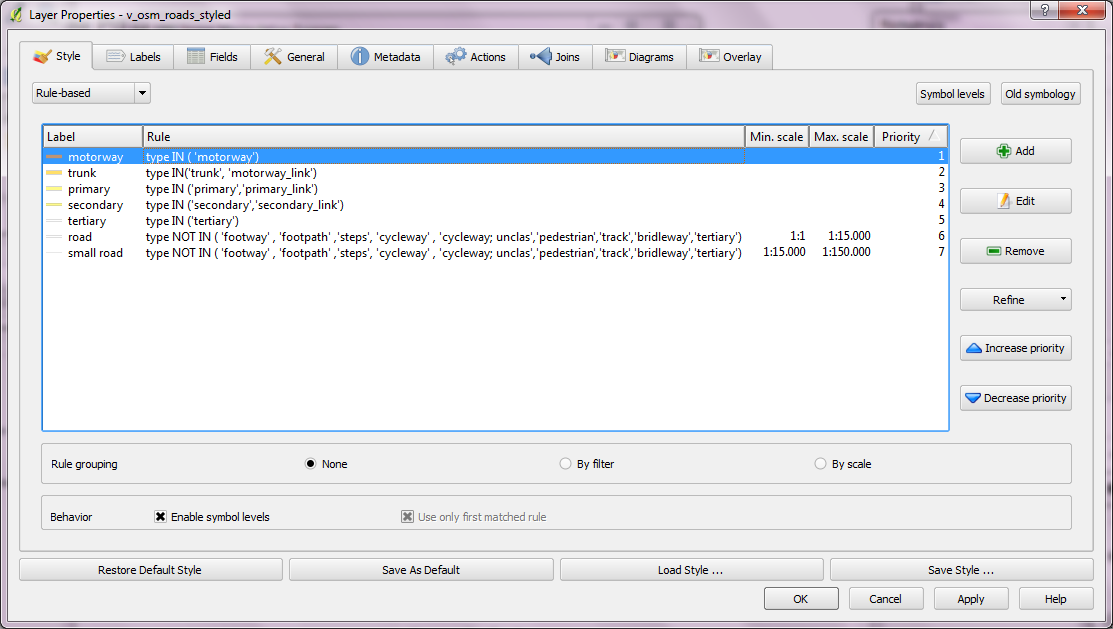
rules for "Google Maps" style
You can download the style here: v_osm_roads_style.qml
Merry Christmas!

OSM styled like "Google Maps"
PS: For water and natural areas, I used Cloudmade’s natural.shp
This is the follow up post to “An osm2po Quickstart” which covers loading the OSM network into PostGIS and using the result with pgRouting. After parsing the OSM file, e.g.
C:\Users\Anita\temp\osm2po-4.2.30>java -jar osm2po-core-4.2.30-signed.jar prefix=at "C:\Users\Anita\Geodaten\OpenStreetMap Data\austria.osm.pbf"
you should find a folder with the name of the prefix you chose inside the osm2po folder. It contains a log file which in turn provides a command line template for importing the OSM network into PostGIS, e.g.
INFO commandline template: psql -U [username] -d [dbname] -q -f "C:\Users\Anita\temp\osm2po-4.2.30\at\at_2po_4pgr.sql"
Using this template, we can easily import the .sql file into an exiting database. My pgRouting-enabled database is called wien_ogd.
C:\Users\Anita\temp\osm2po-4.2.30\at>psql -U [username] -d wien_ogd -q -f C:\Users\Anita\temp\osm2po-4.2.30\at\at_2po_4pgr.sql
Now, the data is ready for usage in QGIS:

The osm2po table in QGIS
Using “pgRouting Layer” plugin, it’s now straightforward to calculate shortest paths. I had to apply some changes to the plugin code, so please get the latest version from Github.

A shortest path in osm2po network
Using osm2po turned out to be far less painful than I expected and I hope you’ll find this post useful too.
PgRouting is great. But (Yes, there is always a “but”.) those queries are not easy to remember. That’s why I started work on a pgRouting GUI today. It’s actually a QGIS plugin which I’ll call “pgRouting Layer” and it is based on Pablo T. Carreira’s “Fast SQL Layer” plugin which can execute arbitrary SQL statements against a PostGIS or SpatiaLite database and add the results in a map layer.
This first prototype supports pgRouting’s shortest_path() function as described in “A Beginners Guide to pgRouting”. Once supplied with the necessary information about attribute field names, the plugin allows you to route between pairs of nodes. For convenience, the resulting layer is named after its start and end node.
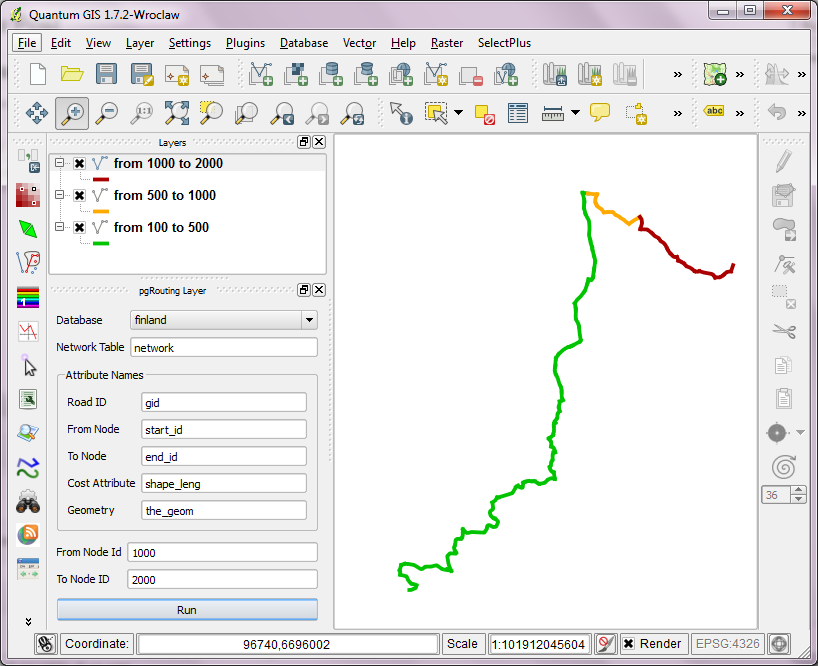
some shortest paths using "pgRouting Layer" plugin
Besides normal routing capabilities, I’d like to develop this plugin towards a user friendly tool for catchment zone analysis. If you are interested in teaming up to work towards this goal, let me know.
You probably know this video from my previous post “Tweets to QGIS”. Today, I want to show you how it is done.
After importing the Twitter JSON file, I saved it as a Shapefile.
Every point in the Shapefile contains the timestamp of the tweet. Additionally, I added a second field called “forever” which will allow me to configure Time Manager to show features permanently.

A "forever" field will help with showing features permanently.
To create the flash effect you see in the video, we load the tweet Shapefile three times. Every layer gets a different role and style in the final animation:

styling the tweet layers
We’ll plan the final animation with a time step size of 10 seconds. That means that every animation frame will cover a real-world timespan of 10 seconds.
We configure Time Manager by adding all three tweet layers:
Layer “start_flash” starts at the orginal time t. Layer “big_flash” gets an offset of -10 seconds, which means that it will display ten seconds after time t. Layer “permanent” gets an offset of -20 seconds and ends at time forever.

Layers can be timed using the "offset" feature.
Finally – in Time Manager dock – we can start the animation with a time step size of 10 seconds:

Use a time step size of 10 seconds so it fits to the offset values we specified earlier.
Besides watching the animation inside QGIS, Time Manager also enables you to export the animation to an image series using “Export Video” button. Actual video export is not implemented yet, but you can use mencoder (Windows users can download it from Gianluigi Tiesi’s site) on the resulting image series to create a video file:
mencoder "mf://*.PNG" -mf fps=10 -o output.avi -ovc lavc -lavcopts vcodec=mpeg4
Time offsets are a new feature in version 0.4 of Time Manager. You can get it directly from the project SVN and soon from the official QGIS repo.
Colorbrewer is a great resource for visually pleasing gradients that can be used for mapping. It was already possible to use color brewer ramps in QGIS but it was necessary to create the ramp with the final number of classes in mind.
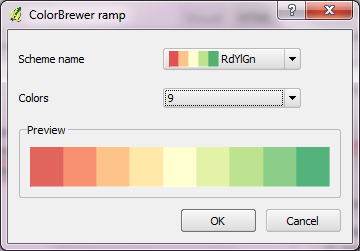
Creating a Colobrewer ramp
That’s why I sat down and created continuous ramps from the Colorbrewer data:

Colorbrewer Ramps in QGIS Style Manager
If you want to use them, just import the following XML file into QGIS Style Manager: https://github.com/anitagraser/QGIS-resources/tree/master/symbols
For a big selection of point, line and polygon styles check “QGIS symbology set” by S.S. Rebelious.
 Free and Open Source GIS Ramblings