Archive

Author Archives: underdark

Here’s a rainbow gradient for use with QGIS “Categorized” or “Graduated” vector renderer:

<!DOCTYPE qgis_style>
<qgis_style version="0">
  <symbols/>
  <colorramps>
    <colorramp type="gradient" name="rainbow">
      <prop k="color1" v="250,8,8,255"/>
      <prop k="color2" v="92,11,122,255"/>
      <prop k="stops" v="0.3;237,244,25,255:0.5;46,155,45,255:0.66;29,18,122,255:0.82;152,6,130,255"/>
    </colorramp>
  </colorramps>
</qgis_style>

(Save as .xml and import using QGIS Style Manager.)

I’ll put it on my QGIS Resources Github repository too. Soon.

After playing around with some twitter data for animation purposes (in Time Manager), I’m now looking into movement patterns. Series of successive georeferenced tweets can be connected to get an idea of how people move within a city as well as between cities and continents.

Currently, I’m still working on the basics of collecting relevant data. A first proof of concept can be seen in this map which contains locations of a handful of users in the greater Viennese area:

Each user is represented by a differently colored line.

Updates and code samples will follow.

This post explores some cartographic features of QGIS while mapping the river network of Tirol, Austria. All data used is freely available.

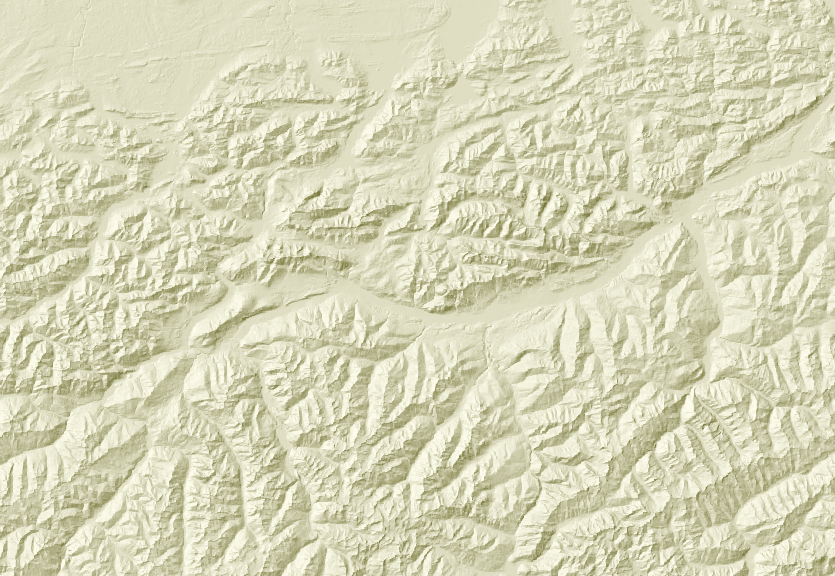
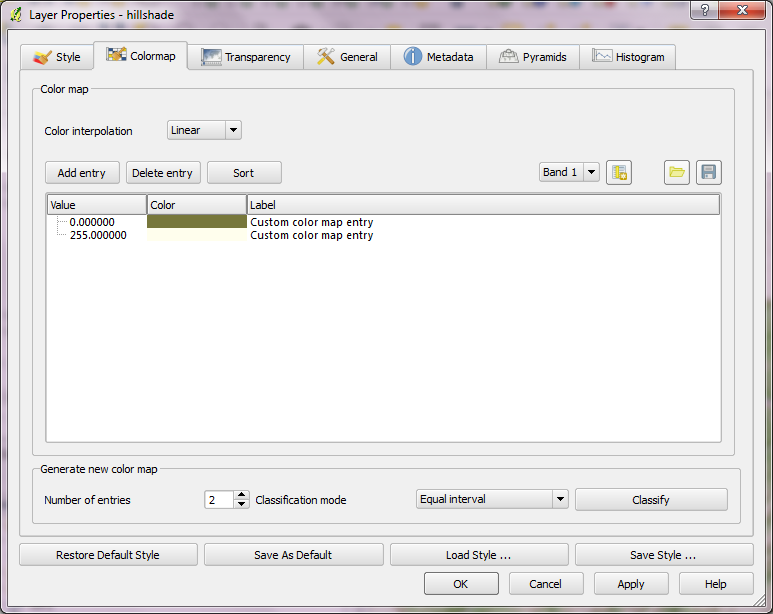
For the background, I downloaded NASA SRTM elevation data from CGIAR-CSI and created a hillshade using Terrain Analysis tools in QGIS 1.8.

To emphasize both state borders and the fact that Tirol consists of two separate areas, I created a mask using the Difference tool and styled it a transparent white.

The river network is too dense to label all rivers on an A4 map. Expression-based labels make it possible to only label selected features. For this dataset, the expression limits labeling to features with certain values of GEW_WRRL attribute:

CASE WHEN (GEW_WRRL = '10.000 km2 Fluss' OR "GEW_WRRL"= '4.000 km2 Fluss' OR "GEW_WRRL"='1.000 km2 Fluss') AND length("GEW_NAME_A") < 10 THEN "GEW_NAME_A" END

Labels of neighboring areas together with map title, descriptions and scale bar were added in Print Composer.

Working with Print Composer, it is useful to know that you can use Copy&Paste to duplicate map components and right-click to lock them from being moved. Also, every new component by default comes with a black outline and white background which can (and should) be disabled/changed in “General options”.

This is the final QGIS Print Composer output – without any further post-processing in Inkscape or Gimp:

The upcoming 1.8 release contains many new features for handling layer styles.

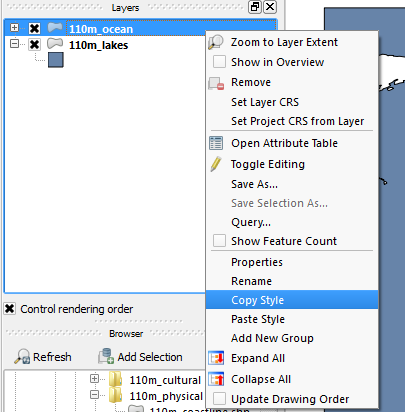
Copy-paste Styles

Very handy new entries in the layer list context menu: “Copy Style” and “Paste Style” make copying layer styles really fast. You don’t even have to open layer properties anymore.

SLD Support

Besides the classic QML layer style files, QGIS 1.8 supports the SLD standard. SLDs can be exported from and imported into new symbology.

One thing worth to note: SLDs can be exported from any type of renderer: single symbol, categorized, graduated or rule-based, but when importing an SLD, either a single symbol or rule-based renderer is created.

That means that categorized or graduated styles are converted to rule-based. If you want to preserve those renderers, you have to stick to the QML format. On the other hand, it could be very handy sometimes to have this easy way of converting styles to rule-based.

Symbol Levels

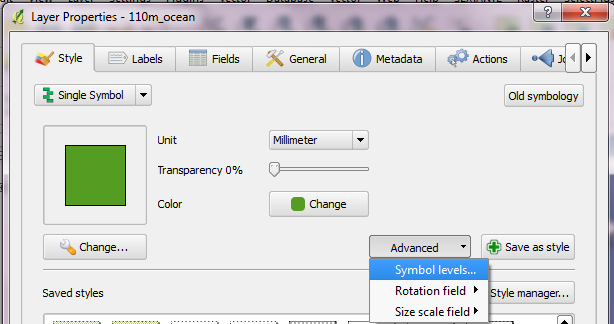
If you are looking for the “Symbol level” settings, they have been moved to the “Advanced” button:

Rule-based Renderer

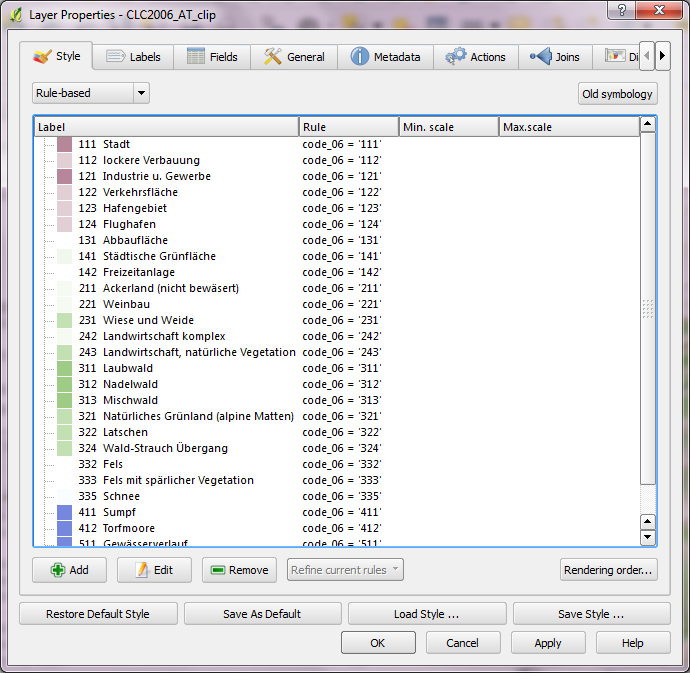
The rule-based renderer GUI got a major face-lift. Just compare the 1.7 version

Rule-based renderer GUI in 1.7

to the new clean 1.8 version:

Rule-based renderer in 1.8

Grouping of styles has been overhauled too: Using drag-and-drop, layers can be arranged into groups in a more flexible manner than previously possible.

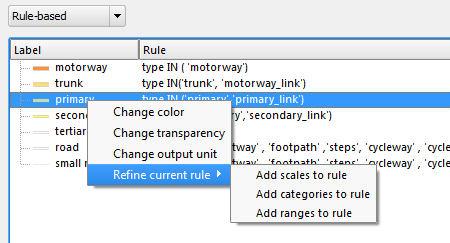
There is also a new context menu which enables workflows such as changing the transparency of multiple symbols at once:

Symbol levels for the rule-based renderer can now be accessed via “Rendering order”.

It’s obvious that a lot of work has been put into style handling since the 1.7 release and these improvements are just a small fraction of what’s been done to get closer to the big goal: releasing 2.0.

Today’s post is a short note-to-self.

This script lists available fonts and renders a small preview using Tkinter and pyprocessing.

from pyprocessing import *
import Tkinter
import tkFont

t = Tkinter.Toplevel() # without root window the following line fails
fonts = tkFont.families()
t.destroy()

size(1500,900)
fill(0)
rect(0,0,1500,900)
fill(255)

fontsize=14
lineheight=fontsize*1.2
y=lineheight
x=0

for font_name in fonts:
    print font_name
    font = createFont(font_name, fontsize)
    textFont(font)
    text("Hello world!   ("+font_name+")", x,y,1000,66)
    y+=lineheight
    if y >= 900:
        x+=500
        y=lineheight

run()

On the TODO list:

  • Find out how to turn these fonts bold or italics.

Waiting time is over, Gimp 2.8 is finally here. That is reason enough to take it for a quick test run!

How about a new look for the QGIS user map?

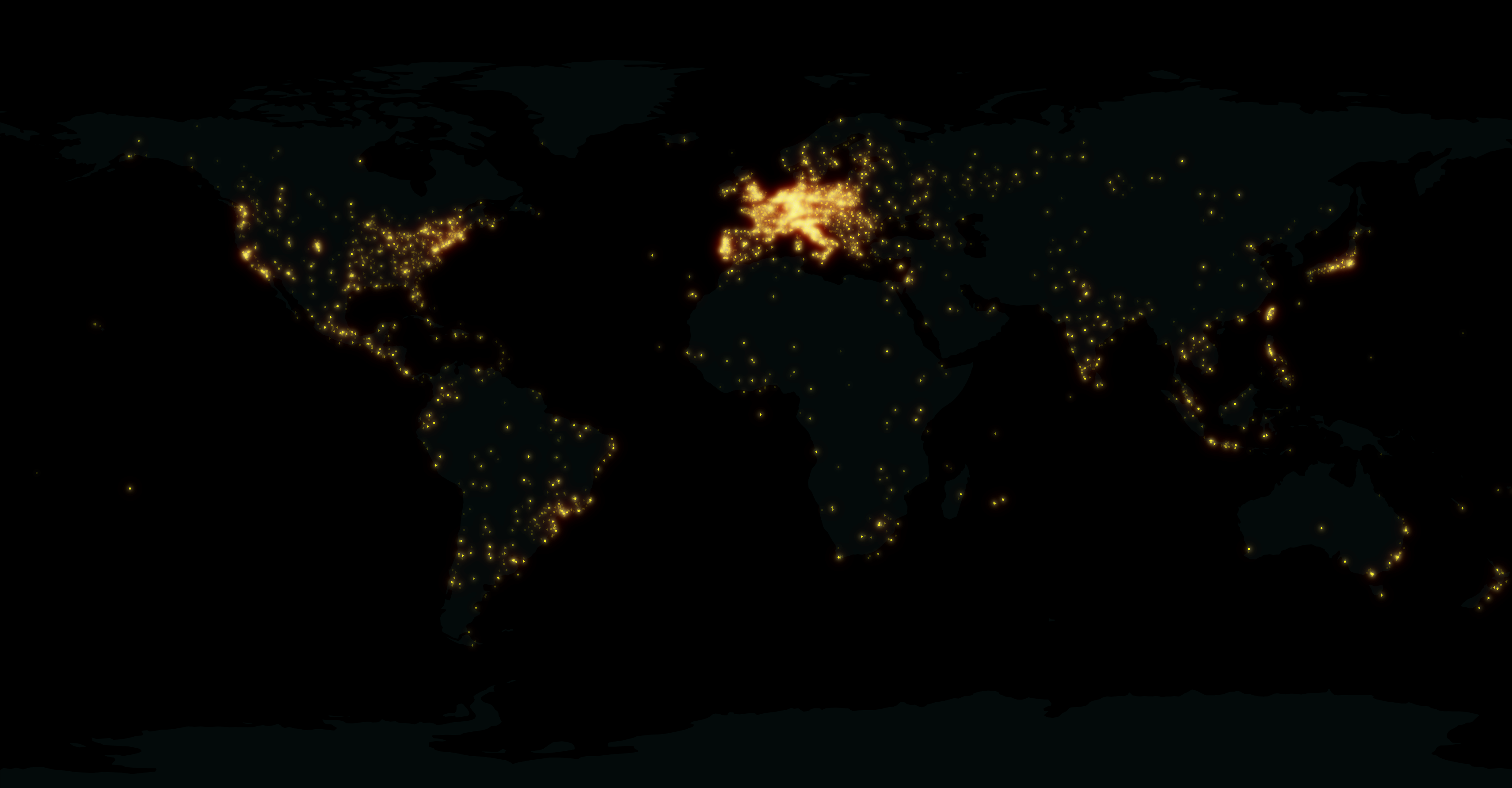
This “glowing hot” map was made using the Gimp filter of the same name:

For the user point layer, I selected a simple point style with high transparency and separately exported land and user points from print composer.

user points as exported from QGIS

In Gimp, I applied the “glowing hot” filter to the user points and combined the layers. The trick here is to first use “Color to alpha” on the user point layer and turn black to transparent. This way, the “glowing hot” filter will only be applied to the remaining points.

Gimp 2.8 RC1 is close enough to the previous version to get comfortable fast. I like the single-window mode even if it’s hard to tell which part of the GUI has the focus sometimes.

Open source GIS and image editing for a perfect work flow.

This is just a quick “note to self” on some interesting information I picked up from the QGIS mailing list today. Kudos to David J. Bakeman for sharing this:

If both the input and the output arguments to ogr2ogr are directories then it will clip all of the shapes in the source directory and write them to the output directory.

So: ogr2ogr -clipsrc mask.shp output source

Shapefiles are the default so you don’t even need the -f “ESRI Shapefile”.

Today’s hot topic on the mailing list was a recently added feature which enables QGIS to load data directly from ZIP archives.

To get the contents of a ZIP archive display in the browser dock, it is necessary to activate this feature in the Options dialog. The setting is called “Scan for contents of compressed files (.zip) in browser dock” and is located right at the bottom of the first tab. Both “basic scan” and “full scan” settings seem to work fine:

Settings – Options

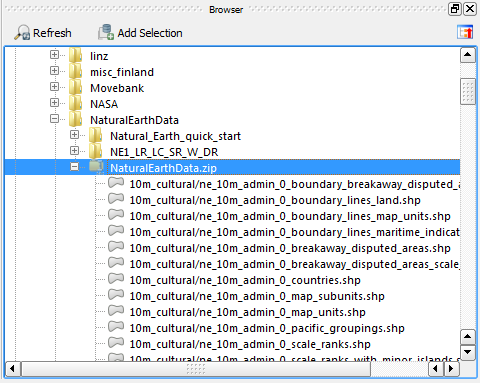
In the file browser panel, archives are now listed like any other folder and their content can be added to the map through both double click and drag and drop.

This can help save tons of disk space: The NaturalEarthData.zip in this example is 280 MB big while the unzipped folders take more than 700 MB.

After my successful experiment with QGIS Server on Ubuntu, I took a shot at Windows7. These are my notes on installing QGIS Server following the instructions on the wiki.

Installation

Using OSGeo4W installer it is easy to install QGIS Server: Just mark qgis-server for installation from “Web” category (in the “Advanced” installation).

All other necessary packages will be selected automatically.

As mentioned on the wiki, the next step is to tell Apache which port number to use. Apache (2.2.14-4 from OSGeo4W) does not have any default IP/port set and it fails to start. To fix this, we need to edit the file

c:/osgeo4w/apache/conf/httpd.conf

and change

Listen @apache_port_number@

to our needs, e.g. to listen on port 80

Listen 80

The last thing I had to do to get QGIS Server working was to copy two files
libeay32.dll and ssleay32.dll
from C:\OSGeo4W\apache\bin
to C:\OSGeo4W\apps\qgis\bin.

The GetCapabilities request should work now

http://localhost/qgis/qgis_mapserv.fcgi.exe?SERVICE=WMS&VERSION=1.3.0&REQUEST=GetCapabilities

Adding a QGIS project file

To add a project file to the server, we stay in C:\OSGeo4W\apps\qgis\bin. If we put a project file in this directory, it will be served by default (without having to pass the optional map parameter).

For this test, I added my vienna.qgs project file. This is how my QGIS bin folder looks like (notice the .dll files we copied from Apache/bin and the project file):

Next, we have to restart Apache to force QGIS Server to load the project file. The OSGeo4W installation provides a handy “Apache-Monitor” GUI to restart Apache. If it fails, try to reboot ;)

Let’s test the setup using “Add WMS Layer” in QGIS by adding the service URL and ticking “Ignore GetMap URI …” and “Ignore GetFeature URI …”.

The project layers are now available through WMS and can be loaded into your client.

QGIS "Add WMS Layer" dialog with my newly created WMS

Conclusion

That wasn’t bad. The wiki page was very helpful and I didn’t encounter any real problems. Editing a config file and copying a few .dlls is easy enough.

Since linking files is not one of Windows’ strengths, I’d expect a server with multiple projects to get quite messy. But it certainly works for home use and experiments.

Update 2024-04-21

For the latest instructions, please see QGIS Server — Docker edition


Update 2016-07-31

For the latest installation instructions, please see the official QGIS Server documentation.


This post summarizes my notes about installing QGIS Server on Ubuntu, adding a QGIS project file to the server and using the WMS in an OpenLayers application.

Installation

First, it’s useful to figure out the Ubuntu version:

lsb_release -a

Since my server runs “lucid”, I add the following package sources to /etc/apt/sources.list (as described in the QGIS installation documentation)

deb http://qgis.org/debian lucid main
deb-src http://qgis.org/debian lucid main

Before we can install anything, we need to add the key and update the package list

gpg --keyserver keyserver.ubuntu.com --recv 1F9ADD375CA44993
gpg --export --armor 1F9ADD375CA44993 | sudo apt-key add -
sudo apt-get update

Now we can install QGIS Server and the necessary Apache package

sudo apt-get install qgis-mapserver libapache2-mod-fcgid

It never hurts to restart Apache :)

sudo /etc/init.d/apache2 restart

Let’s test the installation before we proceed. The GetCapabilities request should already work

http://10.101.21.28/cgi-bin/qgis_mapserv.fcgi?SERVICE=WMS&VERSION=1.3.0&REQUEST=GetCapabilities

Adding a QGIS project file

It’s time to add a QGIS project to our server. To do that, we move to the QGIS Server folder

cd /usr/lib/cgi-bin

where you should find qgis_mapserv.fcgi and wms_metadata.xml.
I’ve decided to have one folder for each project file. My first project is “vienna”.

sudo mkdir vienna
cd vienna

qgis_mapserv.fcgi and wms_metadata.xml can now be linked into this new folder

sudo ln -s ../qgis_mapserv.fcgi .
sudo ln -s ../wms_metadata.xml .

The only thing that’s missing anymore is a QGIS project file. It can be copied or linked into the folder. After restarting Apache, we should be good to go.

Let’s test the setup using “Add WMS Layer” in QGIS by adding the service URL such as

http://10.101.21.28/cgi-bin/vienna/qgis_mapserv.fcgi

and ticking “Ignore GetMap URI …” and “Ignore GetFeature URI …”.

After clicking “Connect”, all layers from the project file we added should get listed and we can select and load them.

QGIS Server can serve as many project files as you want. There are different ways to organize your server but I would simply add a new folder (like the “vienna” folder in this example) and link in the executable and project file.

Using QGIS Server WMS in OpenLayers

Of course QGIS Server doesn’t just talk to QGIS Desktop but to any other WMS client that conforms to the standard. One classic use case is to add the WMS layers to an OpenLayers application. This is rather simple but I’ll add it here for the sake of completeness:

I used to have a Geoserver WMS base layer in my application. The only lines of code that needed to be changed to migrate to QGIS Server were the service URL and the layer names.

wms = new OpenLayers.Layer.WMS(
    'roads', &quot;http://10.101.21.28/cgi-bin/vienna/qgis_mapserv.fcgi&quot;,
    {
        layers: 'roads',
        format: 'image/png';
        bgcolor: '#fafafa'
    },
    {
        buffer: 1,
        isBaseLayer: true,
        graphicZIndex: 0,
    }
);

Standardized services are great!