Archive

Author Archives: underdark

The current developer version makes it easier to share symbol libraries online. Here a quick example of how to share using Github.

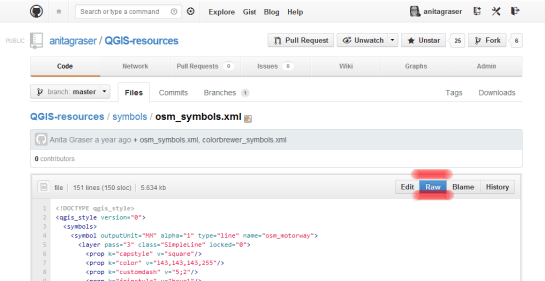
This is one of the symbol libraries I uploaded:

import3

If you click on “Raw”, you get the url of the raw text file which can be used to import the symbols into Style Manager:

import2

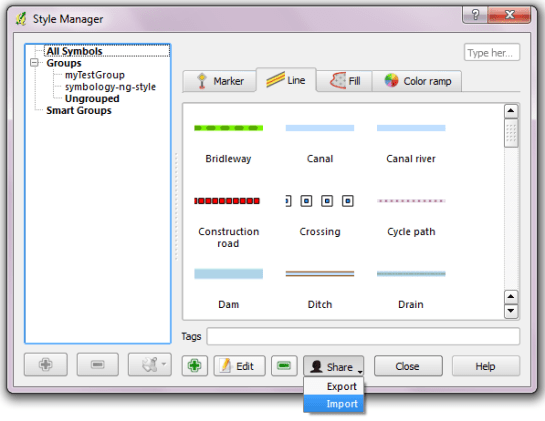
The importer lets you select which symbols to import:

import1

Yesterday, I described my process to generate a basic population density map from the city of Vienna’s open government data. In the end of that post, I described some ideas for further improvement. Today, I want to follow-up on those ideas using what is known as dasymetric mapping. GIS Dictionary defines it well (much better than Wikipedia):

Dasymetric mapping is a technique in which attribute data that is organized by a large or arbitrary area unit is more accurately distributed within that unit by the overlay of geographic boundaries that exclude, restrict, or confine the attribute in question.
For example, a population attribute organized by census tract might be more accurately distributed by the overlay of water bodies, vacant land, and other land-use boundaries within which it is reasonable to infer that people do not live.

That’s exactly what I want to do: Based on subdistricts with population density values and auxiliary data – Corine Land Cover to be exact – I want to create an improved representation of population density within the city.

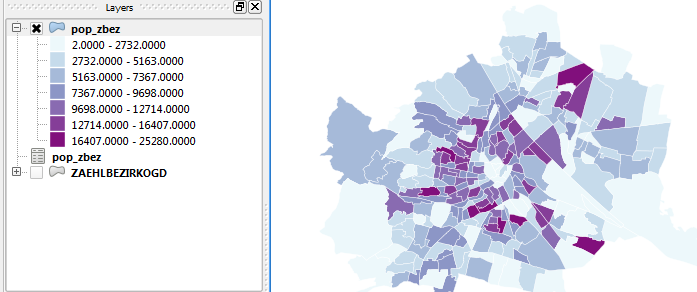
This is the population density map I start out with:

… and this is the Corine Land Cover dataset for the same area:

It shows built-up areas (red), parks and natural areas (green) as well as water-covered regions (blue). For further analysis, I follow the assumption that people only live in areas with Corine code 111 “Continuous urban fabric” and 112 “Discontinuous urban fabric”. Therefore, I use the Intersection tool to clip only these residential areas from the subdistrict polygons. The subdistrict population can now be distributed over these new, smaller areas (use Field Calculator) to create a more realistic visualization of population density:

For easier comparison, I put the original density and the dasymetric map into a looping animation. Some subdistricts change their population density values quite drastically, especially in regions where big parts covered by water or rail infrastructure were removed:

Corine Land Cover is not too detailed but I think it still usable on this scale. One thing to note is that I used data from 2006 with population data from 2012 so some areas in the outer districts will have been turned residential in the meantime. But I hope this doesn’t distort the overall picture too much.

The city of Vienna provides both subdistrict geometries and population statistics. Mapping the city’s population density should be straightforward, right? Let’s see …

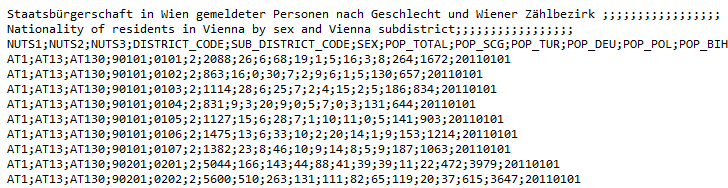
We should be able to join on ZBEZ and SUB_DISTRICT_CODE, check! But what about the actual population counts? Unfortunately, there is no file which simply lists population per subdistrict. The file I found contains four lines for each subdistrict: females 2011, males 2011, females 2012 and males 2012. That’s not the perfect format for mapping general population density.

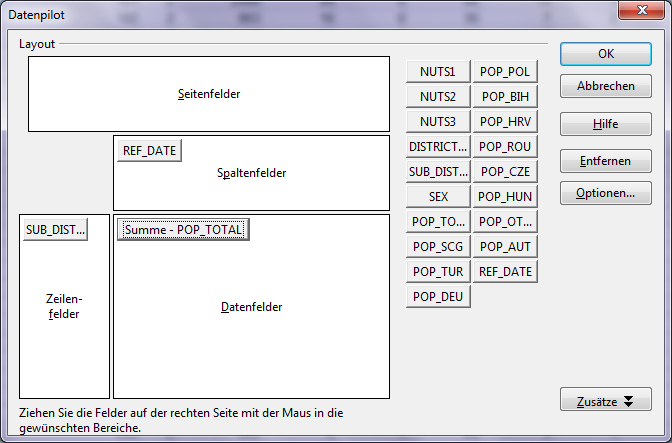
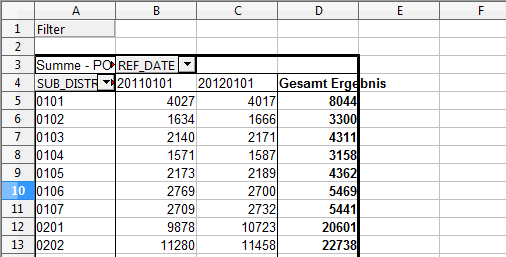
A quick way to prepare our input data is applying pivot tables, eg. in Open Office: The goal is to have one row per subdistrict and columns for population in 2011 and 2012:

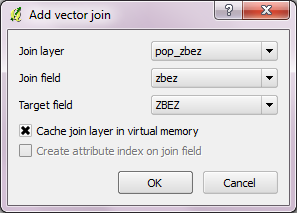
Export as CSV, add CSVT and load into QGIS. Finally, we can join geometries and CSV table:

A quick look at the joined data confirms that each subdistrict now has a population value. But visualizing absolute values results in misleading maps. Big subdistricts with only average density will overrule smaller but much denser subdistricts:

That’s why we need to calculate population density. This is easy to do using Field Calculator. The subdistrict file already contains area values but even if they were missing, we could calculate it using the $area operator: "pop2012" / ($area / 10000). The resulting population density in population per ha finally shows which subdistricts are the most densely populated:

One could argue that this is still no accurate representation of population density: Big parts of some subdistricts are actually covered by water – especially along the Danube – and therefore uninhabited. There are also big parks which could be excluded from the subdistrict area. But that’s going to be the topic of another post.

If you want to use my results so far, you can download the GeoJSON file from Github.

Today, I’ve finished my submission for the Hubway Data Visualization Challenge. All parts of the resulting dataviz were created using open source tools. My toolbox for this work contains: QGIS, Spatialite, Inkscape, Gimp and Open Office Calc. To see the complete submission and read more about it, check the project page.

Continuing where I left off yesterday, I went on to creating another visualization based on the assumption that people like to bike downhill but will be more reluctant to bike uphill.

As described in yesterday’s post, the Hubway network features stations with a negative bike balance (more bikes leaving than arriving) and others with a positive balance. Positively balanced stations are where people like biking to while negatively balanced stations are less attractive – like if they were on top of a hill and hard to reach.

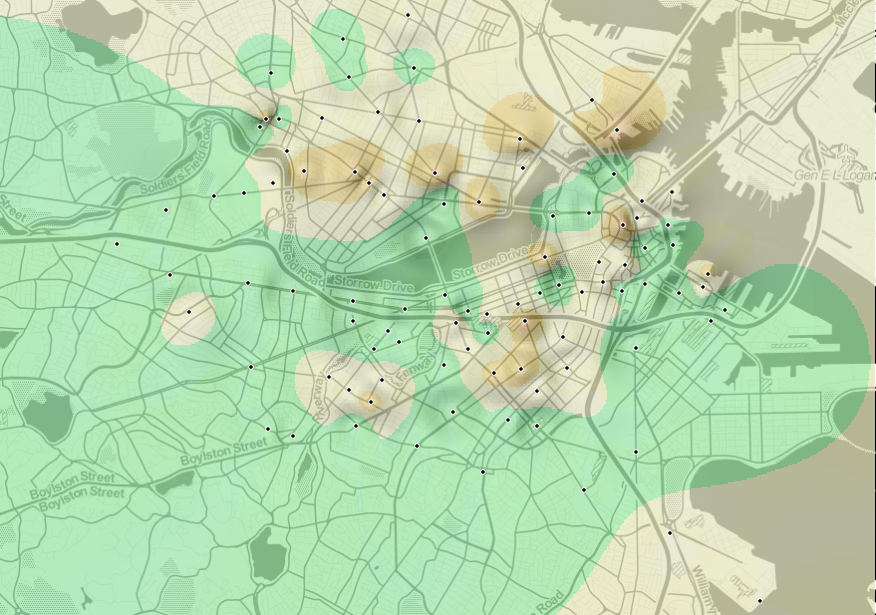
Using this assumption and QGIS Grid Interpolation and Relief tool, I’ve created the following biking landscape:

With a negative balance of -2.76 bikes per day, Mayor Thomas M. Menino – Government Center station is the most unpopular station to bike to. Assuming the trip dataset is complete, this means that Hubway has to regularly transport bikes from positively balanced stations to this one to keep the system going.

Due to some trips containing NULL values in start/end station id, the total number of incoming and outgoing trips does not add up perfectly. But otherwise, this should represent the state of Hubway’s biking landscape pretty well.

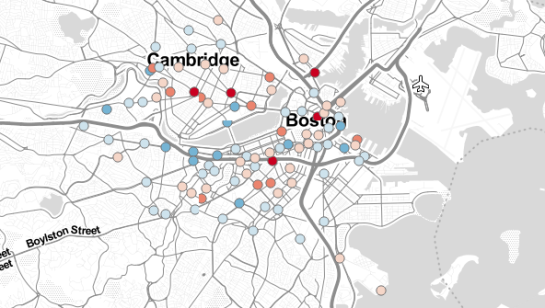
Today, I’ve been working on some station statistics. From the trip data, I calculated incoming and outgoing trips per station as well as the station’s first day of operations. Combining this information makes it possible to calculate the average day’s “bike balance”. A balanced station has the same number of incoming and outgoing trips while an unbalanced station will either run out of bikes or empty slots for returns.

I’ve published the resulting station map on QGIS Cloud (http://qgiscloud.com/anitagraser/hubway_cloud1) where you can have a look at the bike balance values.

Additionally, I’ve created a mashup in Leaflet pulling together background tiles from Stamen and the cloud-hosted WMS for better orientation:

Today, I’ve been experimenting with a new way to visualize origin-destination pairs (ODs). The following image shows my first results:

The ideas was to add a notion of direction as well as uncertainty. The “flower petals” have a pointed origin and grow wider towards the middle. (Looking at the final result, they should probably go much narrower towards the end again.) The area covered by the petals is a simple approximation of where I’d expect the bike routes without performing any routing.

To get there, I reprojected the connection lines to EPSG:3857 and calculated connection length and line orientation using QGIS Field Calculator $length operator and the bearing formula given in QGIS Wiki:

(atan((xat(-1)-xat(0))/(yat(-1)-yat(0)))) * 180/3.14159 + (180 *(((yat(-1)-yat(0)) < 0) + (((xat(-1)-xat(0)) < 0 AND (yat(-1) - yat(0)) >0)*2)))

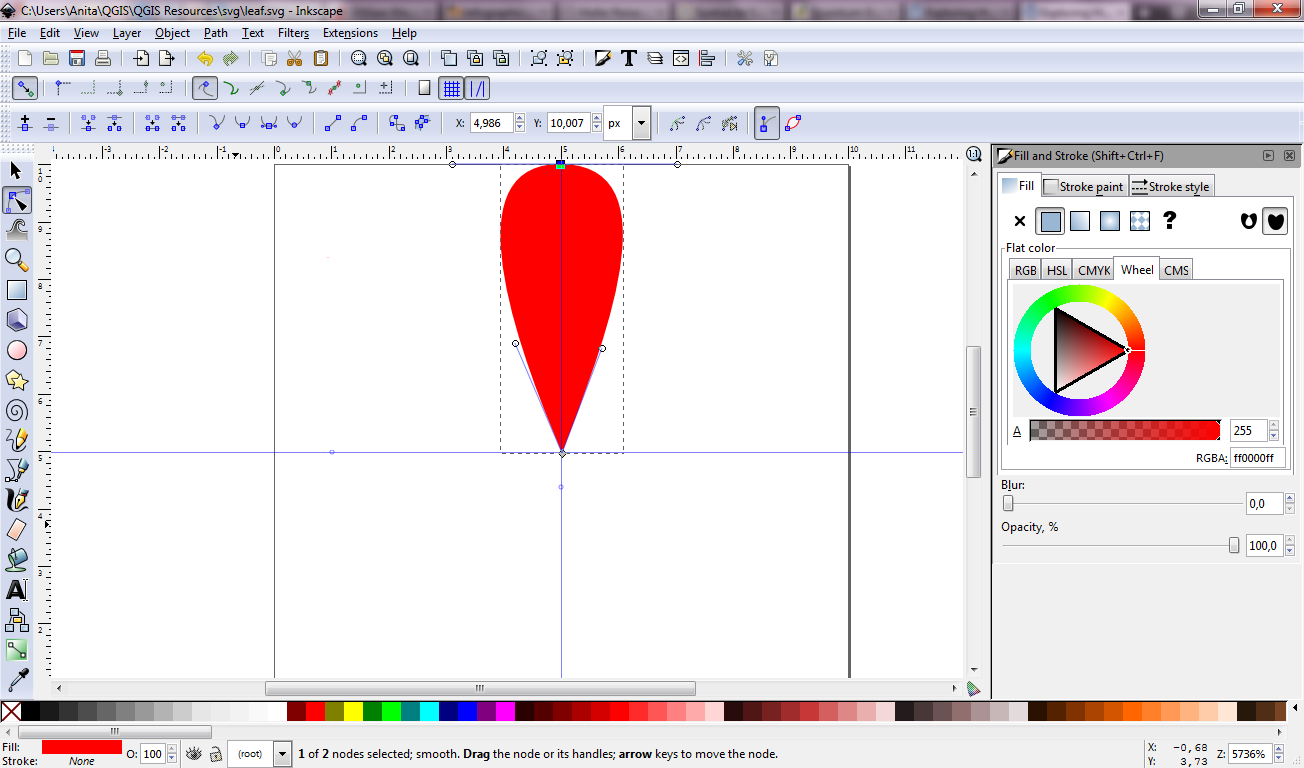
For the style, I created a new “flower petal” SVG symbol in Inkscape and styled it with varying transparency values: Rare connections are more transparent than popular ones. This style is applied to the connection start points. Using the advanced options “size scale” and “rotation”, it is possible to rotate the petals into the right direction as well as scale them using the previously calculated values for connection length and orientation.

Update

While the above example uses pretty wide petals this one is done with a much narrower petal. I think it’s more appropriate for the data at hand:

Most of the connections are clearly heading south east, across Charles River, except for that group of connections pointing the opposite direction, to Harvard Square.

Hubway is a bike sharing system in Boston and they are currently hosting a data visualization challenge. What a great chance to play with some real-world data!

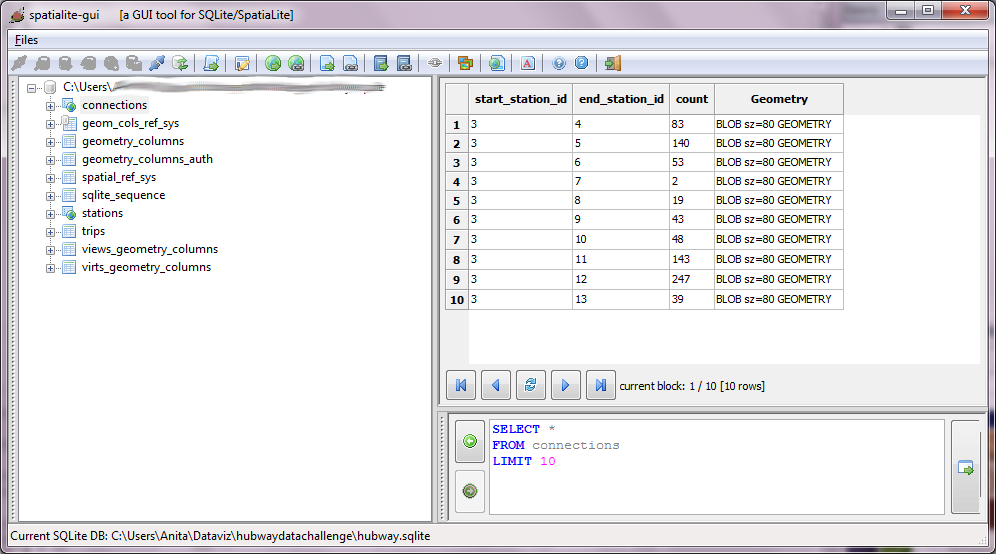
To get started, I loaded both station Shapefile and trip CSV into a new Spatialite database. The GUI is really helpful here – everything is done in a few clicks. Afterwards, I decided to look into which station combinations are most popular. The following SQL script creates my connections table:

create table connections (
start_station_id INTEGER,
end_station_id INTEGER,
count INTEGER,
Geometry GEOMETRY);


insert into connections select 
start_station_id, 
end_station_id, 
count(*) as count, 
LineFromText('LINESTRING('||X(a.Geometry)||' '||Y(a.Geometry)||','
                          ||X(b.Geometry)||' '||Y(b.Geometry)||')') as Geometry
 from trips, stations a, stations b
where start_station_id = a.ID 
and end_station_id = b.ID
and a.ID != b.ID
and a.ID is not NULL
and b.ID is not NULL
group by start_station_id, end_station_id;

(Note: This is for Spatialite 2.4, so there is no MakeLine() method. Use MakeLine if you are using 3.0.)

For a first impression, I decided to map popular connections with more than one hundred entries. Wider lines mean more entries. The points show the station locations and they are color coded by starting letter. (I’m not yet sure if they mean anything. They seem to form groups.)

Some of the stations don’t seem to have any strong connections at all. Others are rather busy. The city center and the dark blue axis pointing west seem most popular.

I’m really looking forward to what everyone else will be finding in this dataset.

This is an update to my previous post “WFS to PostGIS in 3 Steps”. Thanks to Even Rouault’s comments and improvements to GDAL, it is now possible to load Latin1-encoded WFS (like the one by data.wien.gv.at) into PostGIS in just one simple step.

To use the following instructions, you’ll have to get the latest GDAL (release-1600-gdal-mapserver.zip)

You only need to run SDKShell.bat to set up the environment and ogr2ogr is ready for action:

C:\Users\Anita>cd C:\release-1600-gdal-mapserver
C:\release-1600-gdal-mapserver>SDKShell.bat
C:\release-1600-gdal-mapserver>ogr2ogr -overwrite -f PostgreSQL PG:"user=myuser password=mypassword dbname=wien_ogd" "WFS:http://data.wien.gv.at/daten/geoserver/ows?service=WFS&request=GetFeature&version=1.1.0&typeName=ogdwien:BEZIRKSGRENZEOGD&srsName=EPSG:4326"

Thanks everyone for your comments and help!

This is a quick note on how to download features from a WFS and import them into a PostGIS database. The first line downloads a zipped Shapefile from the WFS. The second one unzips it and the last one loads the data into my existing “gis_experimental” database:

wget "http://data.wien.gv.at/daten/geoserver/ows?service=WFS&request=GetFeature&version=1.1.0&typeName=ogdwien:BEZIRKSGRENZEOGD&srsName=EPSG:4326&outputFormat=shape-zip" -O BEZIRKSGRENZEOGD.zip
unzip -d /tmp BEZIRKSGRENZEOGD.zip
shp2pgsql -s 4326 -I -S -c -W Latin1 "/tmp/BEZIRKSGRENZEOGD.shp" | psql gis_experimental

Now, I’d just need a loop through the WFS Capabilities to automatically fetch all offered layers … Ideas anyone?

Thanks to Tim for his post “Batch importing shapefiles into PostGIS” which was very useful here.

Update: Many readers have pointed out that ogr2ogr is a great tool for this kind of use cases and can do the above in one line. That’s true – if it works. Unfortunately, it is picky about the supported encodings, e.g. doesn’t want to parse ISO-8859-15. In such cases, the three code lines above can be a good alternative.