Archive

Author Archives: underdark

Today’s post is a note-to-self on how to set up a really quick little Leaflet web map with Stamen’s “Toner” background and a WMS overlay served by QGIS Server.

Note the use of the map parameter when creating the QGIS Server WMS layer.

<!DOCTYPE html PUBLIC "-//W3C//DTD XHTML 1.0 Strict//EN" "http://www.w3.org/TR/xhtml1/DTD/xhtml1-strict.dtd">
<html xmlns="http://www.w3.org/1999/xhtml" xml:lang="en" lang="en">
<head>

<meta http-equiv="content-type" content="text/html; charset=utf-8" />
<meta http-equiv="content-language" content="en" />

<title>Leaflet, Stamen Toner and QGIS Server</title>

<link rel="stylesheet" href="http://leaflet.cloudmade.com/dist/leaflet.css" />
<link rel="stylesheet" href="my.css" type="text/css" />
 <!--[if lte IE 8]><link rel="stylesheet" href="http://leaflet.cloudmade.com/dist/leaflet.ie.css" /><![endif]-->

<script type="text/javascript" src="http://leaflet.cloudmade.com/dist/leaflet.js"></script>
<script type="text/javascript" src="http://maps.stamen.com/js/tile.stamen.js?v1.1.3"></script>
<script type="text/javascript">
function initialize() {
	var stamen = new L.StamenTileLayer("toner-lite");
	
	var myLayer = new L.TileLayer.WMS("http://10.101.21.28/cgi-bin/qgis_mapserv.fcgi", {
		map: "/usr/lib/cgi-bin/test/test.qgs",
		layers: 'mylayer',
		format: 'image/png',
		transparent: 'TRUE',
	});
	
	var map = new L.Map("map", {
		center: new L.LatLng(48.2,16.4),
		zoom: 13,
 		minZoom: 10,
 		maxZoom: 18,
		layers: [stamen,myLayer],
	});
}
</script>

</head>

<body onload="initialize()">
    <div id="map" class="map"></div>
</body>

</html>

With this my.css, the map will be displayed in “full screen”.

  div.map{
    display:block;
    position:absolute;
    top:0;
    left:0;
    width:100%;
    height:100%;
  }

Update

You can test an extended live example at http://anitagraser.github.com/Webmapping-Sandbox/leaflet.html

Data from various vehicles is collected for many purposes in cities worldwide. To get a feeling for just how much data is available, I created the following video using QGIS Time Manager which has been shown at the Austrian Museum of Applied Arts “MADE 4 YOU – Design for Change”. It shows one hour of taxi tracks in the city of Vienna:

If you like the video, please go to http://www.ertico.com/2012-its-video-competition-open-vote and vote for it in the category “Videos directed at the general public”.

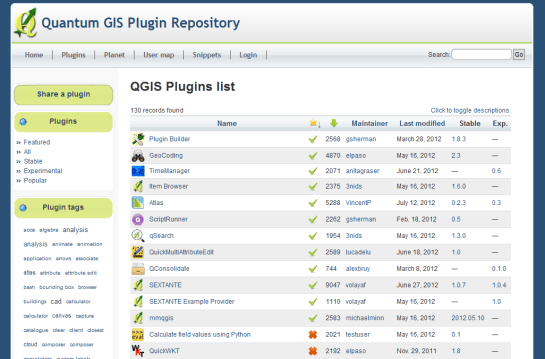
  1. Since the release of QGIS 1.8, Plugin Installer no longer includes the “add 3rd party repositories” button. This was an intentional design choice!
  2. The new official plugin repository at plugins.qgis.org keeps everything in one place making it easier for users to find documentation and report issues. It will also provide many long-wanted features such as a rating system for plugins. You can already sort by number of downloads to discover the most popular plugins.
  3. Last but not least: New users will not be able to discover your plugin if it is not in the repository.

Go ahead to plugins.qgis.org and upload your plugin now!

Yesterday, Martin Dobias announced that Arun’s GSoC work on QGIS symbology has been merged into the developer version. So let’s have a look at todays nightly-build!

I’ll step through the features mentioned in the announcement to see how they look and work:

1. Style manager has been greatly improved: grouping of symbols, tagging, “smart” groups (showing only symbols matching some criteria), search

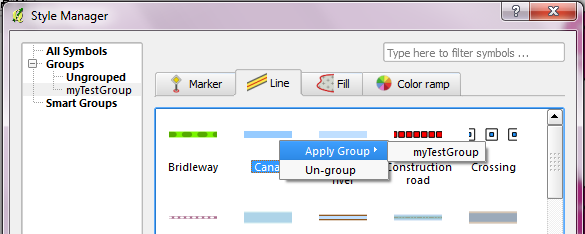
On opening new Style Manager, we can already see that it has changed considerably: There are groups on the left, tags at the bottom and a search field in the upper right corner.

new Style Manager

New groups are created with the “+” button and styles can be added using the context menu:

adding a style to a group

2. Symbol selector and properties dialogs have been integrated to just one dialog, improving the usability a lot

Instead of opening tons of nested windows, complex styles can now be easily edited using the symbol layer tree on the left:

new Properties window

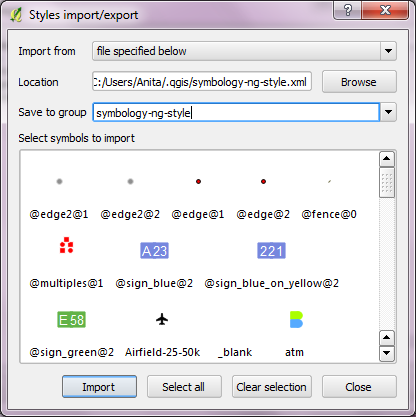
3. Style database is now stored in a SQLite database rather than an XML file for better scalability. You can import all your saved symbols and color ramps from ~/.qgis/symbology-ng-style.xml – from now they will be stored in ~/.qgis/symbology-ng-style.db.

Importing through Style Manager works like a charm. All styles will be imported into the given group.

importing previous style.xml

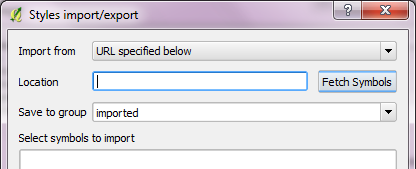
4. Style import improvements: load style directly from given URL, saving imported symbols into a group

Instead of giving a path to a style XML, it’s also possible to specify a URL. That’s a great step towards shared symbol libraries!

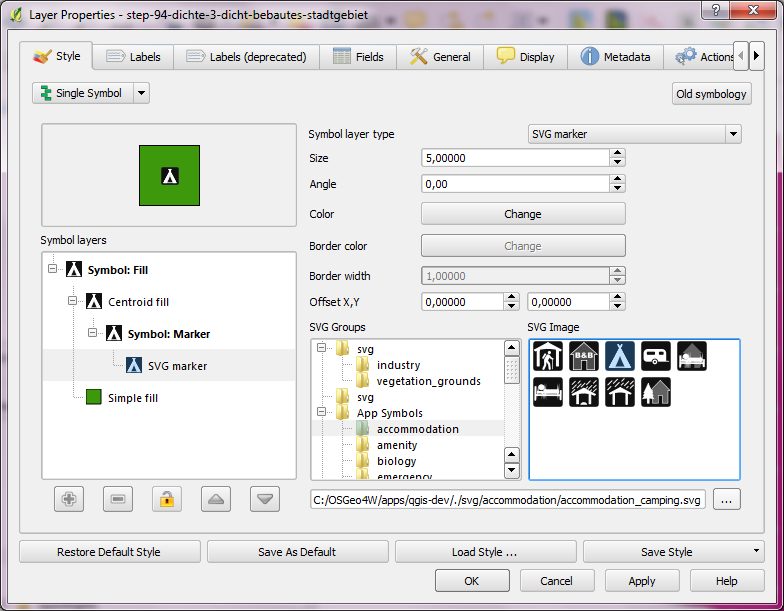
5. SVG fill: shows directories for easier traversal through the SVG directories

Definitely a plus! It’s now much easier to work with big SVG symbol collections.

What a great result of this year’s Google Summer of Code for QGIS. Give these new features a try! I already fell in love with them.

This post continues my quest of exploring the spatial dimension of Twitter streams. I wanted to try one of the classic spatio-temporal visualization methods: Space-time cubes where the vertical axis represents time while the other two map space. Like the two previous examples, this visualization is written in pyprocessing, a Python port of the popular processing environment.

This space-time cube shows twitter trajectories that contain at least one tweet in New York Times Square. The 24-hour day starts at the bottom of the cube and continues to the top. Trajectories are colored based on the time stamp of their start tweet.

Additionally, all trajectories are also drawn in context of the coastline (data: OpenStreetMap) on the bottom of the cube.

While there doesn’t seem to be much going on in the early morning hours, we can see quite a busy coming and going during the afternoon and evening. From the bunch of vertical lines over Times Square, we can also assume that some of our tweet authors spent a considerable time at and near Times Square.

I’ve also created an animated version. Again, I recommend to watch it in HD.

Stamen’s maps are amongst the most creative and beautiful OpenStreetMap visualizations and it would be great to have them as base maps in QGIS.

No problem! Nathaniel Kelso has already done all the work for us and we can download the extended OpenLayers plugin from his Github page. (There is a pull request in place to add Stamen to the default plugin too.)

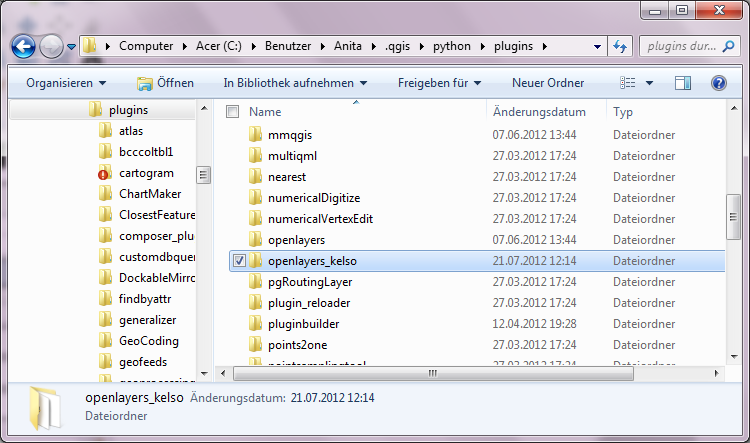
Simply unpack the plugin into QGIS’ plugin folder. As you can see in the following screen shot, I’ve put it besides the “original” OpenLayers 0.6.2 plugin. In QGIS plugin manager, I then switched to Nathaniel’s version.

It adds the possibility to load Stamen’s Watercolor, Toner and Terrain tiles into the QGIS project:

Like all other OpenLayers layers, these can now be overlaid with more data such as this heatmap which is based on Twitter data I presented in a previous post, processed using Heatmap plugin and semi-transparently overlaid onto Stamen’s Toner map:

After my first shot at analyzing Twitter data visually I received a lot of great feedback. Thank you!

For my new attempt, I worked on incorporating your feedback such as: filter unrealistic location changes, show connections “grow” instead of just popping up and zoom to an interesting location. The new animation therefore focuses on Manhattan – one of the places with reasonably high geotweet coverage.

The background is based on OpenStreetMap coastline data which I downloaded using QGIS OSM plugin and rendered in pyprocessing together with the geotweets. To really see what’s going on, switch to HD resolution and full screen:

It’s pretty much work-in-progress. The animation shows similar chaotic patterns seen in other’s attempts at animating tweets. To me, the distribution of tweets looks reasonable and many of the connection lines seem to actually coincide with the bridges spanning to and from Manhattan.

This work is an attempt at discovering the potential of Twitter data and at the same time learning some pyprocessing which will certainly be useful for many future tasks. The next logical step seems to be to add information about interactions between users and/or to look at the message content. Another interesting task would be to add interactivity to the visualization.

QGIS Cloud is a great cloud hosting service for QGIS Server by Sourcepole. After online registration and installation of an (experimental) plugin, QGIS projects can be uploaded to the cloud quite comfortably.

For a quick test, I tried to recreate the map from “Open Data for Physical Maps”. Right now, one of the limitations is that raster layers cannot be uploaded. Instead of the SRTM data, I therefore chose OCM landscape from OpenLayers plugin to provide some hillshade. The process of uploading data and publishing the project went smoothly and I didn’t encounter any problems.

You can explore the map online at qgiscloud.com/anitagraser/corine_austria.

Considering the complexity of the Corine dataset, rendering is quite fast – certainly much better than on my notebook.

Twitter streams are curious things, especially the spatial data part. I’ve been using Tweepy to collect tweets from the public timeline and what did I discover? Tweets can have up to three different spatial references: “coordinates”, “geo” and “place”. I’ll still have to do some more reading on how to interpret these different attributes.

For now, I have been using “coordinates” to explore the contents of a stream which was collected over a period of five hours using

stream.filter(follow=None,locations=(-180,-90,180,90))

for global coverage. In the video, each georeferenced tweet produces a new dot on the map and if the user’s coordinates change, a blue arrow is drawn:

While pretty, these long blue arrows seem rather suspicious. I’ve only been monitoring the stream for around five hours. Any cross-Atlantic would take longer than that. I’m either misinterpreting the tweets or these coordinates are fake. Seems like it is time to dive deeper into the data.

Corine Land Cover is a European program to create a land cover inventory of Europe. The data is freely available and a valuable input for many analyses. In this post, we’ll be using it to create a physical map.

For the background, reused the hillshade presented in “Mapping Open Data With Open GIS”

Instead of the standard grayscale, I defined a sand-colored colormap that looks warmer and more natural:

On top of this hillshade, I put the Corine land cover layer. Instead of the official, rather bright colors I selected a more neutral color palette and varying transparency values: Water areas are drawn with no transparency while forests are set to 50 % and built-up areas to up to 80 % transparency. I also skipped classes such as “bare rock” by setting them to be totally transparent:

On top of the land cover, I added a river dataset and styled it with the same color used for water surfaces in the Corine layer. Obviously, this is an optional step. Big rivers are visible within the land cover data too.

After adding a mask and labels, the map is ready to add the finishing touches in Print Composer: Title, explanatory text and a scale bar. I decided against adding a legend to this particular map since I hope that the color choices are intuitive enough.

If you want to create your own physical map, you can use Corine Land Cover for European regions or the National Vegetation Classification in the U.S.