Archive

spatio-temporal data

The last time I preprocessed the whole GeoLife dataset, I loaded it into PostGIS. Today, I want to share a new workflow that creates a (Geo)Parquet file and that is much faster.

The dataset (GeoLife)

“This GPS trajectory dataset was collected in (Microsoft Research Asia) Geolife project by 182 users in a period of over three years (from April 2007 to August 2012). A GPS trajectory of this dataset is represented by a sequence of time-stamped points, each of which contains the information of latitude, longitude and altitude. This dataset contains 17,621 trajectories with a total distance of about 1.2 million kilometers and a total duration of 48,000+ hours. These trajectories were recorded by different GPS loggers and GPS-phones, and have a variety of sampling rates. 91 percent of the trajectories are logged in a dense representation, e.g. every 1~5 seconds or every 5~10 meters per point.”

The GeoLife GPS Trajectories download contains 182 directories full of .plt files:

Basically, CSV files with a custom header:

Creating the (Geo)Parquet using DuckDB

DuckDB installation

Following the official instructions, installation is straightforward:

curl https://install.duckdb.org | sh

From there, I’ve been using the GUI which we can launch using:

duckdb -ui

The spatial extension is a DuckDB core extension, so it’s readily available. We can create a spatial db with:

ATTACH IF NOT EXISTS ':memory:' AS memory;
INSTALL spatial;
LOAD spatial;

Reading a spatial file is as simple as:

SELECT * 
FROM '/home/anita/Documents/Codeberg/trajectools/sample_data/geolife.gpkg'

thanks to the GDAL integration.

But today, we want to do to get a bit more involved …

DuckDB SQL magic

The issues we need to solve are:

  1. Read all CSV files from all subdirectories
  2. Parse the CSV, ignoring the first couple of lines, while assigning proper column names
  3. Assign the CSV file name as the trajectory ID (because there is no ID in the original files)
  4. Create point geometries that will work with our GeoParquet file
  5. Create proper datetimes from the separate date and time fields

Luckily, DuckDB’s read_csv function comes with the necessary features built-in. Putting it all together:

CREATE OR REPLACE TABLE geolife AS 
SELECT 
  parse_filename(filename, true) as vehicle_id, 
  strptime(date||' '||time, '%c') as t, 
  ST_Point(lon, lat) as geometry -- do NOT use ST_MakePoint
FROM read_csv('/home/anita/Documents/Geodata/Geolife/Geolife Trajectories 1.3/Data/*/*/*.plt',
    skip=6,
    filename = true, 
    columns = {
        'lat': 'DOUBLE', 
        'lon': 'DOUBLE', 
        'ignore': 'INT', 
        'alt': 'DOUBLE', 
        'epoch': 'DOUBLE', 
        'date': 'VARCHAR',
        'time': 'VARCHAR'
    });

It’s blazingly fast:

I haven’t tested reading directly from ZIP archives yet, but there seems to be a community extension (zipfs) for this exact purpose.

Ready to QGIS

GeoParquet files can be drag-n-dropped into QGIS:

I’m running QGIS 3.42.1-Münster from conda-forge on Linux Mint.

Yes, it takes a while to render all 25 million points … But you know what? It get’s really snappy once we zoom in closer, e.g. to the situation in Germany:

Let’s have a closer look at what’s going on here.

Trajectools time

Selecting the 9,438 points in this extent, let’s compute movement metrics (speed & direction) and create trajectory lines:

Looks like we have some high-speed sections in there (with those red > 100 km/h streaks):

When we zoom in to Darmstadt and enable the trajectories layer, we can see each individual trip. Looks like car trips on the highway and walks through the city:

That looks like quite the long round trip:

Let’s see where they might have stopped to have a break:

If I had to guess, I’d say they stayed at the Best Western:

Conclusion

DuckDB has been great for this ETL workflow. I didn’t use much of its geospatial capabilities here but I was pleasantly surprised how smooth the GeoParquet creation process has been. Geometries are handled without any special magic and are recognized by QGIS. Same with the timestamps. All ready for more heavy spatiotemporal analysis with Trajectools.

If you haven’t tried DuckDB or GeoParquet yet, give it a try, particularly if you’re collaborating with data scientists from other domains and want to exchange data.

The QGISUC2025 team has done an awesome job recording and editing the conference presentations. All “presentation” type talks where the presenter has accepted to be published are now available in a dedicated list on the QGIS Youtube channel.

I also had the pleasure of presenting our Trajectools plugin and you can see this talk here:

Thank you to all the organizers, speakers, and participants for the great time!

Today, I want to point out a blog post over at

https://carto.com/blog/urban-mobility-insights-with-movingpandas-carto-in-snowflake

written together with my fellow co-authors and EMERALDS project team member Argyrios Kyrgiazos.

For the technically inclined, the highlight are the presented UDFs in Snowflake to process and transform the trajectory data. For example, here’s a TemporalSplitter UDF:
CREATE OR REPLACE FUNCTION CARTO_DATABASE.CARTO.TemporalSplitter(geom ARRAY, t ARRAY, mode STRING)
RETURNS ARRAY
LANGUAGE PYTHON
RUNTIME_VERSION = 3.11
PACKAGES = ('numpy','pandas', 'geopandas','movingpandas', 'shapely')
HANDLER = 'udf'
AS $$
import numpy as np
import pandas as pd
import geopandas as gpd
import movingpandas as mpd
import shapely
from shapely.geometry import shape, mapping, Point, Polygon
from shapely.validation import make_valid
from datetime import datetime, timedelta

def udf(geom, t, mode):
    valid_df = pd.DataFrame(geom, columns=['geometry'])
    valid_df['t'] = pd.to_datetime(t)
    valid_df['geometry'] = valid_df['geometry'].apply(lambda x:shapely.wkt.loads(x))
    gdf = gpd.GeoDataFrame(valid_df, geometry='geometry', crs='epsg:4326')
    gdf = gdf.set_index('t')
    traj = mpd.Trajectory(gdf, 1)
    traj_sm = mpd.TemporalSplitter(traj).split(mode=mode)
    if len(traj_sm.trajectories)>0:
        res = traj_sm.to_point_gdf()
        res['geometry'] = res['geometry'].apply(lambda x: shapely.wkt.dumps(x))
        return res.reset_index().values
    else:
        return []
$$;

You can find the full code here: https://github.com/anitagraser/carto-research-public/tree/master/movingpandas_carto_in_snowflake

Today marks the release of Trajectools 2.3 which brings a new set of algorithms, including trajectory generalizing, cleaning, and smoothing.

To give you a quick impression of what some of these algorithms would be useful for, this post introduces a trajectory preprocessing workflow that is quite general-purpose and can be adapted to many different datasets.

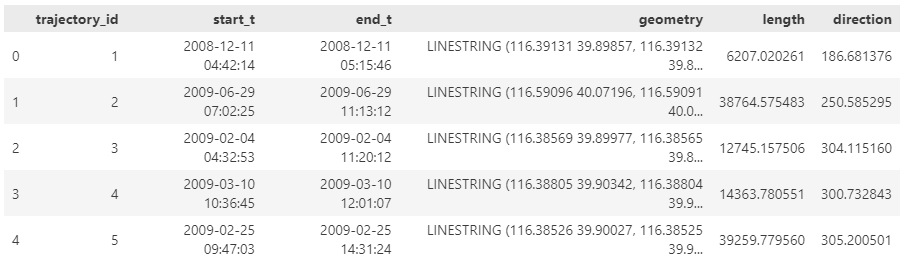
We start out with the Geolife sample dataset which you can find in the Trajectools plugin directory’s sample_data subdirectory. This small dataset includes 5908 points forming 5 trajectories, based on the trajectory_id field:

We first split our trajectories by observation gaps to ensure that there are no large gaps in our trajectories. Let’s make at cut at 15 minutes:

This splits the original 5 trajectories into 11 trajectories:

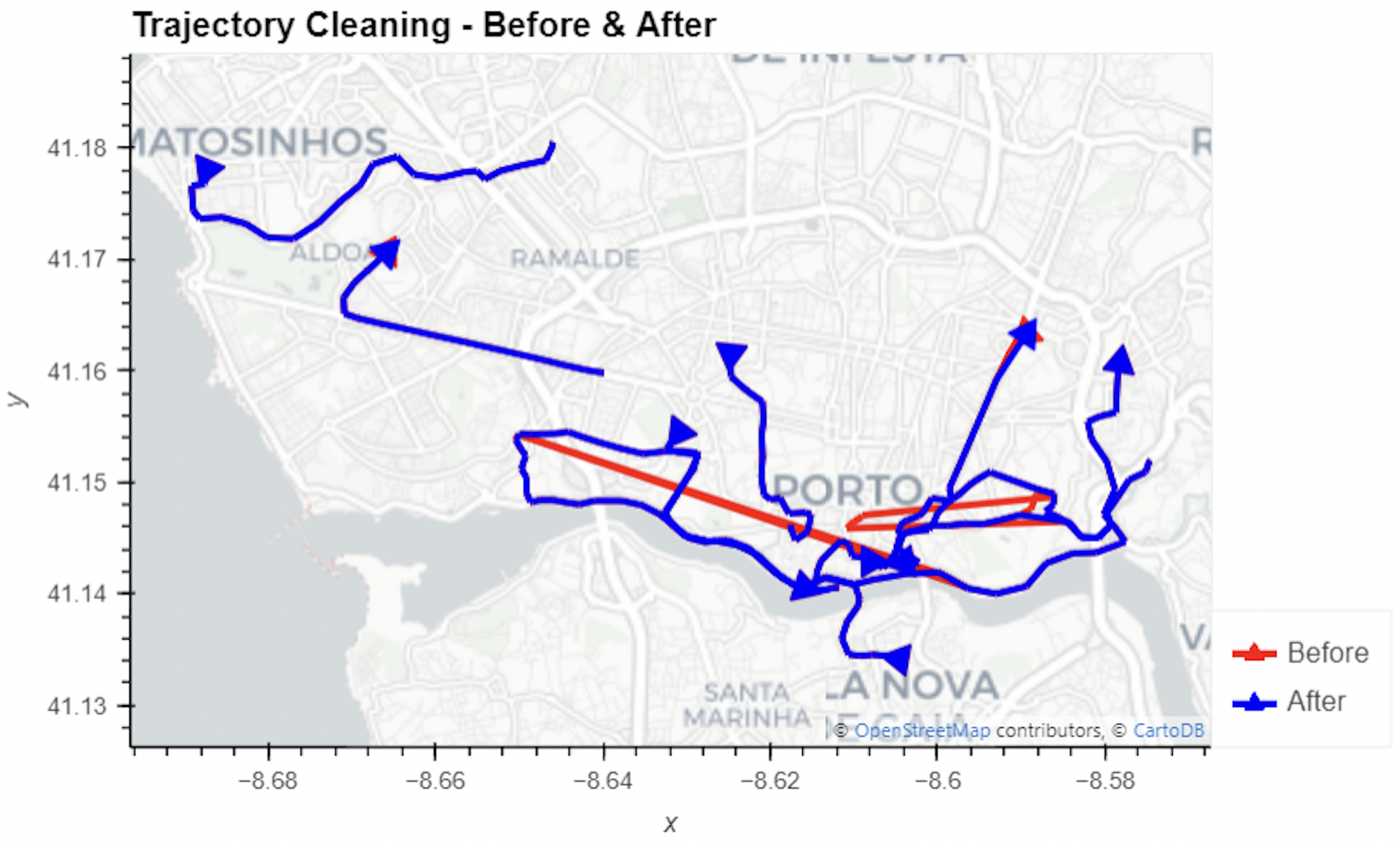
When we zoom, for example, to the two trajectories in the north western corner, we can see that the trajectories are pretty noisy and there’s even a spike / outlier at the western end:

If we label the points with the corresponding speeds, we can see how unrealistic they are: over 300 km/h!

Let’s remove outliers over 50 km/h:

Better but not perfect:

Let’s smooth the trajectories to get rid of more of the jittering.

(You’ll need to pip/mamba install the optional stonesoup library to get access to this algorithm.)

Depending on the noise values we chose, we get more or less smoothing:

Let’s zoom out to see the whole trajectory again:

Feel free to pan around and check how our preprocessing affected the other trajectories, for example:

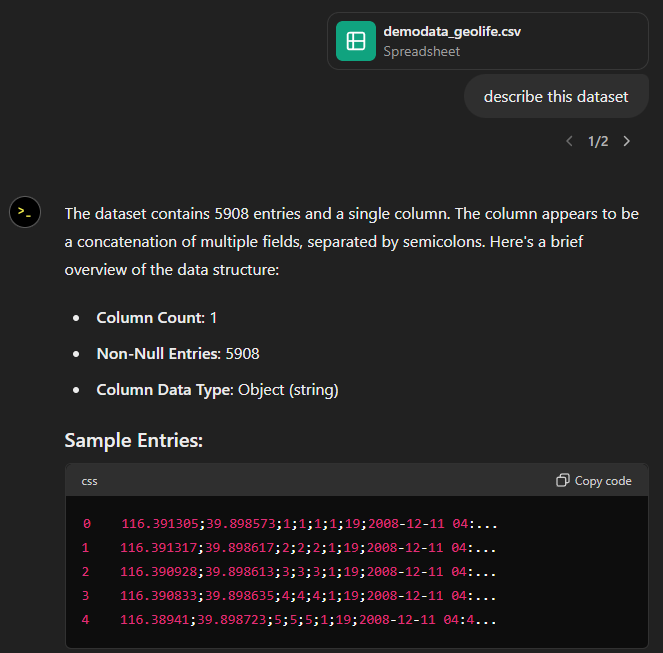
Today, I took ChatGPT’s Data Analyst for a spin. You’ve probably seen the fancy advertising videos: just drop in a dataset and AI does all the analysis for you?! Let’s see …

Of course, I’m not going to use some lame movie database or flower petals data. Instead, let’s go all in and test with a movement dataset.
You don’t get a second chance to make a first impression, they say. — Well, Data Analyst, you didn’t impress on the first try. How hard can it be to guess the delimiter and act accordingly?

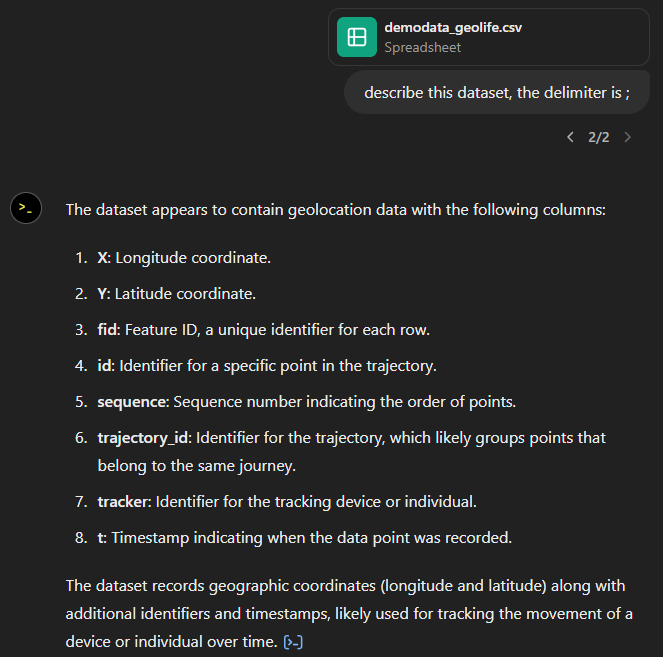
Anyway, let’s help it a little:

That looks much better. It makes an effort to guess what the columns could mean and successfully identifies the spatiotemporal information.

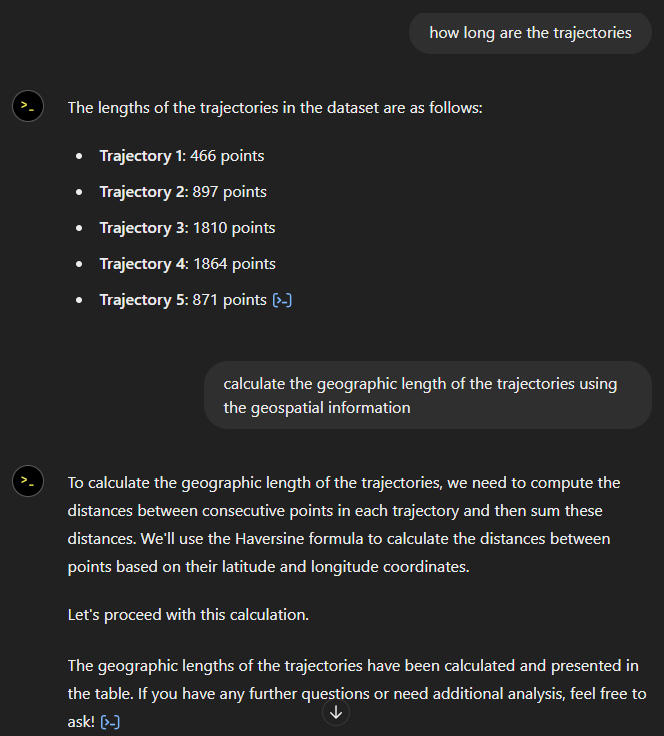
Now for some spatial analysis. On first try, it didn’t want to calculate the length of the trajectories in geographic terms, but we can make it to:

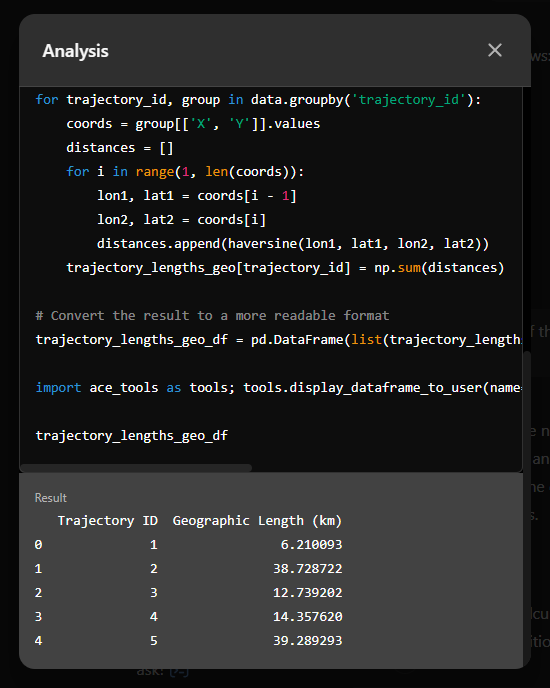
It will also show the code used to get to the results:

And indeed, these are close enough to the results computed using MovingPandas:

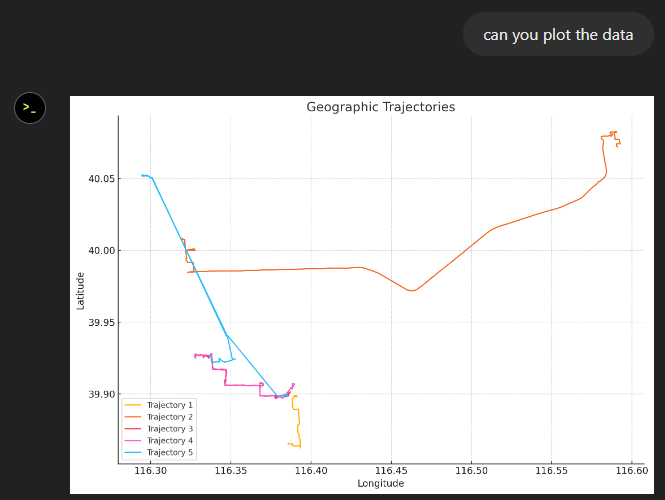
“What about plots?” I hear you ask.

For a first try, not bad at all:

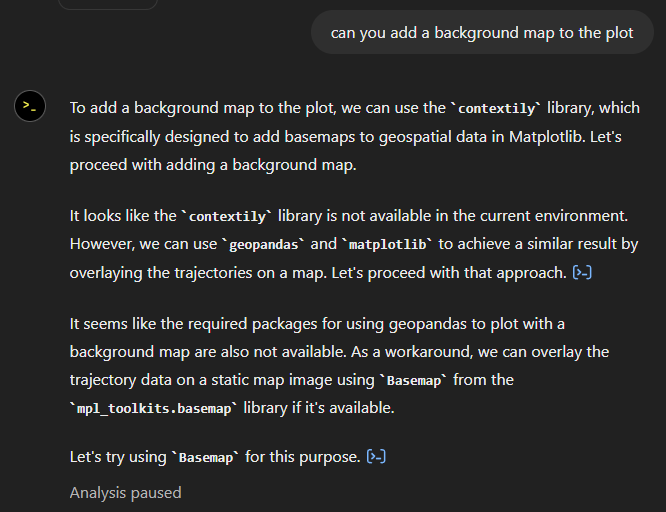
Let’s see if we can push it further:

Looks like poor Data Analyst ended up in geospatial library dependency hell 😈

It’s interesting to watch it try find a solution.

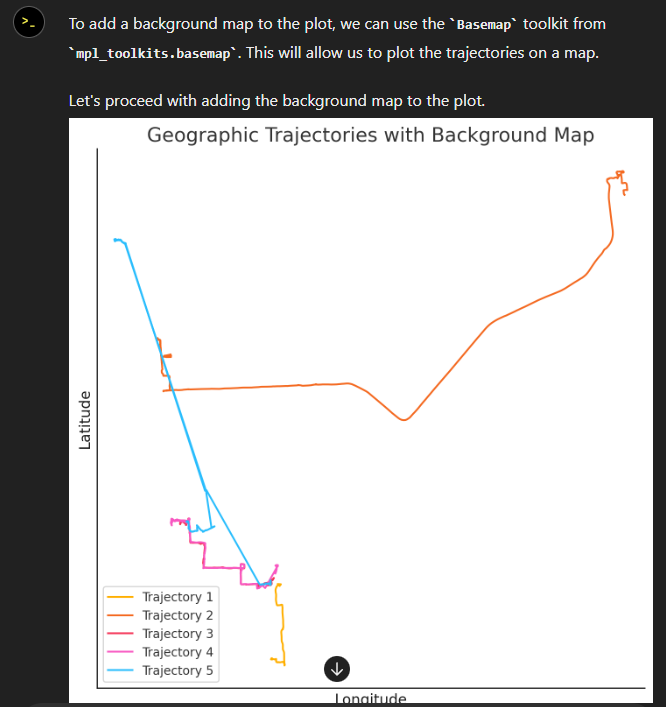
Alas, no background map appears:

Not giving up yet :)

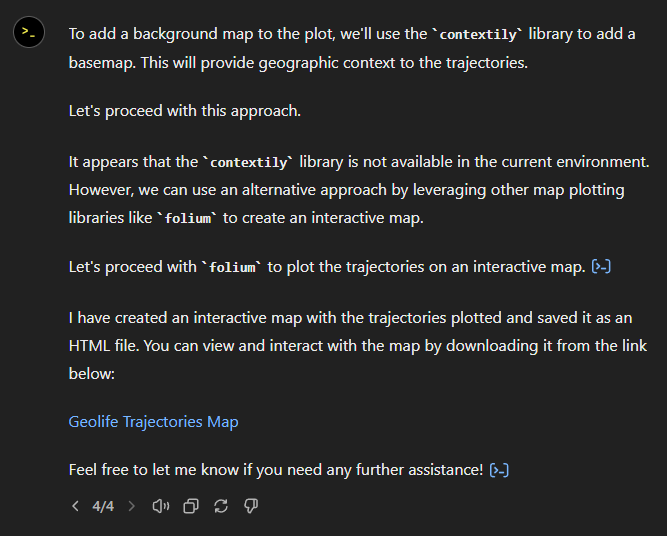
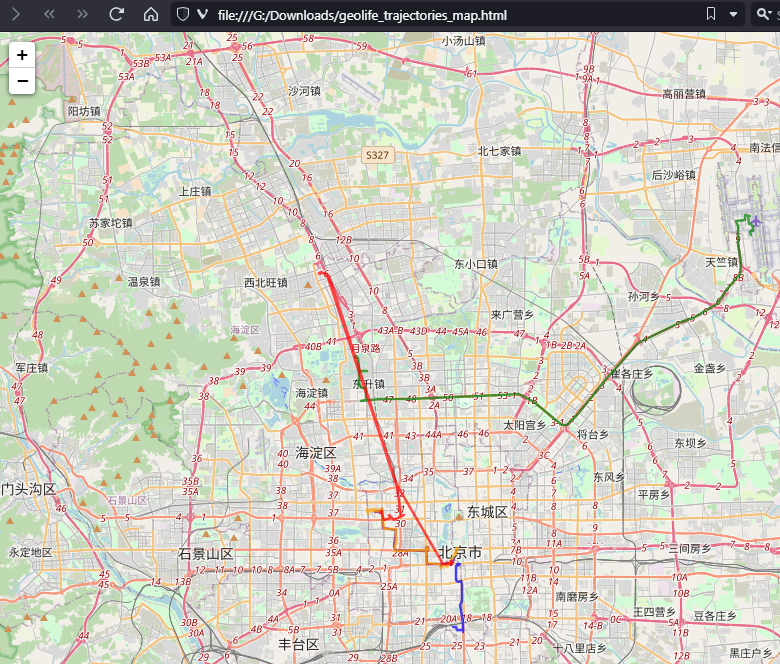
Woah, what happened here? It claims it created an interactive map in an HTML file.

And indeed it did:

This has been a very interesting experiment for me with many highs and lows. The whole process is a bit hit and miss. But when it does work, it’s fun.

I wasn’t sure what to expect with regards to Data Analyst’s spatial data processing capabilities. Looks like there are enough examples in its training data to find solutions for the basic trajectory analysis problems I asked it solve today, eventually, at least.

What’s the conclusion? Most AI marketing videos are severely overselling the capabilities of these tools. However, that doesn’t mean that they are completely useless, either. I’m looking forward to seeing the age of smaller open source models specifically trained for geospatial analysis to finally make it unnecessary for humans to memorize data analysis library syntax.

Today marks the 2.1 release of Trajectools for QGIS. This release adds multiple new algorithms and improvements. Since some improvements involve upstream MovingPandas functionality, I recommend to also update MovingPandas while you’re at it.

If you have installed QGIS and MovingPandas via conda / mamba, you can simply:

conda activate qgis
mamba install movingpandas=0.18

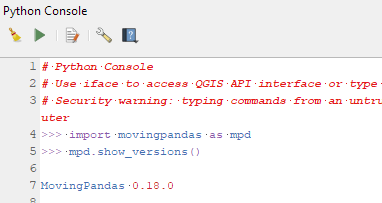
Afterwards, you can check that the library was correctly installed using:

import movingpandas as mpd
mpd.show_versions()

Trajectools 2.1

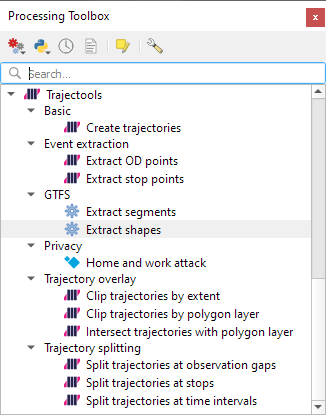
The new Trajectools algorithms are:

  • Trajectory overlay — Intersect trajectories with polygon layer
  • Privacy — Home work attack (requires scikit-mobility)
    • This algorithm determines how easy it is to identify an individual in a dataset. In a home and work attack the adversary knows the coordinates of the two locations most frequently visited by an individual.
  • GTFS — Extract segments (requires gtfs_functions)
  • GTFS — Extract shapes (requires gtfs_functions)

Furthermore, we have fixed issue with previously ignored minimum trajectory length settings.

Scikit-mobility and gtfs_functions are optional dependencies. You do not need to install them, if you do not want to use the corresponding algorithms. In any case, they can be installed using mamba and pip:

mamba install scikit-mobility
pip install gtfs_functions

MovingPandas 0.18

This release adds multiple new features, including

  • Method chaining support for add_speed(), add_direction(), and other functions
  • New TrajectoryCollection.get_trajectories(obj_id) function
  • New trajectory splitter based on heading angle
  • New TrajectoryCollection.intersection(feature) function
  • New plotting function hvplot_pts()
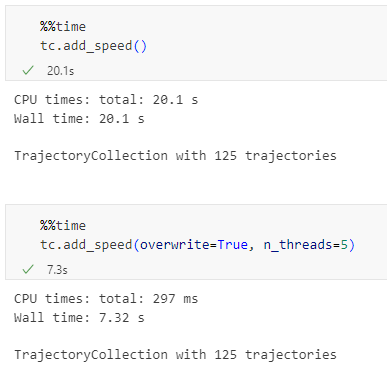
  • Faster TrajectoryCollection operations through multi-threading
  • Added moving object weights support to trajectory aggregator

For the full change log, check out the release page.

The Trajectools toolbox has continued growing:

I’m continuously testing the algorithms integrated so far to see if they work as GIS users would expect and can to ensure that they can be integrated in Processing model seamlessly.

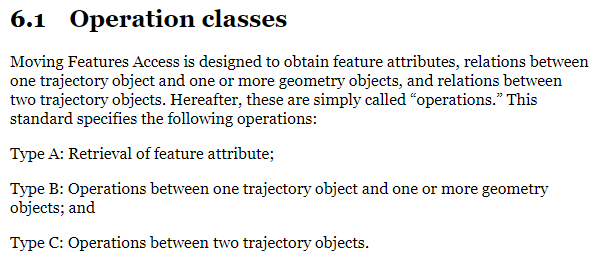
Because naming things is tricky, I’m currently struggling with how to best group the toolbox algorithms into meaningful categories. I looked into the categories mentioned in OGC Moving Features Access but honestly found them kind of lacking:

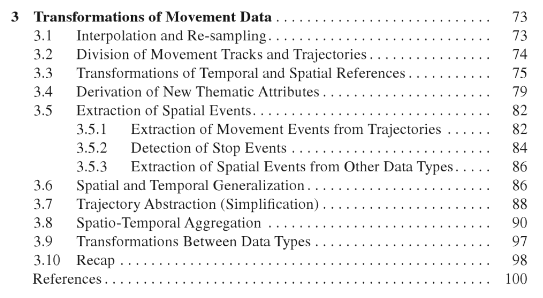
Andrienko et al.’s book “Visual Analytics of Movement” comes closer to what I’m looking for:

… but I’m not convinced yet. So take the above listed three categories with a grain of salt. Those may change before the release. (Any inputs / feedback / recommendation welcome!)

Let me close this quick status update with a screencast showcasing stop detection in AIS data, featuring the recently added trajectory styling using interpolated lines:

While Trajectools is getting ready for its 2.0 release, you can get the current development version directly from https://github.com/movingpandas/qgis-processing-trajectory.

Today, I want to point out a blog post over at

https://carto.com/blog/analyzing-mobility-hotspots-with-movingpandas

written together with my fellow co-authors and EMERALDS project team members Argyrios Kyrgiazos and Helen McKenzie.

In this blog post, we walk you through a trajectory hotspot analysis using open taxi trajectory data from Kaggle, combining data preparation with MovingPandas (including the new OutlierCleaner illustrated above) and spatiotemporal hotspot analysis from Carto.

In a recent post, we looked into a graph-based model for maritime mobility data and how it may be represented in Neo4J. Today, I want to look into another type of mobility data: public transport schedules in GTFS format.

In this post, I’ll be using the public GTFS data for Riga since Riga is one of the demo sites for our current EMERALDS research project.

The workflow is heavily inspired by Bert Radke‘s post “Loading the UK GTFS data feed” from 2021 and his import Cypher script which I used as a template, adjusted to the requirements of the Riga dataset, and updated to recent Neo4J changes.

Here we go.

Since a GTFS export is basically a ZIP archive full of CSVs, we will be making good use of Neo4Js CSV loading capabilities. The basic script for importing the stops file and creating point geometries from lat and lon values would be:

LOAD CSV with headers 
FROM "file:///stops.txt" 
AS row 
CREATE (:Stop {
   stop_id: row["stop_id"],
   name: row["stop_name"], 
   location: point({
    longitude: toFloat(row["stop_lon"]),
    latitude: toFloat(row["stop_lat"])
    })
})

This requires that the stops.txt is located in the import directory of your Neo4J database. When we run the above script and the file is missing, Neo4J will tell us where it tried to look for it. In my case, the directory ended up being:

C:\Users\Anita\.Neo4jDesktop\relate-data\dbmss\dbms-72882d24-bf91-4031-84e9-abd24624b760\import

So, let’s put all GTFS CSVs into that directory and we should be good to go.

Let’s start with the agency file:

load csv with headers from
'file:///agency.txt' as row
create (a:Agency {
   id: row.agency_id, 
   name: row.agency_name, 
   url: row.agency_url, 
   timezone: row.agency_timezone, 
   lang: row.agency_lang
});

… Added 1 label, created 1 node, set 5 properties, completed after 31 ms.

The routes file does not include agency info but, luckily, there is only one agency, so we can hard-code it:

load csv with headers from
'file:///routes.txt' as row
match (a:Agency {id: "rigassatiksme"})
create (a)-[:OPERATES]->(r:Route {
   id: row.route_id, 
   shortName: row.route_short_name,
   longName: row.route_long_name, 
   type: toInteger(row.route_type)
});

… Added 81 labels, created 81 nodes, set 324 properties, created 81 relationships, completed after 28 ms.

From stops, I’m removing non-existent or empty columns:

load csv with headers from
'file:///stops.txt' as row
create (s:Stop {
   id: row.stop_id, 
   name: row.stop_name, 
   location: point({
      latitude: toFloat(row.stop_lat), 
      longitude: toFloat(row.stop_lon)
   }),
   code: row.stop_code
});

… Added 1671 labels, created 1671 nodes, set 5013 properties, completed after 71 ms.

From trips, I’m also removing non-existent or empty columns:

load csv with headers from
'file:///trips.txt' as row
match (r:Route {id: row.route_id})
create (r)<-[:USES]-(t:Trip {
   id: row.trip_id, 
   serviceId: row.service_id,
   headSign: row.trip_headsign, 
   direction_id: toInteger(row.direction_id),
   blockId: row.block_id,
   shapeId: row.shape_id
});

… Added 14427 labels, created 14427 nodes, set 86562 properties, created 14427 relationships, completed after 875 ms.

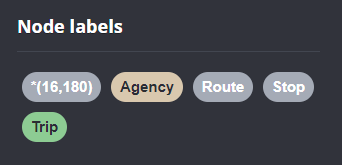
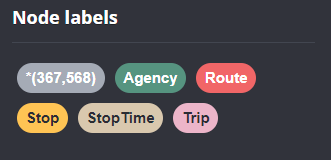
Slowly getting there. We now have around 16k nodes in our graph:

Finally, it’s stop times time. This is where the serious information is. This file is much larger than all previous ones with over 300k lines (i.e. times when an PT vehicle stops).

This requires another tweak to Bert’s script since using periodic commit is not supported anymore: The PERIODIC COMMIT query hint is no longer supported. Please use CALL { … } IN TRANSACTIONS instead. So I ended up using the following, based on https://community.neo4j.com/t/best-practice-for-replacement-of-using-periodic-commit-to-call-in-transactions/48636/2:

:auto
load csv with headers from
'file:///stop_times.txt' as row
CALL { with row
match (t:Trip {id: row.trip_id}), (s:Stop {id: row.stop_id})
create (t)<-[:BELONGS_TO]-(st:StopTime {
   arrivalTime: row.arrival_time, 
   departureTime: row.departure_time,
   stopSequence: toInteger(row.stop_sequence)})-[:STOPS_AT]->(s)
} IN TRANSACTIONS OF 10 ROWS;

… Added 351388 labels, created 351388 nodes, set 1054164 properties, created 702776 relationships, completed after 1364220 ms.

As you can see, this took a while. But now we have all nodes in place:

The final statement adds additional relationships between consecutive stop times:

call apoc.periodic.iterate('match (t:Trip) return t',
'match (t)<-[:BELONGS_TO]-(st) with st order by st.stopSequence asc
with collect(st) as stops
unwind range(0, size(stops)-2) as i
with stops[i] as curr, stops[i+1] as next
merge (curr)-[:NEXT_STOP]->(next)', {batchmode: "BATCH", parallel:true, parallel:true, batchSize:1});

This fails with: There is no procedure with the name apoc.periodic.iterate registered for this database instance. Please ensure you've spelled the procedure name correctly and that the procedure is properly deployed.

So, let’s install APOC. That’s a plugin which we can install into our database from within Neo4J Desktop:

After restarting the db, we can run the query:

No errors. Sounds good.

Let’s have a look at what we ended up with. Here are 25 random Trips. I expanded one of them to show its associated StopTimes. We can see the relations between consecutive StopTimes and I’ve expanded the final five StopTimes to show their linked Stops:

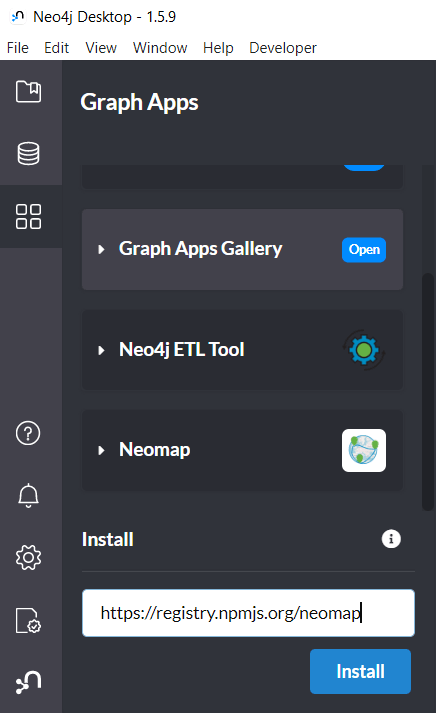
I also wanted to visualize the stops on a map. And there used to be a neat app called Neomap which can be installed easily:

However, Neomap does not seem to be compatible with the latest Neo4J:

So this final step will have to wait for another time.

Did you know that MovingPandas also supports local image coordinates? Indeed, it does.

In today’s post, we will explore how we can use this feature to analyze bicycle tracks extracted from video footage published by Michael Szell @mszll:

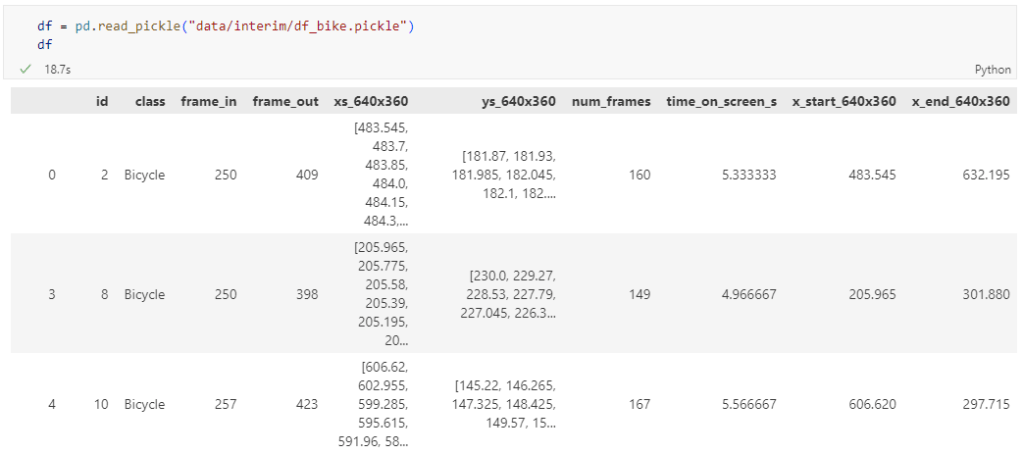
The bicycle trajectory coordinates are stored in two separate lists: xs_640x360 and ys640x360:

This format is kind of similar to the Kaggle Taxi dataset, we worked with in the previous post. However, to use the solution we implemented there, we need to combine the x and y coordinates into nice (x,y) tuples:

df['coordinates'] = df.apply(
    lambda row: list(zip(row['xs_640x360'], row['ys_640x360'])), axis=1)
df.drop(columns=['xs_640x360', 'ys_640x360'], inplace=True)

Afterwards, we can create the points and compute the proper timestamps from the frame numbers:

def compute_datetime(row):
    # some educated guessing going on here: the paper states that the video covers 2021-06-09 07:00-08:00
    d = datetime(2021,6,9,7,0,0) + (row['frame_in'] + row['running_number']) * timedelta(seconds=2)
    return d
def create_point(xy):
    try: 
        return Point(xy)
    except TypeError:  # when there are nan values in the input data
        return None
new_df = df.head().explode('coordinates')
new_df['geometry'] = new_df['coordinates'].apply(create_point)
new_df['running_number'] = new_df.groupby('id').cumcount()
new_df['datetime'] = new_df.apply(compute_datetime, axis=1)
new_df.drop(columns=['coordinates', 'frame_in', 'running_number'], inplace=True)
new_df

Once the points and timestamps are ready, we can create the MovingPandas TrajectoryCollection. Note how we explicitly state that there is no CRS for this dataset (crs=None):

trajs = mpd.TrajectoryCollection(
    gpd.GeoDataFrame(new_df), 
    traj_id_col='id',  t='datetime', crs=None)

Plotting trajectories with image coordinates

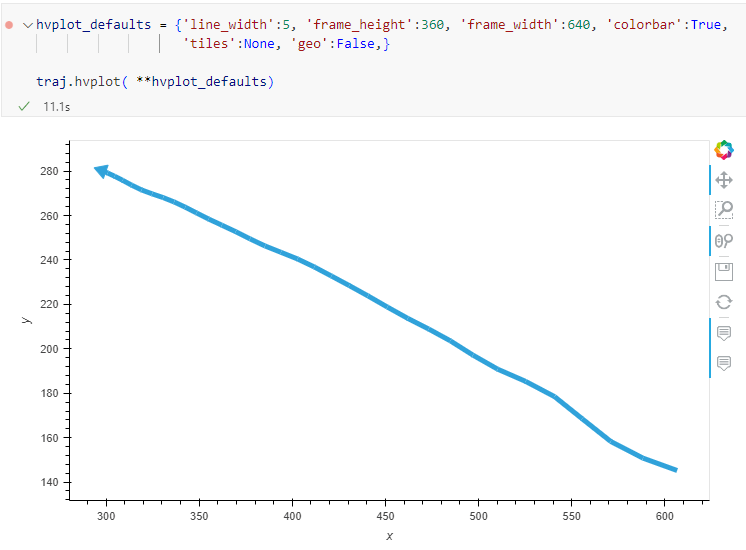
Similarly, to plot these trajectories, we should tell hvplot that it should not fetch any background map tiles (’tiles’:None) and that the coordinates are not geographic (‘geo’:False):

If you want to explore the full source code, you can find my Github fork with the Jupyter notebook at: https://github.com/anitagraser/desirelines/blob/main/mpd.ipynb

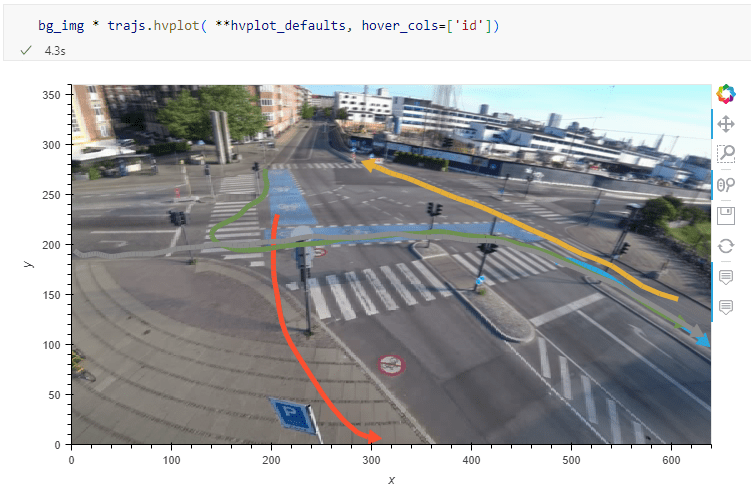
The repository also contains a camera image of the intersection, which we can use as a background for our trajectory plots:

bg_img = hv.RGB.load_image('img/intersection2.png', bounds=(0,0,640,360)) 

One important caveat is that speed will be calculated in pixels per second. So when we plot the bicycle speed, the segments closer to the camera will appear faster than the segments in the background:

To fix this issue, we would have to correct for the distortions of the camera lens and perspective. I’m sure that there is specialized software for this task but, for the purpose of this post, I’m going to grab the opportunity to finally test out the VectorBender plugin.

Georeferencing the trajectories using QGIS VectorBender plugin

Let’s load the five test trajectories and the camera image to QGIS. To make sure that they align properly, both are set to the same CRS and I’ve created the following basic world file for the camera image:

1
0
0
-1
0
360

Then we can use the VectorBender tools to georeference the trajectories by linking locations from the camera image to locations on aerial images. You can see the whole process in action here:

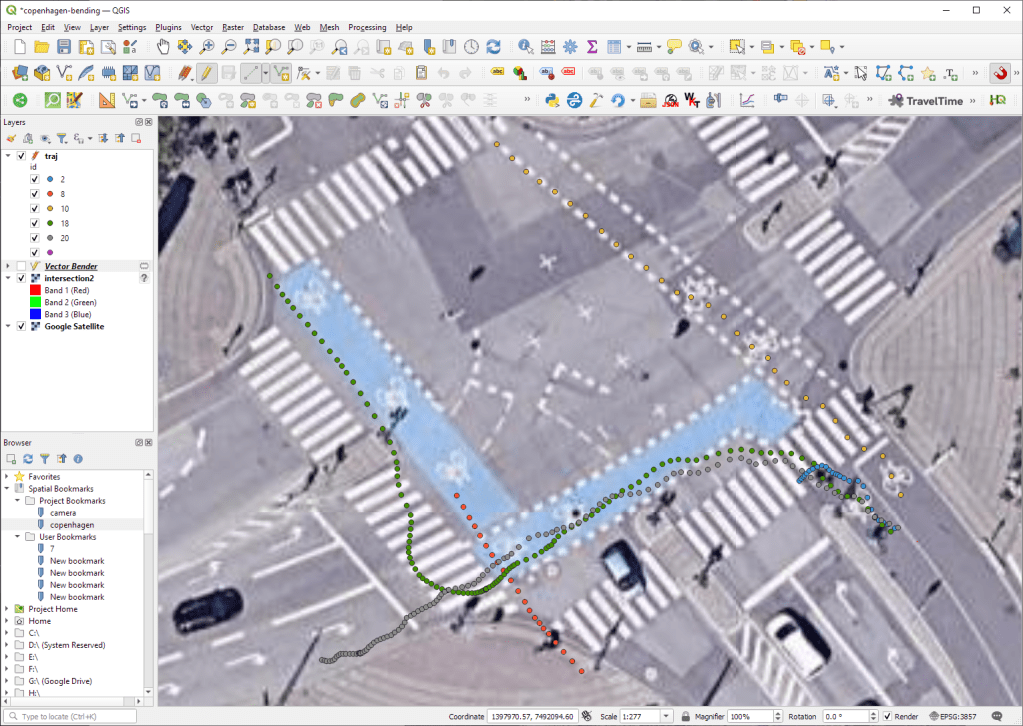
After around 15 minutes linking control points, VectorBender comes up with the following georeferenced trajectory result:

Not bad for a quick-and-dirty hack. Some points on the borders of the image could not be georeferenced since I wasn’t always able to identify suitable control points at the camera image borders. So it won’t be perfect but should improve speed estimates.


This post is part of a series. Read more about movement data in GIS.